
Quick start
2026-04-02
Hardware preparation
- One Windows computer, recommended Win10 system.
- A set of EC800GCN Hua series DTU development board.
- A usable Nano Sim card.
- A rubber stick antenna.
- A Mini USB data cable.
- A USB to TTL module.
Environment construction
- Download and install EC800G series module driver: QuecPython_USB_Driver_Win10_U_G.
- Double-click to run and follow the prompts to complete the installation.
- Verify the driver: Connect the development board to the computer using a Mini USB cable, open the "Device Manager", expand "Ports (COM and LPT)", and you should be able to see a port number similar to Quectel USB COM Port (for example, COM3). If it is not displayed, please check if the driver has been installed successfully, or try replacing the USB cable/connector.
- Download and install VSCode.
- Download and unzip QPYCom Tool to the appropriate location on the computer.
- Download and install the firmware package QPy_OCPU_SETA0002-EC800G_CNLD_SW. Please refer to Using QPYcom to Burn Firmware for firmware package burning
- Download the experimental source code of Development Resource Summary.
Hardware connection
Connect the hardware according to the following diagram:
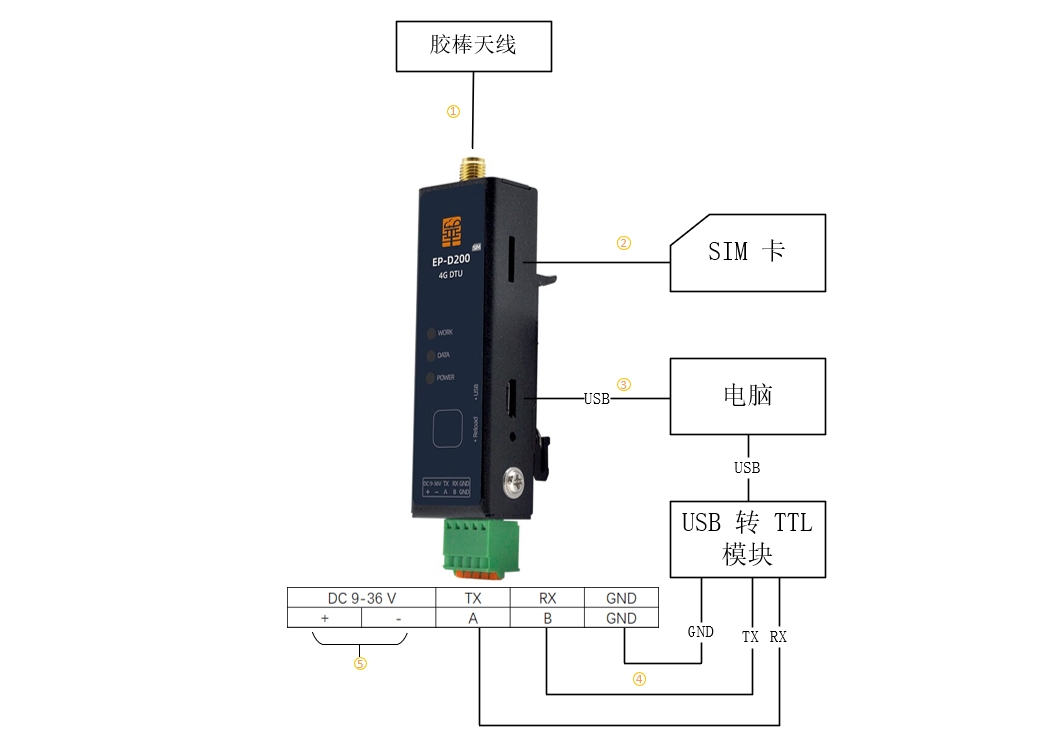
- Connect the rubber rod antenna.
- Insert the Nano Sim card.
- Connect to the computer using a mini USB data cable. In QPYCom, select the serial port and expand it. You will be able to see Quectel REPL Prot. Then, open it.
- Connect to the computer using a USB to TTL module. TX (DTU development board) connected to RX (USB to TTL module); RX (DTU development board) connected to TX (USB to TTL module); GND (DTU development board) is connected to GND (USB to TTL module) for common ground. If an RS485 interface is used, the A line at both ends is connected to the A line, and the B line is connected to the B
- The development board adopts a 9-36V wide power supply.
Equipment development
After completing the hardware connection, you can select the following protocols for device development based on your project requirements:
Each document provides detailed sample code and explanations to help you quickly establish communication with the cloud platform.