
OpenClaw Skill Configuration and Usage Tutorial
1.Core Concepts and Interrelationships
OpenClaw
OpenClaw is a local-first, open-source AI intelligent agent framework, not merely a chatbot or a large model. Its core capability is to break down natural language instructions into executable tasks, call various tools/services to complete the execution and provide feedback results. It supports local deployment (Windows 11 / server), integration with local large models, invocation of local / external tools (Shell, serial port, API, etc.), and also possesses features such as multi-channel interaction and persistent memory.
QuecPython-dev
QuecPython-dev is the general term for a set of tools / development kits centered around the development scenarios of QuecPython. It covers a series of development auxiliary capabilities such as module debugging, script development, firmware management, and device interaction, and is the core support system for developers to develop IoT applications based on QuecPython.
Core Relationship Among the Two
QuecPython-dev-skills is an exclusive skill plugin developed based on the OpenClaw framework. As an AI execution agent, OpenClaw can convert natural language instructions into specific operations for QuecPython development scenarios (such as module information detection, script deployment and running, firmware query and download, serial port interaction, etc.) by loading the QuecPython-dev-skills skills. This enables the automation and intelligence of the QuecPython development process, allowing developers to complete QuecPython-related development tasks without having to manually execute cumbersome debugging and operation commands. They can simply complete these tasks through natural language.
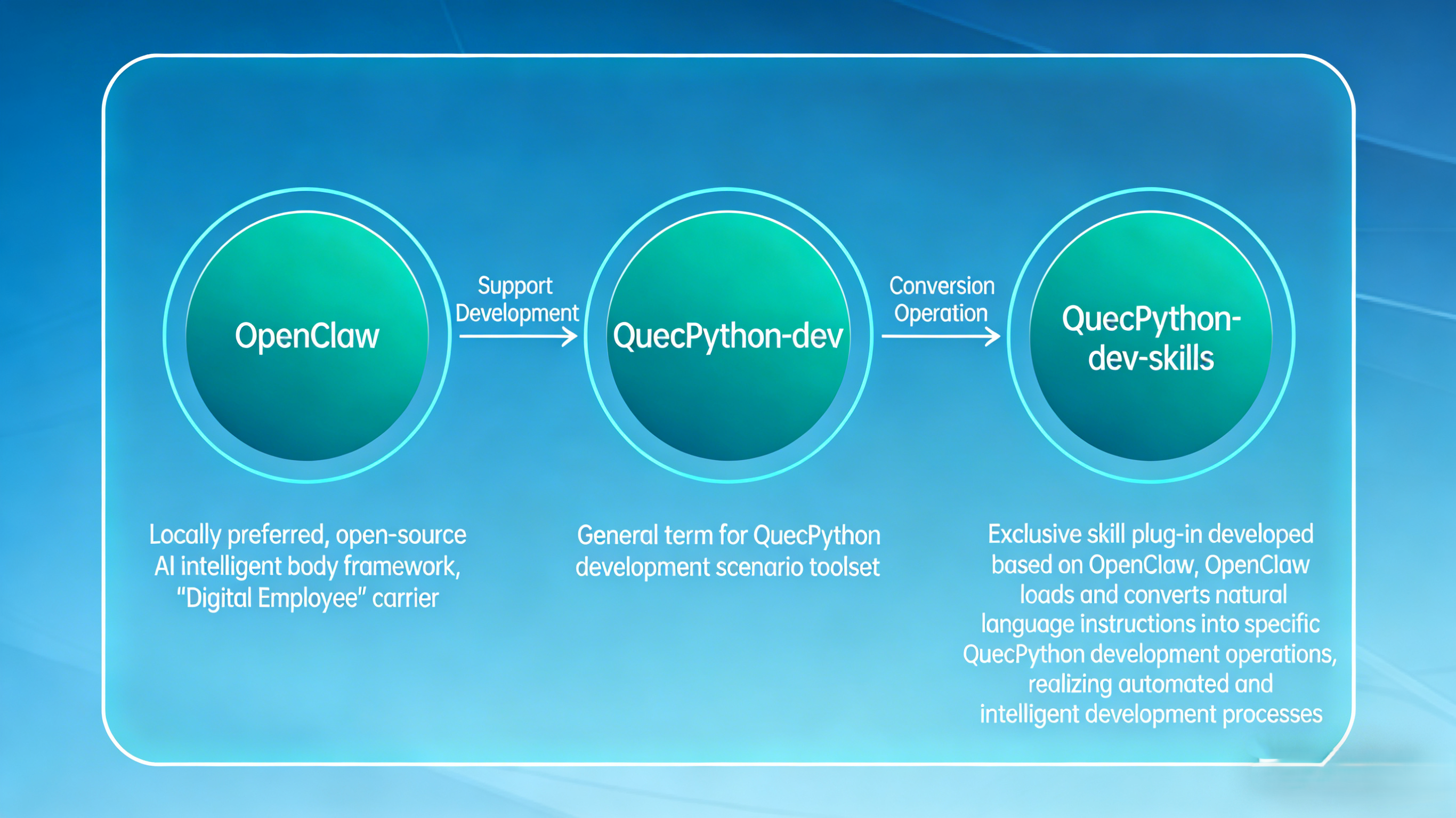 In simple terms: OpenClaw serves as the "digital employee" platform, while QuecPython-dev-skills are the "exclusive skills" tailored for QuecPython development. Together, they enable the full automation of the QuecPython development process.
2.Install OpenClaw
Install wsl (Windows' Linux Subsystem)
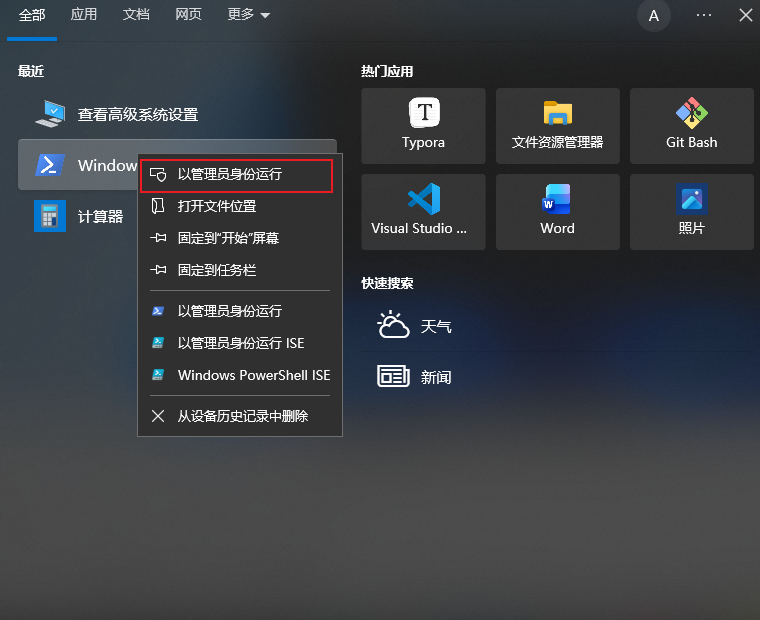
Run powershell as an administrator to prevent environment configuration issues caused by permission problems during deployment
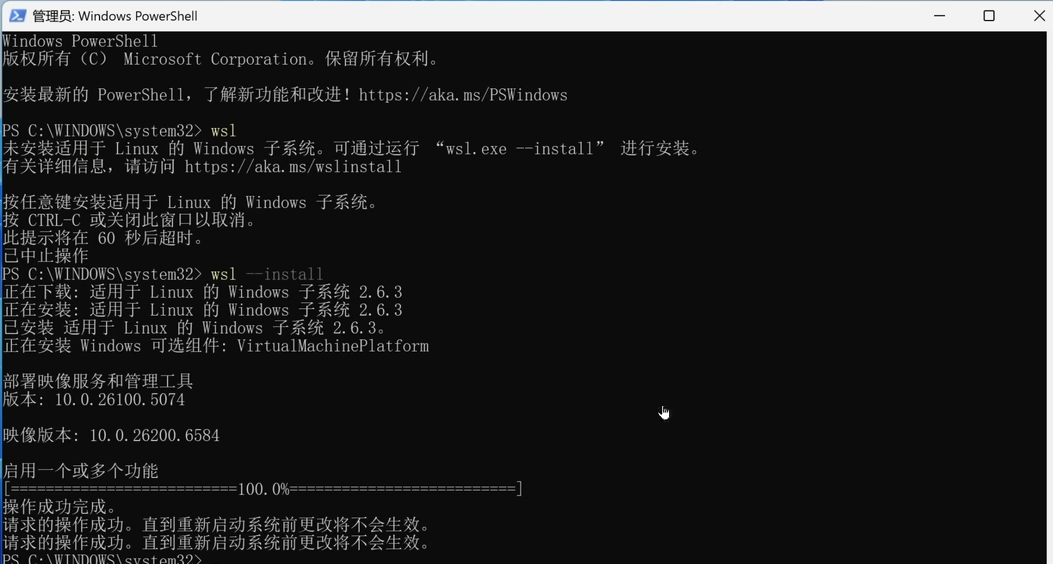
Use the command: 'wsl.exe --install' to install. After it is installed, we need to restart the computer
After restarting the computer, we continue to open powershell as an administrator and use the command: 'wsl --install Ubuntu-24.04' to follow Ubuntu (the distribution of Linux), which is the system officially recommended by openclaw.
After setting it up, a colored command line will appear

Update System Dependencies and Install Required Tools
Run the following commands to update the system software sources and install basic tools like curl and git for subsequent installation:
sudo apt update
sudo apt install -y curl git ca-certificates build-essential jq
Install Node.js 22
OpenClaw officially requires a Node.js version of 22 or higher. Execute the following commands to complete the installation:
curl -fsSL https://deb.nodesource.com/setup_22.x | sudo -E bash -
sudo apt install -y nodejs
After installation, verify the version meets requirements:
node -v   # Expected output: v22.x.x or higher
npm -v    # Expected output: 10.x.x or higher
Install OpenClaw
Install the latest version of OpenClaw globally via npm and verify the installation:
sudo npm install -g openclaw@latest
openclaw --version
Installation typically takes 5–10 minutes, depending on your network download speed.
Initialize OpenClaw
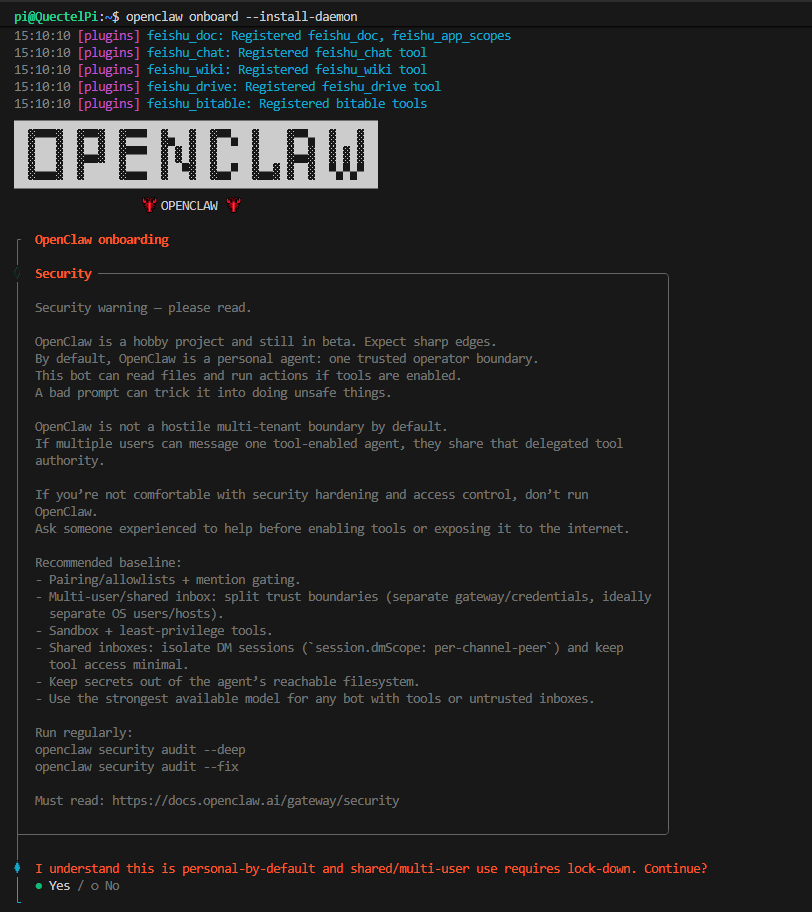
After the first installation, you must complete the configuration wizard; otherwise, OpenClaw cannot run properly. Execute the following command to launch the configuration wizard and install the gateway daemon:
openclaw onboard --install-daemon
The gateway daemon (a launchd/systemd user service) ensures OpenClaw runs persistently in the background.
Configuration Wizard Screenshots (For Reference Only)
Enter the installation confirmation screen, select [Yes], and press Enter;
Select [QuickStart] in the [Onboarding mode] option;

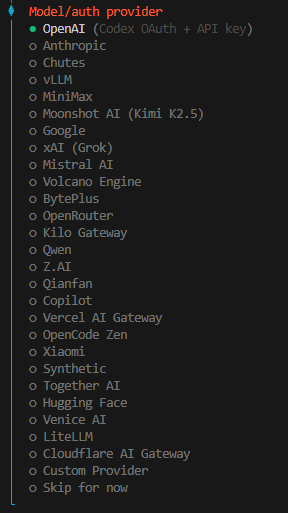
Select [Qwen] in the [Model/auth provider] option and press Enter;
Open the specified website to log in to the qwen-code platform and complete identity authentication;
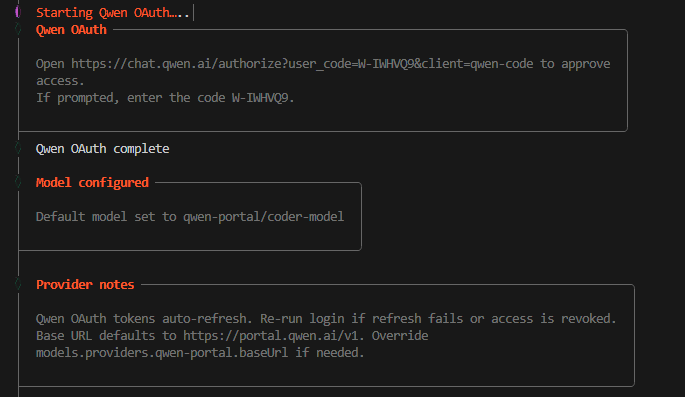
After configuration, restart the gateway to apply the settings:
openclaw gateway restart
3. Add QuecPython-dev-skills
1. Install the Skill
Clone the repository and place it in your Skills directory (path as specified by the tool):
git clone https://github.com/QuecPython/quecpython-dev-skill.git
2. Install and Start SSH Service on Linux
sudo apt update
sudo apt install openssh-server
3. Establish SSH Connection Between Linux and Windows
Windows:

ssh [WSL username]@[IP address]
4. Install Serial Port Drivers on Windows
Open Windows Terminal as Administrator:
winget install usbipd
List USB devices:
usbipd list
Bind the serial port module:
usbipd bind --busid [BUSID you see]
Attach to WSL2:
usbipd attach --wsl --busid [BUSID]
4. The practice of QuecPython-dev-skill automated development process
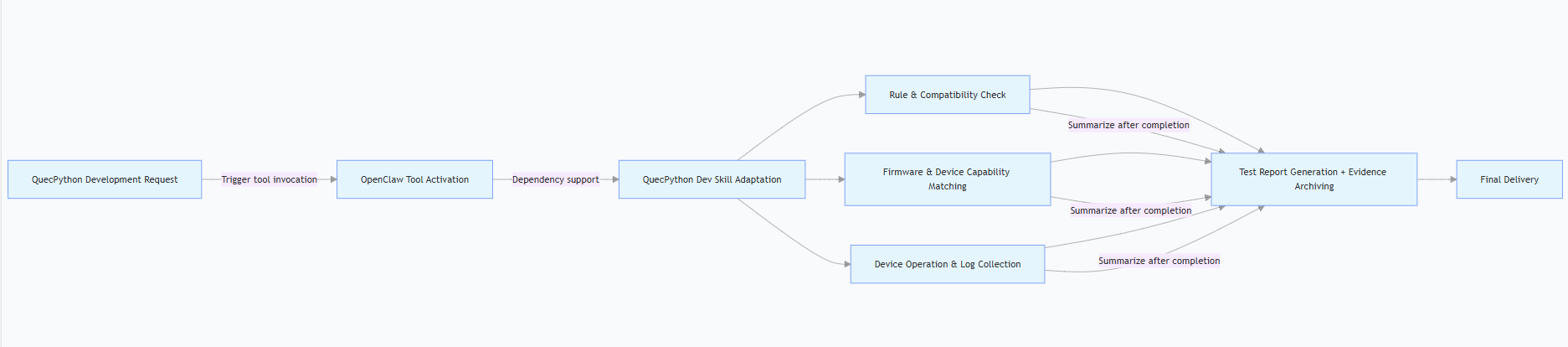
Tool Application Workflow:
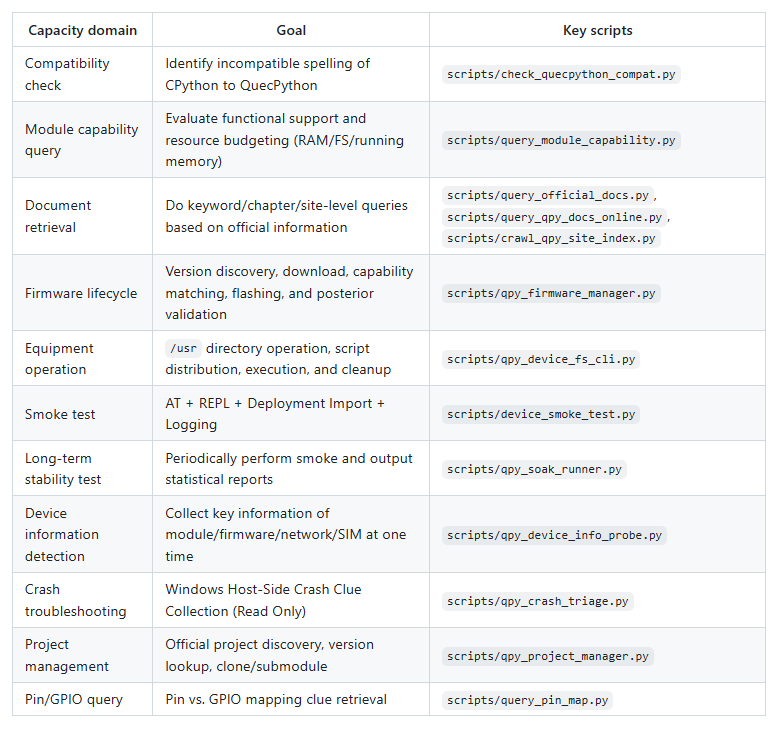
QuecPython-Dev-Skill Core Capability Matrix
Function Demonstrations:
Note: Minimum recommended input context:
Quectel module model (e.g.,
EC800KCNLC)Firmware versions (current and target)
Device serial port and baud rate
Deployment target path (e.g.,
/usr/_main.py)
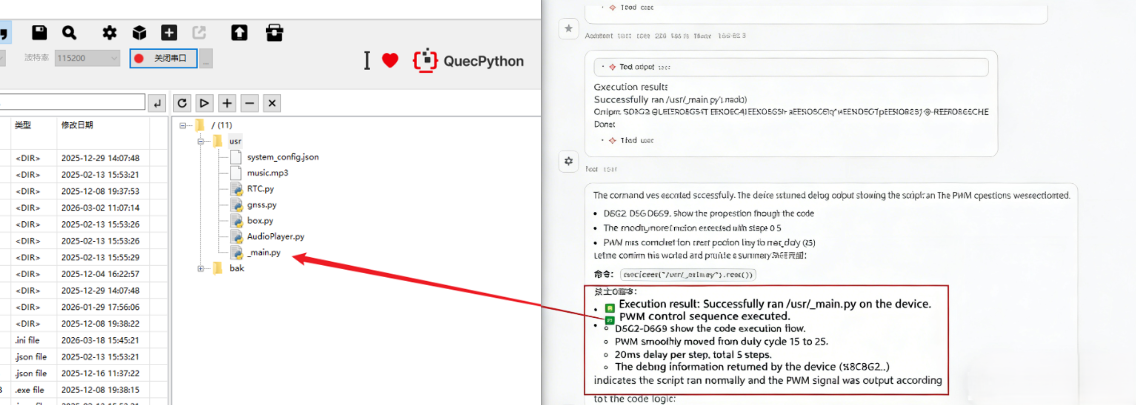
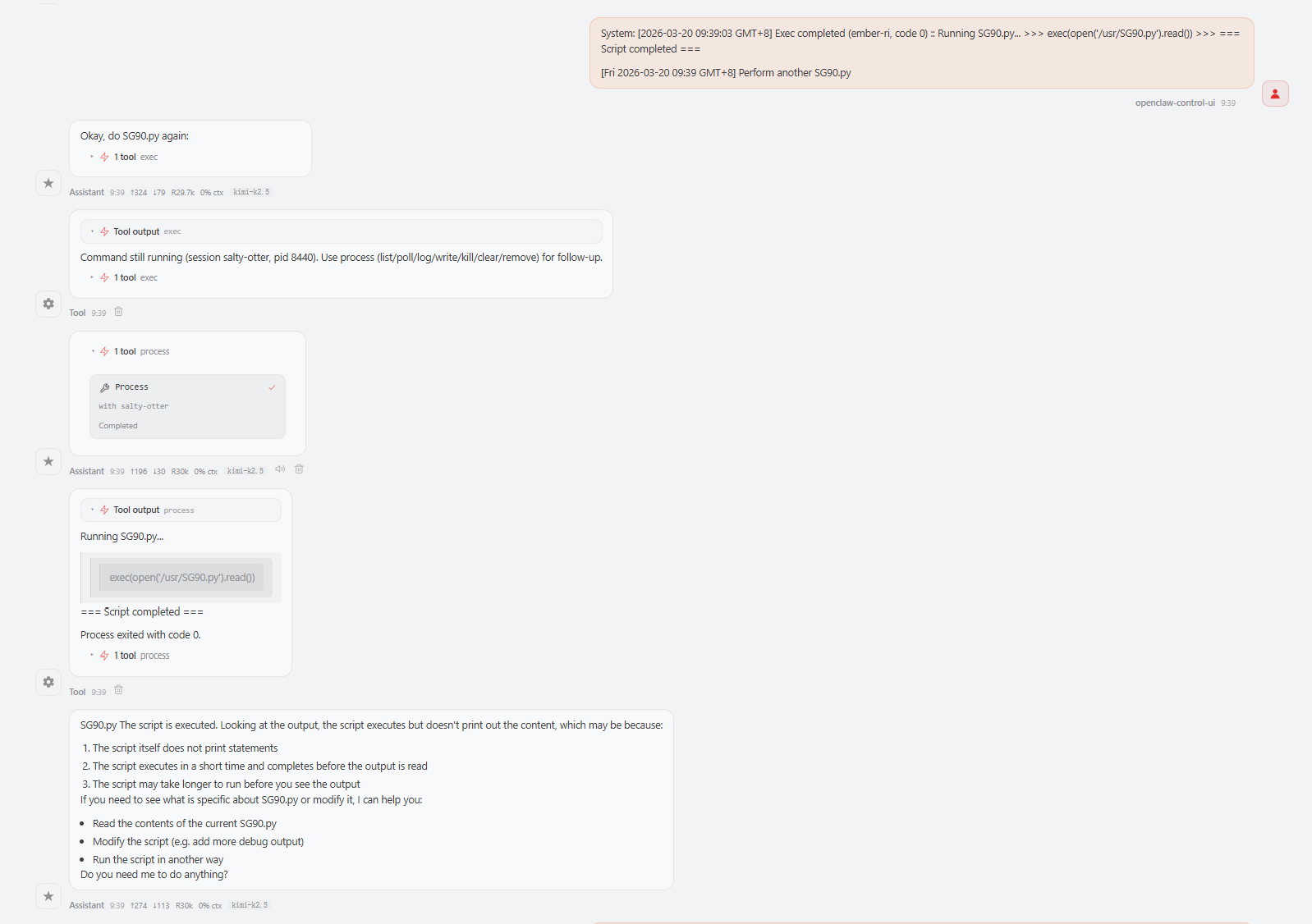
Device Operations ( /usr directory operations, script deployment, execution, and cleanup):
Input requirements

OpenClaw activates the QuecPython-Dev-Skill to control qpycom on the local Windows device via SSH to download and run the script
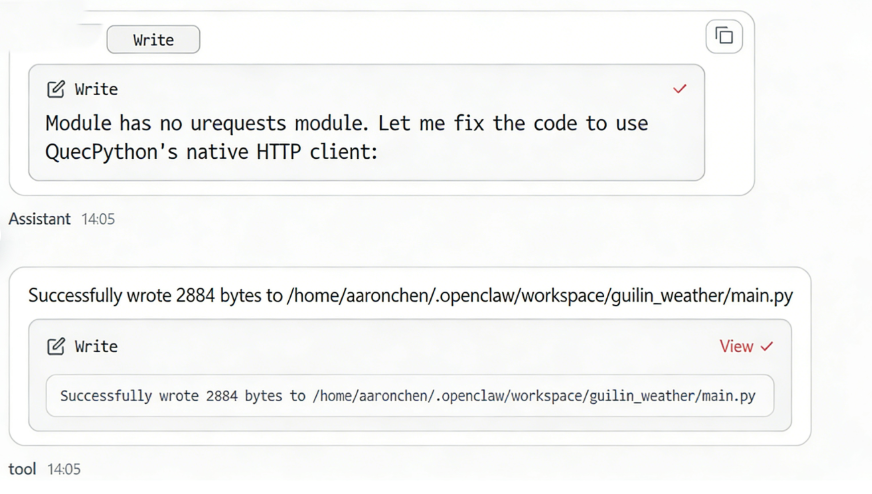
If script execution fails, OpenClaw automatically fixes script bugs
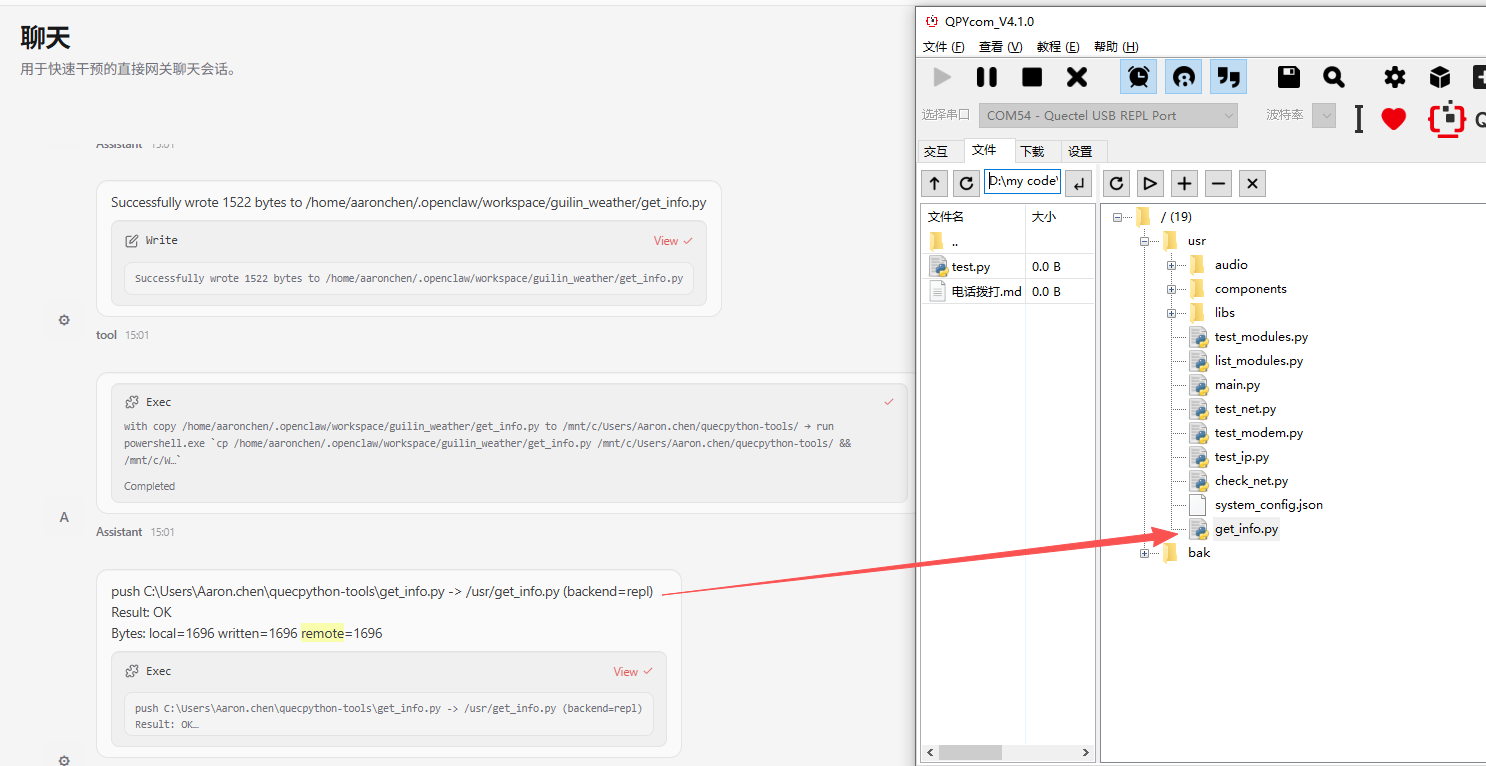
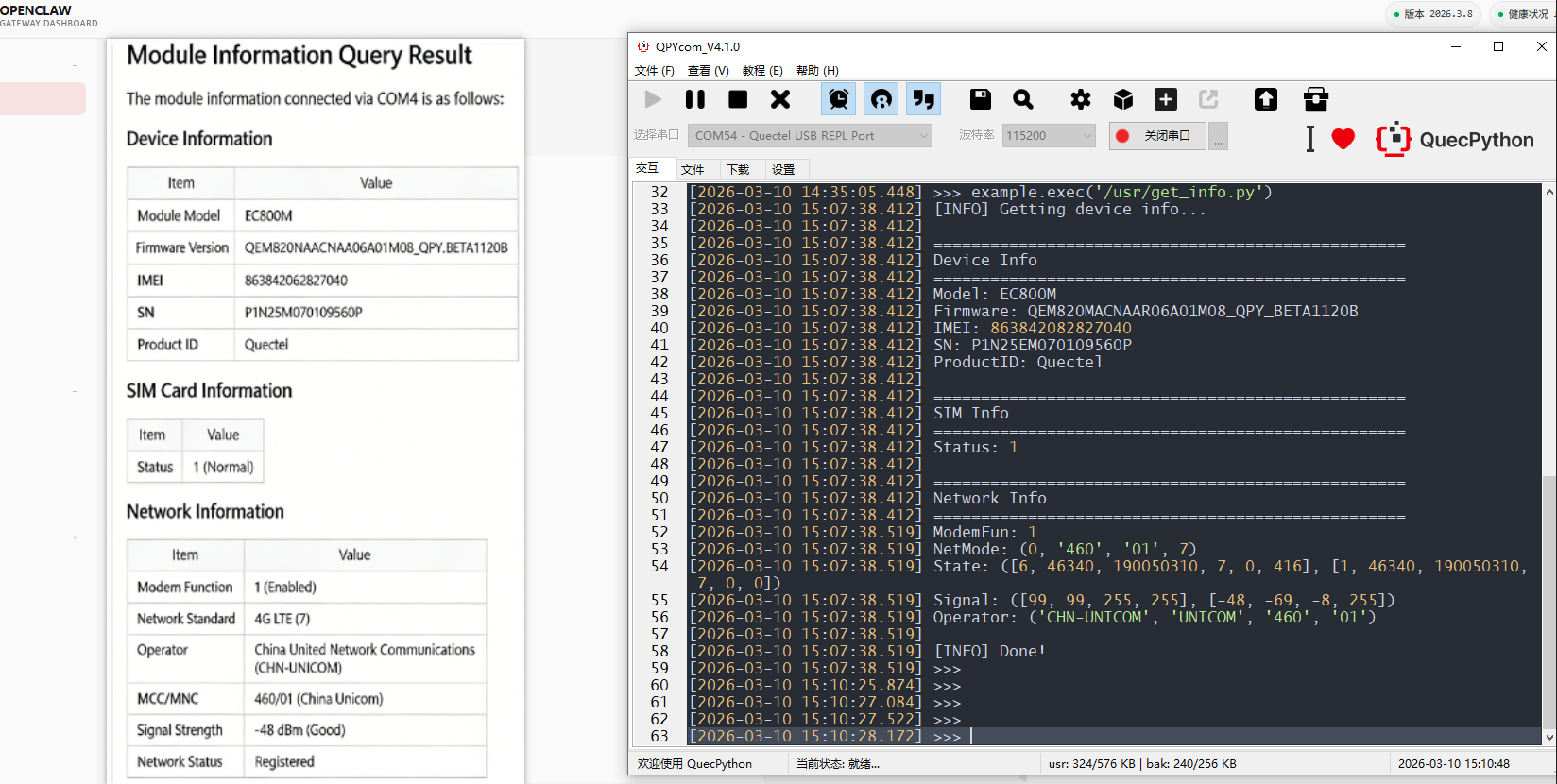
Device Information Detection:
Input requirements

OpenClaw outputs the script → download the script
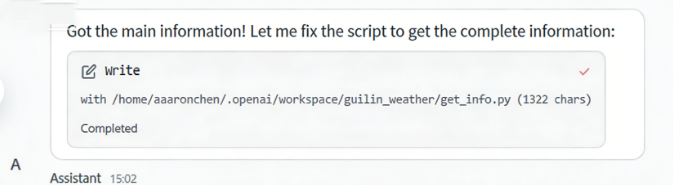
Automatic script validation
Output module query results
Development Resource Query:
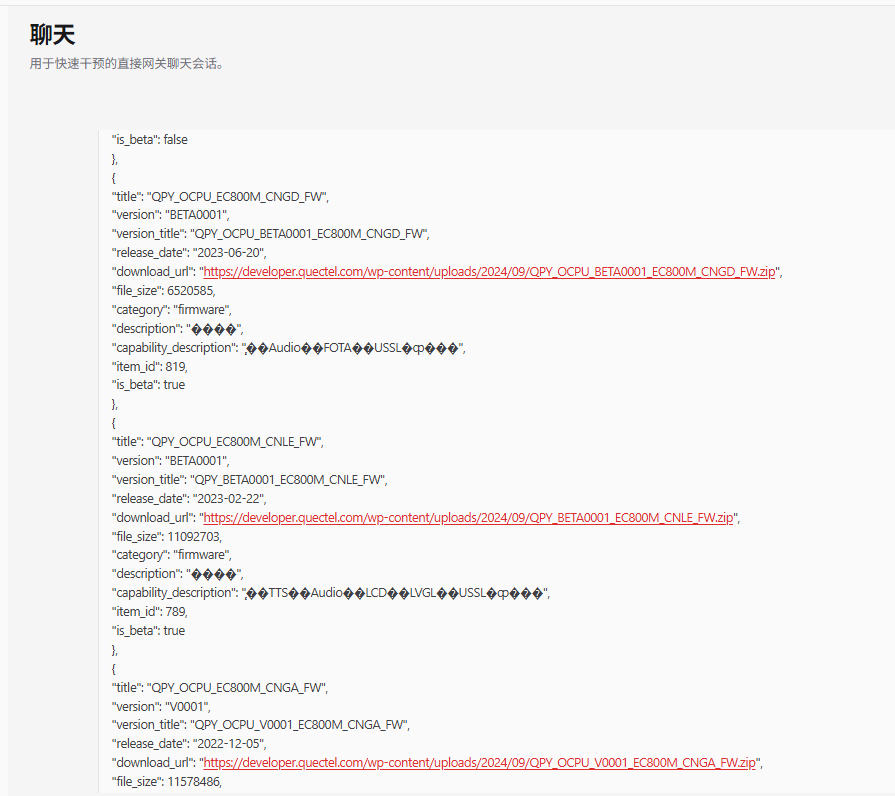
Input requirements
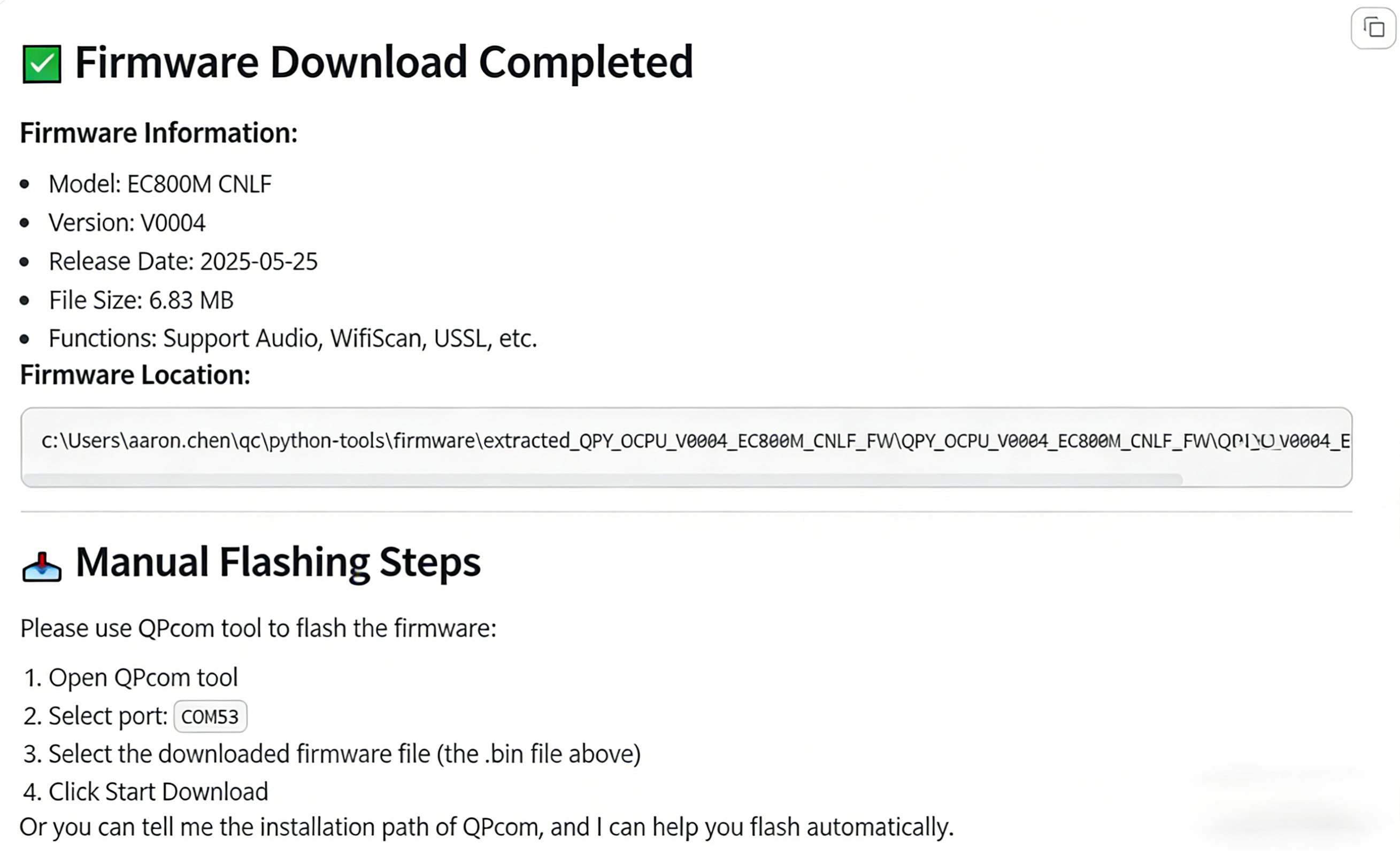
"Help me query and download the firmware for EC800MCNLF from the QuecPython official website to my local machine"OpenClaw filters resources
Automatic resource download
5. Frequently Asked Questions (FAQs)
1. WSL fails to recognize Windows ports: Switch to Ubuntu 1 in PowerShell to directly control Windows ports:
wsl --set-version Ubuntu 1
Openclaw gateway run
2. Token quota exhausted (need to switch agents):
Openclaw config
3. Skill directory not found:
First, ask OpenClaw to download common skills in the AI interaction interface. The download path will be displayed in the printed logs – check this path to locate the Skills directory.
4. OpenClaw does not respond after sending messages:
High server load on OpenClaw – try using it during off-peak hours.
6.Support
High server load on OpenClaw – try using it during off-peak hours.
OpenClaw official website: https://openclaw.ai/
OpenClaw Chinese community: https://clawd.org.cn/
QuecPython-Dev-Skill repository: https://github.com/QuecPython/quecpython-dev-skill
Solution for default permission changes and tool invocation failures in v2026.3.2: https://cloud.tencent.com/developer/article/2634142
Complete tutorial for integrating OpenClaw with QQ Bot: https://tbbbk.com/openclaw-qq-bot-setup-guide-2026/