Device development based on MQTT protocol
This document will guide you through the process of developing devices that communicate via the MQTT protocol. It covers the following essential steps: modifying the configuration file to establish an MQTT connection, importing and running scripts based on the QuecPython module, and debugging data transmission. Please follow the contents of each section below to implement a data transparent transmission solution based on MQTT.
Modify configuration file
After obtaining the code from the "Experimental Source Code" section in the Development Resource Summary, you can modify the project configuration file dtu_config.json under the code directory as needed.
Based on TCP private server data transparent transmission, configure as follows:
set
systemconfig.cloudconfiguration item asmqtt, which means MQTT transparent mode.{ "system_config": { "cloud": "mqtt" } }This experiment adopts the MQTT transparent transmission mode, and users need to set the MQTT server domain name, port, client ID, and subscription and publishing topics parameters in the
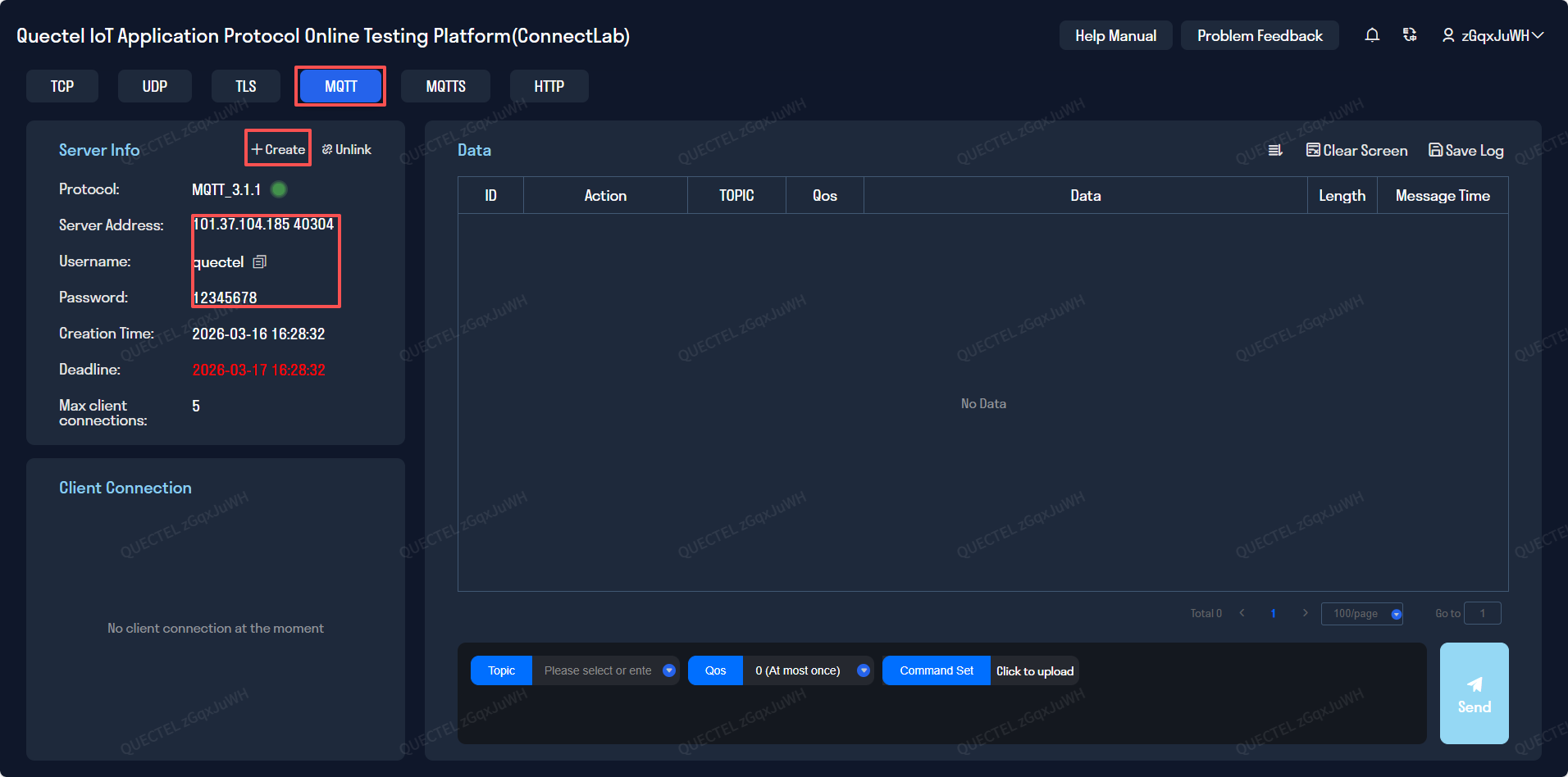
mqtt_pivate_cloud_configconfiguration item according to the actual situation, as follows,This experiment was carried out using the ConnectLab Internet of Things application protocol testing platform.{ "mqtt_private_cloud_config": { "server": "101.37.104.185", "port": 40304, "client_id": "quec_1682300809", "user": "quectel", "password": "12345678", "clean_session": true, "qos": 0, "keepalive": 60, "subscribe": {"down": "/public/TEST/down"}, "publish": {"up": "/public/TEST/up"} } }The configuration item
uart_configis a serial port configuration parameter, which defaults to the configuration made based on the current experimental development board and cannot be changed. If users use other development boards, they need to configure according to the actual hardware.{ "uart_config": { "port": 2, "baudrate": 115200, "bytesize": 8, "parity": 0, "stopbits": 1, "flowctl": 0, "rs485_config": { "gpio_num": 28, "direction": 0 } } }network_configis used to configure the APN. If the APN is not configured or an incorrect APN is configured, the base station of the operator will automatically correct the situation during the network connection process and send a correct APN to the terminal. Overseas users need to configure this item. At this time, the terminal will choose to accept and use this APN to continue the network connection.{ "apn": "", # Access Point Name, for example "cmnet" or "ctnet" "username": "", # APN username, usually not required "password": "", # APN password "auth_type": 0 # Authentication type: 0 - no authentication, 1 - PAP, 2 - CHAP }
The complete configuration file template is as follows:
{
    "system_config": {
        "cloud": "tcp"
    },
    "mqtt_private_cloud_config": {
        "server": "101.37.104.185",
        "port": 40304,
        "client_id": "quec_1682300809",
        "user": "quectel",
        "password": "12345678",
        "clean_session": true,
        "qos": 0,
        "keepalive": 60,
        "subscribe": {"down": "/public/TEST/down"},
        "publish": {"up":  "/public/TEST/up"}
    },
    "socket_private_cloud_config": {
        "domain": "112.31.84.164",
        "port": 8305,
        "timeout": 5,
        "keep_alive": 5
    },
    "uart_config": {
        "port": 2,
        "baudrate": 115200,
        "bytesize": 8,
        "parity": 0,
        "stopbits": 1,
        "flowctl": 0,
        "rs485_config": {
        	"gpio_num": 28,
            "direction": 0
        }
    },
    "network_config": {
        "apn": "",
        "username": "",
        "password": "",
        "auth_type": 0
    }
}
Parameter description:
systemconfig.config: Specify the type of private cloud currently in use. Currently supports TCP and MQTT.mqtt_private_cloud_config: MQTT private cloud configuration.socket_private_cloud_config: TCP private cloud configuration.uart_config: Serial port parameter configuration.network_config: APN configuration. It can be configured if necessary.
Create a New MQTT Server
- Log in to the ConnectLab online testing platform, choose the guest login option, and select "Create MQTT Server".
- Fill in the newly created MQTT service address, port, username, and password in the "dtu_config.json" file as shown in the picture, and also remember to modify the parameters in "system_config" to "mqtt".
Script import and run
After downloading and installing the QPYCom tool, use the tool to download the script to the QuecPython module.
💡 Tips
QPYCom Installation and usage tutorial: https://developer.quectel.com/doc/quecpython/Application_guide/en/dev-tools/QPYcom/index.html
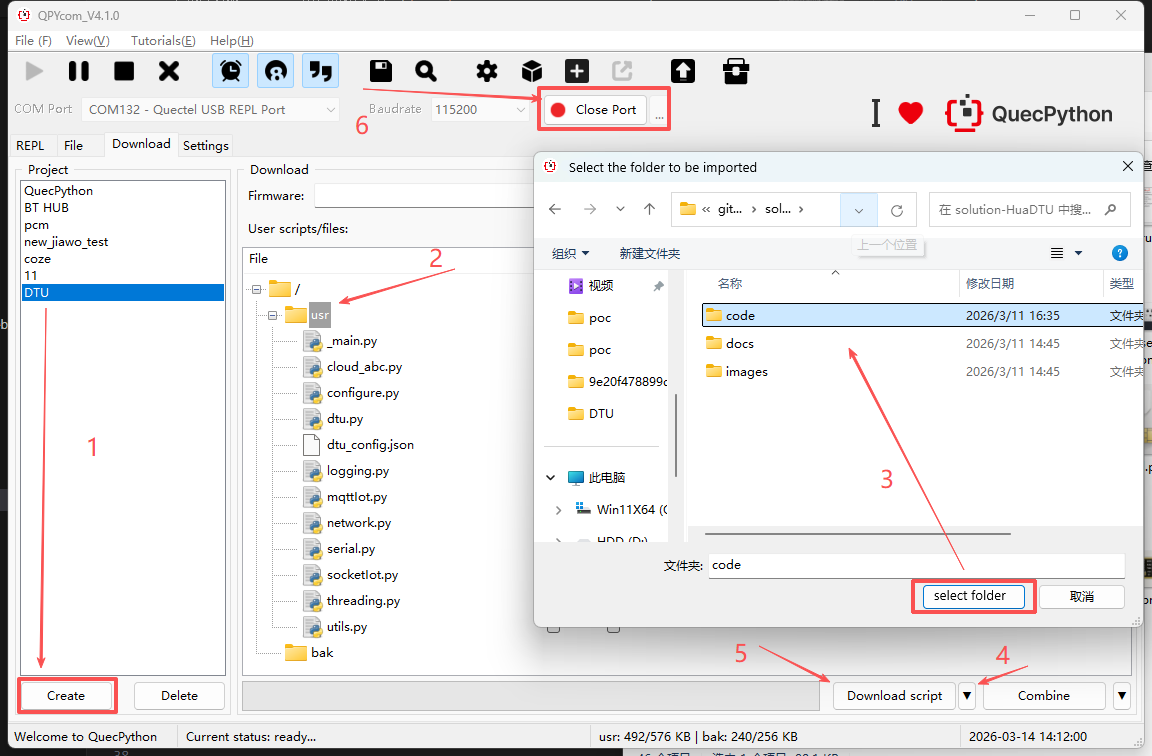
- After installing QPYcom, we select the serial port and open the Quectel USB REPL Port.
- Go to the download interface, follow the first step in the figure to create your own project.
- Right-click on "usr" and select "One-click Import", then choose the "code" directory under solution-HuaDTU that was cloned via git.
- Click on the fourth step in the figure, switch back from downloading the firmware to downloading the script, and click on the script.
- The sixth step in the figure opens the serial port.
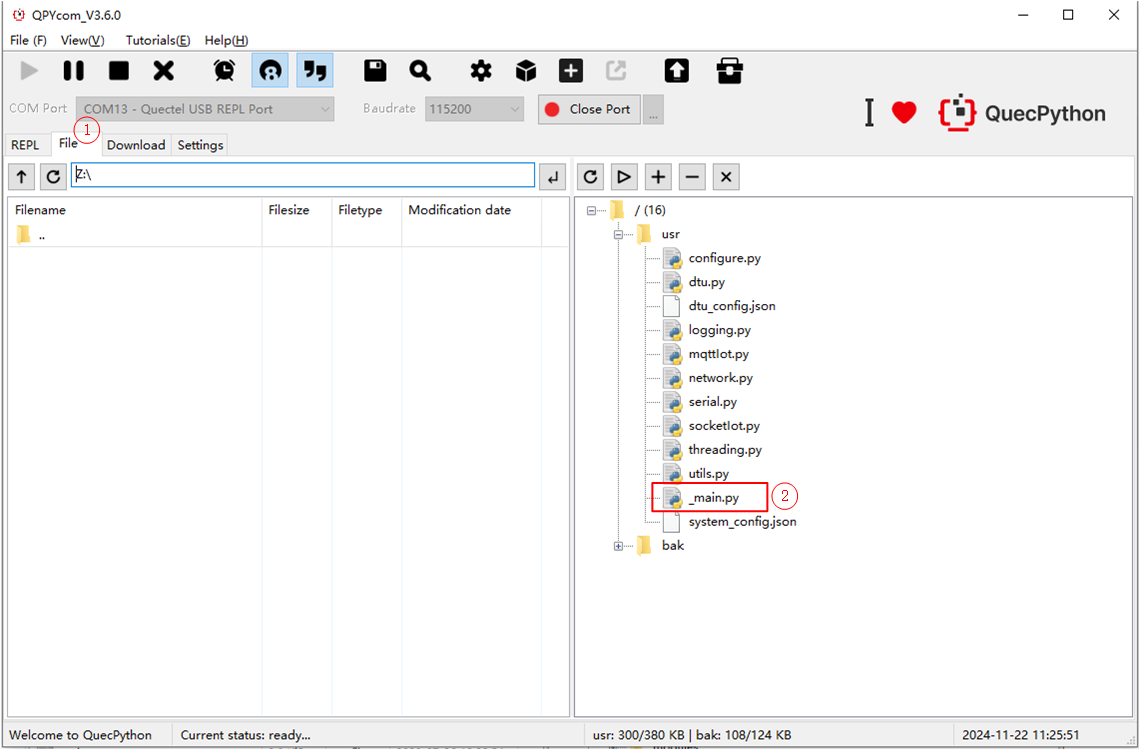
- After the download is complete, switch to the file interface and select _main.py for running.
Debugging
View REPL interaction port logs
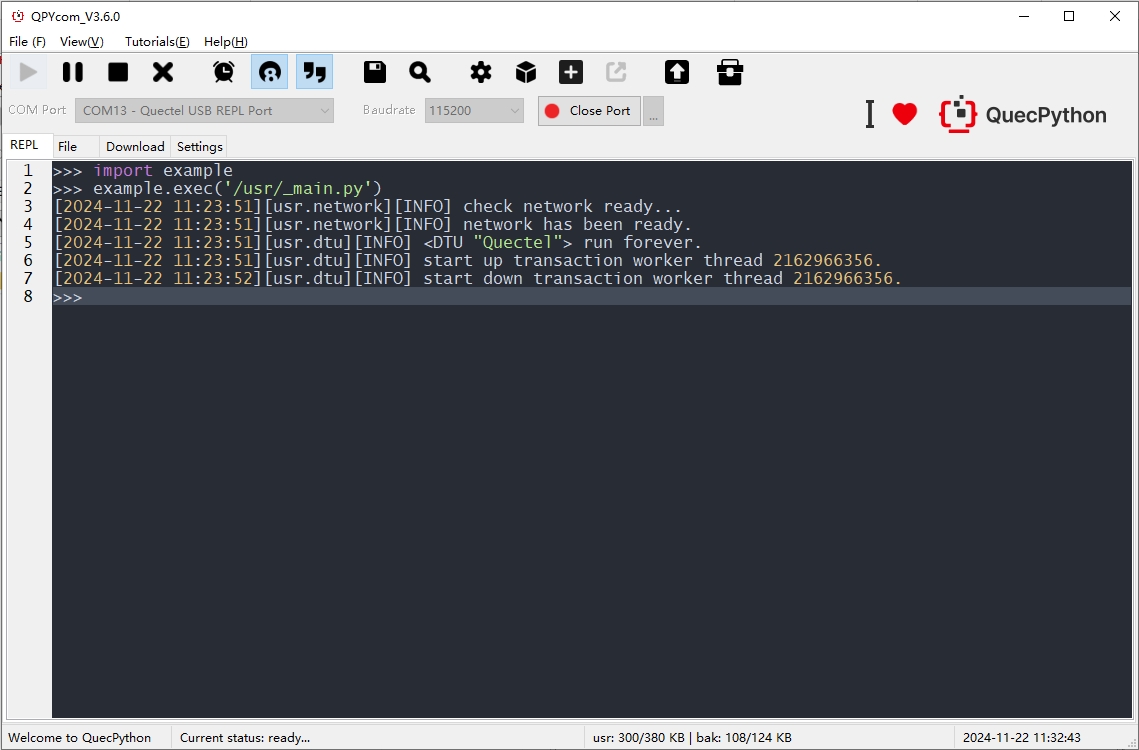
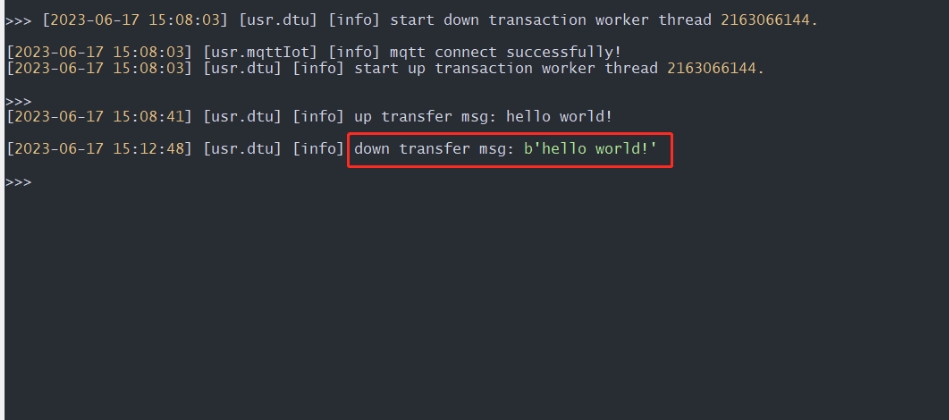
After the program runs, the log output can be seen on the REPL interaction page as shown in the following figure. There are two threads in the DTU service that process data: one is used to detect and read serial port data and forward it to the cloud, and the other is used to detect the transmission of downstream data from the cloud to the serial port, as shown in the following figure.
Upstream data transparent transmission
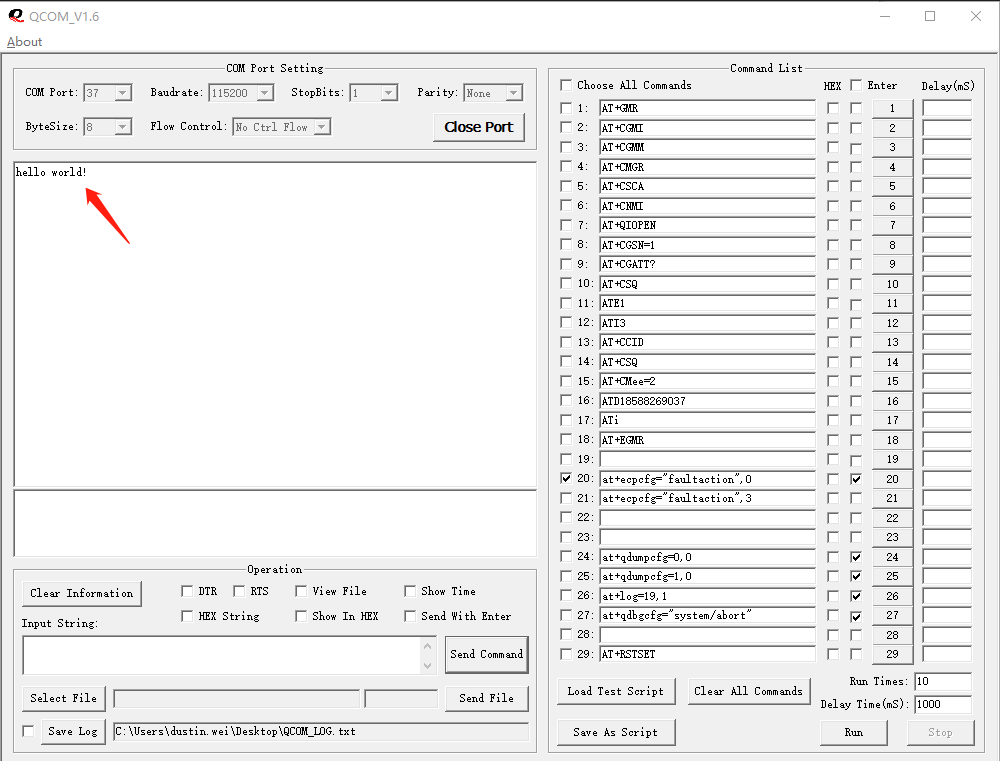
Simulate MCU sending upstream data to the module using serial debugging tools.
- Enter "hello world!" in the
Input Stringinput box character string. - Click the
Send Commandbutton to send data through the serial port.
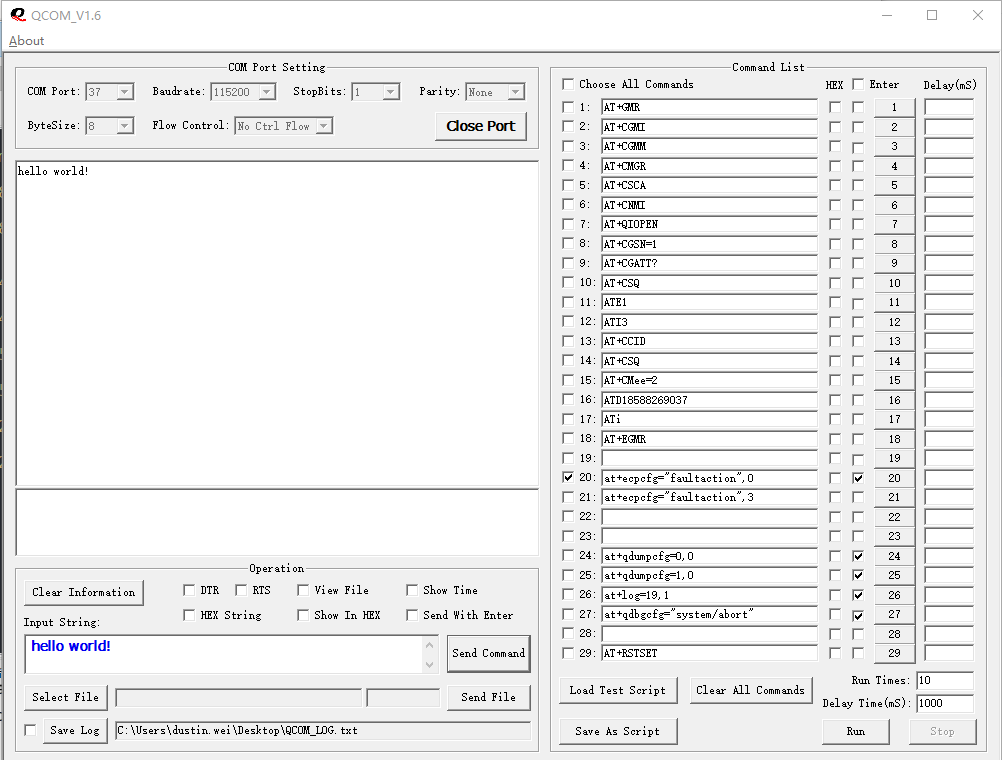
DTU receives serial data and directly transmits it to MQTT cloud.
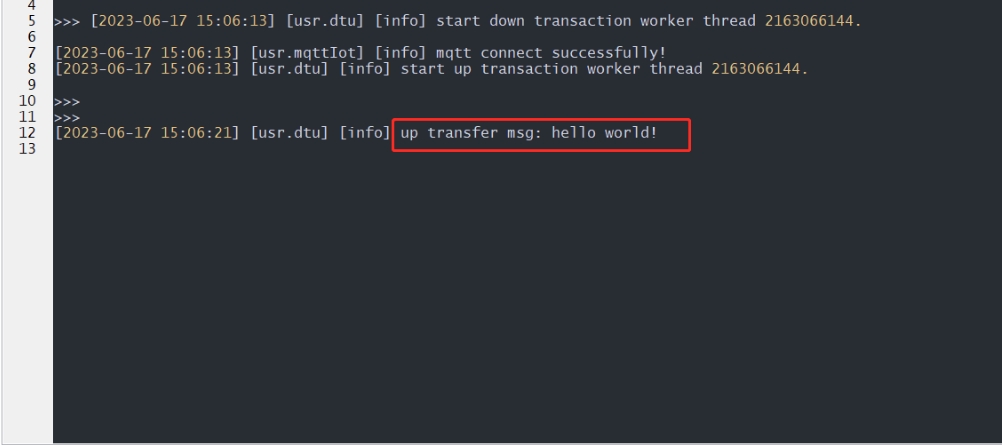
Cloud based reception of upstream data logs
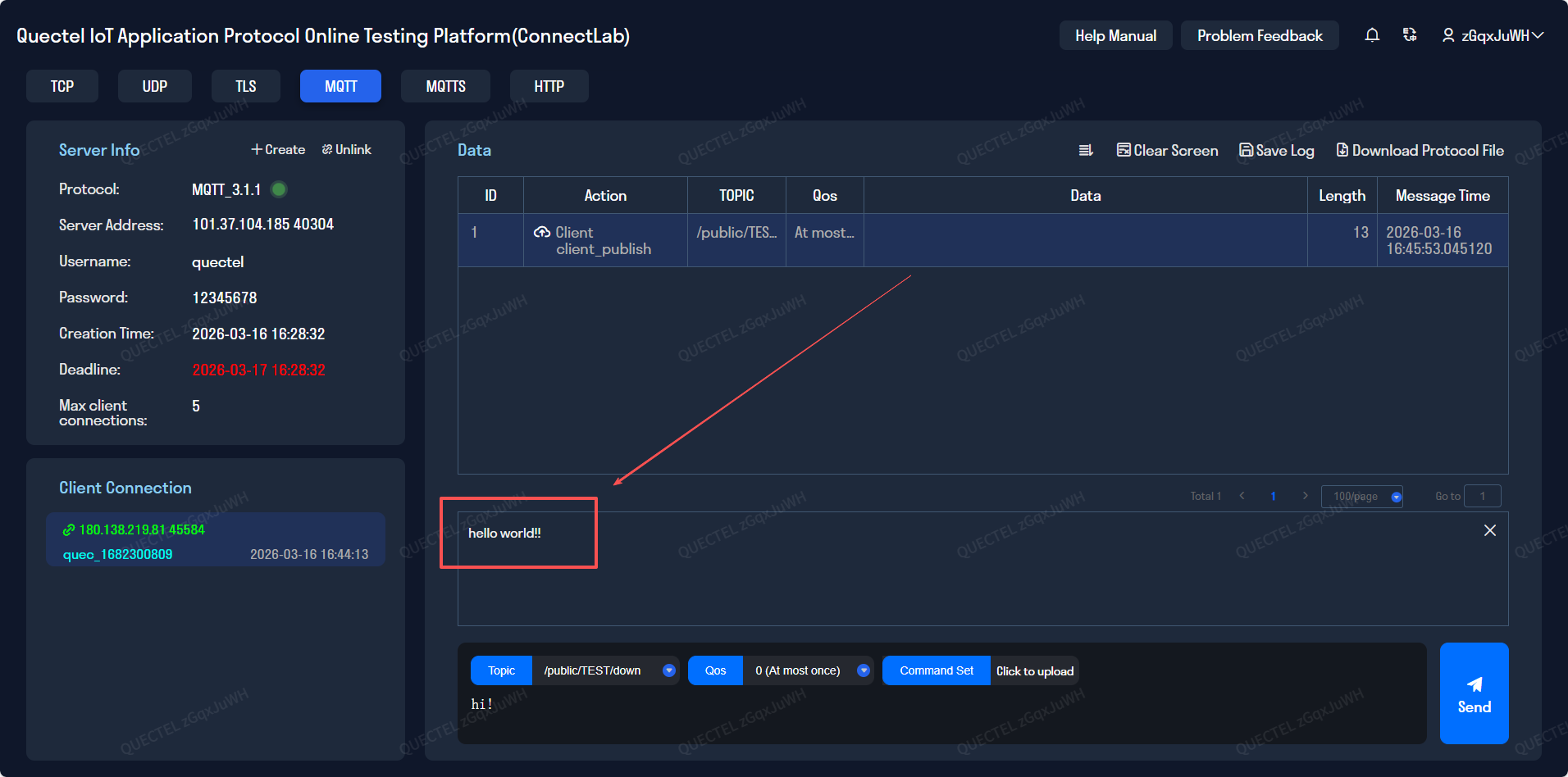
Downstream data transparent transmission
Send downstream data from the cloud.
- Set the theme for cloud downlink data (consistent with the subscription theme configured for DTU applications).
- Enter downstream data.
- Publish.
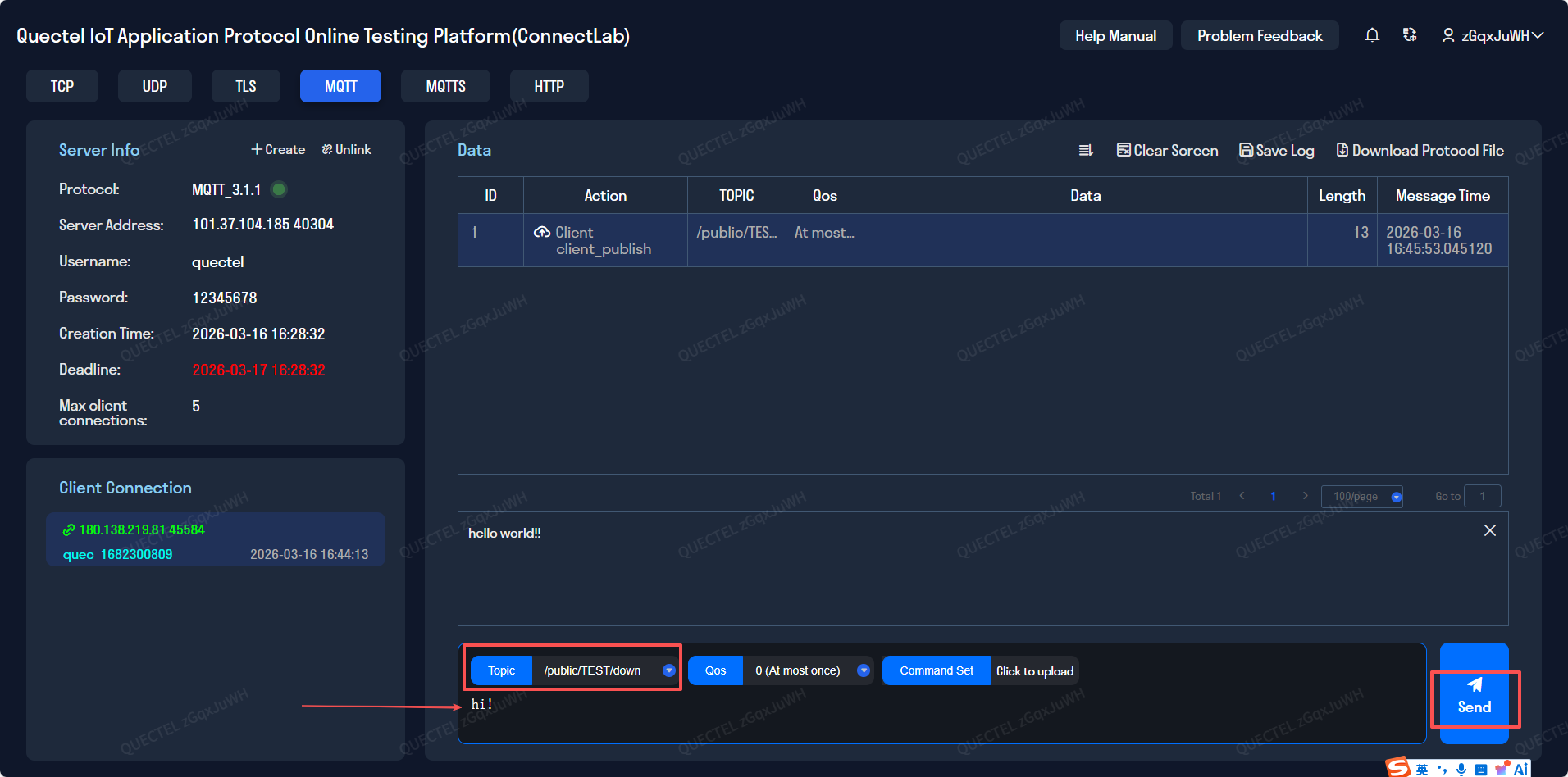
DTU downlink data log.
Observe the serial port debugging tool through QCOM to simulate the downstream data of the MCU receiving module.