Firmware flashing
This section mainly introduces the firmware flashing function of the QPiTerminal tool.
Install the Microsoft WinUSB Driver
Uninstall other drivers for this device first, such as Qualcomm USB drivers. Open Device Manager and make sure the device does not appear under the COM port category. If it already appears under COM ports, make sure to check Delete the driver software for this device.
In Device Manager, right-click the device (qcm6490-idp) and click the following options in order:
- Update driver
- Browse my computer for drivers
- Let me pick from a list of available drivers on my computer
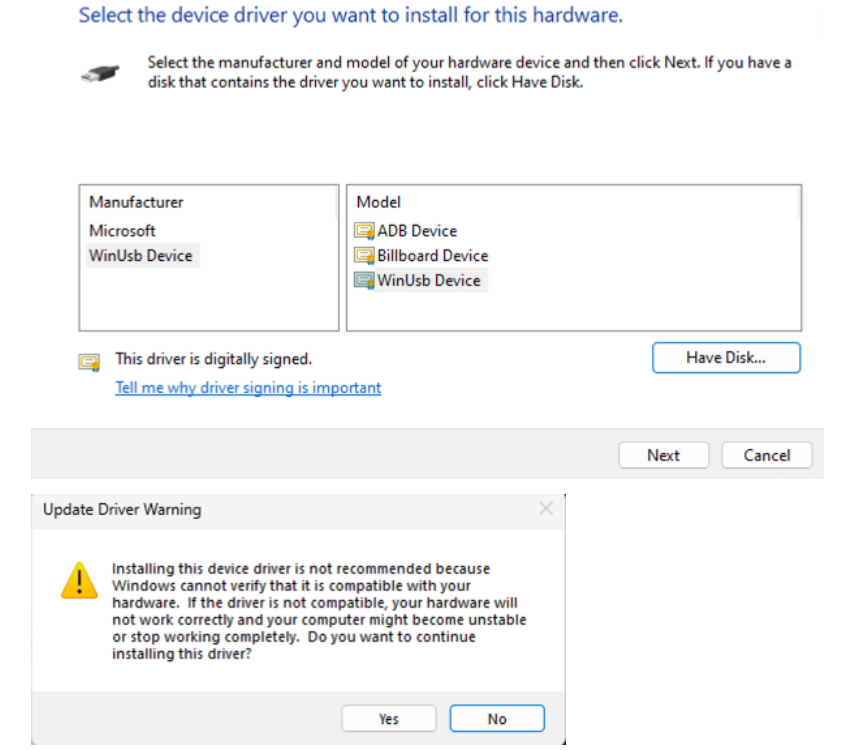
- In Manufacturer, select WinUsb Device. In Model, also select WinUsb Device, as shown in the figure below.
- Click Next. When the Update Driver Warning dialog appears, click Yes to continue the installation.
Download Firmware
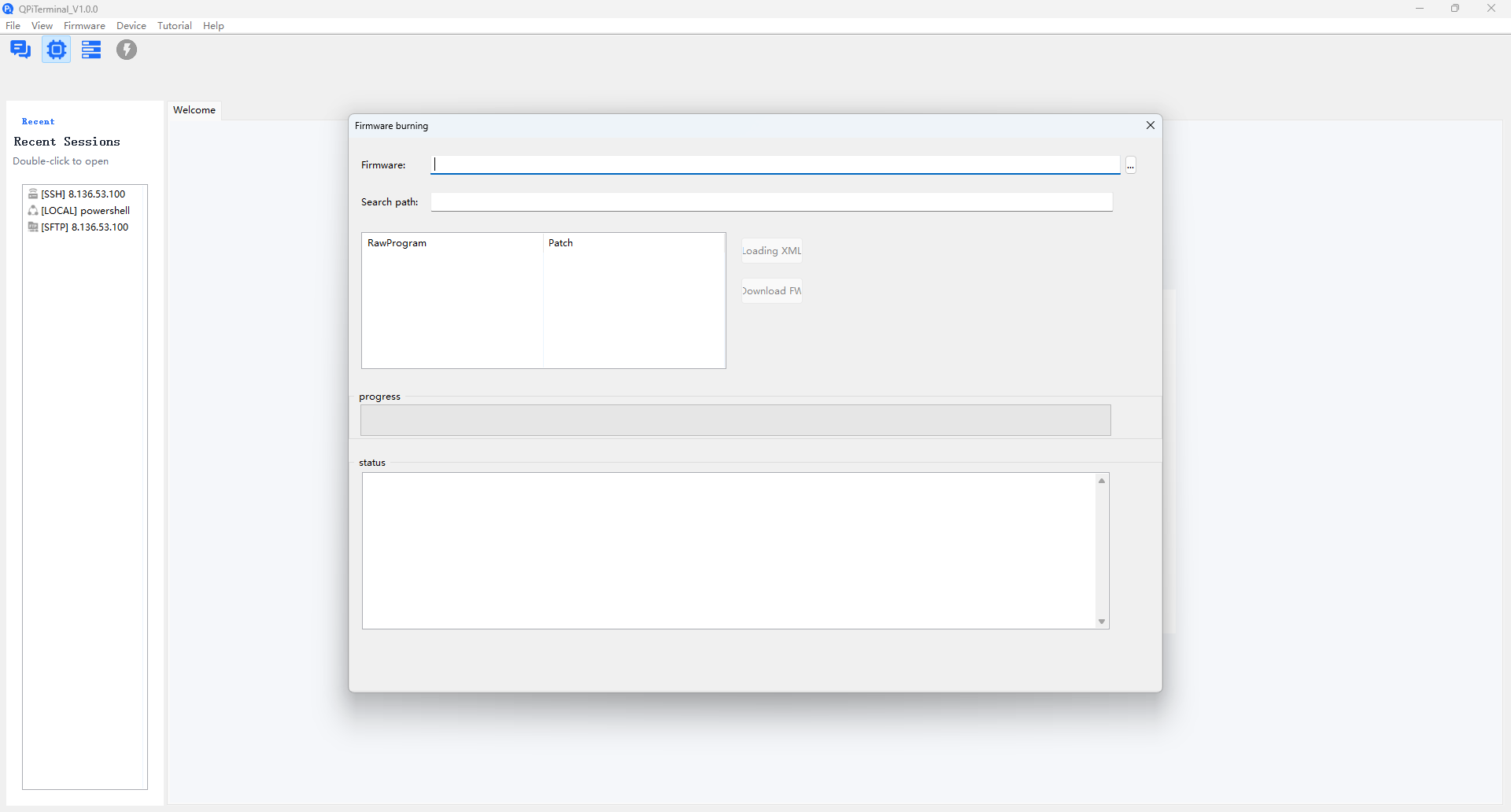
- Step 1: Open the firmware flashing window
Click Firmware --> Firmware Flashing in the menu bar, or click the Firmware Flashing button in the toolbar to open the flashing interface.
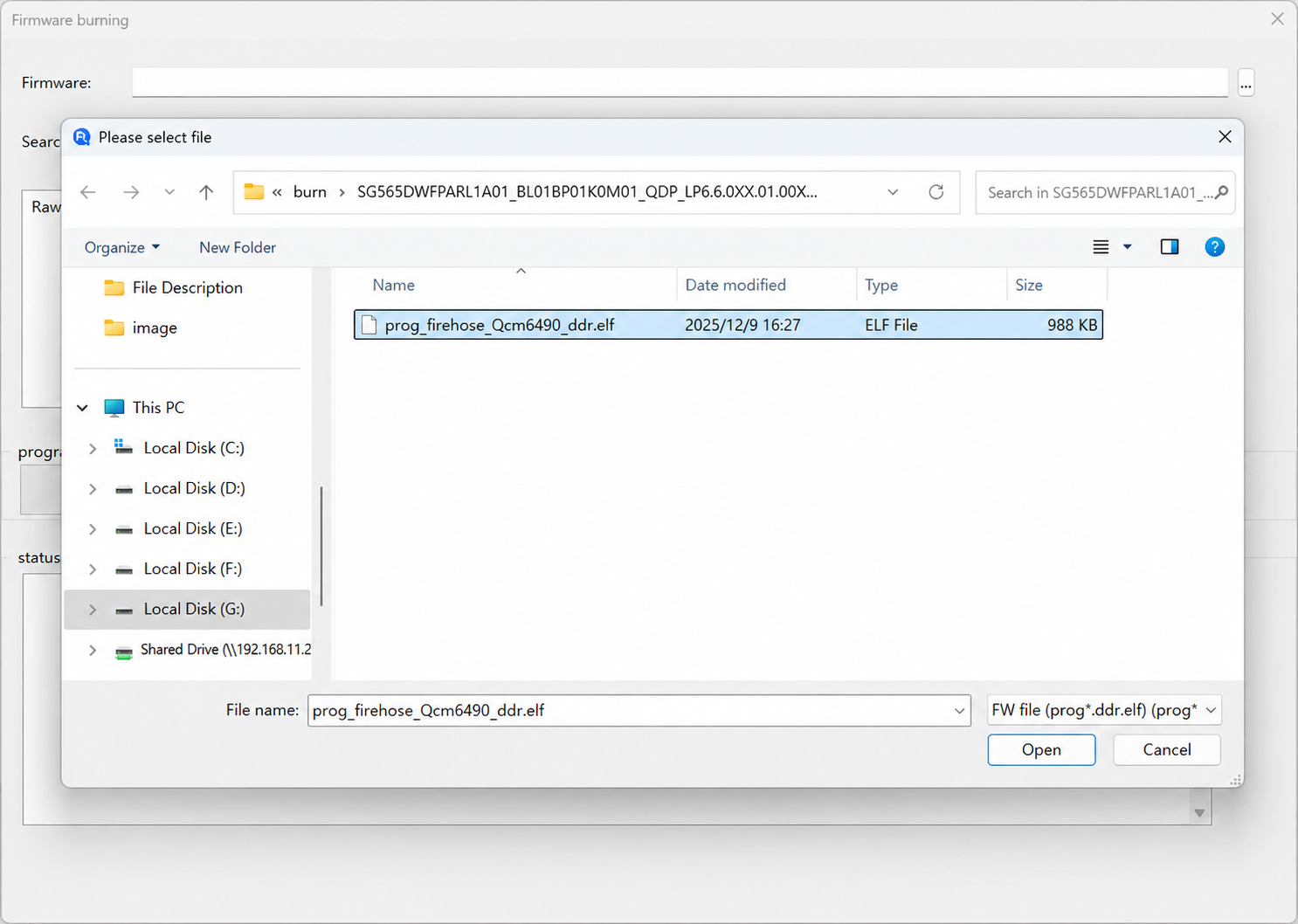
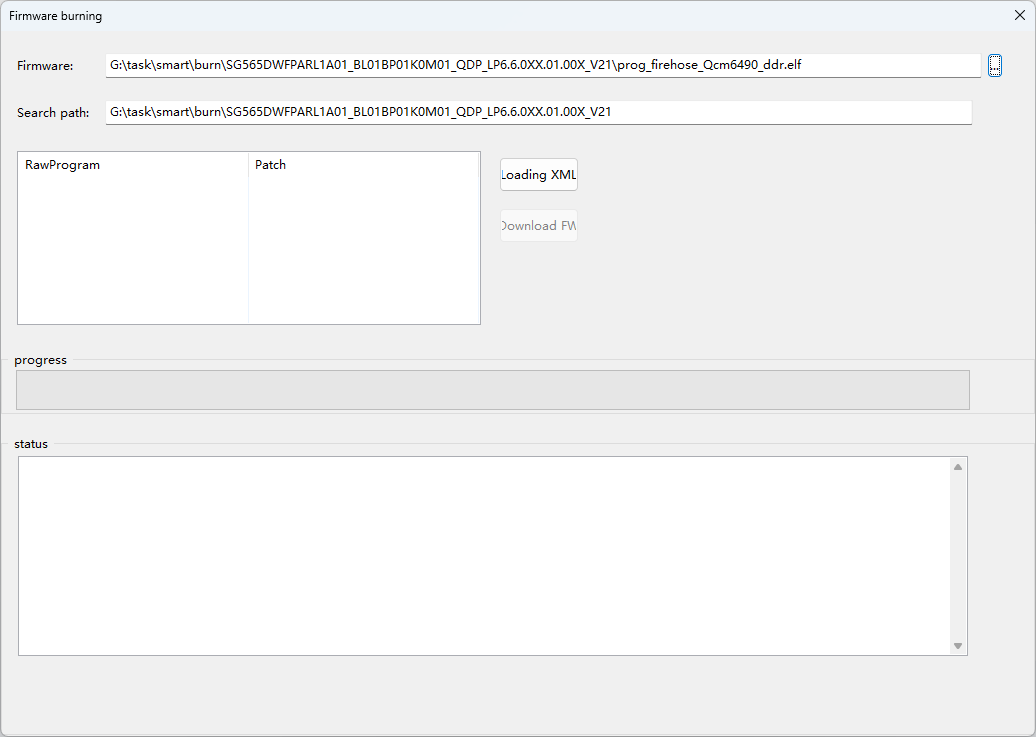
- Step 2: Select the firmware
After selecting the firmware, the search path is filled in automatically.
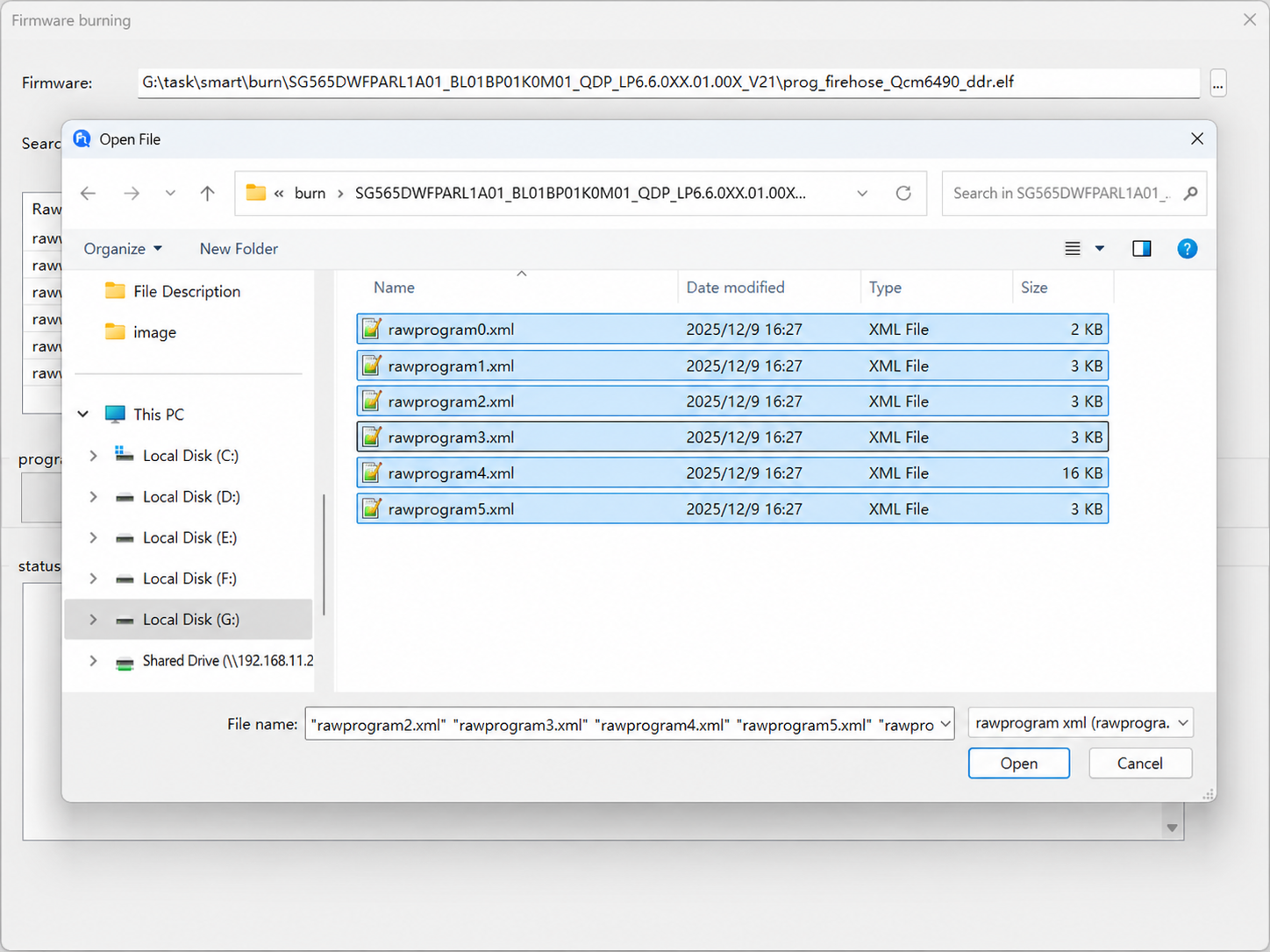
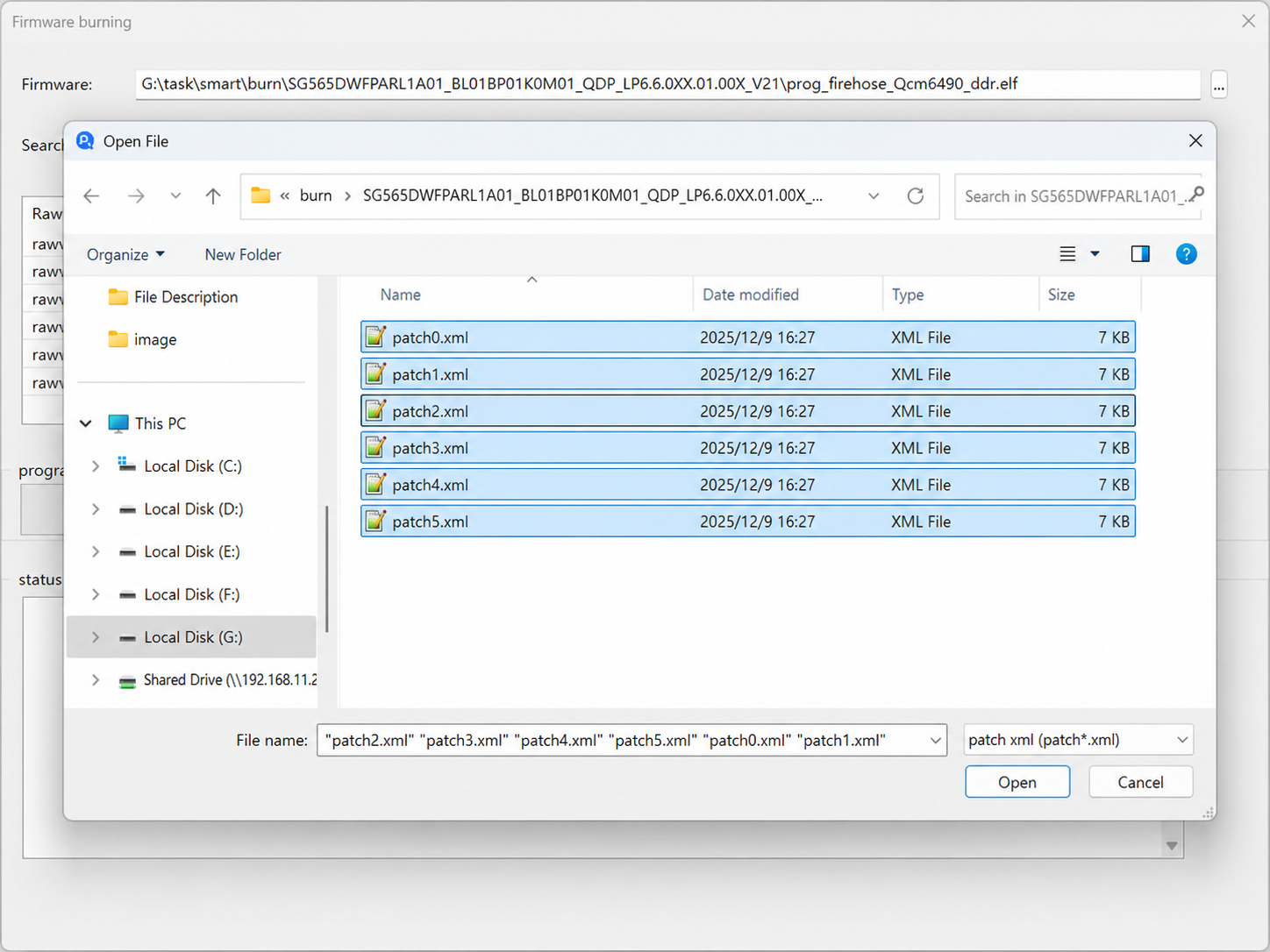
- Step 3: Load the XML files
Click Load XML, then select the required rawprogram and patch files.
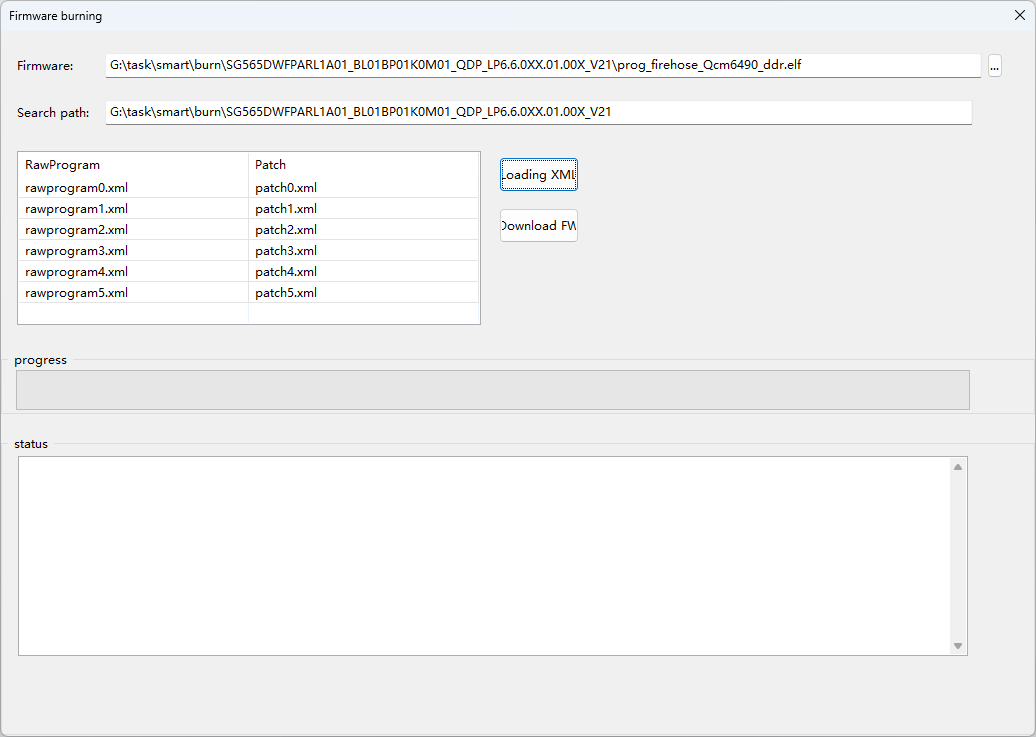
- Step 4: Download the firmware
Click Download Firmware to start flashing the firmware.
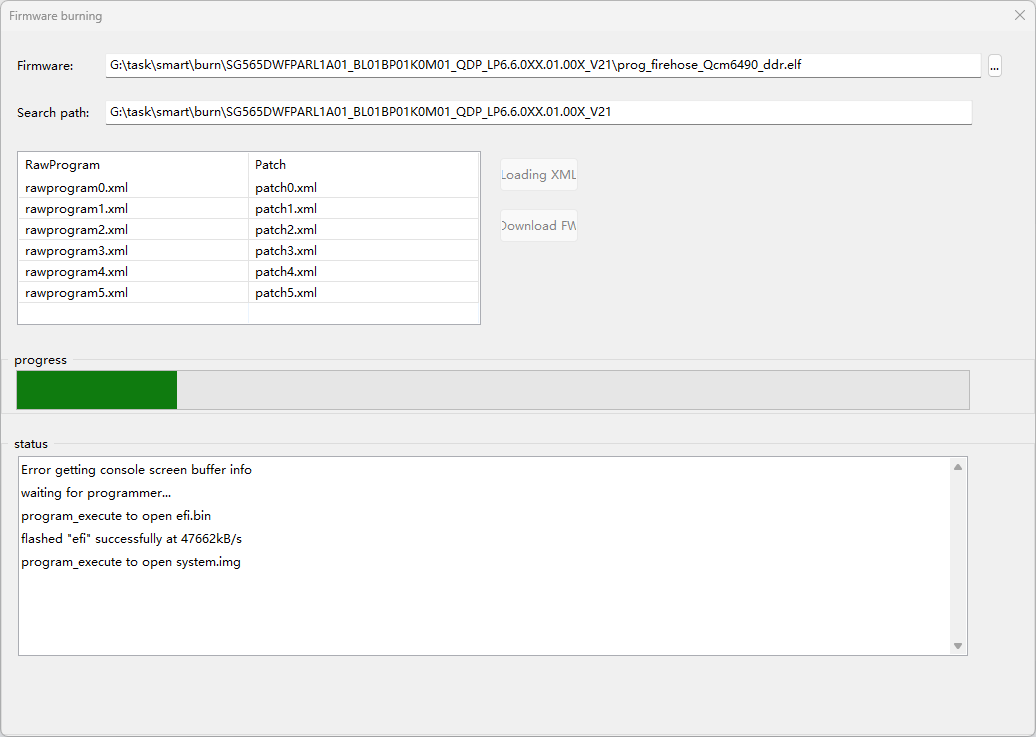
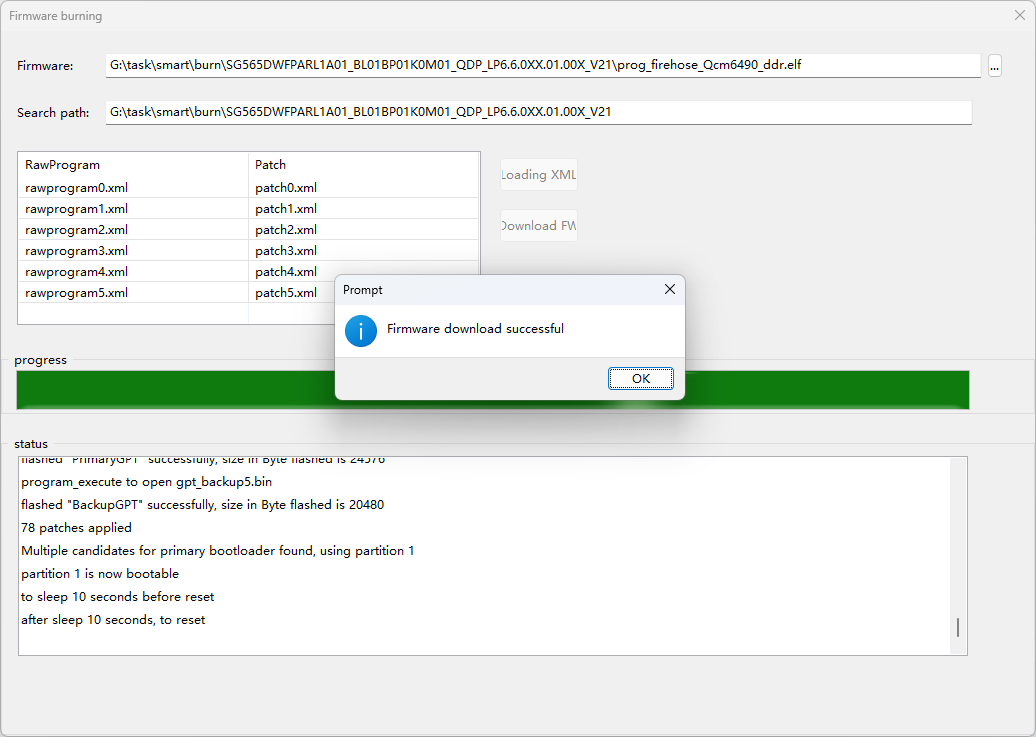
- Step 5: Download completed successfully
Wait for the progress bar to finish. When the firmware download success pop-up appears, the firmware has been downloaded successfully.