
Image build
SDK download and compilation
Supported models
- QSM565DP-WF
Download SDK
You can obtain the Linux SDK for Quectel Pi H1 through the following two methods:
Method 1: Download from official website
Please visit Resources Download Page of QuecDevZone DevCenter to download the Quectel Pi H1 SDK compile source package.
On the Resources download page, select the Quectel Pi product, then select SDK, and find Quectel Pi H1 SDK Compile Source Package to download:
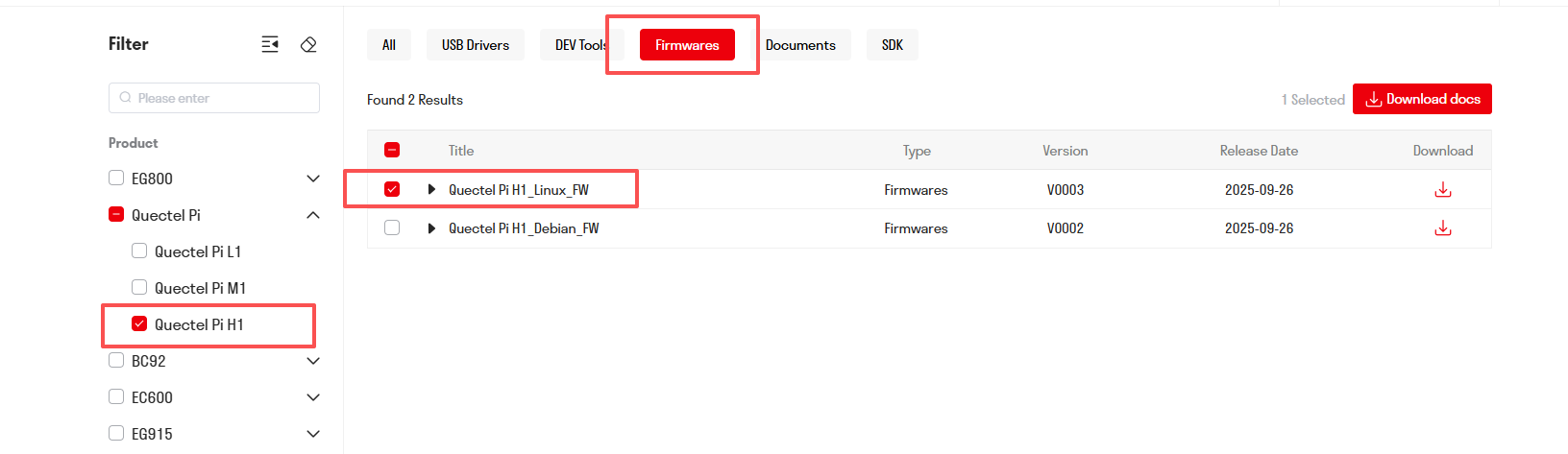
The downloaded SDK package contains:
- Pre-compiled firmware: Image files that can be directly used for flashing
- Compilation toolchain (optional): For custom development, secondary compilation can be performed
Method 2: Clone from GitHub
You can also clone the SDK source code directly from the GitHub repository:
git clone https://github.com/Quectel-Pi/Pi-H1-Linux-SDK.git
After cloning, enter the Pi-H1-Linux-SDK directory to start using it.
If you only need to use the official firmware for flashing, you can skip the compilation steps below and directly jump to the Get Images section. After unzipping the SDK package, you can obtain all image files required for flashing.
Custom compilation (optional)
Note: The following sections are for developers who need to modify source code or customize configurations. If you only use the official firmware, you can skip this part.
Build environment
After the code is successfully downloaded, enter the Pi-H1-Linux-SDK main directory and first execute:
source quectel_build/compile/build.sh
After executing this command, the terminal automatically switches to the build-qcom-wayland directory, which is normal. Subsequent buildconfig and buildall commands will be executed in this directory.
Step 1: Execute the following command to build the environment.
buildconfig QSM565DWF QSM565DWFPIARL1A01_BL01BP01K0M01_QDP_LP6.6.0XX.01.00X_V0X STD
You can input customized project_name, project_rev, and custom_name according to the prompts, selecting current valid fields from the prompted Valid Projects and Valid CUST_NAME for customization.
After successful configuration, you will see the current build configuration information:
MACHINE    = qcm6490-idp
DISTRO     = qcom-wayland
BUILDTYPE  = default
BSP-TYPE   = qcom-custom-bsp
And confirmed project configuration:
Current QUECTEL_PROJECT_NAME = QSM565DWF
Current QUECTEL_PROJECT_REV  = QSM565DWFPIARL1A01_BL01BP01K0M01_QDP_LP6.6.0XX.01.00X_V0X
Current QUECTEL_CUSTOM_NAME  = STD
Full build on AP
Step 2: Execute the following command to perform full build on AP.
buildall
This process takes approximately: Runtime: 1–2 h
During the build:
When the error When reparsing occurs, it can be ignored because it does not affect the build result.
ERROR: When reparsing .....
ERROR: The following commands may help:
Until all succeeded appears, it indicates a successful build.
NOTE: Tasks Summary: Attempted 15639 tasks of which 3 didn't need to be rerun and all succeeded.
One-Click packaging
Step 3: Execute the following command to perform one-click packaging.
buildpackage
This process will package the compiled image files to the specified directory, and the entire process takes approximately 10–20 seconds.
During packaging, it will display:
Process QSM565DWF type items
TARGET_DIR: /home/kane/Pi-H1-Linux-SDK/quectel_build/QSM565DWFPIARL1A01_BL01BP01K0M01_QDP_LP6.6.0XX.01.00X_V0X
===============copy image begin==============
When you see the following information, it indicates successful packaging:
copy ap version successful
copy bootbinaries to TARGET_DIR successful
copy prog_firehose to TARGET_DIR successful
copy partition to TARGET_DIR successful
===============Build version success and build_time:0m13s==============
After packaging is complete, all image files required for flashing will be copied to the target directory.
Get images
Depending on your usage scenario, there are two ways to obtain image files:
Method 1: Direct use of official firmware (recommended)
Unzip the firmware package downloaded from the QuecDevZone DevCenter, and you can find all image files required for flashing in the unzipped directory.
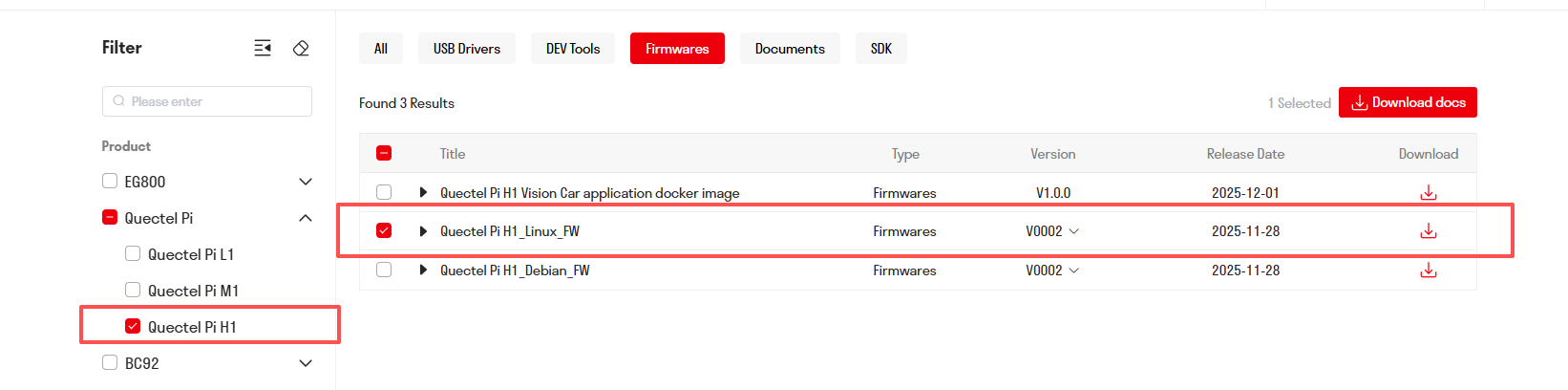
Method 2: Obtain after custom compilation
If you have completed the above custom compilation steps, the compiled images are located at workspace/quectel_build/project_version_number
Image file description
The image directory contains the following files:
Bootloader related:
xbl.elf- Main bootloaderxbl_config.elf- XBL configuration fileuefi.elf- UEFI firmware
System images:
system.img- System image file (main image)dtb.bin- Device tree binary filevmlinux- Linux kernelkernel-modules.tgz- Kernel modules
Flashing configuration files:
rawprogram*.xml- Raw programming configuration filespatch*.xml- Patch configuration filesgpt_main*.bin/gpt_backup*.bin- GPT partition tables
Other firmware:
aop.mbn- Always-On processor firmwaretz.mbn- TrustZone firmwarecpucp.elf- CPU control processor firmwareprog_firehose- Firehose flashing tool