
Multimedia application
2026-02-28
This chapter introduces the audio and video playback methods of the Quectel Pi H1 single-board computer.
Preparations
Please refer to Display configuration chapter to connect the display screen.
Please refer to Audio configuration chapter to connect speakers or headphones.
Audio playback
If the VLC media player is pre-installed in the Debian system, you can follow these steps to play audio files:
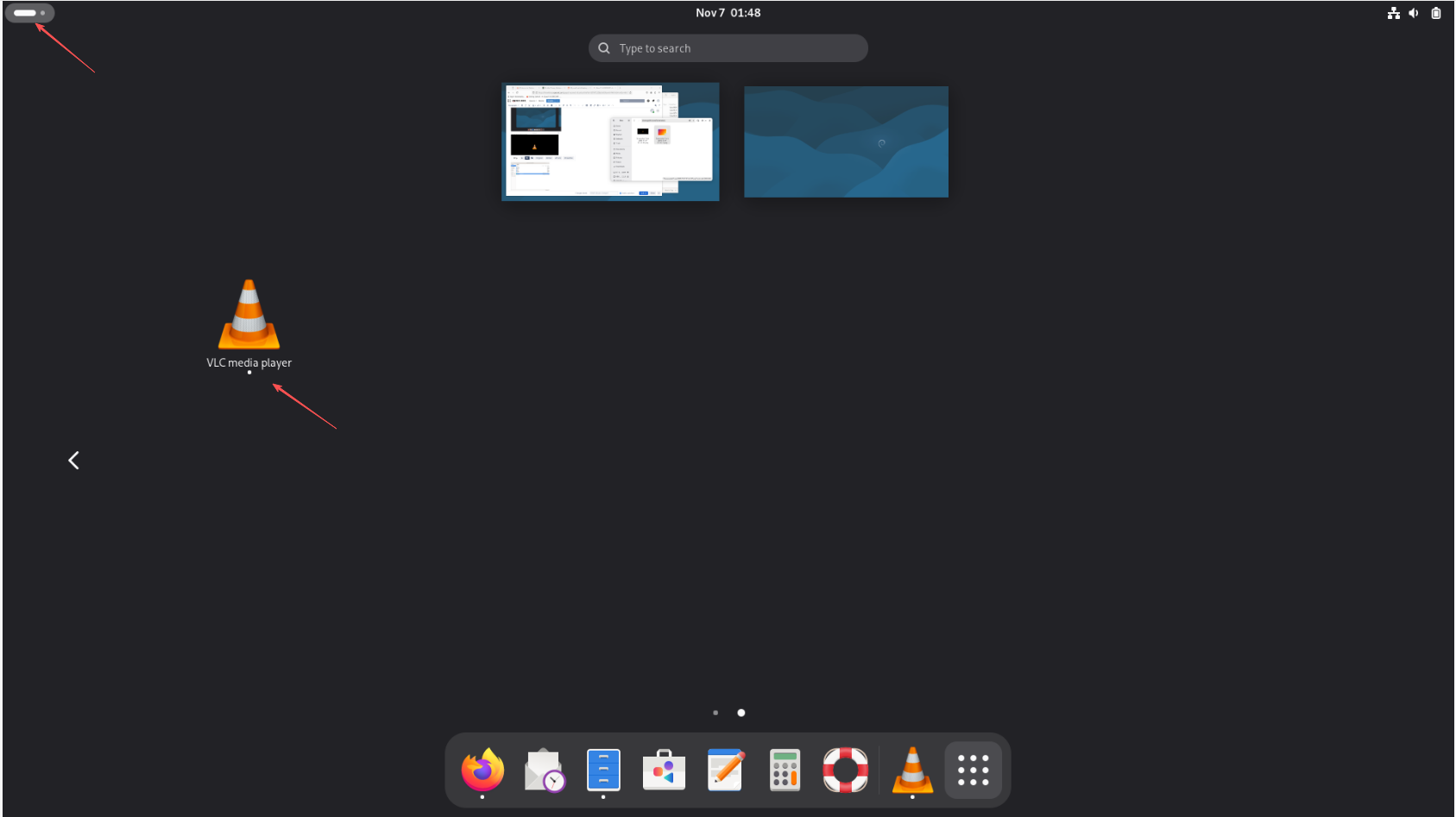
- Open the VLC player.
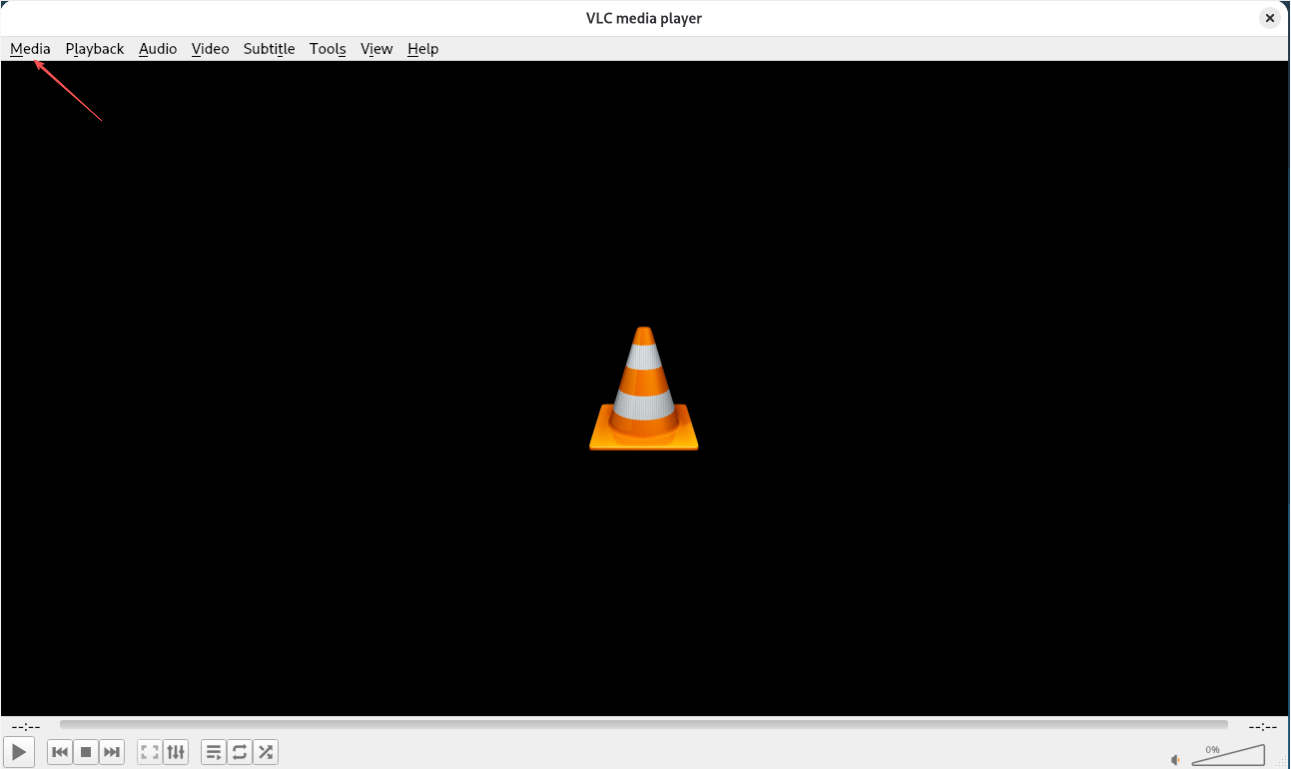
- Click Media in the upper left corner of the player.
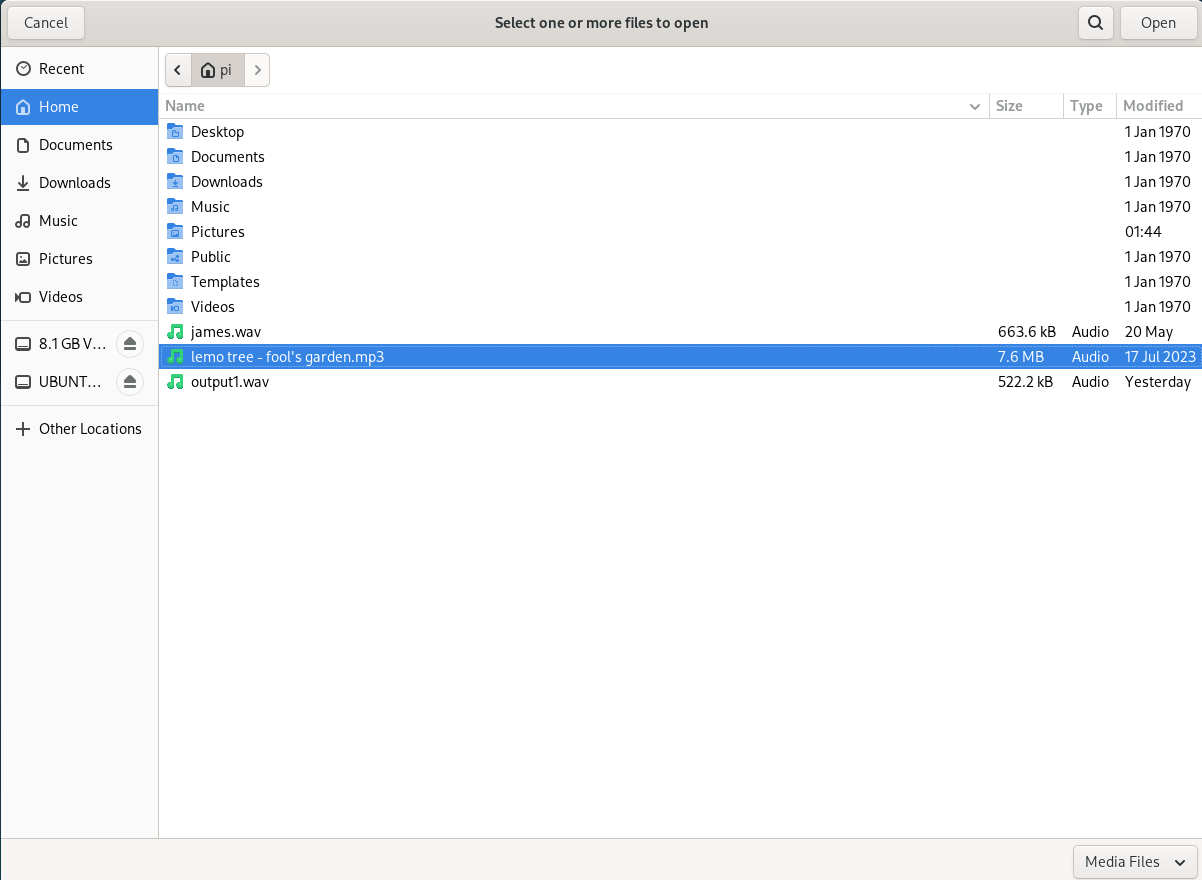
- Find the audio file and double-click to play it.
Video playback
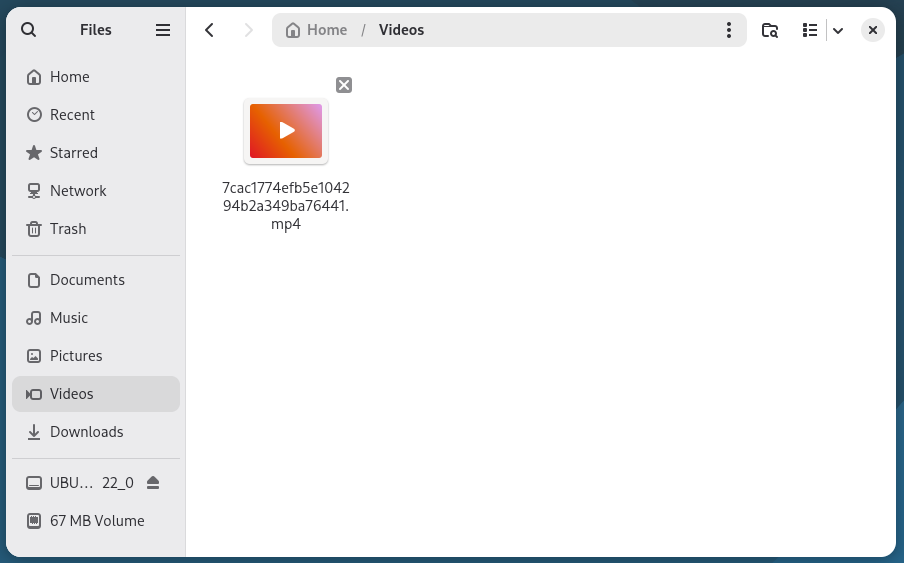
If the VLC media player is pre-installed in the Debian system, open the file manager and double-click a video file to play it directly.
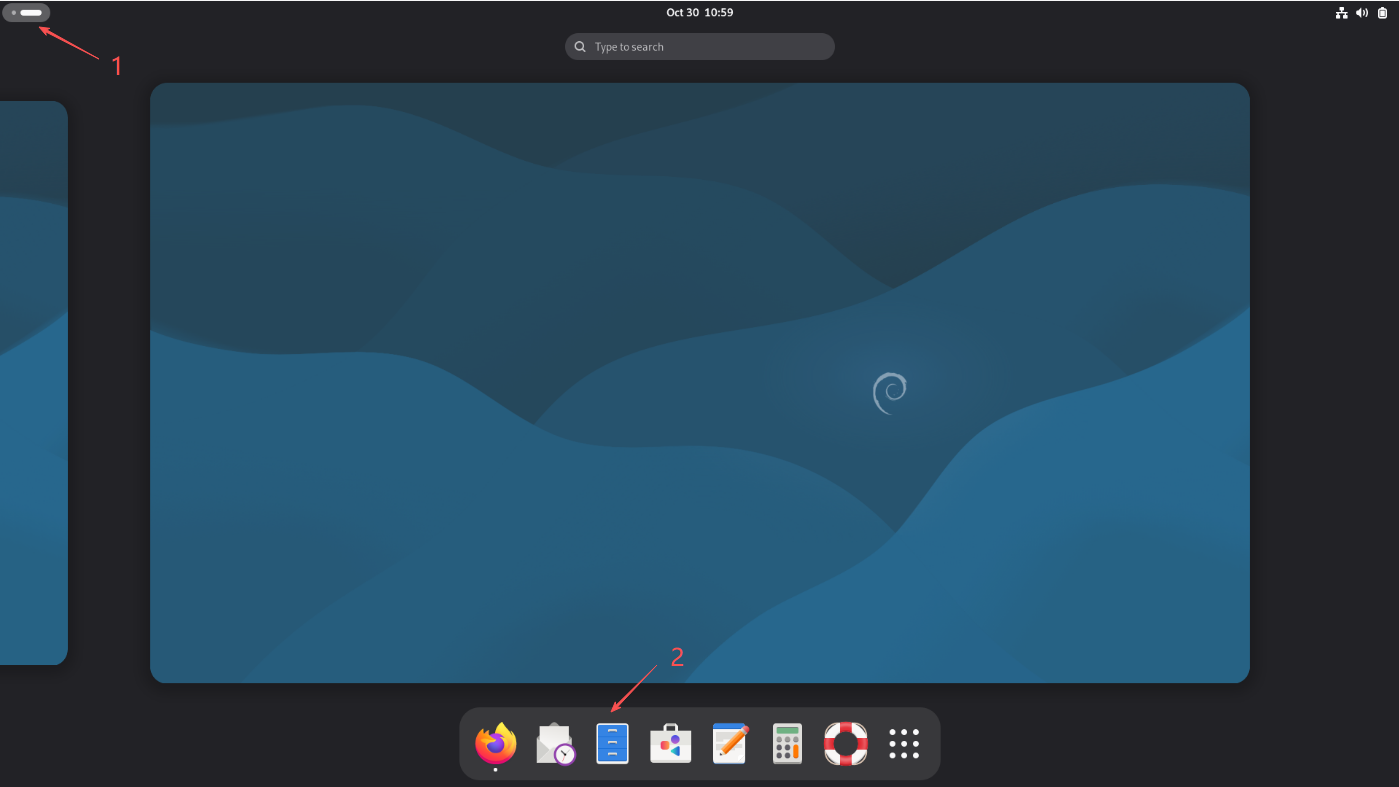
- Click the corresponding icons sequentially as shown in the figure to enter the file manager.
- Find the video file and double-click to play it.
Command-Line playback
- Dragon player is the default media player in the Debian system. If Dragon player is not installed, you can execute the following command to install it:
sudo apt update
- If a prompt appears, please enter your password and wait for the installation to complete. After installing Dragon player, you can use the following command to open the video:
dragon /path/to/video/file
- Replace "/path/to/video/file" with the actual path and file name of the video to be played. For example, if your video is located in the Videos folder of the home directory and named "myvideo. mp4", the command would be as follows:
dragon ~/Videos/myvideo.mp4
Dragon player can decode all video formats supported by the FFmpeg library, including mainstream formats such as MP4, AVI, MKV, WMV, FLV, and MOV.