
Container deployment
This guide will introduce how to install and use Docker on Quectel Pi H1 for containerized application deployment.
Introduction
Docker is a lightweight containerization technology with the following features:
- Easy management: Use Docker commands to manage containers and images can achieve effects of dependency isolation and deployment process simplification.
- Cross-platform: Support Windows, macOS, and Linux systems, enabling run and deploy containers on multiple platforms.
- Portability: Achieve environment consistency through Dockerfiles and images, facilitating quick migration and deployment across different machines or servers.
- Efficient resource utilization: Based on containerization technology, it shares the host kernel, has low resource consumption, fast startup speed, and is suitable for microservices architecture.
Preparation
Before installing Docker, please ensure the following conditions are met:
System requirements:
- Quectel Pi H1 has been booted normally
- Connected to the network (for downloading Docker images)
- Has root privileges or sudo privileges
Network preparation:
- Ensure the device can access the internet (for pulling images from Docker Hub)
- If located in mainland China, you may need to configure Docker image mirrors to accelerate downloads
Disk space:
- Ensure sufficient disk space for storing Docker images and containers (at least 2GB of available space is recommended)
Installation steps
Update package list and install Docker
sudo apt update
sudo apt install docker.io
Configure iptables
iptables needs to be configured for Docker to work properly. Execute the following commands:
sudo update-alternatives --set iptables /usr/sbin/iptables-legacy
sudo update-alternatives --set ip6tables /usr/sbin/ip6tables-legacy
After executing the above commands, you need to reboot the system for the configuration to take effect:
sudo reboot
Verify installation
After the system reboots, verify that Docker is installed successfully:
docker --version
If the terminal outputs information similar to the following, the installation is successful:
Docker version 26.1.5+dfsg1, build a72d7cd
Add user permissions
To run Docker commands without using sudo, you can add the current user to the Docker user group:
sudo usermod -aG docker $USER
After adding, you need to start the Docker service and log out and log back in, or reboot the system for the configuration to take effect:
# Start Docker service
sudo systemctl start docker

# Enable automatic startup of Docker service on boot
sudo systemctl enable docker
After logging back in, you can verify with the following command:
docker ps
If you can execute it without using sudo, the configuration is successful.
Configure Docker image mirror (Optional)
If you are in mainland China, accessing Docker Hub may be slow. You can configure domestic image mirrors to accelerate downloads. Use the following command to create the /etc/docker/daemon.json file:
sudo mkdir -p /etc/docker
sudo sh -c 'echo "{
  \"registry-mirrors\": [
    \"https://docker.mirrors.ustc.edu.cn\",
    \"https://hub-mirror.c.163.com\"
  ]
}" > /etc/docker/daemon.json'
After configuration, restart the Docker service:
sudo systemctl restart docker
Usage
Tips:
- Image: A read-only template containing an application and its runtime environment (including dependencies, libraries, configuration files, etc.).
- Container: A running instance of an image, providing an executable environment based on the image, containing the application and all dependencies, but isolated from the host system.
View help
Use Docker's built-in help command to view usage information for all commands:
docker --help
docker <command> --help
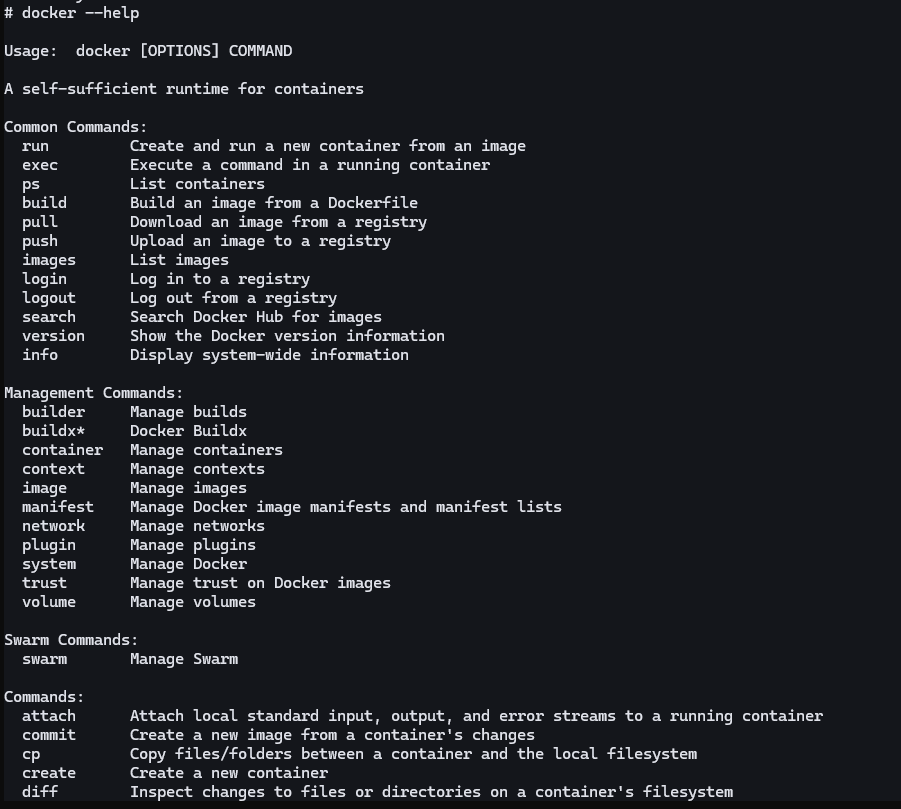
For example:
docker run --help
docker ps --help
View Docker system information
Use the docker info command to view Docker system information, including version, system configuration, storage driver, network configuration:
docker info
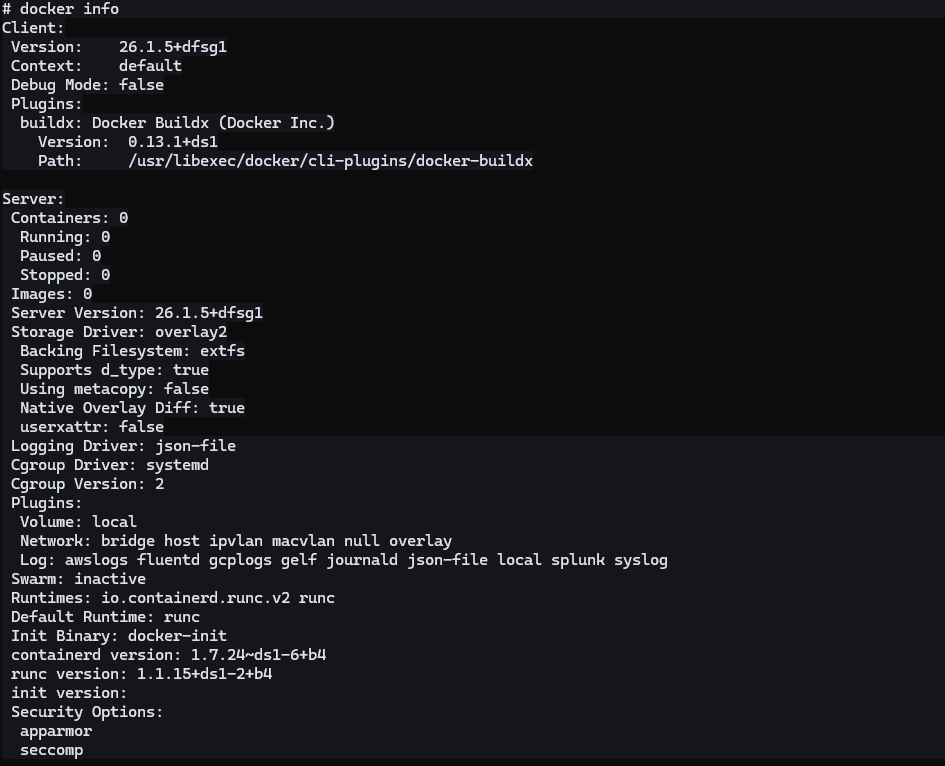
Basic operations
Pull Docker images
Use the docker pull command to pull the required application images from Docker Hub:
docker pull <image_name>

# Example: Pull the latest hello-world image
docker pull hello-world

Run Docker containers
Use the docker run command to run a container based on the pulled images:
# Run hello-world container (exits immediately after running)
docker run hello-world

# Run with a container name
docker run --name my-hello hello-world
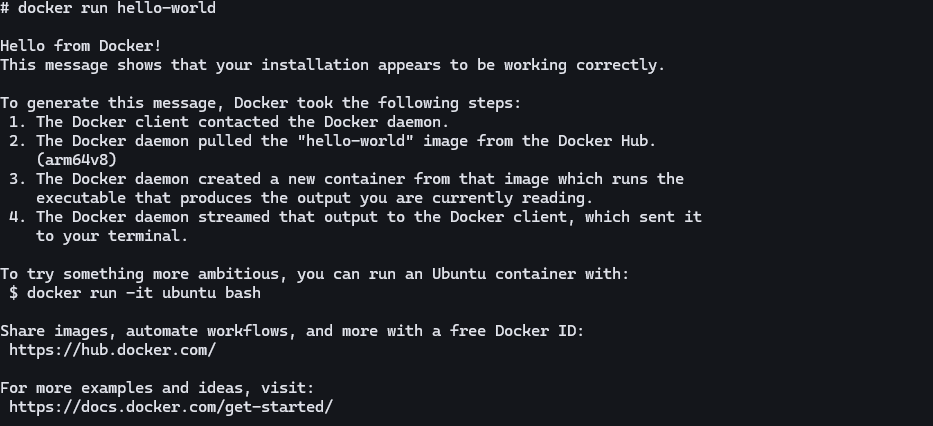
Note: The hello-world image is a demonstration image that prints a welcome message and then exits. For containers of interactive operations or continuous running, you can use other images, for example:
# Run a container interactively (using ubuntu image)
docker run -it ubuntu:20.04 /bin/bash

# Run a container in the background (using ubuntu image)
docker run -d --name mycontainer ubuntu:20.04 tail -f /dev/null
View containers and images
# View running containers
docker ps

# View all containers (including stopped ones)
docker ps -a

# View local images
docker images
Stop and remove containers
# Stop container
docker stop <container_id>

# Remove container
docker rm <container_id>

# Remove images
docker rmi <image_id>
Save container as new image
If you have modified the container, you can use the docker commit command to save the container as a new image:
docker commit <container_id> <new_image_name>
For example:
# View container ID
docker ps -a

# Save container as new image
docker commit <container_id> my-hello-world:v1
Volumes
Volumes are used to share data between containers and the host. Even if a container is deleted, the data in the volume is still preserved.
Create a volume
docker volume create myvolume
Run a container using a volume
# Use hello-world image (Note: hello-world exits immediately after running)
docker run -v myvolume:/data hello-world

# For containers that need to run continuously, you can use other images
docker run -d -v myvolume:/data ubuntu:20.04 tail -f /dev/null
The above command mounts the volume myvolume to the /data directory in the container.
Directly mount host directory
# Use hello-world image
docker run -v /host/path:/container/path hello-world

# For containers that need to run continuously, you can use other images
docker run -d -v /host/path:/container/path ubuntu:20.04 tail -f /dev/null
Mounts the host's /host/path directory to the /container/path directory in the container.
Manage volumes
# View volume list
docker volume ls

# View volume details
docker volume inspect myvolume

# Remove a volume
docker volume rm myvolume
Port mapping
Port mapping allows mapping ports inside the container to ports on the host, enabling external access to services inside the container.
Basic port mapping
docker run -d -p 8080:80 nginx
Maps port 80 in the container to port 8080 on the host.
Port mapping with specific host IP
docker run -d -p 127.0.0.1:8080:80 nginx
Only allows access through 127.0.0.1 on the host.
View port mappings
docker port <container_id>
Environment variables
Environment variables can be passed to applications inside containers when running containers.
Set environment variables using -e parameter
docker run -d -e MYSQL_ROOT_PASSWORD=password mysql:5.7
Read environment variables from file
# Use hello-world image
docker run --env-file .env hello-world

# For containers that need to run continuously, you can use other images
docker run -d --env-file .env ubuntu:20.04 tail -f /dev/null
Container networking
Docker provides multiple network modes for communication between containers.
Create a customized network
docker network create mynetwork
Connect containers to a network
# Use hello-world image
docker run --network mynetwork --name container1 hello-world

# For containers that need to run continuously, you can use other images
docker run -d --network mynetwork --name container2 ubuntu:20.04 tail -f /dev/null
Containers connected to the same network can communicate with each other using container names.
Manage networks
# View network list
docker network ls

# View network details
docker network inspect mynetwork

# Disconnect a container from the network
docker network disconnect mynetwork container1
Container restart policies
You can set restart policies for containers to automatically restart after exits:
# Use hello-world image (Note: hello-world exits immediately after running)
docker run --restart=always --name my-hello hello-world

# For containers that need to run continuously, you can use other images
docker run -d --restart=always --name mycontainer ubuntu:20.04 tail -f /dev/null
Restart policy options:
no: Do not automatically restart (default)always: Always restarton-failure: Restart only on abnormal exitunless-stopped: Always restart unless manually stopped
Container resource limits
You can limit the CPU and memory resources used by containers:
Limit memory usage
# Use hello-world image
docker run -m 512m hello-world

# For containers that need to run continuously, you can use other images
docker run -d -m 512m ubuntu:20.04 tail -f /dev/null
This limits the container to a maximum of 512MB of memory.
Limit CPU usage
# Use hello-world image
docker run --cpus="1.5" hello-world

# For containers that need to run continuously, you can use other images
docker run -d --cpus="1.5" ubuntu:20.04 tail -f /dev/null
This limits the container to use at most 1.5 CPU cores.
Other common commands
View container logs:
docker logs <container_id>
docker logs -f <container_id>  # Real-time view
Enter a running container:
docker exec -it <container_id> /bin/bashView container resource usage:
docker stats
docker stats <container_id>  # View specific container
View container details:
docker inspect <container_id>Copy files:
docker cp /host/path/file.txt <container_id>:/container/path/  # Copy to container
docker cp <container_id>:/container/path/file.txt /host/path/  # Copy from container
Pause/unpause container:
docker pause <container_id>
docker unpause <container_id>
Clean up unused resources:
docker system prune -a
Common issues
Cannot access Docker Hub, image pull failed
Problem: In mainland China, direct access to Docker Hub may be slow or fail.
Solution:
- Configure Docker image mirrors (refer to the "Configure Docker image mirrors" section in "Installation steps")
- Use a proxy server
- Use domestic image registries, such as Alibaba and Tencent.
Permission denied when executing Docker commands
Problem: When executing commands like docker ps, you get a permission denied error.
Solution:
- Ensure the user has been added to the Docker user group:
sudo usermod -aG docker $USER - Log out and log back in, or reboot the system
- If it still doesn't work, you can use
sudoto execute commands (not recommended)
Docker service cannot start
Problem: When executing docker ps, you get Cannot connect to the Docker daemon at unix:///var/run/docker.sock. Is the docker daemon running?
Solution:
Check Docker service status:
sudo systemctl status dockerIf the service is not running, it will show
inactive (dead)status.Start Docker service:
sudo systemctl start dockerAfter starting, check the status again to confirm that the service is running.
Enable automatic startup of Docker service on boot:
sudo systemctl enable dockerThis ensures Docker service starts automatically after system reboot.
Check Docker socket file permissions:
ls -l /var/run/docker.sockIf the file does not exist or has incorrect permissions, restart the Docker service:
sudo systemctl restart dockerCheck if the user is in docker group:
groupsIf
dockeris not in the output, you need to add the user to the docker group (refer to the "Add user permissions" section in "Installation steps").Ensure iptables is properly configured:
If the Docker service fails to start, it may be due to iptables configuration issues. Refer to the "Configure iptables" section in "Installation steps".View Docker service logs:
sudo journalctl -u docker -n 50View detailed error messages to help identify the issue.
Container exits immediately after start
Problem: After using docker run to start a container, the container exits immediately.
Solution:
- Check container logs:
docker logs <container_id> - Run the container in interactive mode:
docker run -it ubuntu:20.04 /bin/bash - Ensure there is a continuously running process in the container, or use
tail -f /dev/nullto keep the container running
How to clean up unused Docker resources
Problem: Docker is using a lot of disk space.
Solution:
- Clean up unused containers, networks, and images:
docker system prune -a - Clean up unused volumes:
docker volume prune - Manually delete unnecessary images and containers
Container cannot access external network
Problem: The container cannot access the internet.
Solution:
- Check the host's network connection
- Check Docker network configuration:
docker network ls docker network inspect bridge - Restart Docker service:
sudo systemctl restart docker
Port mapping not working
Problem: Port mapping is configured, but cannot access container services from outside.
Solution:
- Check if port mapping is correct:
docker port <container_id> - Check firewall settings to ensure ports are not blocked
- Check if services inside the container are running normally:
docker exec -it <container_id> ps aux
Data loss in volumes
Problem: After deleting the container, data in the volume is lost.
Solution:
- Ensure you use named volumes instead of anonymous volumes:
docker run -v myvolume:/data hello-world - Do not use the
-vparameter when deleting containers (this will also delete associated volumes) - Regularly backup important data
How to view container resource usage
Solution:
# View resource usage of all containers in real-time
docker stats

# View resource usage of a specific container
docker stats <container_id>
Containers do not start automatically after system reboot
Problem: After the system reboots, previously running containers do not start automatically.
Solution:
Use
--restart=alwaysparameter when running containers:# Use hello-world image docker run --restart=always --name my-hello hello-world # For containers that need to run continuously, you can use other images docker run -d --restart=always --name mycontainer ubuntu:20.04 tail -f /dev/nullFor existing containers, update restart policy:
docker update --restart=always <container_id>
Through the above steps and issue solutions, you can successfully install and use Docker on Quectel Pi H1, making it convenient to deploy and manage containerized applications.