
ADB terminal
ADB stands for Android Debug Bridge, which is a command-line toolkit serving as a versatile tool for Android development and debugging.
Simply put, ADB is a "universal data cable" that connects your computer to a device (or emulator), allowing you to directly control and deeply manage the device on your computer.
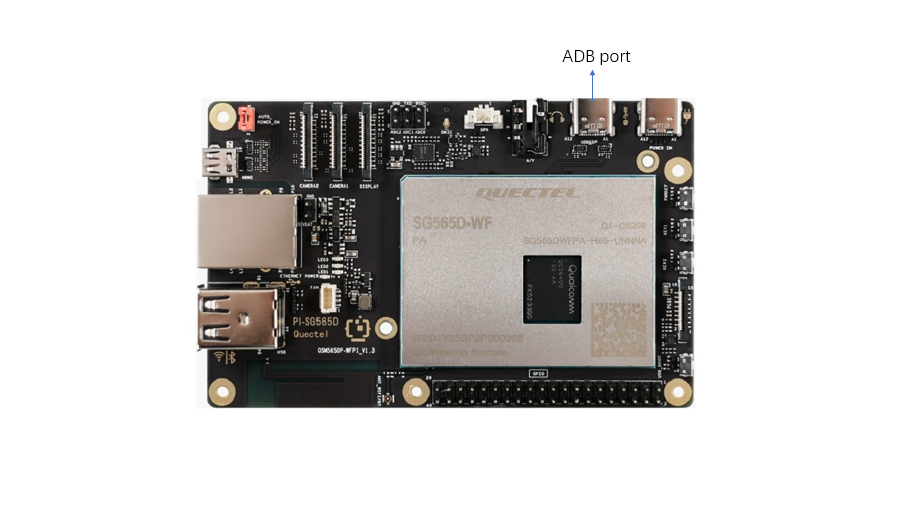
The ADB port of Quectel Pi H1 Smart Single-Board Computer is shown in the following figure:
Preparation
Prepare a USB to Type-C cable to connect the computer to the Quectel Pi H1 Smart Single-Board Computer.
Download the platform-tools tool on your computer and unzip it.
Enable and disable ADB
The ADB service is enabled by default in the system. To disable the ADB service, you can execute the following command:
sudo systemctl stop android-tools-adbd
sudo systemctl disable android-tools-adbd
sudo reboot
If you want to restart the ADB service after disabling it, you can execute the following command:
sudo systemctl start android-tools-adbd
sudo systemctl enable android-tools-adbd
sudo reboot
Usage method
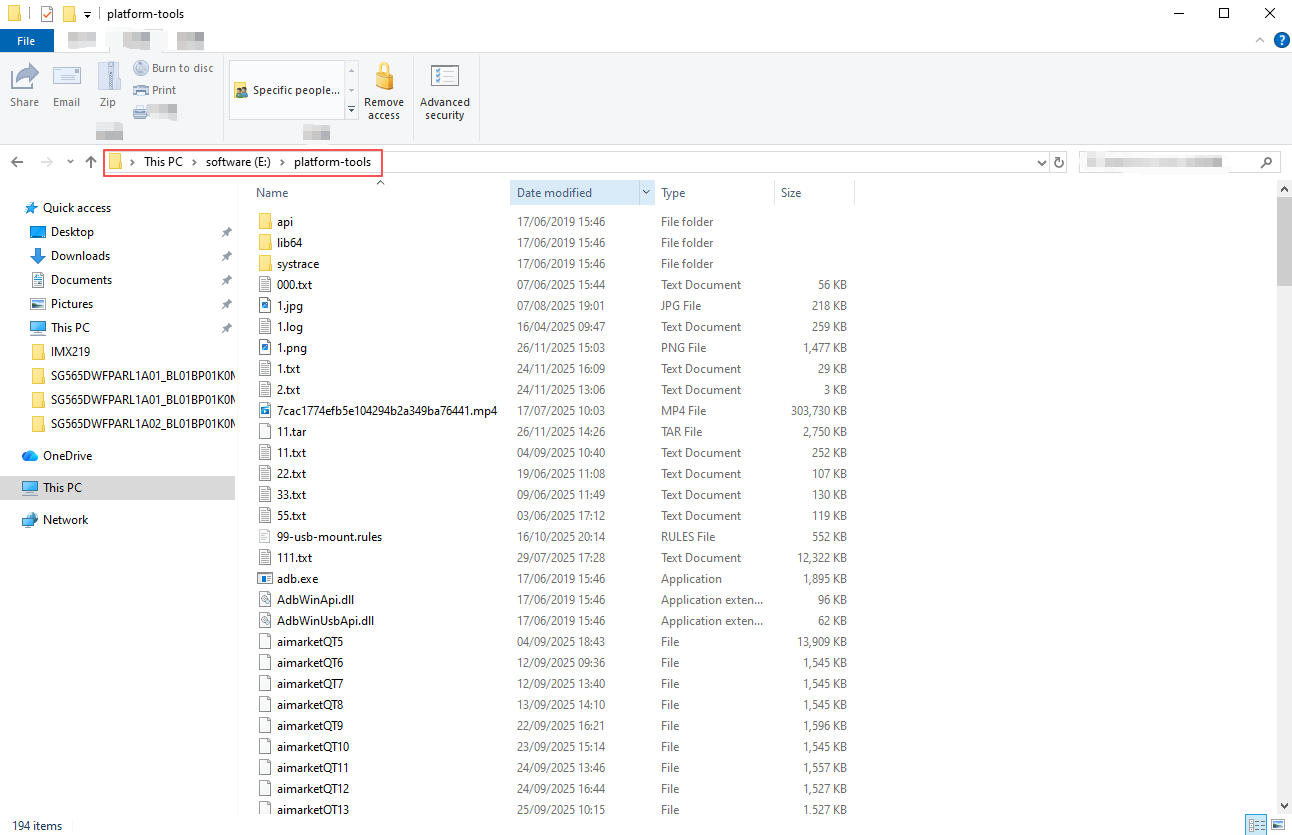
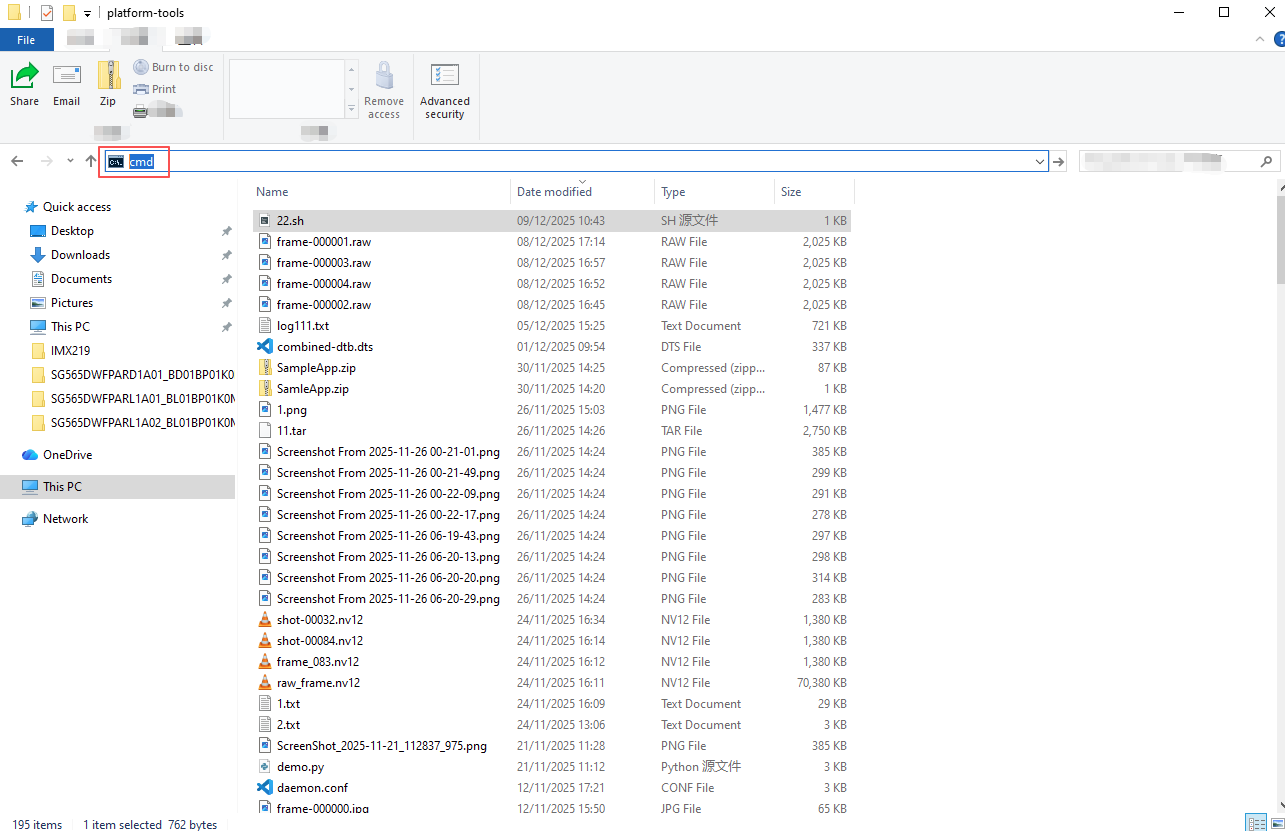
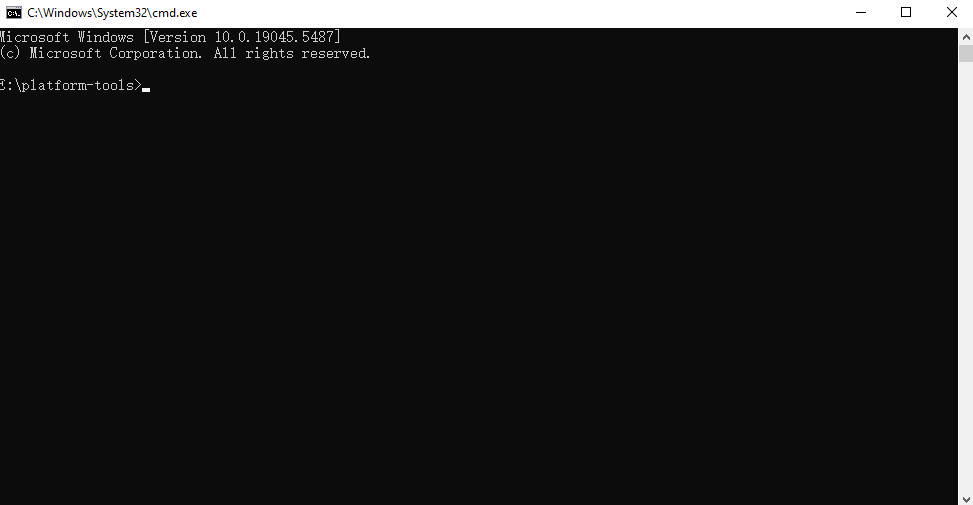
- Open the folder where the platform tools tool is located, enter cmd in the top path box, press enter to open the adb terminal.
- Enter the adb command in the terminal.
View connected devices:
adb devices
Transfer files from computer to device:
# For example, adb push C:\Users\james.liu\Desktop\11.txt /data/local/tmp/
adb push <computer file path> <device storage path>
- You can drag and drop files on your computer to the adb terminal to obtain the <computer file path>.
Transfer files from devices to computers:
# For example, adb pull /data/local/tmp/11.txt .
adb pull <device storage path> <computer file path>
- . means to pull the file to the current adb terminal folder, which is the platform tools folder.
Enter the device shell terminal:
adb shell
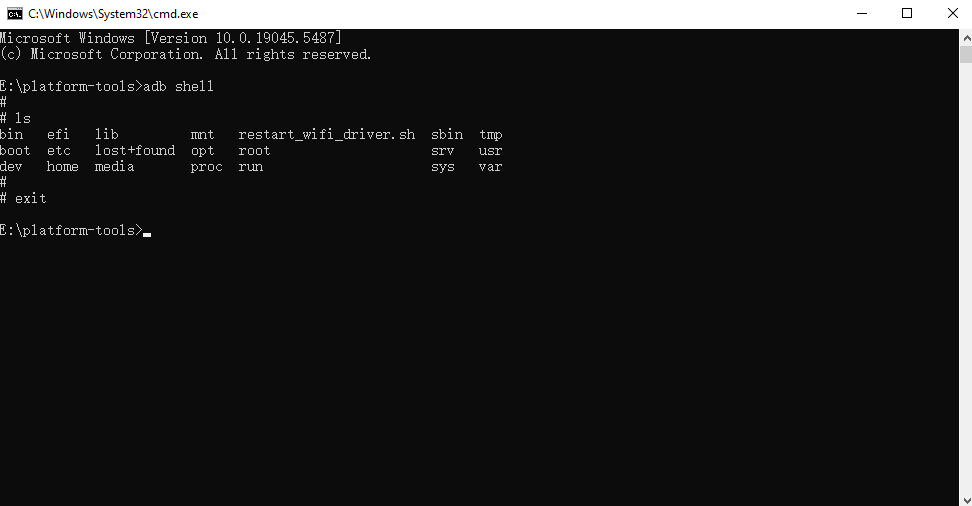
- After entering the shell terminal, the user identity defaults to root.
- If you want to exit the shell terminal, enter
exit.