
Ethernet interface
The Quectel Pi H1 Smart Single-Board Computer comes with one standard RJ45 port, supporting Ethernet communication speeds of 10/100/1000 Mbps.
Ethernet cable requirement: only straight-through cables are supported; crossover cables are not supported.
Hardware interface
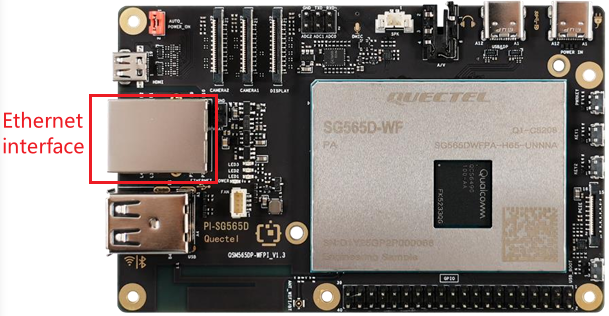
Basic functionality
View network configuration
The system enables the NetworkManager service by default to manage network connections.
1.In the terminal, enter the command sudo ifconfig to view the network interface address:
sudo ifconfig
Output example: The 10.55.62.236 following inet addr: is the local IP address.
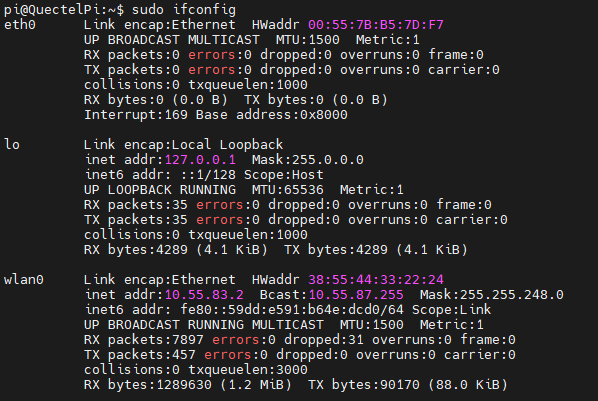
2.In the terminal, enter the command sudo route -n to view the network routing information.
sudo route -n
Output example:

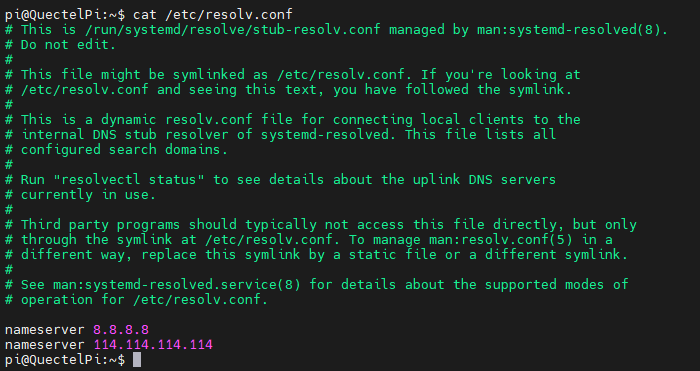
3.View the contents of the /etc/resolv.conf file to verify the DNS server address:
cat /etc/resolv.conf
Output example:
Automatic network configuration acquisition
The system is set to automatically acquire network configuration. When a device is connected to the local area network using an Ethernet cable, it will automatically acquire network configuration.
Prerequisite: A DHCP service must be available in the local area network.
Troubleshooting
❗Note:If you modify the network configuration through a remote connection, there is a risk of losing network access. Please ensure you have an alternative method (such as a debug serial port or display) to view the modified network configuration.
1.View the connection information by running the command nmcli c in the terminal.
nmcli c
Output example:

Observe whether the DEVICE column in the output contains eth0. If it does, delete it and recreate eth0.
2.To delete the old connection information, enter the following command in the terminal:
nmcli c del 'XXXX'
XXXX represents the NAME acquired from the nmcli c query.
After successful deletion, a connection with NAME set to eth0 will be automatically created by default. Replug the Ethernet cable, and the device will automatically acquire the network configuration.
Manual network configuration
1.View the connection information by running nmcli c in the terminal.
Observe whether the DEVICE column in the output contains eth0, and note its NAME.
If eth0 is not listed, create a new eth0 connection by running the following command in the terminal:
nmcli c add type ethernet con-name 'Wired connection 1' ifname eth0
2.For manual configuration, execute the following command in the terminal:
nmcli c modify 'Wired connection 1' \
ipv4.addresses 192.168.1.100/24 \
ipv4.gateway 192.168.1.1 \
ipv4.dns 192.168.1.1 \
ipv4.method manual
3.Enable the connection (modify the IP address, gateway address, and DNS address in the example as needed).
nmcli c up 'Wired connection 1'
Test the network
Run the ping command to test network connectivity
- Run
ping 8.8.8.8. If the ping is successful, it indicates that the external network connection is working properly. - Run
ping www.google.com. If the ping is successful, it indicates that the external network connection is working properly and the DNS resolution function is working correctly.