
Eye Remote Control
This project is developed based on the Quectel Pi H1 single-board computer, leveraging its powerful computing and multimedia processing capabilities to achieve low-latency, high-accuracy eye tracking functionality.
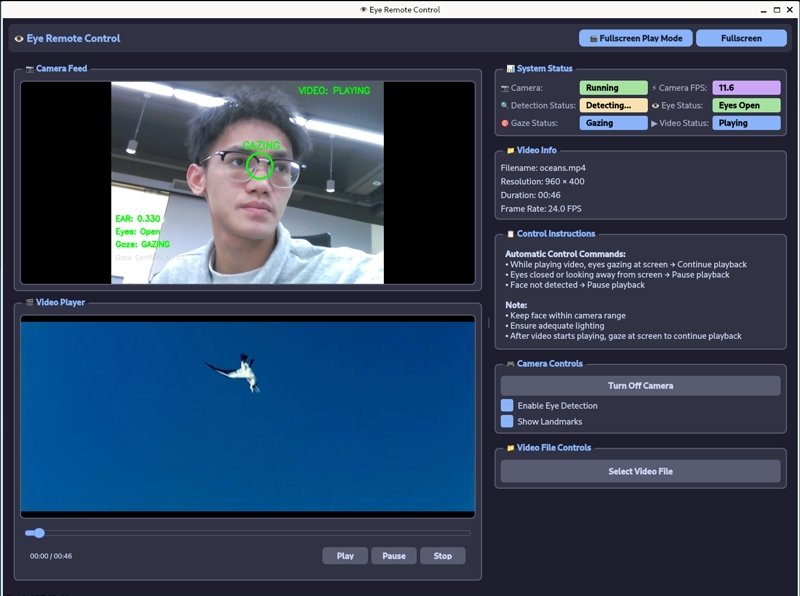
The Eye Remote Control is an intelligent control system that manages video playback through user eye state detection: continues playback when eyes are open and focused on the screen, and automatically pauses when eyes are closed or looking away.
Core Features:
- Automatically plays or maintains video playback when user's eyes are open and focused on the screen
- Immediately pauses current video playback when user closes eyes, looks away, or leaves the screen
Development Resource Summary
Component List
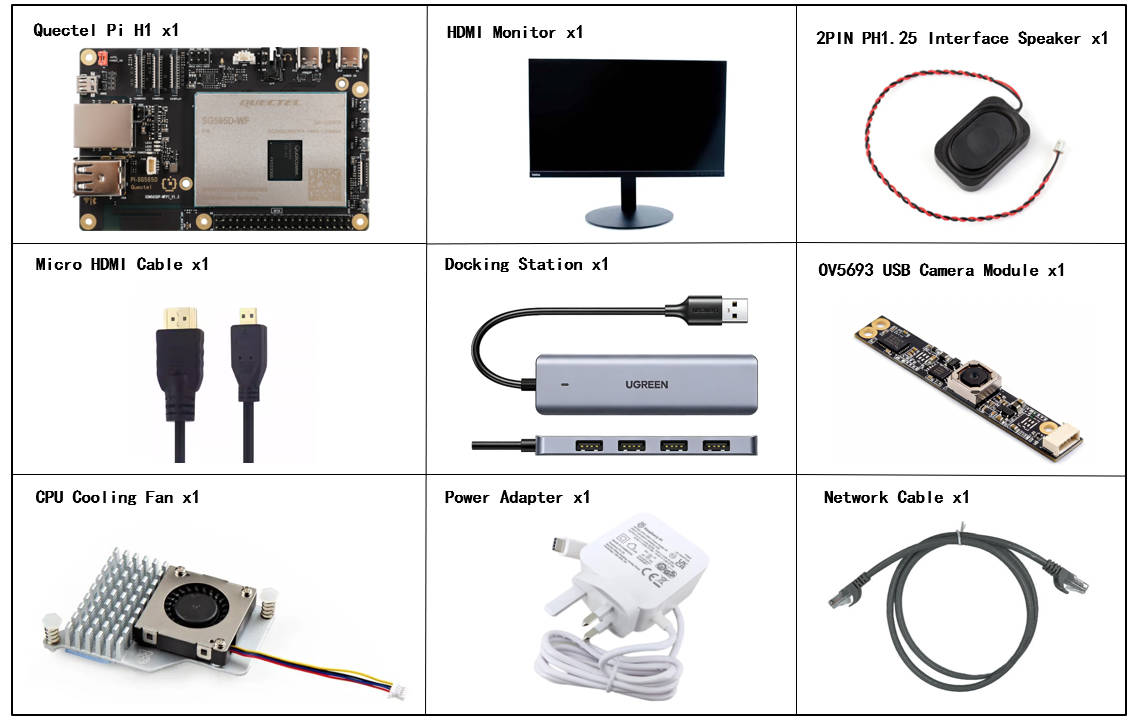
The listed development accessories are provided for reference only. Different development environments may vary. For example, if you are developing via SSH remote connection, the USB expansion dock may not be necessary, and the display monitor can also be replaced as needed.
| Component Name | Quantity | Specifications |
|---|---|---|
| Quectel Pi H1 smart single-board computer | 1 | Quectel Pi H1 Smart Ecosystem Development Board |
| USB-C Power Cable Charger | 1 | 27W USB Type-C Interface Charger 1.2m Cable Length China Standard Power PD Power Suitable for Raspberry Pi 5 |
| Micro HDMI Cable | 1 | Specification: Micro HDMI 2.0; Cable Length: 1m; Interface: HDMI-A (male)-HDMI-D (male) |
| Ethernet Cable | 1 | Cable Length: 1m; Transmission Rate: Gigabit |
| CPU Heat Sink Fan | 1 | Raspberry Pi 5 Official Active Cooler with Thermal Pad |
| 2PIN PH1.25 Interface Speaker | 1 | 2030 Cavity Speaker Type B, 8Ω 2W, High-quality Sound, Compact Size, 2PIN PH1.25 Connector |
| USB Hub | 1 | UGREEN USB 3.0 Hub |
| USB Camera Module | 1 | OV5693 USB Camera Module |
| Display | 1 | 24-inch HDMI Monitor |
Component Physical Reference
Quick Start
Development Preparation
The Quectel Pi H1 single-board computer comes pre-installed with Debian 13 system image, so no additional image burning is required. Follow the steps below to get started.
Hardware Connection
Complete all hardware connection steps below. The numbering matches the interface diagram:
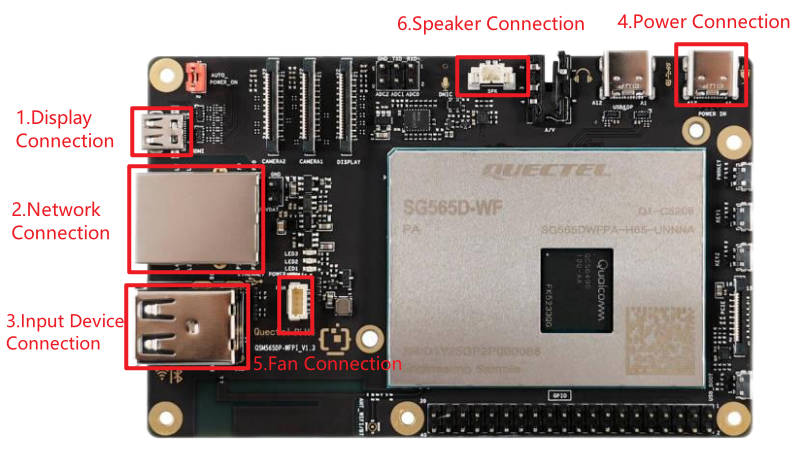
Display connection: Connect one end of the Micro HDMI cable to the Micro HDMI port on the smart single-board computer, and the other end to the HDMI port on the monitor.
Network connection: Connect one end of the Ethernet cable to the Gigabit Ethernet port on the smart single-board computer, and the other end to the router's port (make sure the router is connected to the internet).
Input device connection: Connect USB keyboard and mouse to the USB ports on the hub, then connect the hub to a USB port on the smart single-board computer. For wireless devices, insert the receiver into a USB port on the hub. Then connect the OV5693 camera module to another USB port on the smart single-board computer.
Power connection: Connect the USB-A end of the power cable to the power adapter, and the USB-C end to the power port on the smart single-board computer (usually labeled POWER IN).
Heat sink fan connection: First, insert the cooling fan's ribbon cable into the FAN slot of the smart single-board computer. Then, fix the two ends of the heat sink into the reserved holes on the board.
Speaker connection: Connect the 2PIN PH1.25 interface speaker to the SPK slot on the smart single-board computer.
Completed Connection Reference
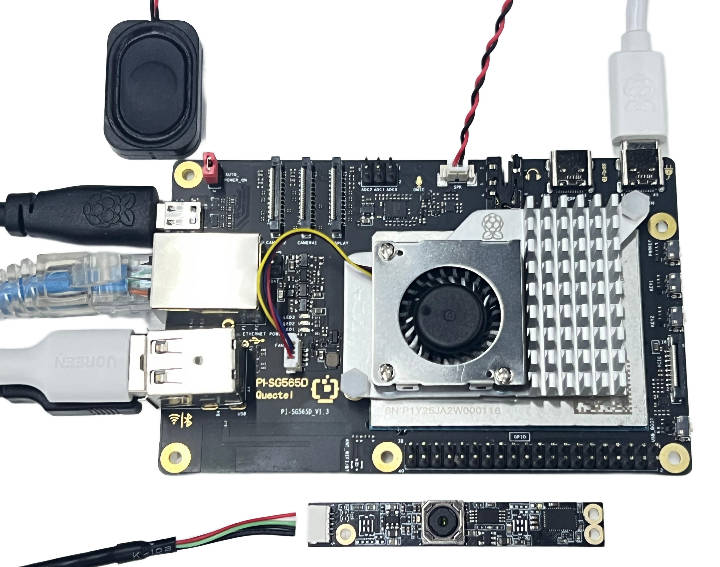
After completing the connections above, you do not need to disconnect connected accessories such as the camera, speaker, or monitor during subsequent shutdown or reboot. Keep them connected.
Project Implementation
- Clone the project using git.
sudo apt update
sudo apt install -y git
git clone https://github.com/Quectel-Pi/demo-eye-remote-control.git
After execution, a demo-eye-remote-control folder should be created in the current directory.
- Run the following commands in sequence on the board's terminal. If the terminal shows
Deployment complete, deployment is successful.
cd demo-eye-remote-control
sudo chmod 755 install.sh
./install.sh
If an error occurs while running ./install.sh, or the terminal does not show Deployment complete, do not continue to the next steps yet. Re-run the installation script from the project root and make sure network connectivity is normal.
- Reopen the terminal and verify the Python version. If the output is
Python 3.10.15, the installation is successful.
python3 --version
Run Program
Run the ./start.sh startup script in the demo-eye-remote-control directory.
cd demo-eye-remote-control/
./start.sh
Usage
Basic Workflow
- Start the program: the application will automatically open the camera and start detection.
- Load a video: click the "Select Video File" button to load the video you want to play.
- Watch: the system will automatically control play/pause according to your gaze state.
- Switch modes: use fullscreen playback for a better viewing experience.
UI Features
- Fullscreen: press
F11or click the fullscreen button on the UI to enter fullscreen mode. - Fullscreen playback mode: plays the video in fullscreen and controls playback based on real-time recognition.
- Camera toggle: turn the camera on or off at any time.
- Detection toggle: enable or disable eye detection manually.
- Landmark display: visualizes eye keypoints and detection results on the screen.
Control Logic
| State | Behavior | Description |
|---|---|---|
| Eyes open + looking at screen | Continue playback | System detects user watching |
| Eyes closed or looking away | Automatically pause | Pauses playback when user closes eyes or looks away |
| Face leaves camera | Automatically pause | Pauses if no face detected for more than 1 second |
Common Issues and Solutions
Camera not recognized
Symptom:
No available camera device found
Solutions:
Check the camera connection to the USB port.
Verify device nodes with:
ls -la /dev/video*Try other USB ports.
If the camera still fails, use a powered USB hub and connect external power.
Re-plug the USB camera.
No module named cv2 when running main.py
Symptom:
ModuleNotFoundError: No module named 'cv2'
Solutions:
This usually means install.sh did not complete successfully. Return to the project root and run the installation script again:
cd demo-eye-remote-control
./install.sh
Application Demonstration
Technical Support and Contributions
If you encounter any issues during use, please submit technical inquiries on the Quectel Official Forum. Our technical support team will respond promptly.
Project open-source repository: https://github.com/Quectel-Pi/demo-eye-remote-control
We welcome you to submit Issues to report problems or Pull Requests to contribute code improvements!