
VNC remote desktop
Note: Using VNC for remote connections requires both devices to be on the same local area network, and the target device must have the VNC service enabled.
Due to compatibility issues with the underlying Wayland protocol, the Debian system can only adopt the Xvfb + x11vnc solution at present.
Install required software
Use the debug serial port or adb shell to enter the terminal window and enter the following command:
sudo apt update
sudo apt install -y xvfb xfce4 x11vnc
sudo apt install --reinstall libdbus-1-3 dbus dbus-x11
- If any options appear during installation, simply press the
Enterkey.
Set VNC password
Enter the following command in the device terminal:
# Follow the prompts to enter the password twice in a row
mkdir -p ~/.vnc
x11vnc -storepasswd
Create a startup script
Enter the following command in the device terminal:
# Create Script
cat > ~/vnc_start.sh << 'EOF'
#!/bin/bash
echo "=== Starting Reliable VNC Server ==="
pkill Xvfb
pkill x11vnc
pkill startxfce4
sleep 2
echo "1. Starting virtual display..."
Xvfb :99 -screen 0 1280x720x24 -ac &
sleep 5
echo "2. Setting display environment..."
export DISPLAY=:99
echo "3. Starting desktop environment..."
startxfce4 &
sleep 10
echo "4. Starting VNC server..."
x11vnc -display :99 -forever -shared -rfbauth ~/.vnc/passwd -rfbport 5900 -bg
sleep 3
echo "=== Verification ==="
echo "VNC Process: $(ps aux | grep x11vnc | grep -v grep | wc -l)"
echo "Port Status: $(ss -tlnp | grep 5900 | wc -l)"
echo ""
echo " VNC SERVER READY!"
echo " Connect to: $(hostname -I | awk '{print $1}'):5900"
echo " No password required"
echo " Full desktop environment available"
EOF


#Modify permissions
chmod +x ~/vnc_start.sh
- If a login password is required, execute the following command:
x11vnc -display :99 -forever -shared -rfbauth ~/.vnc/passwd -rfbport 5900 -bg
- If no login password is required, execute the following command:
x11vnc -display :99 -forever -shared -nopw -rfbport 5900 -bg
Switch x11 session
# Edit GDM configuration to force the use of x11
sudo nano /etc/gdm3/daemon.conf

# Uncomment the line in the file(i.e. remove the # at the beginning) to disable the Wayland protocol
WaylandEnable=false

# Restart GDM
sudo systemctl restart gdm3
- After GDM configuration forces the use of x11, the display connected to the device will not function properly.
Management commands
# Start VNC
./vnc_start.sh

# Stop VNC
pkill Xvfb
pkill x11vnc

# View status
ps aux | grep -E "(Xvfb|x11vnc)"
ss -tlnp | grep 5900
Test connection
# Connect from another computer, enter the password as prompted to log in
# For example, vncviewer 10.66.82. *: 5900
Vncviewer<Device IP Address>: 5900
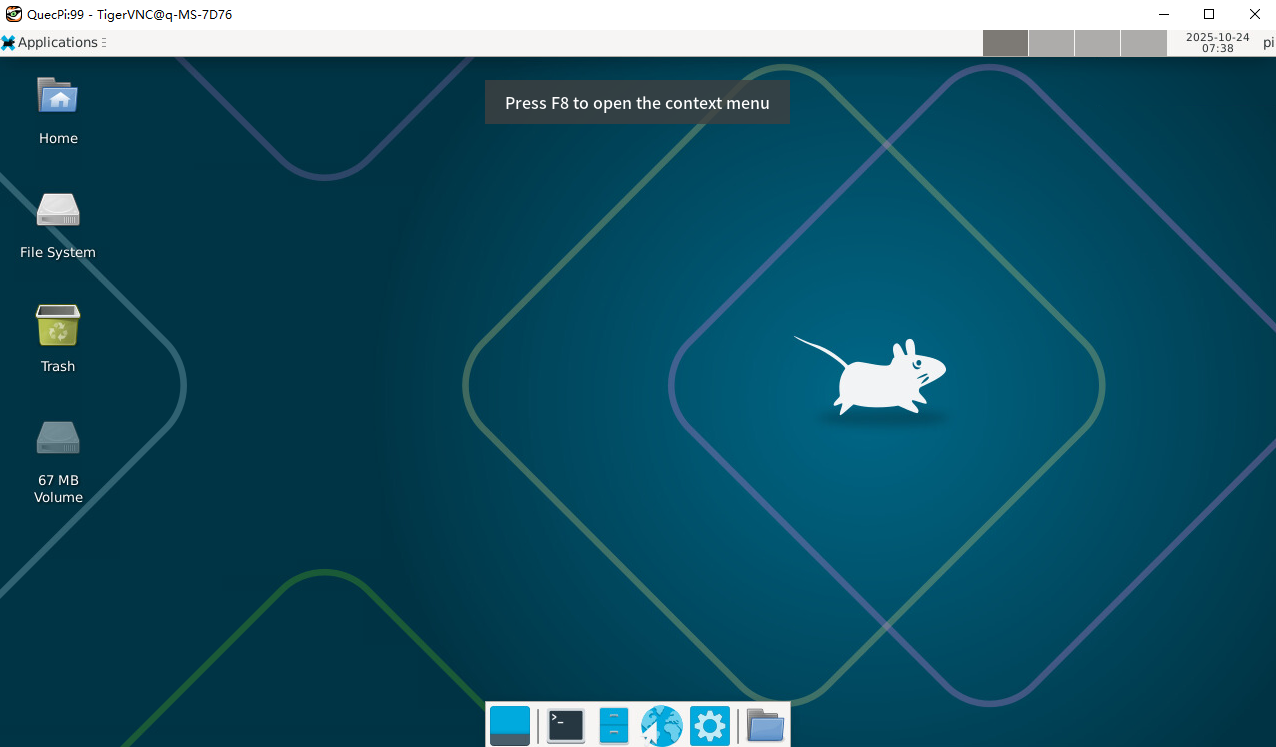
- After a successful connection, you will see the following remote desktop interface.
Restore display
After GDM configuration forces the use of x11, the display screen connected to the device will not be able to display. To restore the display, enter the following command:
#Edit GDM configuration
sudo nano /etc/gdm3/daemon.conf

#Add comments in the file (i.e. add # at the beginning) to enable the Wayland protocol
#WaylandEnable=false

#Restart GDM
sudo systemctl restart gdm3
- Currently, testing has confirmed that after restoring the display, the system may exhibit an issue where the mouse pointer icon fails to load properly.