
Samba
This document introduces how to configure the Samba file sharing service on a Debian/Linux system, allowing Windows computers to directly access the device’s shared folders.
Preparation
Confirm the device environment.
- The device is now able to connect the network normally.
- The Windows host and the device are in the same local area network.
Check network connectivity.
- Execute
ping 8.8.8.8in the terminal. If you can see response time information, it indicates that the network is normal.
Install Samba service
Samba is a service program used for sharing files with Windows systems on Debian/Linux.
Update the package list:
sudo apt-get updateThis operation ensures the system obtains the latest software source information to avoid the installation of outdated software.
Install Samba and client tools:
sudo apt-get install samba sudo apt-get install smbclientsamba:Server-side software used to provide sharing services.smbclient:Client tool used to test whether the connection is successful.Confirm Samba installation is successful:
sudo samba -V
Create a shared folder
Create the shared directory:
mkdir -p /home/pi/shareCreate a test file:
touch /home/pi/share/test.txtModify permissions:
chmod -R 777 /home/pi/share
Configure Samba service
Open the configuration file:
sudo vim /etc/samba/smb.confIf you are not familiar with
vim, you can use other editors such asnano.sudo nano /etc/samba/smb.confScroll to the end of the file and add the following content:
[myshare] comment = My Shared Folder browseable = yes path = /home/pi/share create mask = 0777 directory mask = 0777 valid users = pi force user = pi force group = pi public = yes writable = yes available = yes[myshare]----The name of the shared folder as seen by Windows clients when accessing.path----The actual path of the shared directory.create mask / directory mask----The default permissions for newly created files/folders.vaild users----Legitimate users allowed to access the Samba server. The example user here ispi.writable = yes----Allows clients to create, modify, and delete files in this directory.
Set Samba user and password
Samba login users require a separately set password. Taking the system user pi as an example:
sudo smbpasswd -a pi
Enter the password twice for confirmation (this password will be required when accessing from Windows).
Restart Samba service for configuration to take effect
sudo systemctl restart smbd
Set Samba to start automatically on boot:
sudo systemctl enable smbd
Add firewall rules
#Add allowed ports
sudo iptables -A INPUT -p tcp -m tcp --dport 445 -j ACCEPT
sudo iptables -A INPUT -p tcp -m tcp --dport 139 -j ACCEPT
#Allow client IPs through the firewall
sudo iptables -A INPUT -p icmp --icmp-type echo-request -s 192.xx.xx.xx -j ACCEPT
#Saving Rules
sudo sh -c 'iptables-save > /etc/iptables/rules.v4'
Check device IP address
sudo ifconfig
Access shared folder from a Windows computer
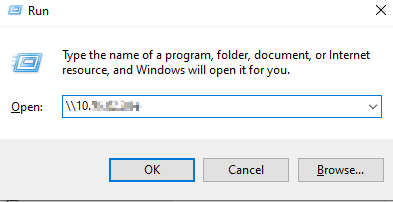
Press "Win+R" to open the Run dialog.
Enter " \\\ + device IP address ".
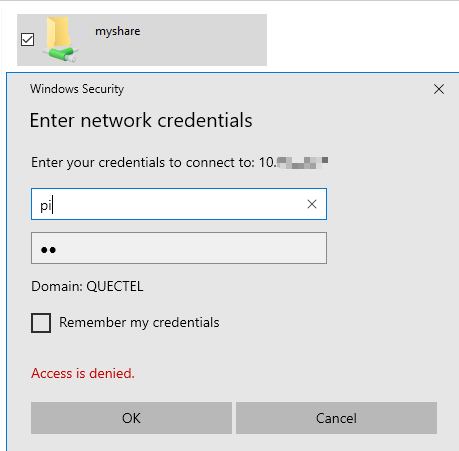
Enter the username and password to access the contents of the shared folder.
Username: pi
Password: The password set using
sudo smbpasswd -a pi
After successful access, you can see the previously created test file test.txt.