Network configuration
This chapter introduces the network interfaces and configuration methods for the Quectel Pi H1 single-board computer.
Network interface
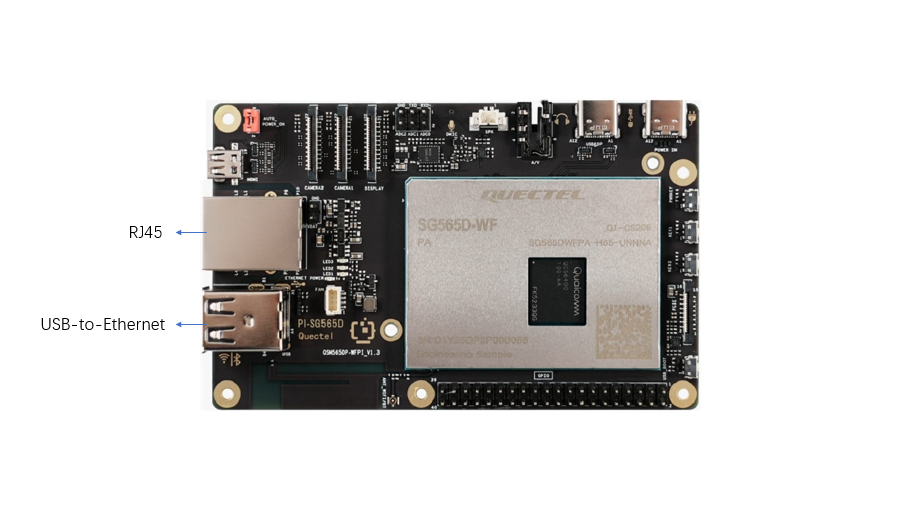
Quectel Pi H1 single-board computer supports Ethernet RJ45 interface, USB network interface, and built-in wireless network card.
Ethernet
Preparations
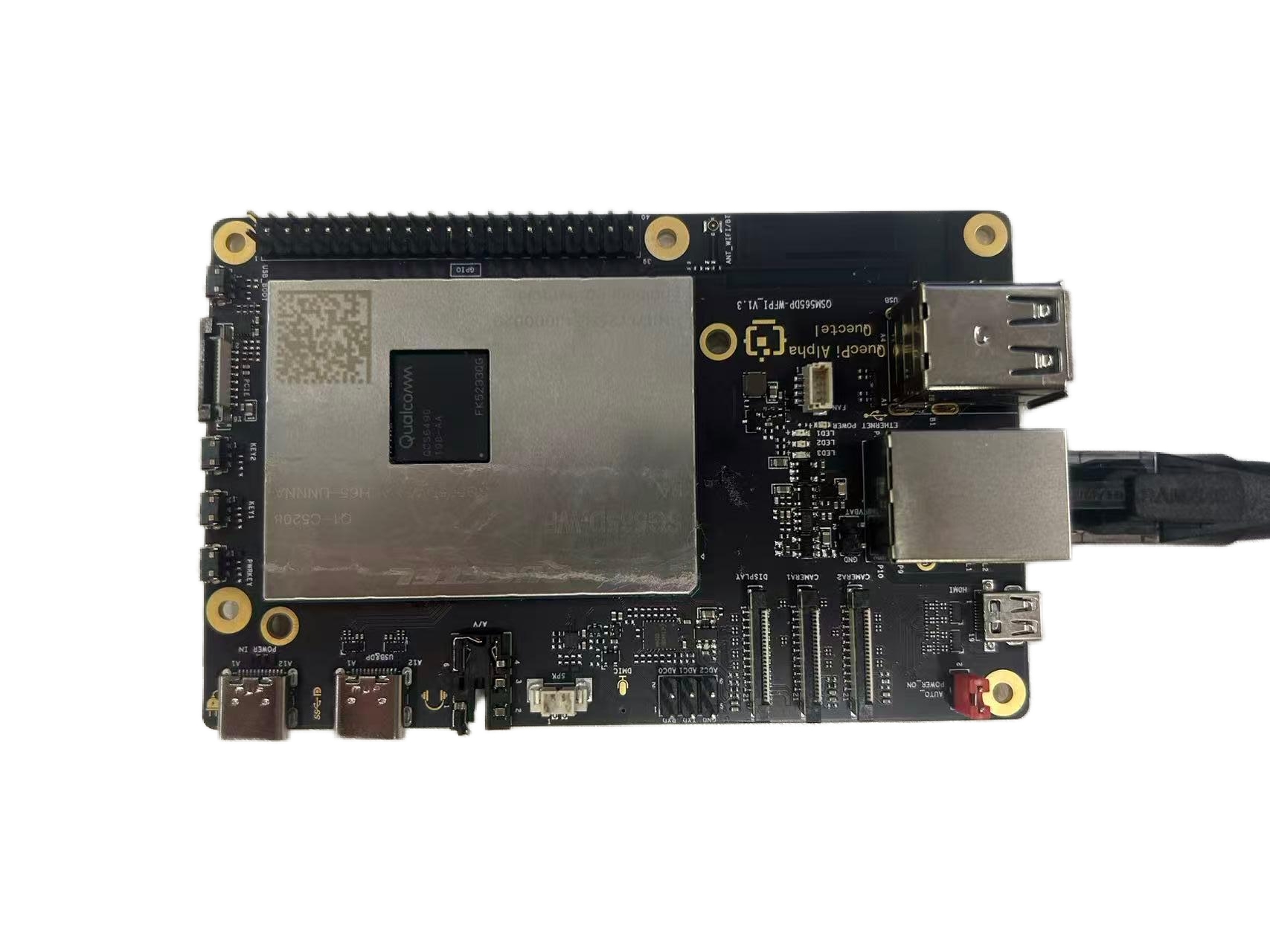
To establish a wired network connection, insert the network cable into the RJ45 port.
Software configuration
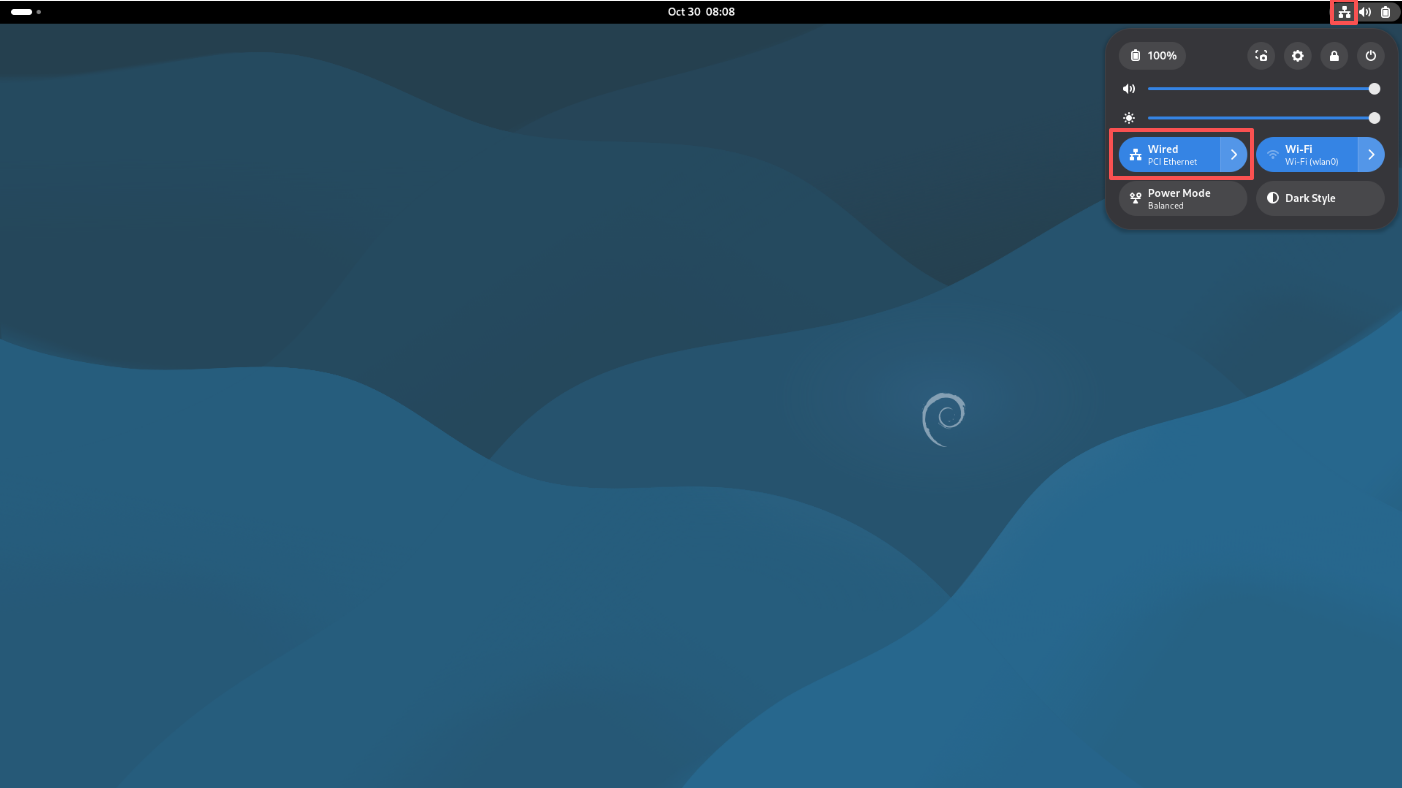
After successful connection, a network connection icon will appear in the status bar at the upper right corner of the desktop, and the system will automatically assign an IP address.
Search for network information
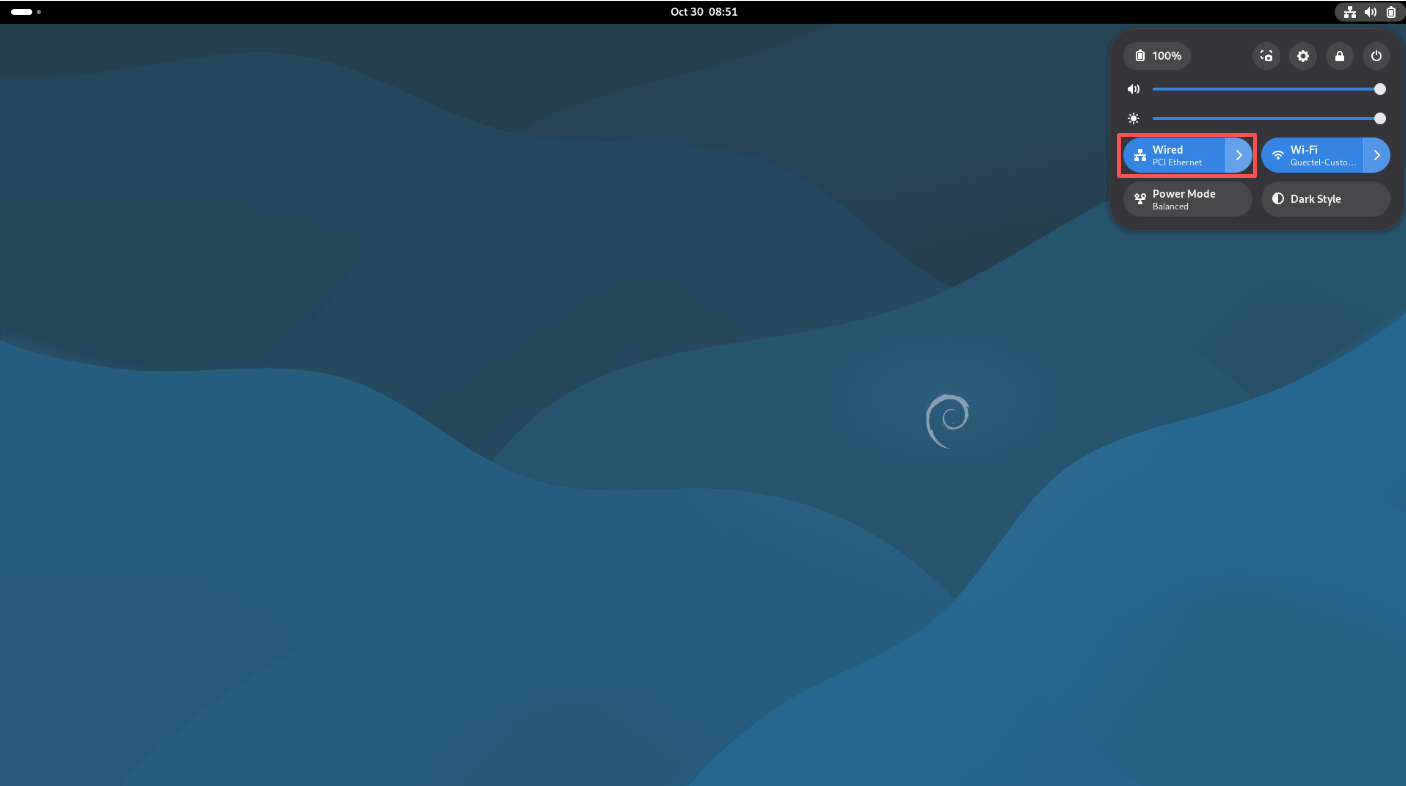
- Click the arrow next to "Wired" in the status bar.
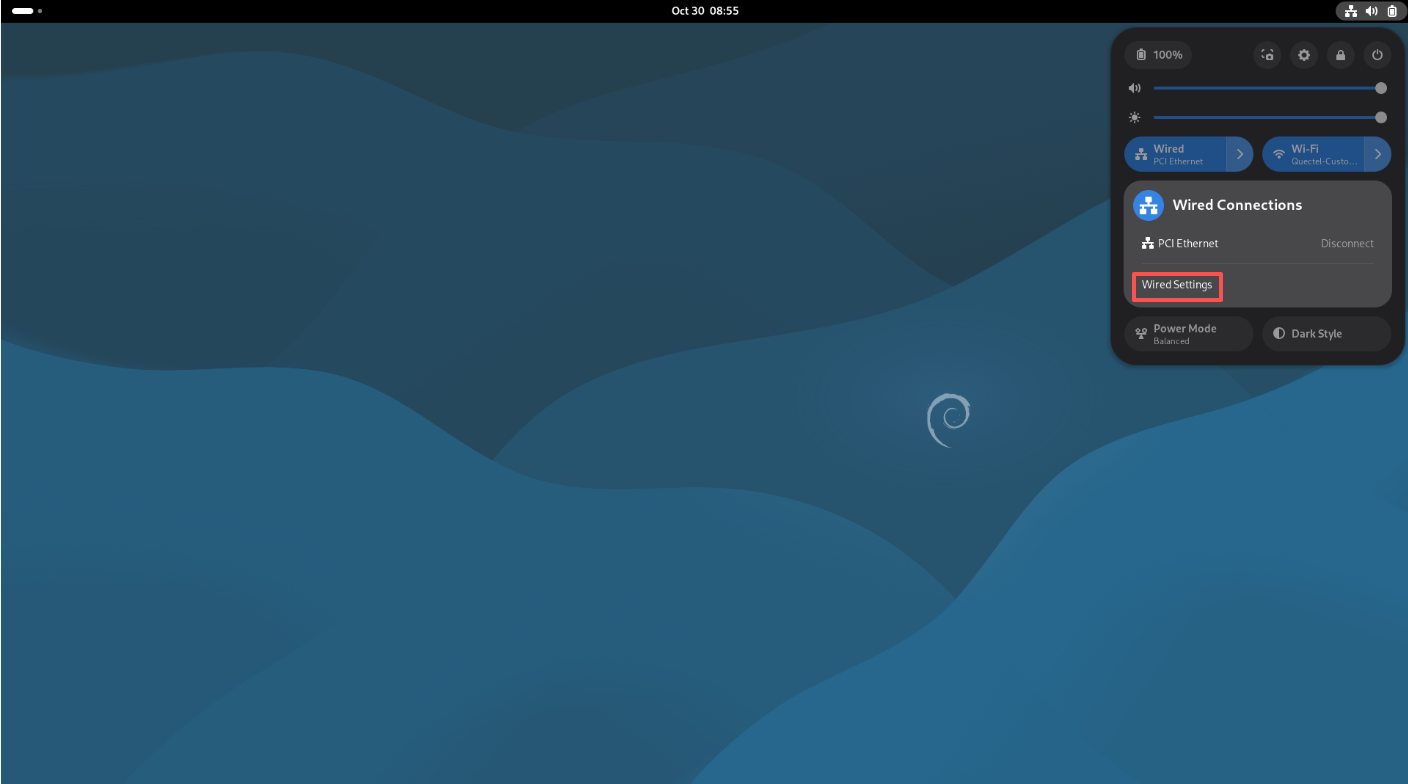
- Click "Wired settings".
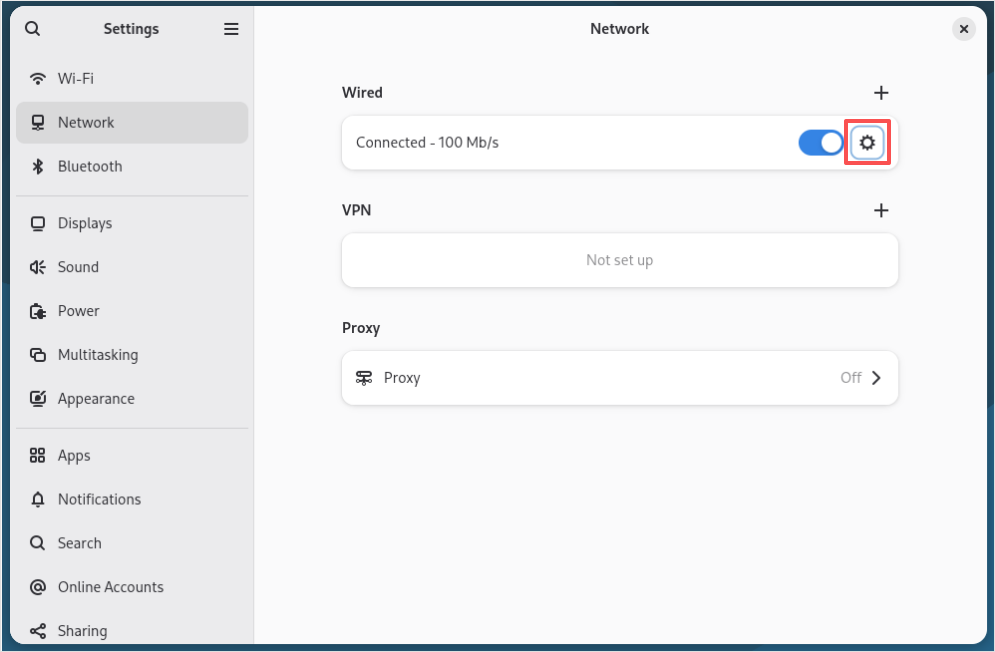
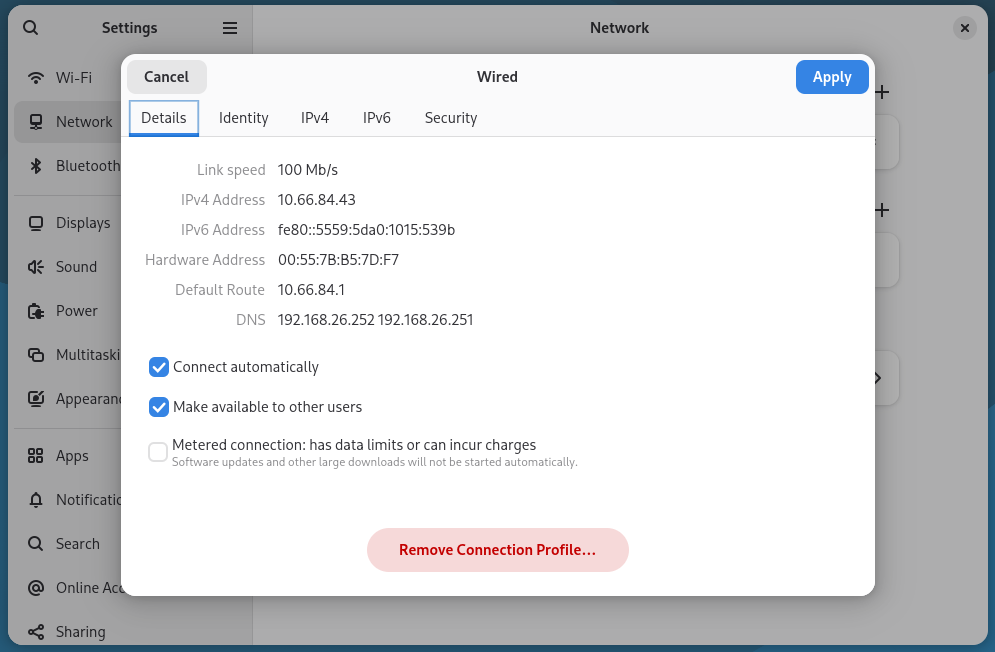
- Click the option button next to the connected network to view relevant network connection information.
Wireless network
Preparations
Prepare a Wi-Fi hotspot that can connect to the Internet.
Software configuration
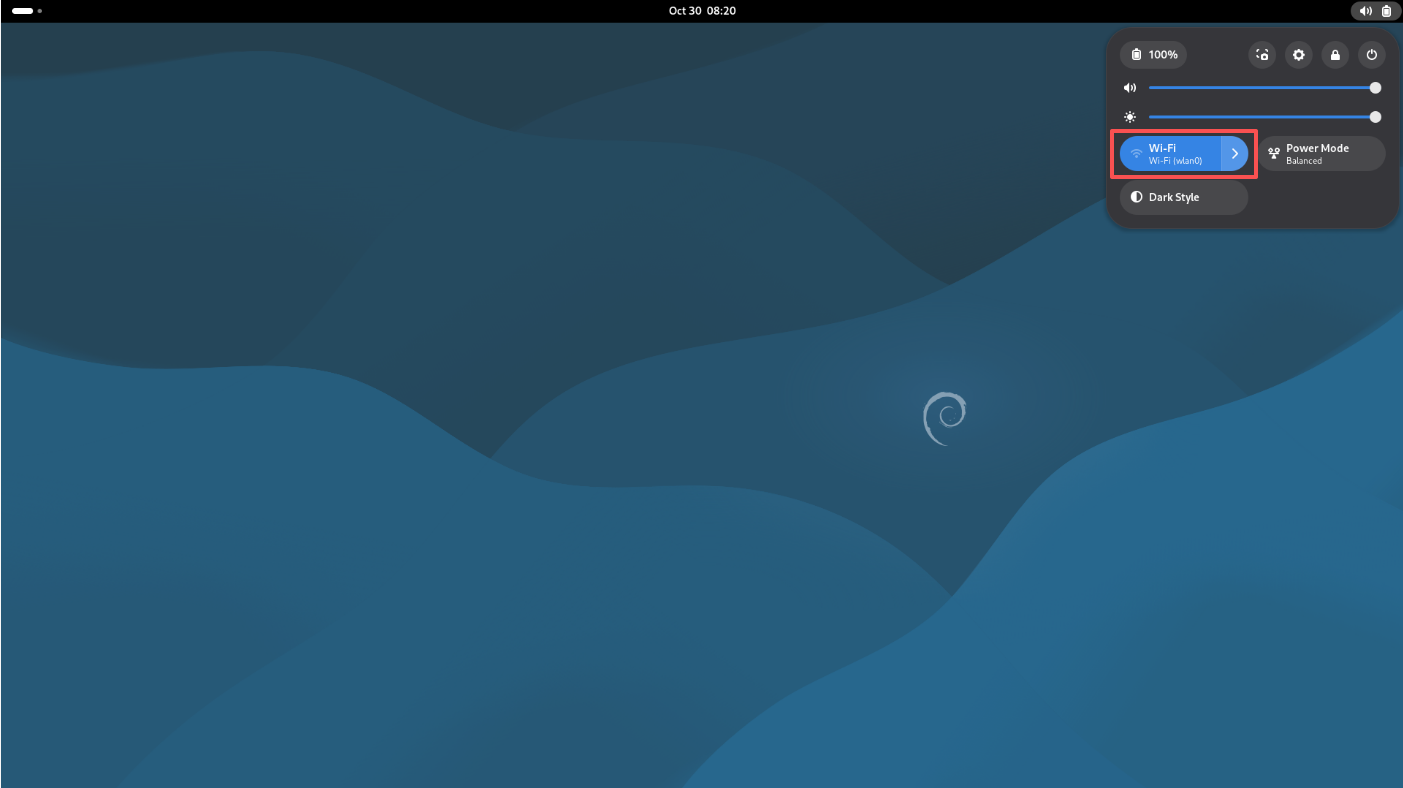
- Click the status bar in the upper right corner of the GNOME desktop, then click the arrow next to "Wi-Fi".
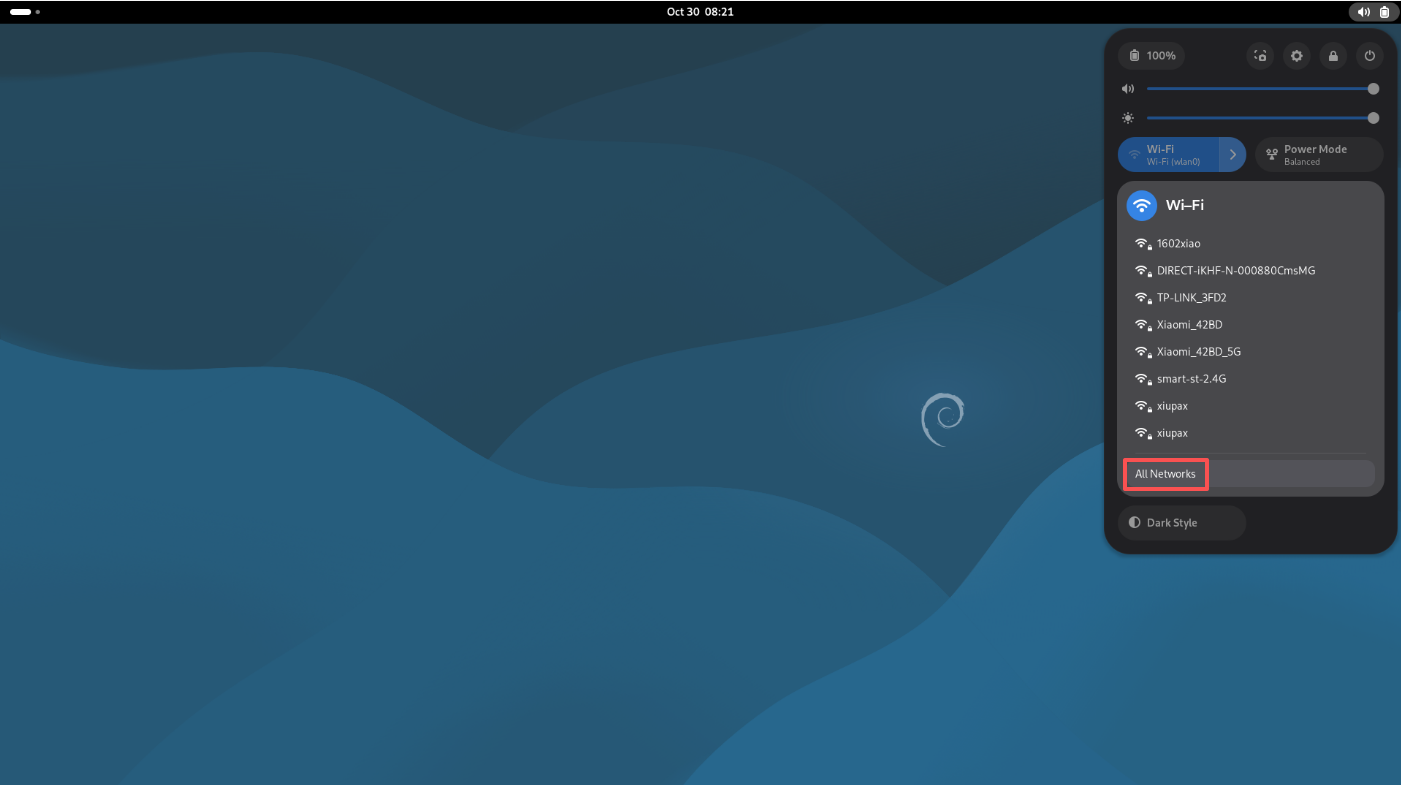
- Click "All networks".
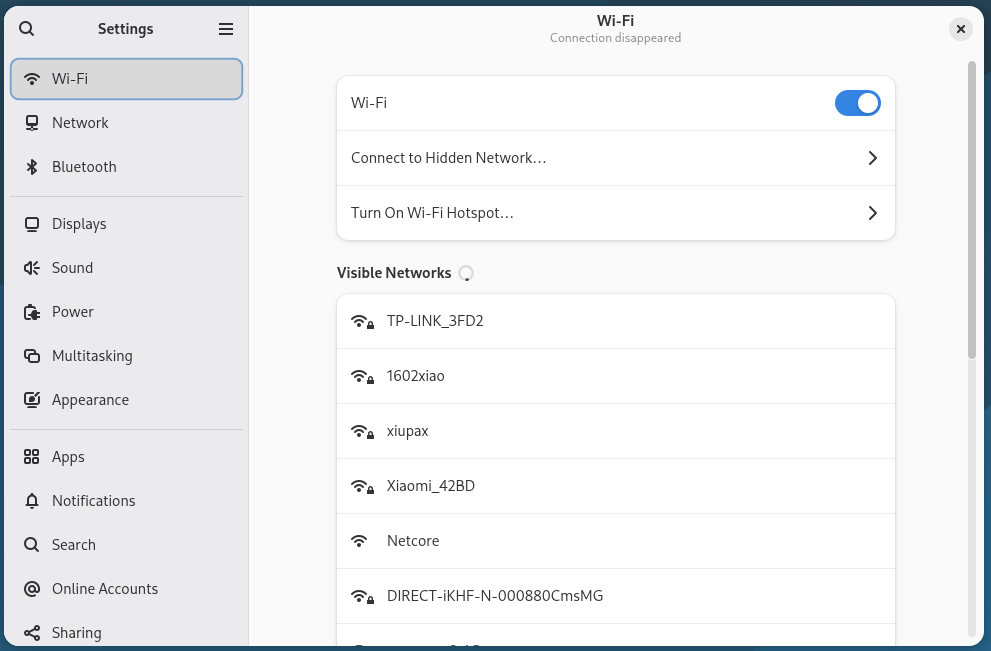
- Click the wireless network you want to connect to.
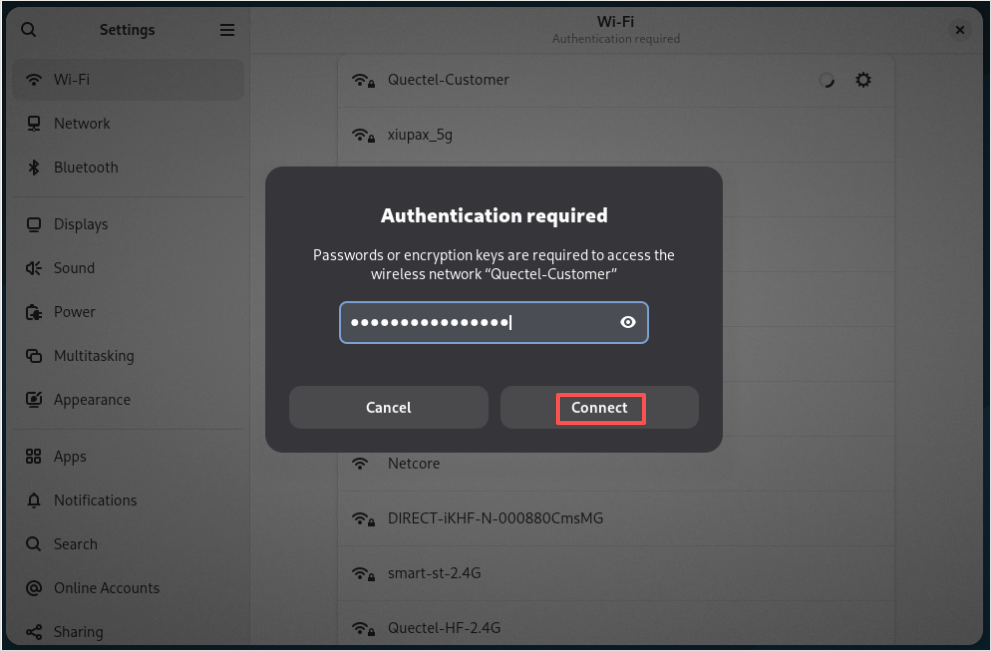
- Enter the password and click "Connect".
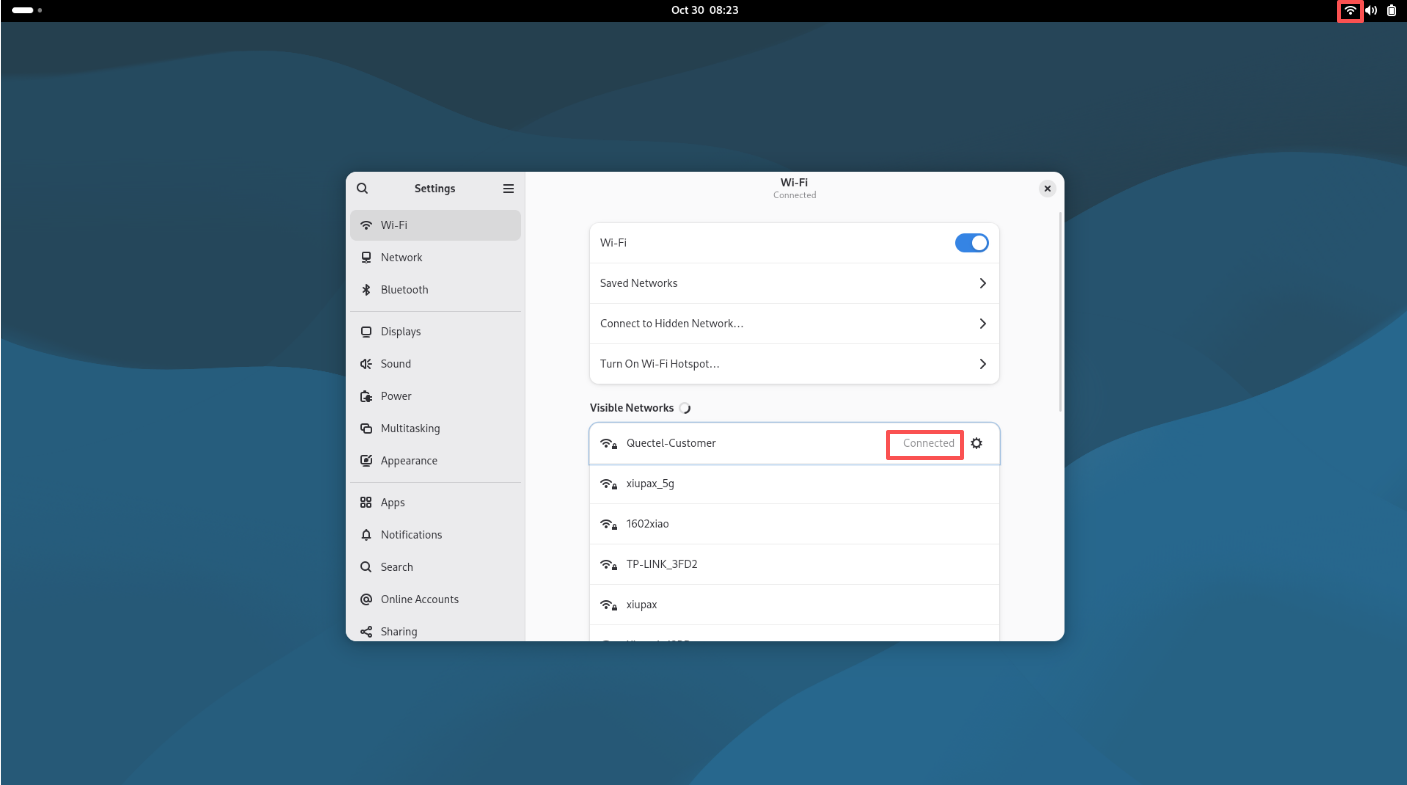
- After successful connection, the corresponding wireless network status will be displayed as Connected, and the Wi-Fi connection icon will appear in the status bar at the upper right corner.
Search for network information
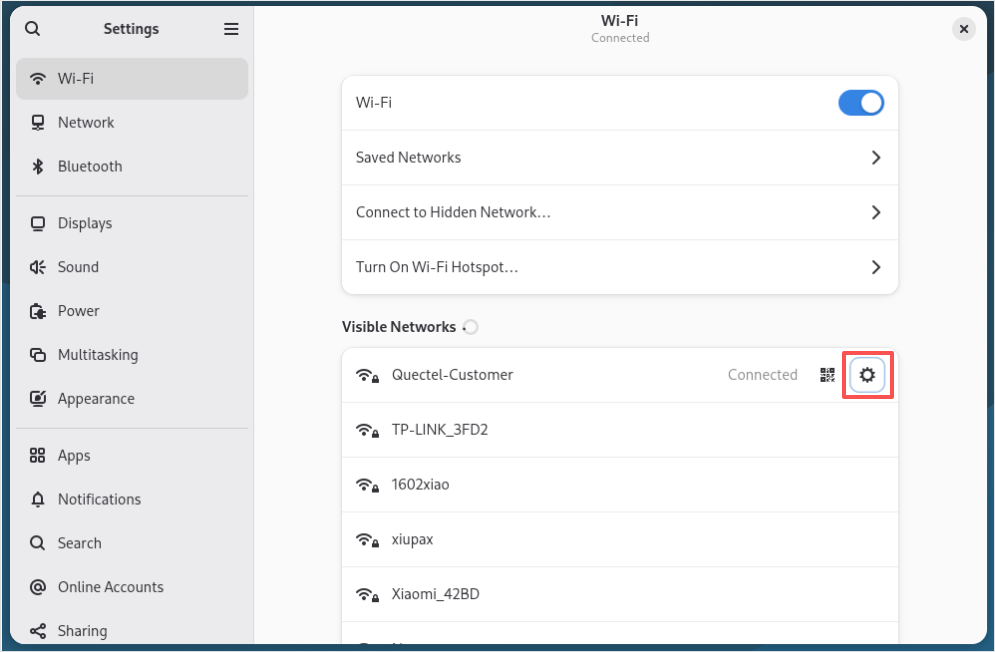
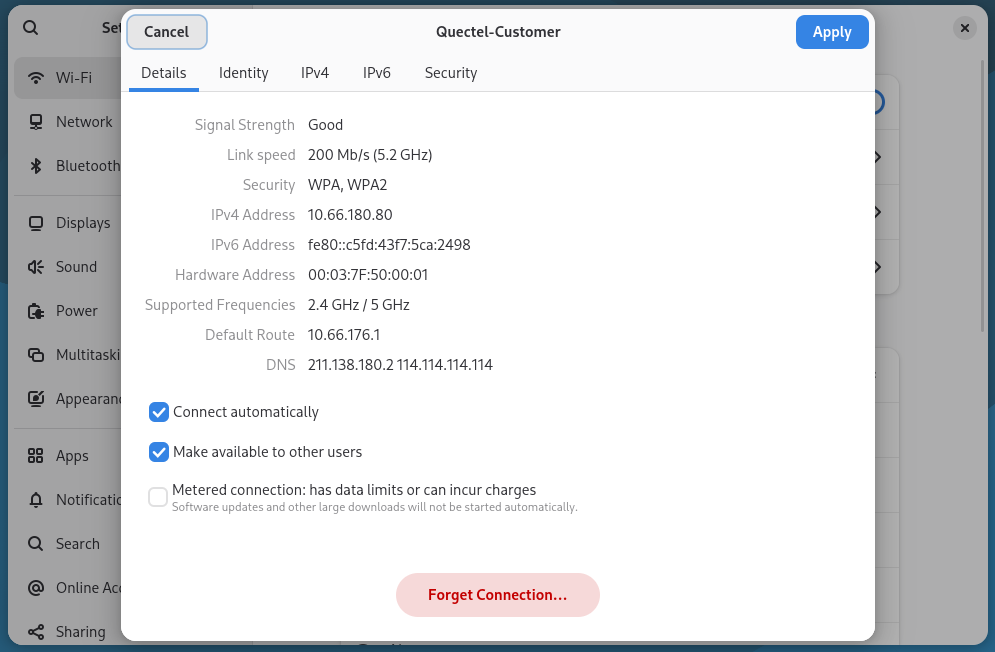
Click the option button next to the connected wireless network to view relevant network information.
USB network
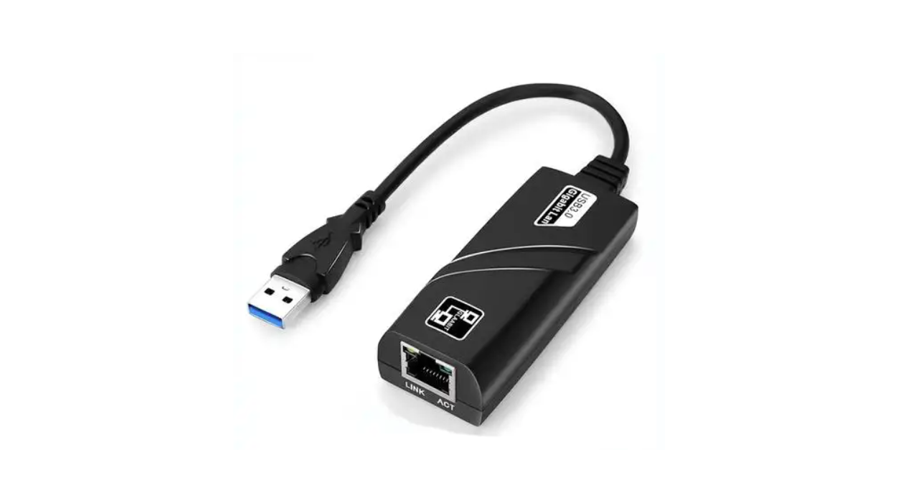
A USB Ethernet adapter is required for USB network connection. After the adapter is connected, insert the Ethernet cable into the RJ45 interface of the adapter, and the subsequent configuration steps are the same as those described in the Ethernet configuration above.