
TeamViewer remote desktop
2026-02-28
TeamViewer is a software that enables remote support, remote access, remote management, home office, online collaboration, and meeting functions. It supports multiple platforms such as Windows, macOS, and Linux.
Update software
sudo apt update && sudo apt upgrade
Download TeamViewer deb binary file
wget https://download.teamviewer.com/download/linux/teamviewer_arm64.deb
Install TeamViewer
sudo dpkg -i teamviewer_arm64.deb
If there are dependency issues, enter the following command to fix them:
sudo apt --fix-broken install
Configure TeamViewer service
# Enable the TeamViewer service to start on boot
sudo systemctl enable teamviewerd
sudo systemctl start teamviewerd
# Check the service status
sudo systemctl status teamviewerd

Configure system settings
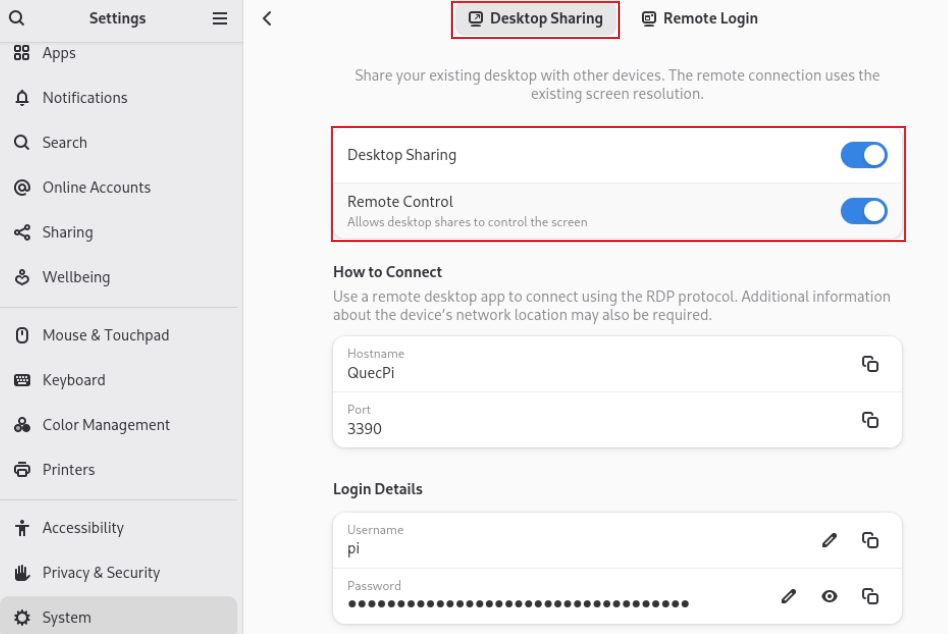
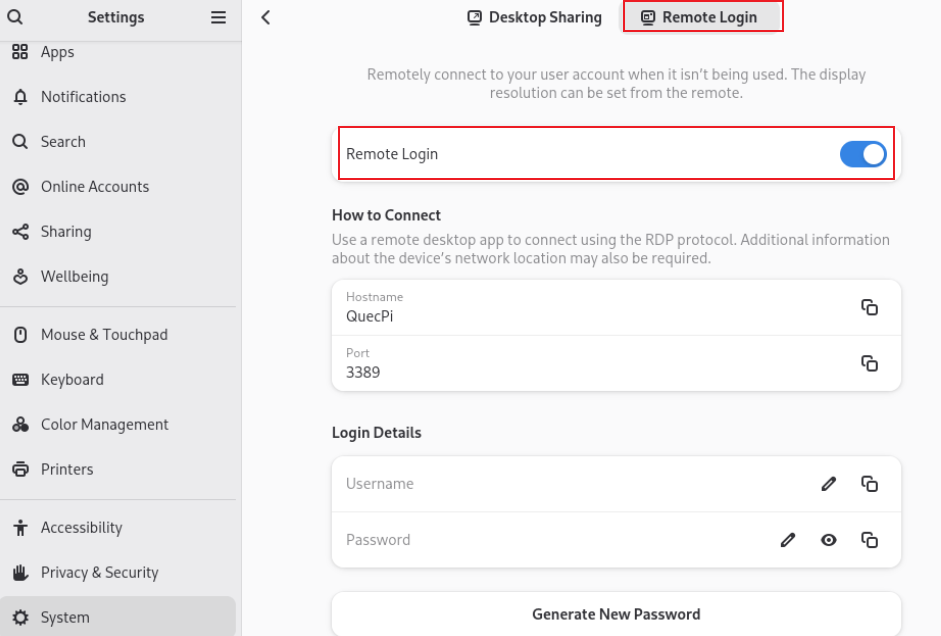
Open system settings, and enable "Desktop Sharing" and "Remote Login" functions.
Start TeamViewer
Boot TeamViewer in two ways:
- Input
TeamViewerin terminal.- Click and open "TeamViewer" in the desktop menu.
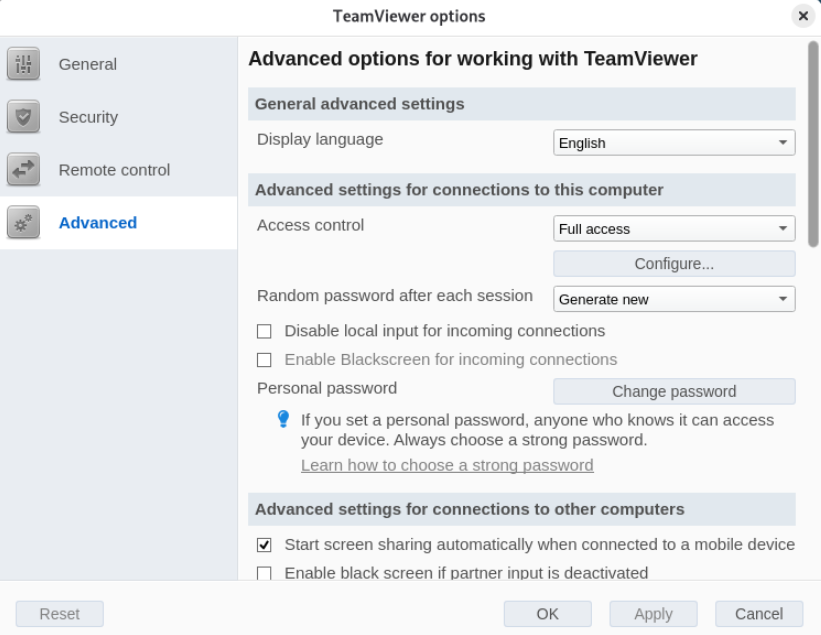
After registering and logging into your account, the system interface defaults to English. To change the language, go to "Extras" → "Options" → "Advanced", modify the language settings, click "OK" to save, and then restart the application for the changes to take effect.
Remote connection
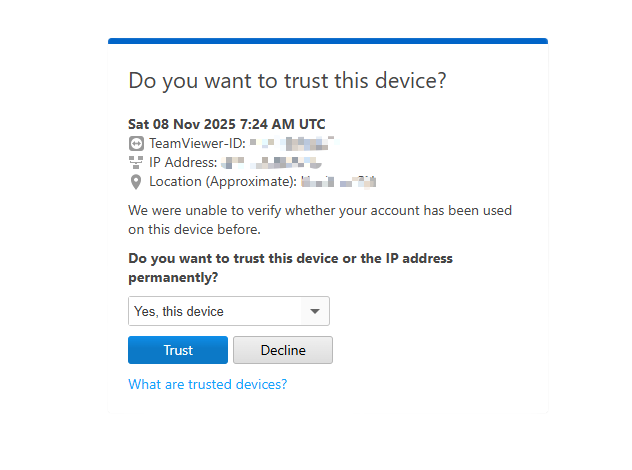
- Open TeamViewer on Windows and log in to your account. First-time device login requires verification. Open the verification message and select "Trust".
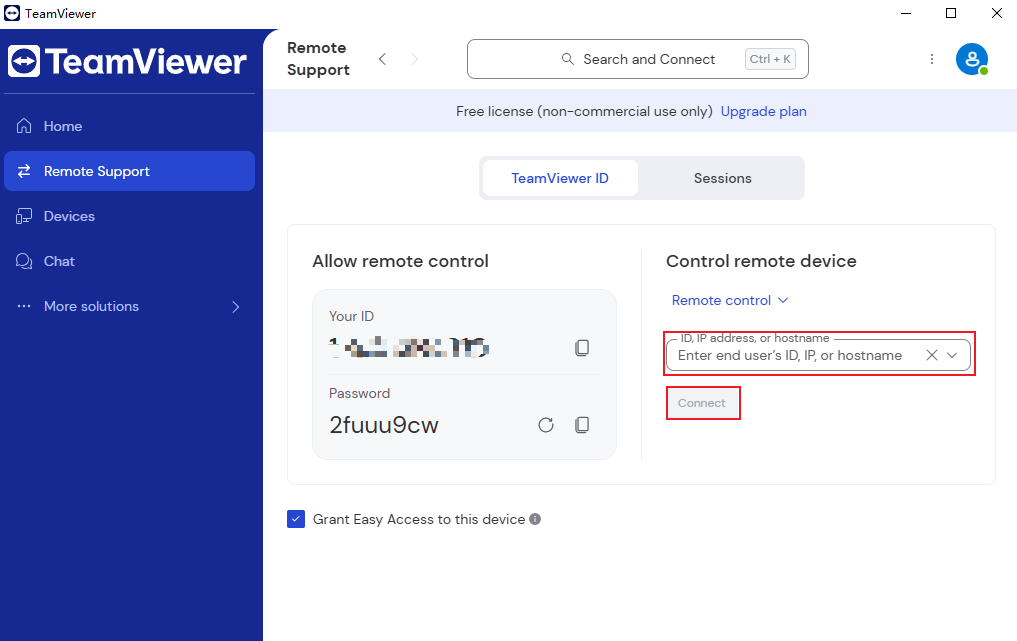
- Enter the remote control ID of the Smart Single-Board Computer, then click "Connect", and then enter the connection password for the remote control ID.
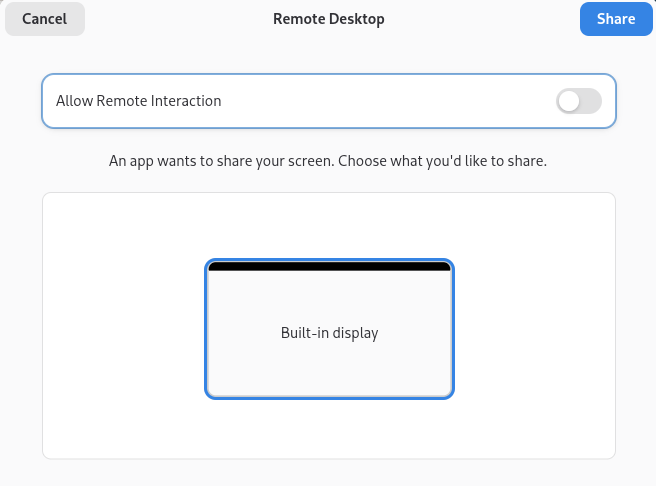
- Enable remote interaction and then click "Share".
- After a successful connection, you can perform remote operations.
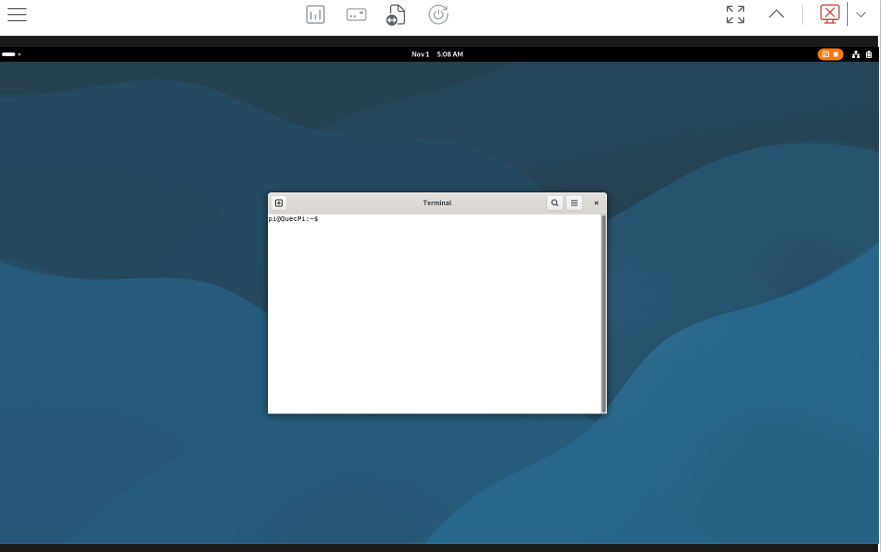
Note: There is currently a compatibility issue between TeamViewer and the system, and the software may occasionally crash after connection.