
E-Ink Reader
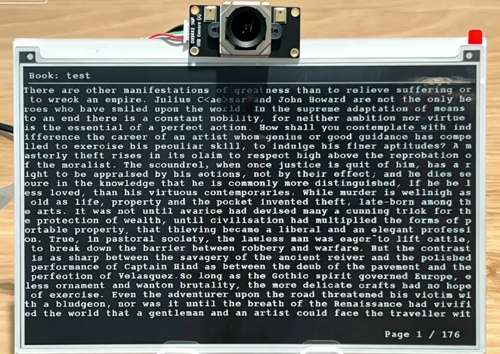
This project is an intelligent electronic paper display reader based on the Quectel Pi H1 Smart Single-Board Computer. The system combines the low-power display characteristics of electronic paper with camera-based eye-tracking technology to achieve natural page-turning without manual operation. It detects user eye movement changes for page navigation, supplemented by physical buttons for auxiliary input to enhance system reliability.
In terms of display, the system adopts a partial refresh and partition rendering strategy, supports automatic typesetting and continuous reading of Chinese and English texts, and also has page memory and quick wake-up functions, making it suitable for long-term reading and embedded smart terminal application scenarios.
Development Resource Summary
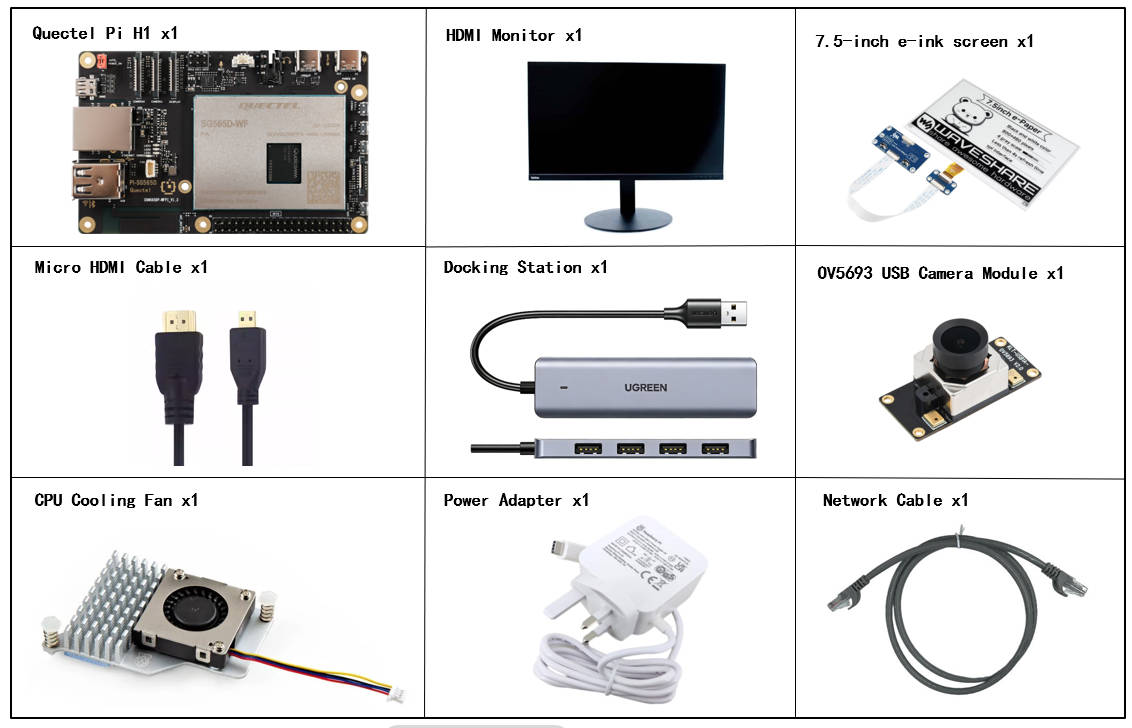
Development Component List
The development accessories are for reference only, and may vary depending on the development environment. For example, if you are developing via SSH remote connection, you may not need to use a USB docking station, and the display screen can also be replaced as needed.
| Component Name | Quantity | Specifications |
|---|---|---|
| Quectel Pi H1 Smart Single-Board Computer | 1 | - |
| USB-C Power Adapter | 1 | 27W USB Type-C Interface Charger 1.2m Cable Length China Standard Power PD Power Suitable for Raspberry Pi 5 |
| Micro HDMI Cable | 1 | Specification: Micro HDMI 2.0; Length: 1m; Connector: HDMI-A (male)-HDMI-D (male) |
| Ethernet Cable | 1 | Length: 1m; Speed: Gigabit |
| CPU Cooling Fan | 1 | Raspberry Pi 5 Official Active Cooler with Thermal Pad |
| 7.5-inch E-Paper Display | 1 | 7.5inch E-Ink display HAT for Raspberry Pi |
| USB Hub | 1 | UGREEN USB3.0 Hub |
| USB Camera Module | 1 | OV5693 5MP USB Camera Module |
| Monitor | 1 | 24-inch HDMI Display |
Component Physical Reference
Quick Start
Development Preparation
The Quectel Pi H1 Smart Single-Board Computer comes pre-installed with Debian 13 system image, eliminating the need for additional image burning.
Hardware Connections
Complete all hardware connections below. The numbering matches the interface diagram:
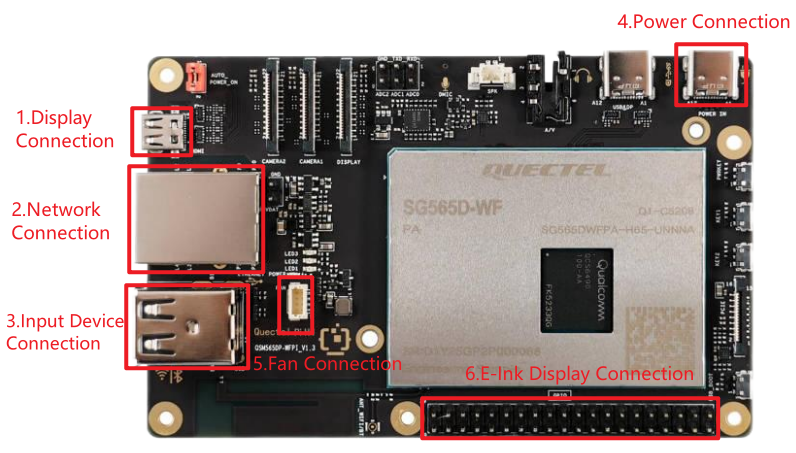
Display Connection: Connect one end of the Micro HDMI cable to the Micro HDMI port on the smart board, and the other end to the HDMI port of the monitor.
Network Connection: Connect one end of the Ethernet cable to the Gigabit Ethernet port on the smart board, and the other end to a router port (make sure the router is connected to the internet).
Input Device Connection: Connect the USB keyboard and mouse to the USB ports on the docking station, then connect the docking station to the USB port on the smart board. If using wireless input devices, insert the receiver into the USB port on the docking station. Then connect the OV5693 camera module to another USB port on the smart board.
Power Connection: Connect the USB-A end of the power cable to the power adapter, and the USB-C end to the power port on the smart board (usually labeled POWER IN).
Cooling Fan Connection: First plug the cooling fan cable into the FAN connector on the smart board, then secure both sides of the heat sink to the reserved mounting holes on the board.
E-Paper Display Connection: Use a PIN ribbon cable connection and refer to the pin mapping table below:
| EPD Pin | BCM2835 Code | Board Physical Pin Number |
|---|---|---|
| VCC | 3.3V | 3.3V |
| GND | GND | GND |
| DIN | MOSI | 19 |
| CLK | SCLK | 23 |
| CS | CE0 | 24 |
| DC | 25 | 22 |
| RST | 17 | 11 |
| BUSY | 24 | 18 |
| PWR | 18 | 12 |
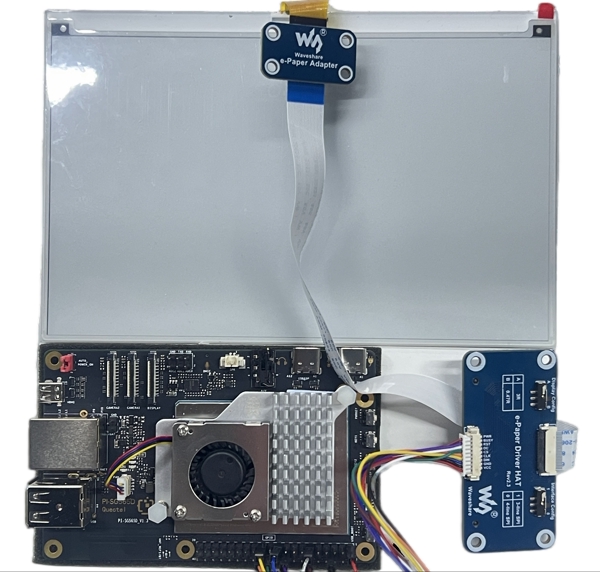
Completed Connection Reference
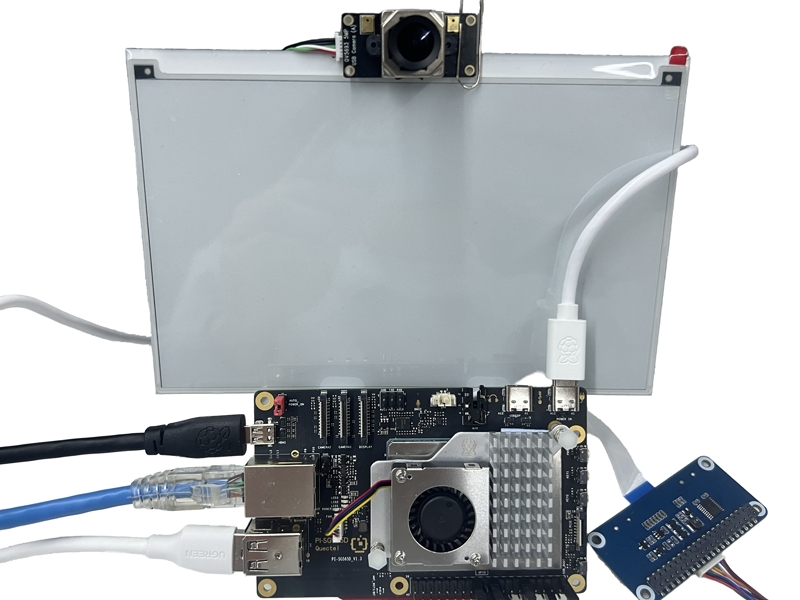
After completing the above connections, you do not need to disconnect connected accessories such as the camera, e-paper display, or monitor during later shutdown or restart operations. Keep them connected.
Project Implementation
- Open a terminal on the smart board and clone the project code with git.
sudo apt update
sudo apt install -y git
git clone https://github.com/Quectel-Pi/demo-inkscreen-reader.git
After execution, a demo-inkscreen-reader folder should be created in the current directory.
- Run the
deploy.shdeployment script. If the terminal showsDeployment complete, deployment is successful.
cd demo-inkscreen-reader
sudo chmod 755 deploy.sh
./deploy.sh
If an error occurs while executing ./deploy.sh, or if the terminal does not display Deployment complete, do not continue with the following steps. Check whether the network connection is normal, then return to the project root directory and run deploy.sh again.
- After deployment is complete, reboot the device first.
sudo reboot
- After rebooting, open the terminal again and run the program in the
demo-inkscreen-readerdirectory.
cd demo-inkscreen-reader
sudo chmod 755 build.sh
./build.sh
Prepare Book Files
Place .txt files into the demo-inkscreen-reader/books/ directory. The system automatically recognizes UTF-8 and GB2312 encodings.
Tip: For Windows users, in Notepad choose Save As, then select UTF-8 or ANSI (GB2312) encoding.
Compilation Notes
The EPD e-paper driver is written in C and built with Makefile:
cd demo-inkscreen-reader/components/e-Paper/Quectel-Pi-H1/c
make clean
make CC=gcc EPD=epd7in5V2
The build output is the epd executable, which must be run with sudo privileges (GPIO access required).
Function List
Eye-tracking Page Turning Operations
- Next Page: Maintain reading posture and read at normal speed from the top of the screen downward. When your gaze reaches the bottom of the screen, simply move your eyes back to the top of the screen to trigger page turning.
- Previous Page: Page up must be turned using physical buttons.
Physical Button Page Turning Operations
- Short press KEY1: Next page
- Short press KEY2: Previous page
- Long press KEY1: Switch to next book
- Long press KEY2: Switch to previous book
Application Demonstration
Technical Support and Contributions
If you encounter any issues during use, please submit technical inquiries on the Quectel Official Forum. Our technical support team will respond promptly.
Project open-source repository: https://github.com/Quectel-Pi/demo-inkscreen-reader/
We welcome you to submit Issues to report problems or Pull Requests to contribute code improvements!