
Audio function
This document provides a concise guide to operating the Linux audio system. We utilize a dual-architecture audio backend of ALSA (Advanced Linux Sound Architechture) and PulseAudio, offering a complete audio solution from the bottom layer to the application layer. On the hardware side, the system fully supports external microphone input and external speaker amplification output, and integrates a standard 3.5 mm audio interface, enabling full-duplex communication for headset playback and microphone input. On the software side, the essential audio configuration commands are provided to ensure optimal audio output. Through this document, you will learn how to use basic command-line tools to quickly complete daily operations such as audio device checks, recording and playback, and volume control, resolving most audio-related problems without delving into complex configurations.
Quick start
- This section will explain how to connect external speakers and headsets, and then check the system configuration using commands to ensure proper collaboration between the hardware and software layers.
Speaker and headset hardware interfaces
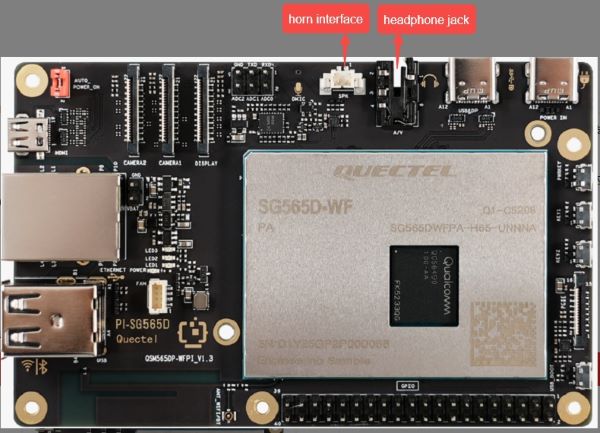
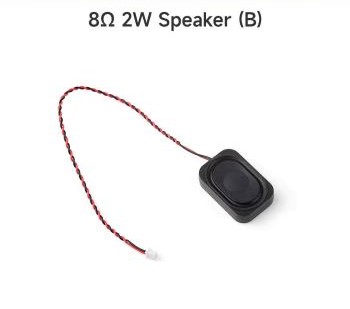

View sound card information
- Enter the following command in the terminal to view the sound card mount status:
root@qcm6490-idp:/opt# cat /proc/asound/cards
 0 [qcm6490idpsndca]: qcm6490 - qcm6490-idp-snd-card
                      qcm6490-idp-snd-card
- Enter the following command in the terminal to view the list of allocated PCM streams:
root@qcm6490-idp:/opt# cat /proc/asound/pcm
00-00: CODEC_DMA-LPAIF_RXTX-RX-0 multicodec-0 :  : playback 1
00-01: CODEC_DMA-LPAIF_RXTX-TX-3 multicodec-1 :  : capture 1
00-02: CODEC_DMA-LPAIF_VA-TX-0 va_macro_tx1-2 :  : capture 1
- If no sound card information or PCM stream list is displayed, the ALSA and PulseAudio functions will not be available.
ALSA Architecture
ALSA architecture
ALSA overview
ALSA is the underlying audio architecture and driver core of the Linux system, directly managing and controlling the computer's audio hardware. On one hand, it provides native drivers for sound cards, enabling direct reading and writing of physical audio channels (such as external microphones, headsets, and speakers); on the other hand, it provides standardized API interfaces for applications to complete the most basic audio capture and playback. ALSA is the cornerstone for building all advanced audio services (such as PulseAudio).
Audio recording
1.External microphone audio recording
root@qcm6490-idp:/opt# systemctl stop pulseaudio
root@qcm6490-idp:/opt# tinymix set "VA DMIC MUX0" "DMIC0"
root@qcm6490-idp:/opt# tinymix set "VA_AIF1_CAP Mixer DEC0" "1"
root@qcm6490-idp:/opt# tinymix set "VA_DEC0 Volume" "100"
root@qcm6490-idp:/opt# agmcap test1.wav -D 100 -d 101 -c 1 -r 48000 -b 16 -i "CODEC_DMA-LPAIF_VA-TX-0"
pcm_plug_open: dlopen successful for libagm_pcm_plugin.so
Capturing sample: 1 ch, 48000 hz, 16 bit
diag: Diag_LSM_Init: invoked for pid: 1599 with init_count: 0
diag:successfully connected to socket 17
diag: Diag_LSM_Init: done for pid: 1599 with init_count: 1
diag: Successfully registered commands with the driver
- PulseAudio may occupy the audio device, causing direct hardware access (such as agmcap) to fail. Stopping the service ensures exclusive access.
- -c 1 Mono recording
- -r 48000 Sampling rate 48 kHz
- -b 16 Sampling bit depth 16-bit
- -i "CODEC_DMA-LPAIF_VA-TX-0" Specifies the input device interface as transmit (recording) channel 0
- To stop recording, press Ctrl+C. The recording file named test1.wav will be generated in the current directory.
root@qcm6490-idp:/opt# ls
cni  containerd  test1.wav
2.Headset recording
- To record using 3.5 mm headsets, please enter the following command:
root@qcm6490-idp:/opt# systemctl stop pulseaudio
root@qcm6490-idp:/opt# tinymix set "TX DEC0 MUX" "SWR_MIC"
root@qcm6490-idp:/opt# tinymix set "TX SMIC MUX0" "ADC1"
root@qcm6490-idp:/opt# tinymix set "TX_AIF1_CAP Mixer DEC0" "1"
root@qcm6490-idp:/opt# tinymix set "ADC2 MUX" "INP2"
root@qcm6490-idp:/opt# tinymix set "ADC2 Switch" "1"
root@qcm6490-idp:/opt# tinymix set "ADC2_MIXER Switch" "1"
root@qcm6490-idp:/opt# tinymix set "TX_DEC0 Volume" "80"
root@qcm6490-idp:/opt# tinymix set "ADC2 Volume" "20"
root@qcm6490-idp:/opt# agmcap test2.wav -D 100 -d 101 -c 1 -r 48000 -b 16 -i "CODEC_DMA-LPAIF_RXTX-TX-3"
pcm_plug_open: dlopen successful for libagm_pcm_plugin.so
Capturing sample: 1 ch, 48000 hz, 16 bit
diag: Diag_LSM_Init: invoked for pid: 1384 with init_count: 0
diag:successfully connected to socket 17
diag: Diag_LSM_Init: done for pid: 1384 with init_count: 1
diag: Successfully registered commands with the driver
- To stop recording, press Ctrl+C. The recording file named test2.wav will be generated in the current directory.
root@qcm6490-idp:/opt# ls
cni  containerd  test2.wav
Audio playback
1.Headset playback
- To play using 3.5 mm headsets, please enter the following command:
root@qcm6490-idp:/opt# systemctl stop pulseaudio
root@qcm6490-idp:/opt# tinymix set "RX_MACRO RX0 MUX" "AIF1_PB"
root@qcm6490-idp:/opt# tinymix set "RX_MACRO RX1 MUX" "AIF1_PB"
root@qcm6490-idp:/opt# tinymix set "RX INT0_1 MIX1 INP0" "RX0"
root@qcm6490-idp:/opt# tinymix set "RX INT1_1 MIX1 INP0" "RX1"
root@qcm6490-idp:/opt# tinymix set "RX INT0 DEM MUX" "CLSH_DSM_OUT"
root@qcm6490-idp:/opt# tinymix set "RX INT1 DEM MUX" "CLSH_DSM_OUT"
root@qcm6490-idp:/opt# tinymix set "RX_COMP1 Switch" "1"
root@qcm6490-idp:/opt# tinymix set "RX_COMP2 Switch" "1"
root@qcm6490-idp:/opt# tinymix set "HPHL Switch" "1"
root@qcm6490-idp:/opt# tinymix set "HPHR Switch" "1"
root@qcm6490-idp:/opt# tinymix set "HPHL_RDAC Switch" "1"
root@qcm6490-idp:/opt# tinymix set "HPHR_RDAC Switch" "1"
root@qcm6490-idp:/opt# agmplay test.wav -D 100 -d 100 -i "CODEC_DMA-LPAIF_RXTX-RX-0"
- The audio will stop automatically after playback ends. To stop it early, press Ctrl+C.
2.Speaker playback
- Enter the following command to play audio:
root@qcm6490-idp:/opt# systemctl stop pulseaudio
root@qcm6490-idp:/opt# tinymix set "AUX_RDAC Switch" "1"
root@qcm6490-idp:/opt# tinymix set "RX_MACRO RX0 MUX" "AIF1_PB"
root@qcm6490-idp:/opt# tinymix set "RX INT2_1 MIX1 INP0" "RX0"
root@qcm6490-idp:/opt# tinymix set "LO Switch" "1"
root@qcm6490-idp:/opt# agmplay test_loop.wav -D 100 -d 100 -i "CODEC_DMA-LPAIF_RXTX-RX-0"
PulseAudio architecture
PulseAudio overview
PulseAudio is a cross-platform, network-capable audio service that accepts audio input from one or more audio sources (processes or input devices) and then redirects the audio to one or more sinks (sound cards, remote network PulseAudio service, or other processes). It interacts with the underlying ALSA (Advanced Linux Sound Architecture) and provides a unified interface for applications, enabling advanced features such as multi-channel audio mixing and audio forwarding.
Device viewing and management
1.View available output devices (Sinks)
- To view the currently available audio output devices on your system and their details, you can use the following command.
- This command lists the index and name of all available sinks (output devices). Output example:
root@qcm6490-idp:/# pactl list short sinks
0       low-latency0    module-pal-card.c       s16le 1ch 16000Hz       SUSPENDED
1       deep-buffer0    module-pal-card.c       s16le 2ch 48000Hz       SUSPENDED
2       offload0        module-pal-card.c       s16le 2ch 48000Hz       SUSPENDED
3       voip-rx0        module-pal-card.c       s16le 2ch 48000Hz       SUSPENDED
- For more detailed device information, please use:
root@qcm6490-idp:/# pactl list sinks
2.View input devices (Sources)
- Similarly, you can view audio input devices (such as microphones) using the following command:
root@qcm6490-idp:/# pactl list short sources
0       low-latency0.monitor    module-pal-card.c       s16le 1ch 16000Hz       SUSPENDED
1       deep-buffer0.monitor    module-pal-card.c       s16le 2ch 48000Hz       SUSPENDED
2       offload0.monitor        module-pal-card.c       s16le 2ch 48000Hz       SUSPENDED
3       voip-rx0.monitor        module-pal-card.c       s16le 2ch 48000Hz       SUSPENDED
4       regular0        module-pal-card.c       s16le 2ch 48000Hz       SUSPENDED
5       regular2        module-pal-card.c       s16le 2ch 48000Hz       SUSPENDED
6       voip-tx0        module-pal-card.c       s16le 1ch 48000Hz       SUSPENDED
- For more detailed device information, please use:
root@qcm6490-idp:/# pactl list sources
Recording
1.Onboard DIMC recording
root@qcm6490-idp:~# pactl set-source-port 5 speaker-mic
root@qcm6490-idp:~# parec -d 5 --file-format=wav output.wav
2.Headset recording
root@qcm6490-idp:~# pactl set-source-port 5 headset-mic
root@qcm6490-idp:~# parec -d 5 --file-format=wav output1.wav
Playback
1.Speaker playback
root@qcm6490-idp:~# pactl set-sink-port 0 speaker
root@qcm6490-idp:~# paplay output.wav
2.Headset playback
root@qcm6490-idp:~# pactl set-sink-port 0 headset
root@qcm6490-idp:~# paplay output1.wav
Advanced features
Sink explanation
root@qcm6490-idp:~#  pactl list sinks short
0       low-latency0    module-pal-card.c       s16le 2ch 48000Hz       SUSPENDED
1       deep-buffer0    module-pal-card.c       s16le 2ch 32000Hz       SUSPENDED
2       offload0        module-pal-card.c       s16le 2ch 48000Hz       SUSPENDED
3       voip-rx0        module-pal-card.c       s16le 2ch 48000Hz       SUSPENDED
root@qcm6490-idp:~#
1.low-latency0
- low-latency0 is used for real-time audio playback, such as music, games, notifications, etc., requiring ultra-low latency.
- Features:
Extremely low latency, suitable for applications with high real-time requirements;
Supports PCM format (uncompressed audio);
Supports both speakers and headsets.
2.deep-buffer0
- deep-buffer0 is used for audio playback that requires a large buffer, such as streaming media and internet radio, allowing for a larger audio buffer and reducing stuttering.
- Features:
Higher latency, but more stable audio, suitable for environments with unstable networks;
Supports both speakers and headsets.
3.offload0
- Offload0 is used to offload compressed audio (such as MP3 and AAC) to the hardware, allowing it to be decoded and played directly by the hardware, thus saving CPU resources.
- Features:
Only supports compressed formats (such as MPEG and AAC), and does not support PCM;
Suitable for playing compressed audio for extended periods (such as in music players).
4.voip-rx0
- The voip-rx0 is specifically designed for audio reception in VoIP calls (such as internet telephony and video conferencing).
- Features:
Optimized voice call latency and echo suppression;
Automatically activated only in VoIP applications (such as Skype and Zoom), and will not be used for regular audio playback.
Source explanation
root@qcm6490-idp:~# pactl list sources short
0       low-latency0.monitor    module-pal-card.c       s16le 2ch 48000Hz       SUSPENDED
1       deep-buffer0.monitor    module-pal-card.c       s16le 2ch 32000Hz       SUSPENDED
2       offload0.monitor        module-pal-card.c       s16le 2ch 48000Hz       SUSPENDED
3       voip-rx0.monitor        module-pal-card.c       s16le 2ch 48000Hz       SUSPENDED
4       regular0        module-pal-card.c       s16le 2ch 48000Hz       SUSPENDED
5       regular2        module-pal-card.c       s16le 2ch 48000Hz       SUSPENDED
6       voip-tx0        module-pal-card.c       s16le 1ch 48000Hz       SUSPENDED
root@qcm6490-idp:~#
1.low-latency0.monitor
- low-latency0.monitor is suitable for real-time recording, such as recording game sound effects, music player output, etc.
- Features:
Extremely low latency, suitable for real-time monitoring of audio output.
2.deep-buffer0.monitor
- deep-buffer0.monitor is suitable for long-duration recordings, such as streaming media and internet radio.
- Features:
Has a relatively high latency, but the audio is stable, making it suitable for environments with unstable networks.
3.offload0.monitor
- offload0.monitor is used to record the audio output of offload0 Sink, that is, to record the compressed audio (such as MP3, AAC) processed via hardware offload.
- Features:
Activated only when playing compressed audio;
Suitable for recording compressed audio over long periods of time.
4.voip-rx0.monitor
- voip-rx0.monitor is used to record the voice of the other party in internet telephony or video conferencing.
- Features:
Suitable for recording the other party's voice during VoIP calls or video conferencing.
5.regular0 and regular2
- regular0 and regular2 are used for directly recording audio from a microphone or line input.
- Features:
A universal audio input source suitable for most recording scenarios.
6.voip-tx0
- voip-tx0 is used for audio transmission in VoIP calls, that is, recording your microphone input for VoIP calls.
- Features:
Optimized sound quality and latency of voice calls.
Troubleshooting
Speaker playback issues
1.View the default audio output sink
root@qcm6490-idp:~# pactl get-default-sink
low-latency0
root@qcm6490-idp:~#
- If it is not low-latency0 or deep-buffer0, please follow these steps to set the default sink.
root@qcm6490-idp:~# pactl set-default-sink low-latency0
root@qcm6490-idp:~# pactl get-default-sink
low-latency0
root@qcm6490-idp:~#
2.Check the default output port of the sink
- Use
pactl list sinksto check if the Active Port value of the default output sink isspeaker. If not, set it tospeaker.
root@qcm6490-idp:~# pactl set-sink-port 0 speaker
root@qcm6490-idp:~#
- Correctly completing the above configuration steps should resolve the issue of the speaker not playing.