
USB host
USB host refers to a system or hardware component capable of controlling and managing USB devices. It provides power, data transfer, and management functions for connected USB devices such as flash drives, keyboards, and mice.
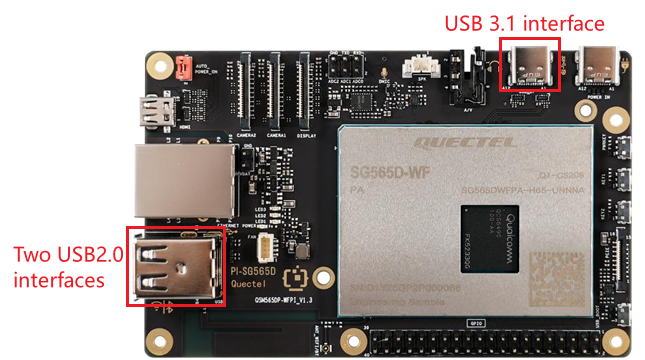
Quectel Pi H1 USB interface specifications
- USB 2.0 Type‑A × 2 — Maximum transfer rate: 480 Mbps
- USB 3.1 Type‑C × 1 — Maximum transfer rate: 5 Gbps, backward‑compatible with USB 2.0
Hardware interface
To test the USB host functionality, you can verify whether connected USB devices work properly and test the USB storage performance.
Function usage
View all input devices
Execute the following command to list all input devices recognized by the system:
cat /proc/bus/input/devices
Example output:
I: Bus=0000 Vendor=0000 Product=0000 Version=0001
N: Name="pm8xxx_vib_ffmemless"
P: Phys=
S: Sysfs=/devices/platform/soc@0/c440000.spmi/spmi-0/0-09/c440000.spmi:pmic@9:pm7250b-vib@5300/input/input0
U: Uniq=
H: Handlers=event0
B: PROP=0
B: EV=200001
B: FF=107030000 0
Key parameters:
- Name:Device name (e.g., mouse or keyboard)
- Handlers:The event interface corresponding to the device
View USB devices using lsusb
You can connect devices such as card readers, keyboards, and mice to test whether the USB port detects and manages them correctly.
When no USB peripheral is connected
lsusb
Example output:
Bus 001 Device 002: ID 1a86:8091 QinHeng Electronics USB HUB
Bus 001 Device 001: ID 1d6b:0002 Linux Foundation 2.0 root hub
When USB devices are connected
lsusb
Example output (taking keyboard and mounse as examples):
Bus 001 Device 005: ID 17ef:6099 Lenovo Lenovo Traditional USB Keyboard
Bus 001 Device 004: ID 17ef:608d Lenovo Optical Mouse
Bus 001 Device 002: ID 1a86:8091 QinHeng Electronics USB HUB
Bus 001 Device 001: ID 1d6b:0002 Linux Foundation 2.0 root hub
View device plug/unplug logs using dmesg
sudo dmesg | tail -n 20
This command displays the latest 20 lines of kernel logs, useful for monitoring device insertions, removals, and driver loading events.
USB flash drive read/write
Identify the storage device
After inserting a USB flash drive, use lsblk to confirm its device name:
lsblk
Example output:
sda       8:0    0 116.1G  0 disk
|-sda1    8:1    0   512M  0 part /efi
|-sda2    8:2    0    30M  0 part /var/persist
`-sda3    8:3    0 115.6G  0 part /
sdb       8:16   0     8M  0 disk
|-sdb1    8:17   0   3.5M  0 part
|-sdb2    8:18   0   512K  0 part
`-sdb3    8:19   0   3.5M  0 part
sdc       8:32   0     8M  0 disk
|-sdc1    8:33   0   3.5M  0 part
|-sdc2    8:34   0   512K  0 part
`-sdc3    8:35   0   3.5M  0 part
sdd       8:48   0    32M  0 disk
|-sdd1    8:49   0   104K  0 part
|-sdd2    8:50   0   128K  0 part
|-sdd3    8:51   0     1M  0 part
|-sdd4    8:52   0     1M  0 part
`-sdd5    8:53   0     1M  0 part
sde       8:64   0     3G  0 disk
|-sde1    8:65   0   512K  0 part
|-sde2    8:66   0    64M  0 part
|-sde3    8:67   0   256K  0 part
|-sde4    8:68   0     2M  0 part
|-sde5    8:69   0     5M  0 part
|-sde6    8:70   0     4M  0 part
|-sde7    8:71   0     8M  0 part
|-sde8    8:72   0     4M  0 part
|-sde9    8:73   0    32M  0 part
|-sde10   8:74   0   128K  0 part
|-sde11   8:75   0    80K  0 part
|-sde12   8:76   0     2M  0 part
|-sde13   8:77   0     2M  0 part
|-sde14   8:78   0   128K  0 part
|-sde15   8:79   0    32K  0 part
|-sde16 259:0    0     1M  0 part
|-sde17 259:1    0   256K  0 part
|-sde18 259:2    0   512K  0 part
|-sde19 259:3    0   256K  0 part
|-sde20 259:4    0    64M  0 part
|-sde21 259:5    0     2M  0 part
|-sde22 259:6    0     5M  0 part
|-sde23 259:7    0     4M  0 part
|-sde24 259:8    0     8M  0 part
|-sde25 259:9    0     4M  0 part
|-sde26 259:10   0    32M  0 part
|-sde27 259:11   0   128K  0 part
|-sde28 259:12   0    80K  0 part
|-sde29 259:13   0     2M  0 part
|-sde30 259:14   0     2M  0 part
|-sde31 259:15   0   128K  0 part
|-sde32 259:16   0    32K  0 part
|-sde33 259:17   0     1M  0 part
|-sde34 259:18   0   256K  0 part
|-sde35 259:19   0     4K  0 part
|-sde36 259:20   0     4K  0 part
|-sde37 259:21   0     4K  0 part
|-sde38 259:22   0    16M  0 part
|-sde39 259:23   0    30M  0 part
|-sde40 259:24   0     1M  0 part
|-sde41 259:25   0  32.6M  0 part
|-sde42 259:26   0     4K  0 part
|-sde43 259:27   0     4K  0 part
|-sde44 259:28   0     1M  0 part
|-sde45 259:29   0     8M  0 part
|-sde46 259:30   0    40M  0 part
|-sde47 259:31   0   512M  0 part
|-sde48 259:32   0    28K  0 part
|-sde49 259:33   0   512K  0 part
|-sde50 259:34   0     1M  0 part
`-sde51 259:35   0  32.6M  0 part
sdf       8:80   0    32M  0 disk
|-sdf1    8:81   0     3M  0 part
|-sdf2    8:82   0     3M  0 part
|-sdf3    8:83   0     3M  0 part
`-sdf4    8:84   0   128K  0 part
sdg       8:96   1   7.5G  0 disk
`-sdg1    8:97   1   7.5G  0 part /mnt/sdcard1
zram0   253:0    0   3.8G  0 disk [SWAP]
Note: In the above example, the USB drive is sdg. Replace with your actual device name during testing.
Test read/write performance
Use the dd command (dd is used to copy and convert files) to test the USB flash drive performance.
Test write speed
sudo dd if=/dev/zero of=/dev/sdg bs=1M count=100
Parameter description:
if=/dev/zero: Specifies the input file as/dev/zero, a special file that provides an infinite stream of zero bytes.of=/dev/sdg: Specifies the output file as/dev/sdg, i.e., the USB flash drive device.bs=1M: Sets the block size to 1 MB.count=100: Specifies copying 100 blocks.
This command writes 100 MB of zero-byte data to the USB flash drive and displays the write speed.
Example output:
100+0 records in
100+0 records out
104857600 bytes (105 MB, 100 MiB) copied, 0.0367901 s, 2.9 GB/s
Test read speed
sudo dd if=/dev/sdg of=/dev/null bs=1M count=100
Parameter description:
if=/dev/sda: Specifies the input file as/dev/sda, i.e., the USB flash drive device.of=/dev/null: Specifies the output file as/dev/null, a special file that discards all written data.bs=1M: Sets the block size to 1 MB.count=100: Specifies copying 100 blocks.
This command reads 100 MB of data from the USB flash drive to /dev/null and displays the read speed.
Example output:
100+0 records in
100+0 records out
104857600 bytes (105 MB, 100 MiB) copied, 4.97715 s, 21.1 MB/s