Efficiency and office
This chapter introduces the installation and usage methods of common applications such as social and office software on the Quectel Pi H1 single-board computer.
Preparation
This chapter requires a network connection, which can be done using any of cellular, Wi-Fi, or Ethernet methods. Please refer to Network Configuration chapter for the detailed connection methods.
Social applications
- Download the installation package (if the download link expires, visit the WeChat official website to download):
wget https://dldir1v6.qq.com/weixin/Universal/Linux/WeChatLinux_arm64.deb
- Install software packages:
sudo dpkg -i WeChatLinux_arm64.deb
-After installation, the WeChat shortcut icon will appear on the GNOME desktop.
- Run WeChat.
Run the following command:
wechat
- Or double-click the WeChat shortcut icon directly.

Tencent QQ
- Download the installation package (if the download link expires, visit the QQ official website to download):
wget https://dldir1v6.qq.com/qqfile/qq/QQNT/Linux/QQ_3.2.20_251023_arm64_01.deb
- Install software packages:
Run the following command:
sudo dpkg -i QQ_3.2.20_251023_arm64_01.deb
-After installation, the QQ shortcut icon will appear on the GNOME desktop.
- Run QQ.
Run the following command:
qq
- Or double-click the QQ shortcut icon directly.

Office applications
LibreOffice
LibreOffice is a free and open-source office suite developed and maintained by The Document Foundation. It includes various applications such as a word processor, spreadsheet, presentation maker, drawing tool and database management, supporting multiple operating systems and file formats.
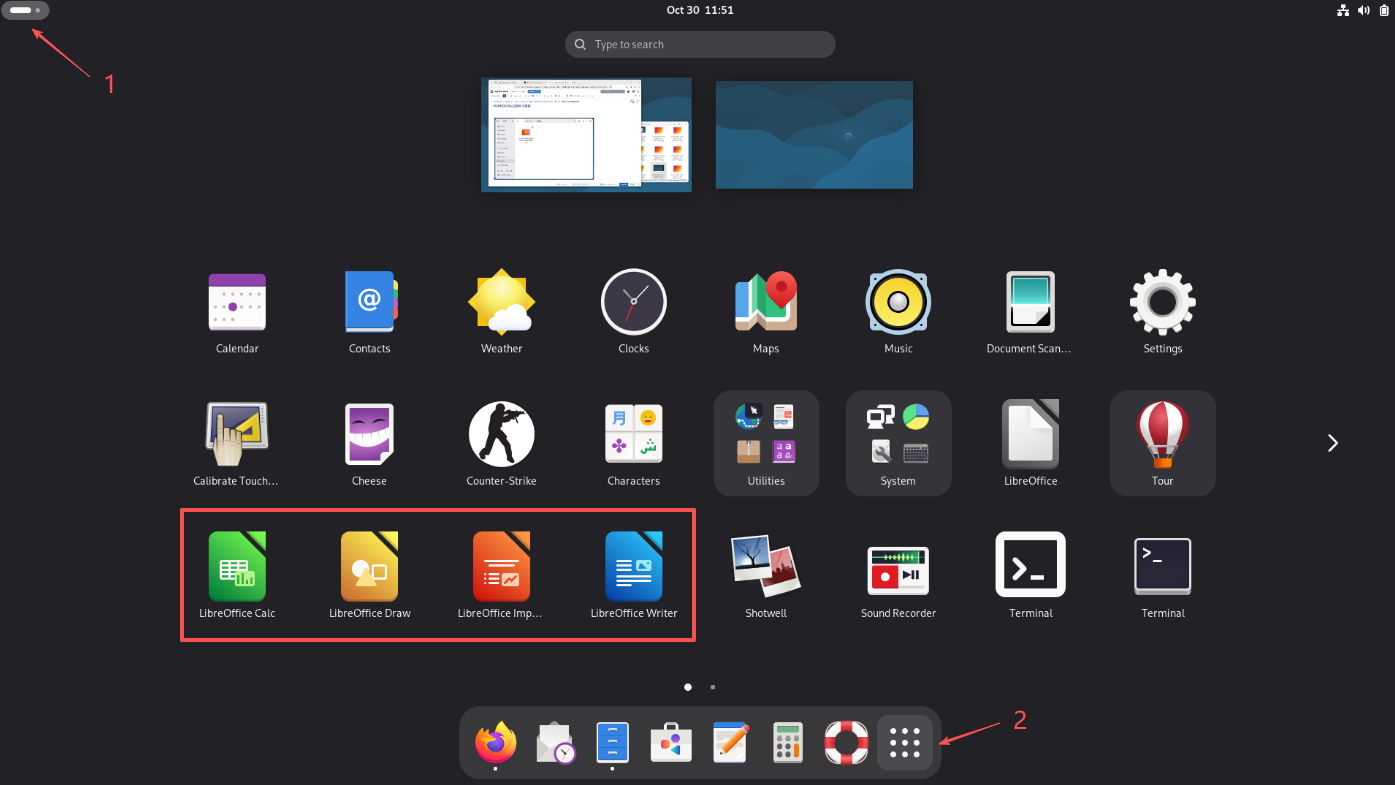
Debian systems come pre-installed with LibreOffice, and it can be launched by double-clicking its icon.
Common services
Samba
Samba is an open-source software suite that enables file and print sharing across different operating systems. It allows Unix and Linux systems to communicate seamlessly with Windows systems by implementing the SMB/CIFS protocol, which is the primary protocol used for file and print services in Windows networks.
Update the system package source:
sudo apt update && sudo apt upgrade -y
Install Samba:
sudo apt install samba -y
Check the status of Samba service:
sudo systemctl status smbd
If the service is not running (displayed as inactive), you can use the following command to start it:
sudo systemctl start smbd
And set it to start automatically on boot:
sudo systemctl enable smbd
Configure Samba:
The configuration file for Samba is usually located at /etc/samba/smb.conf. You need to edit this file based on your network environment and sharing requirements.
Restart Samba service:
After making changes to the configuration file, restart the Samba service to apply these changes:
sudo systemctl restart smbd
After completing the above steps, Samba service will be installed and running on the Debian system. You can now proceed to configure shared folders and user access permissions.