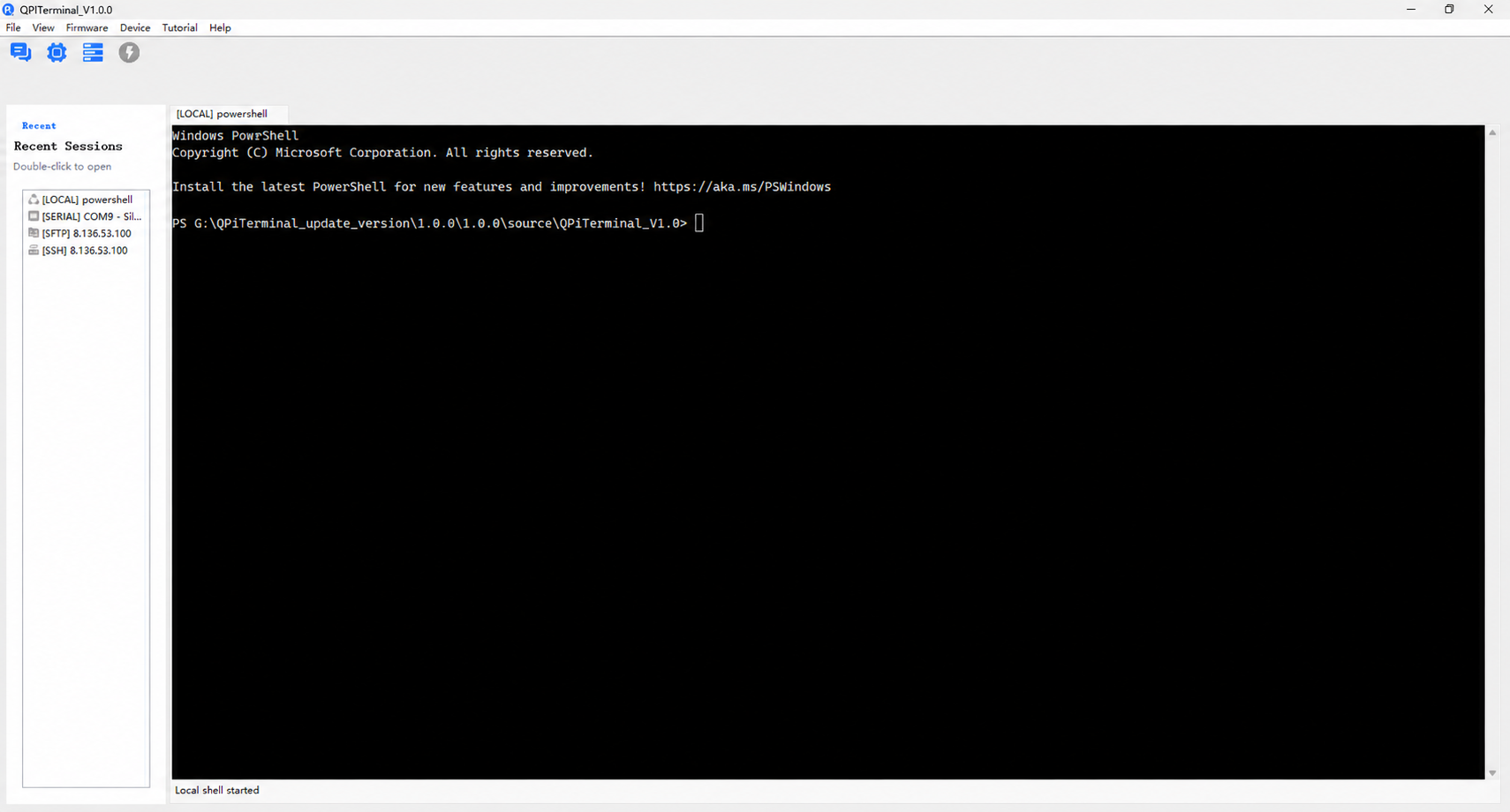
New session
This section mainly introduces the QPiTerminal tool's ability to create different types of new sessions.
SSH
New Session --> SSH opens the SSH connection page.
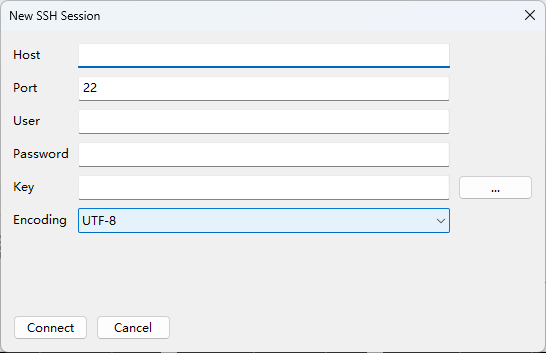
Enter the server information and click Connect to create a new SSH terminal page. The connection record will be kept on the left side and can be reopened by double-clicking it.
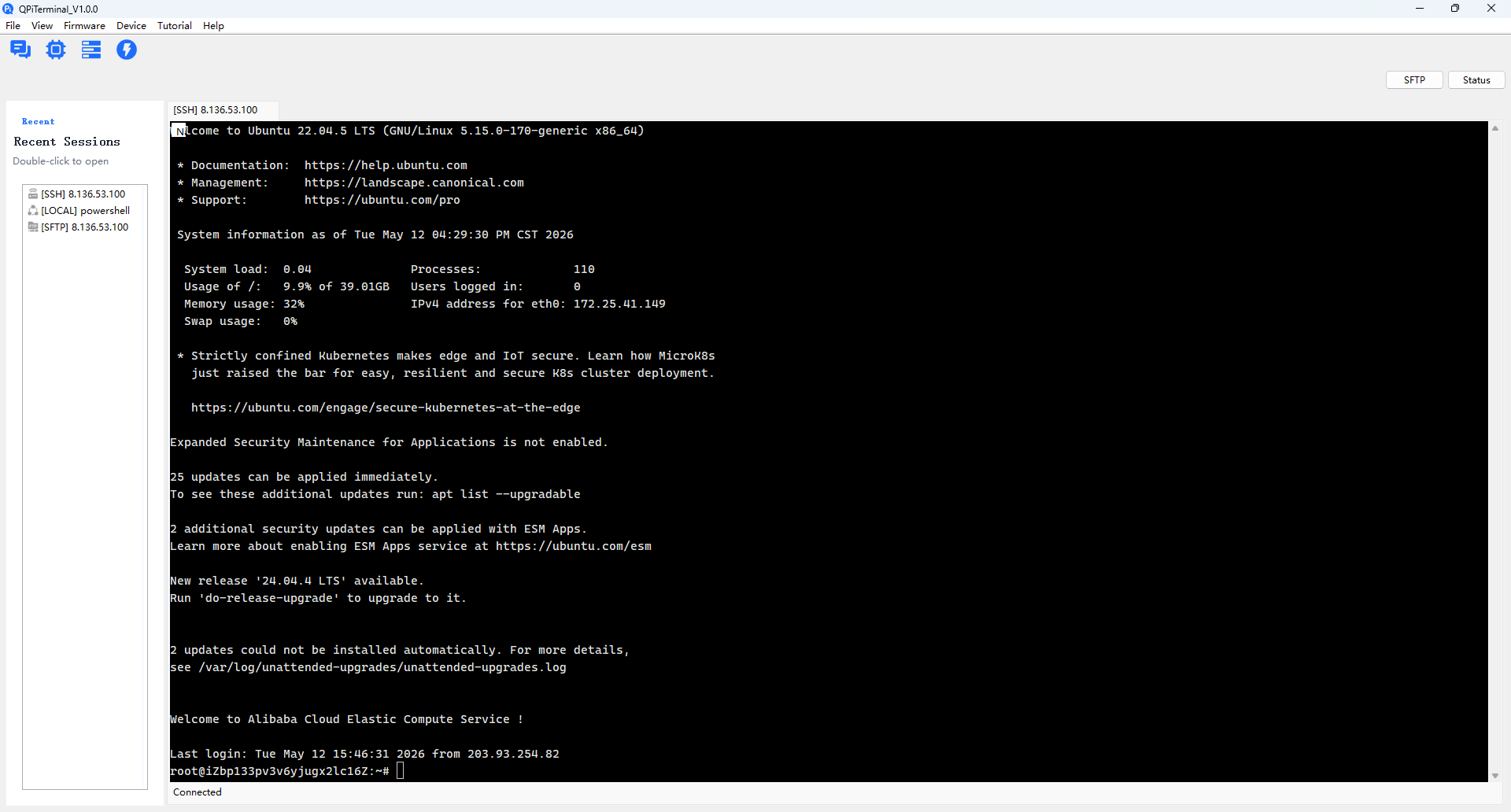
In the upper-right corner of the SSH terminal page, there are two buttons: SFTP and Status. They can be used to open the SFTP file transfer page and the status panel on the current page.
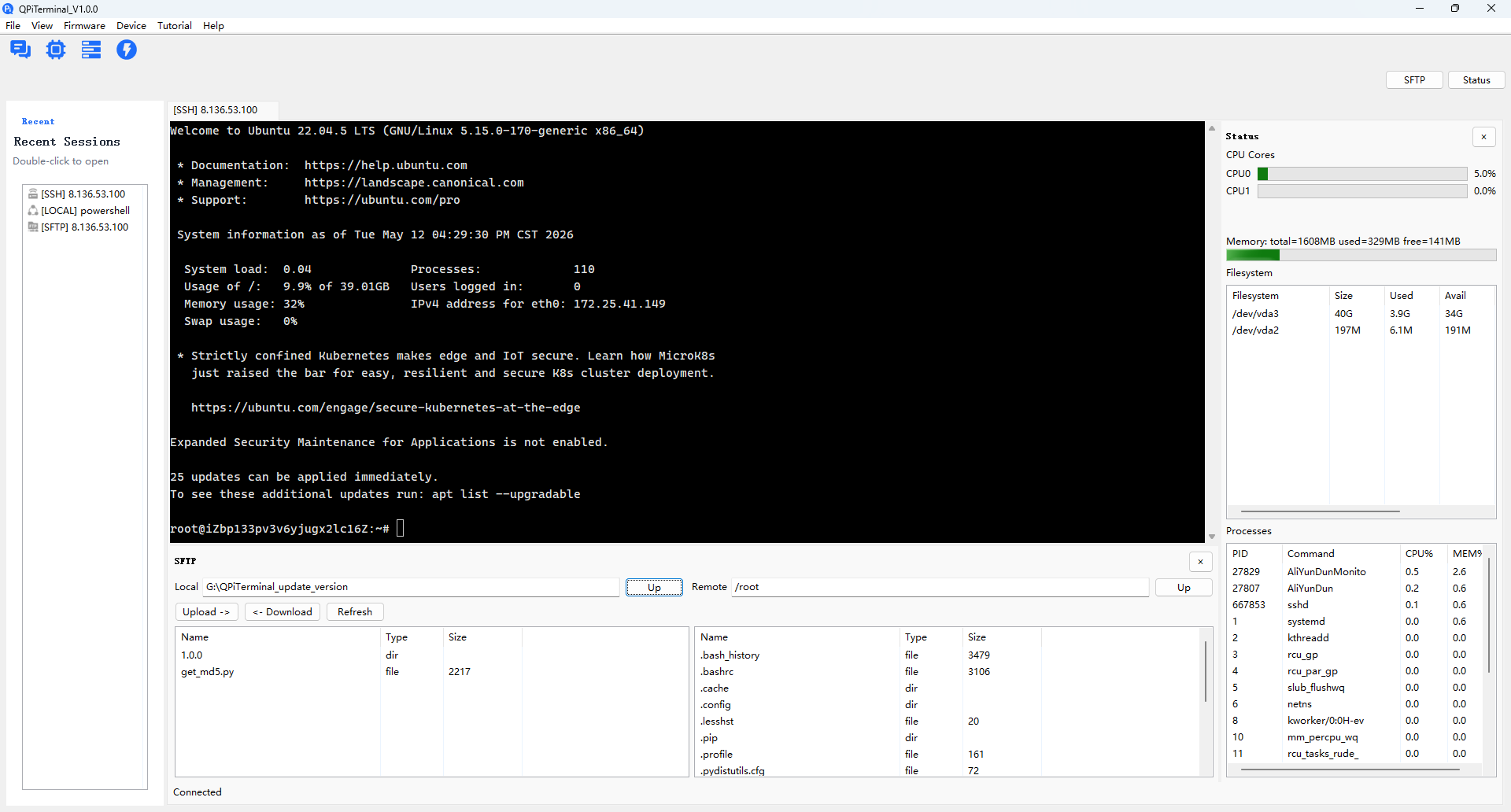
SFTP
New Session --> SFTP opens the SFTP connection page.
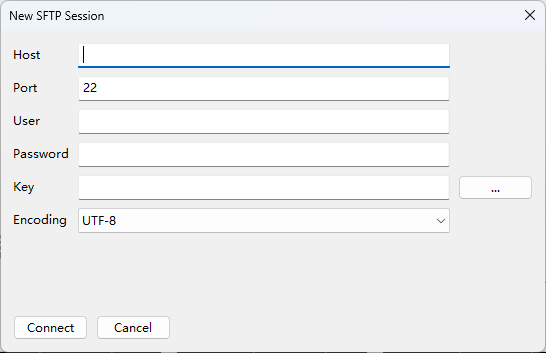
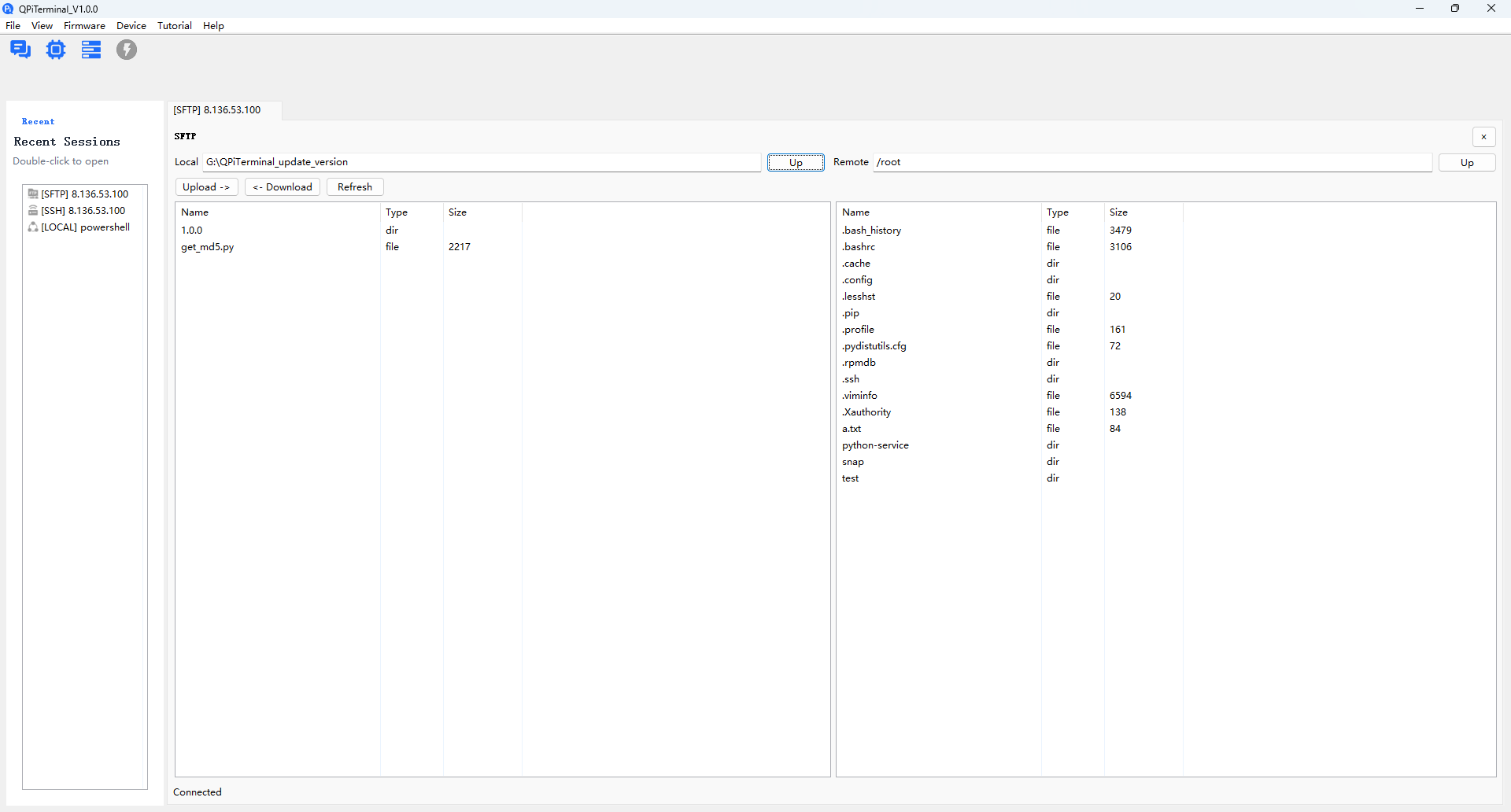
Enter the server information and click Connect to create a new SFTP page. The connection record will be kept on the left side and can be reopened by double-clicking it.
Serial
New Session --> Serial opens the Serial connection page.
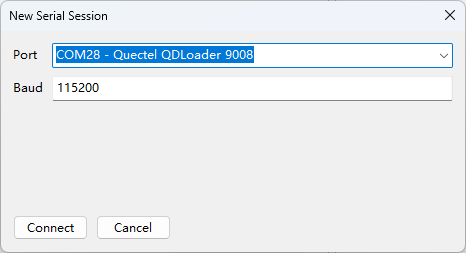
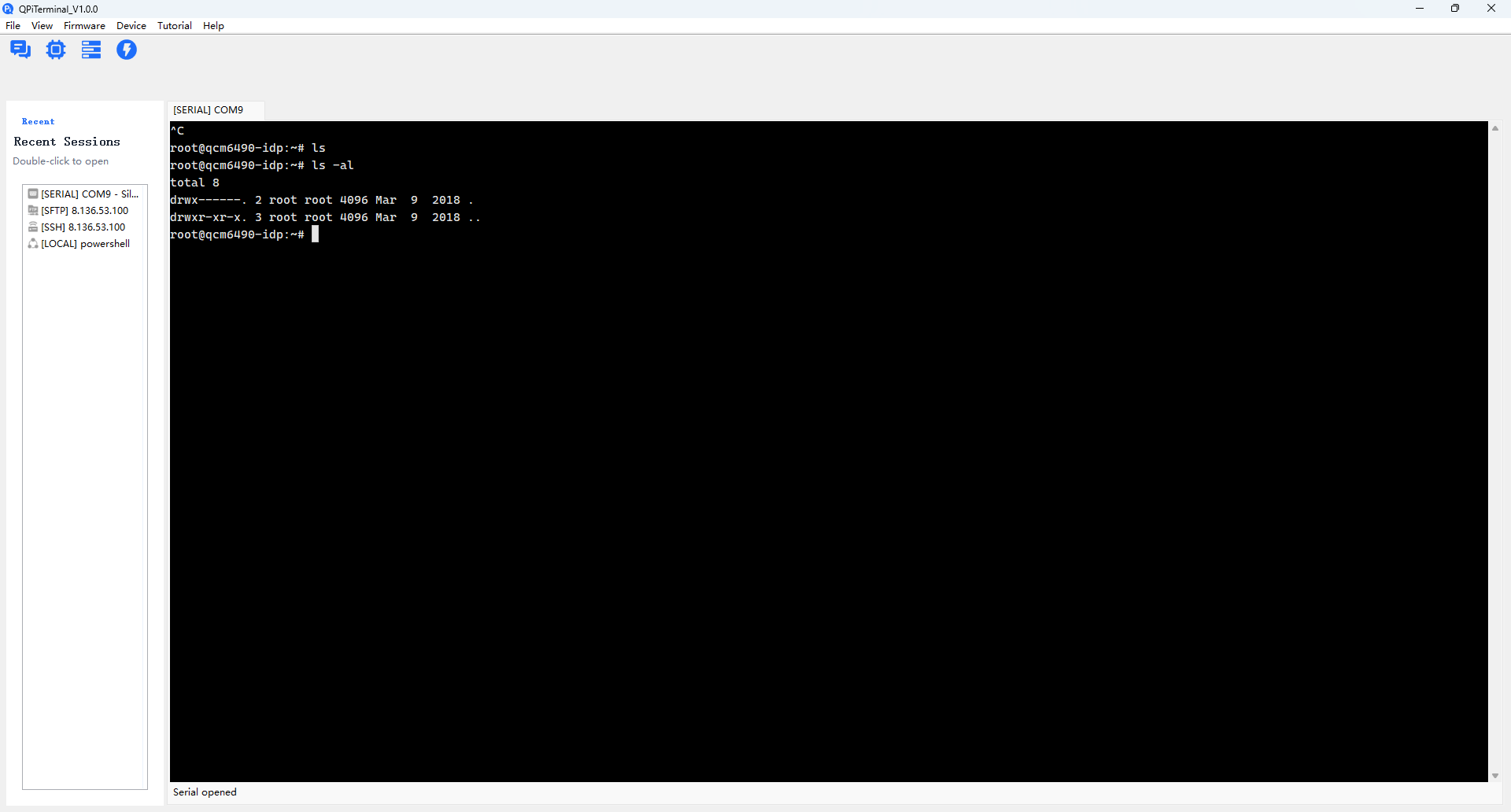
Select the correct serial port and click Connect to create a new Serial page. The connection record will be kept on the left side and can be reopened by double-clicking it.
Local
New Session --> Local opens the Local connection page.
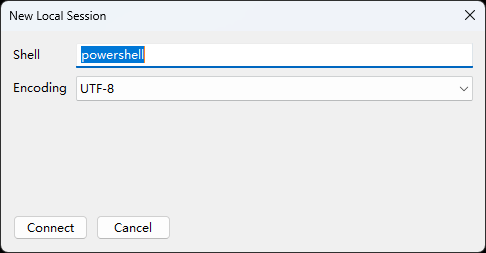
Currently, only PowerShell is supported. Click Connect to create a new PowerShell terminal page. The connection record will be kept on the left side and can be reopened by double-clicking it.