
Apache Web Server
This document provides instructions on how to install and run the Apache Web Server on Debian/Linux.
Preparation
- Confirm the device environment.
- The device is now able to connect to the network normally.
- The Windows host and the device are within the same local area network.
- Check network connectivity.
- Execute
ping www.google.comon the terminal. If you can see response time information, it indicates that the network is normal.
- Execute
Install Apache Web service
Apache is one of the most commonly used web server programs, which is used to provide website access services.
- Update the software repository:
sudo apt update
- Install the Apache service:
sudo apt install apache2 -y
Start and configure auto-start
- Start the Apache service:
sudo systemctl start apache2
Start the Web service to make it run immediately.
- Set Apache to start automatically on boot:
sudo systemctl enable apache2
After this configuration, Apache will automatically start every time the system boots.
- Check the running status:
sudo systemctl status apache2
Check device IP address
sudo ifconfig
Test whether Apache has been installed successfully
- Access through the computer browser within the same network:
http://Your device's IP address
If everything is normal, you will see the default page of Apache.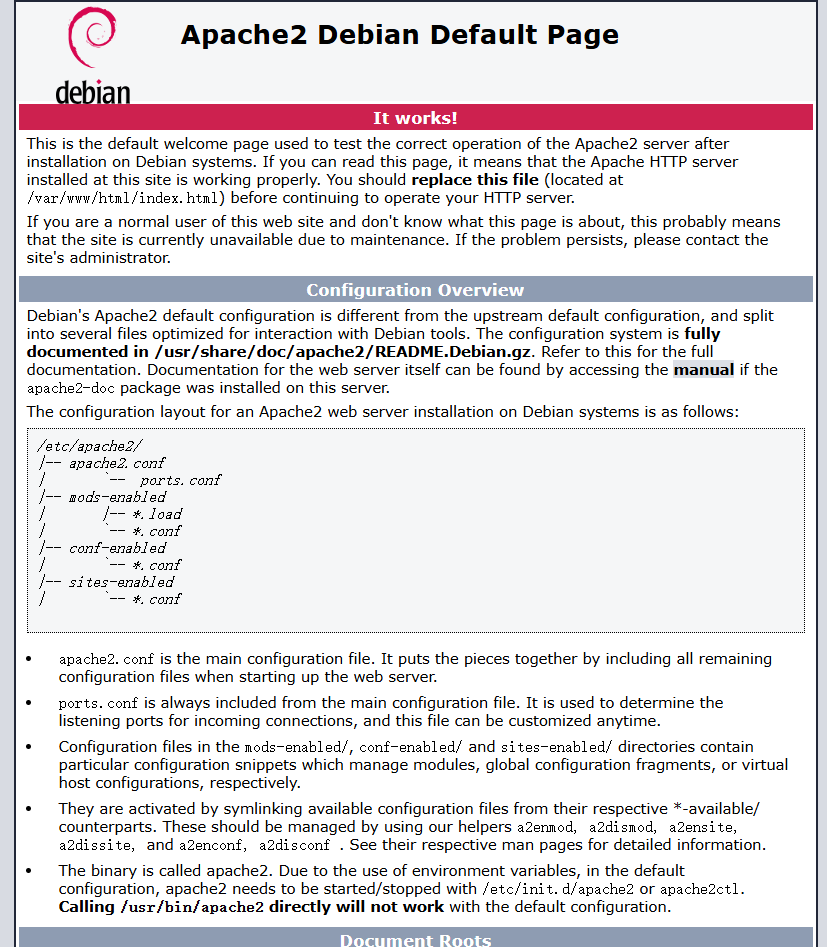
Change default web page
Apache’s default web page is an HTML file located at /var/www/html/index.html.
Navigate to the directory and view its contents:
cd /var/www/html
ls -al
The following content will be displayed:
total 20
drwxr-xr-x 2 root root  4096 Oct 30 07:53 .
drwxr-xr-x 3 root root  4096 Oct 30 06:51 ..
-rw-r--r-- 1 root root 10703 Oct 30 06:51 index.html
By default, the index.html file in the /var/www/html directory is owned by the root user. Since regular users do not have permission to directly modify files owned by root, you must change the file ownership to your own username if you wish to edit the webpage:
sudo chown <username>: index.html
Now you can edit the file. After making changes, simply refresh your browser to view the updated webpage.
If you are familiar with HTML, you can also place your own HTML files and other resources in this directory and access them as a website via the local network.