
Graphical interface overview
This section mainly introduces the main functions of the QPiTerminal interface.
Getting the Tool
When developing with Quectel Pi, you need a dedicated development and debugging tool: QPiTerminal. It supports terminal interaction, file transfer, firmware flashing, and more.
QPiTerminal: A one-stop debugging tool for Quectel Pi development.
Note: This tool does not require installation. It can be used immediately after extraction. It is recommended to manually disable antivirus software installed on the system in advance to avoid false positives that may cause the tool to be mistakenly deleted or become unusable.
Main Interface Functions
This section mainly describes the primary functions of the QPiTerminal main interface.
After downloading the tool in the previous step, extract the QPiTerminal.zip file and locate QPiTerminal.exe in the extracted directory.
With this tool, we can perform SSH terminal interaction, serial interaction, firmware flashing, and other operations for Quectel Pi modules.
The main pages of the tool are shown below:
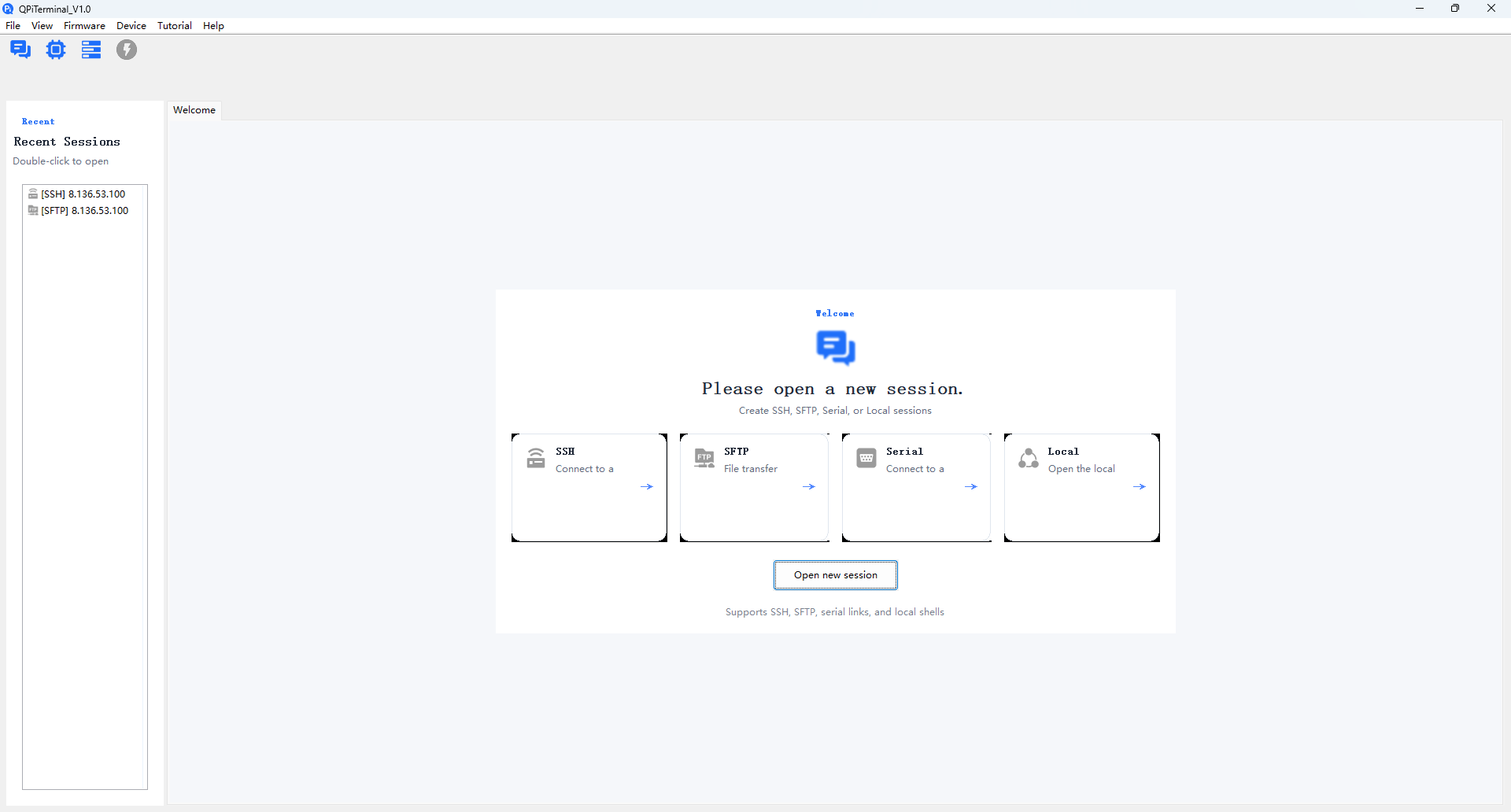
Welcome Page
On this page, you can create new SSH, SFTP, Serial, and Local sessions.
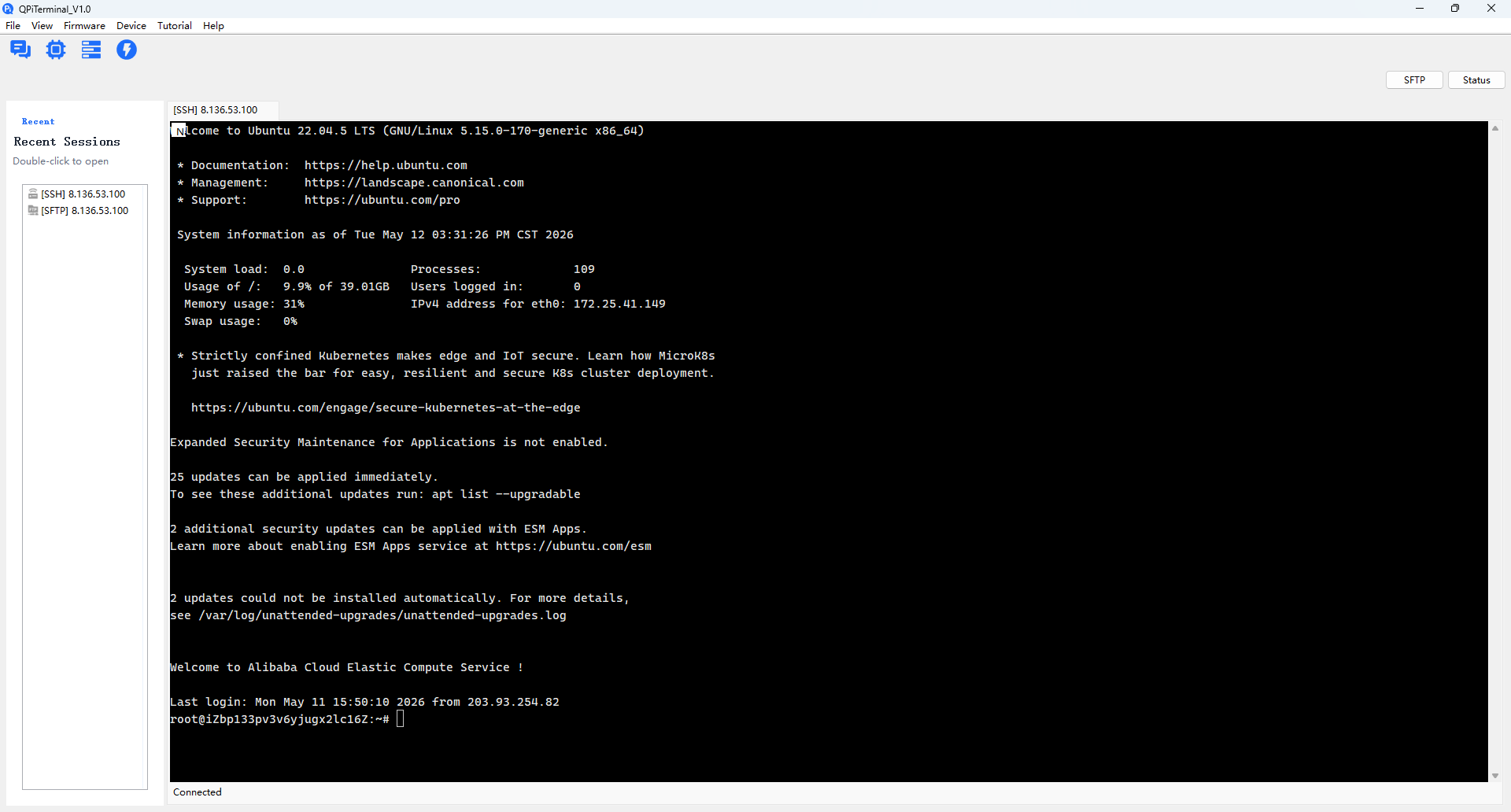
Terminal Interaction Page
After creating an SSH or Serial session, you can interact through the terminal.
Toolbar Buttons
The toolbar-related buttons are described below:


New session button. Supports terminal sessions such as SSH, SFTP, Serial, and Local.
Firmware flashing button. Opens the firmware flashing pop-up window.
Status panel button. Creates a new status panel page for viewing server status.
Quick commands button. Used for quick command operations.
Menu Bar Items
File
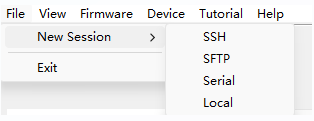
New Session
- The New Session menu item is equivalent to the new session button and supports SSH, SFTP, Serial, and Local terminal sessions.
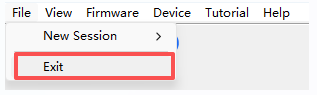
Exit
- When the user selects Exit, the entire application closes.
View
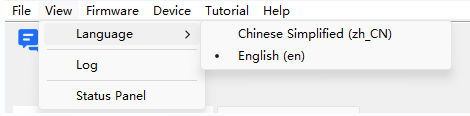
Language
- When the user selects
View --> Language, the software language can be switched. Currently, Simplified Chinese and English are supported.
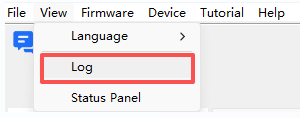
Log
- When the user selects
View --> Log, the tool log can be viewed.
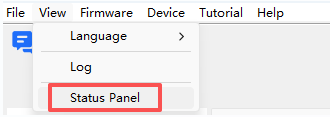
Status Panel
- When the user selects
View --> Status Panel, a new status panel page can be created.
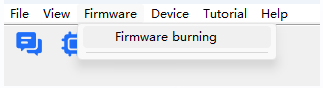
Firmware
Firmware Flashing
- When the user selects
Firmware --> Firmware Flashing, the firmware flashing pop-up window opens.
Device
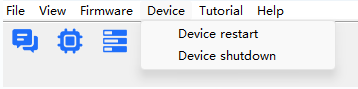
Reboot Device
- When the user selects
Device --> Reboot Device, the device can be rebooted quickly. This option is available only on the SSH or Serial terminal page; otherwise, it is grayed out and cannot be clicked.
Shut Down Device
- When the user selects
Device --> Shut Down Device, the device can be shut down quickly. This option is available only on the SSH or Serial terminal page; otherwise, it is grayed out and cannot be clicked.
Tutorial
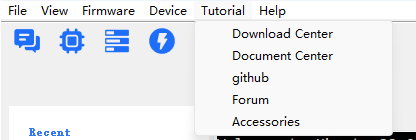
Download Center
- When the user selects
Tutorial --> Download Center, they can visit the Quectel Pi resource download page.
Document Center
- When the user selects
Tutorial --> Document Center, they can visit the Quectel Pi documentation center.
GitHub
- When the user selects
Tutorial --> GitHub, they can visit the Quectel Pi GitHub page.
Forum
- When the user selects
Tutorial --> Forum, they can visit the Quectel Pi forum.
Accessories
- When the user selects
Tutorial --> Accessories, they can view the Quectel Pi accessory documentation.
Help
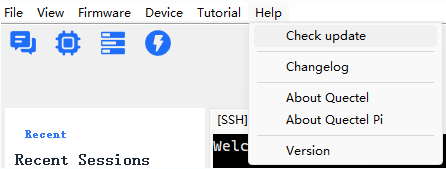
Check for Updates
- When the user selects
Help --> Check for Updates, the tool checks whether a newer version is available.
Version Information
- When the user selects
Help --> Version Information, the tool changelog opens so the user can review feature updates and iteration details. Thechangelogfile is located in the tool's root directory.
About Quectel
- When the user selects
Help --> About Quectel, the Quectel official website opens.
About Quectel Pi
- When the user selects
Help --> About Quectel Pi, the Quectel Pi official website opens.
Version
- When the user selects
Help --> Version, the current version number of the tool is displayed.