
HDMI
This document provides detailed instructions on using the Micro HDMI display with the Quectel Pi M1 smart single-board computer, using an 10.1-inch HDMI display as an example.
HDMI display connection
Hardware interface connection
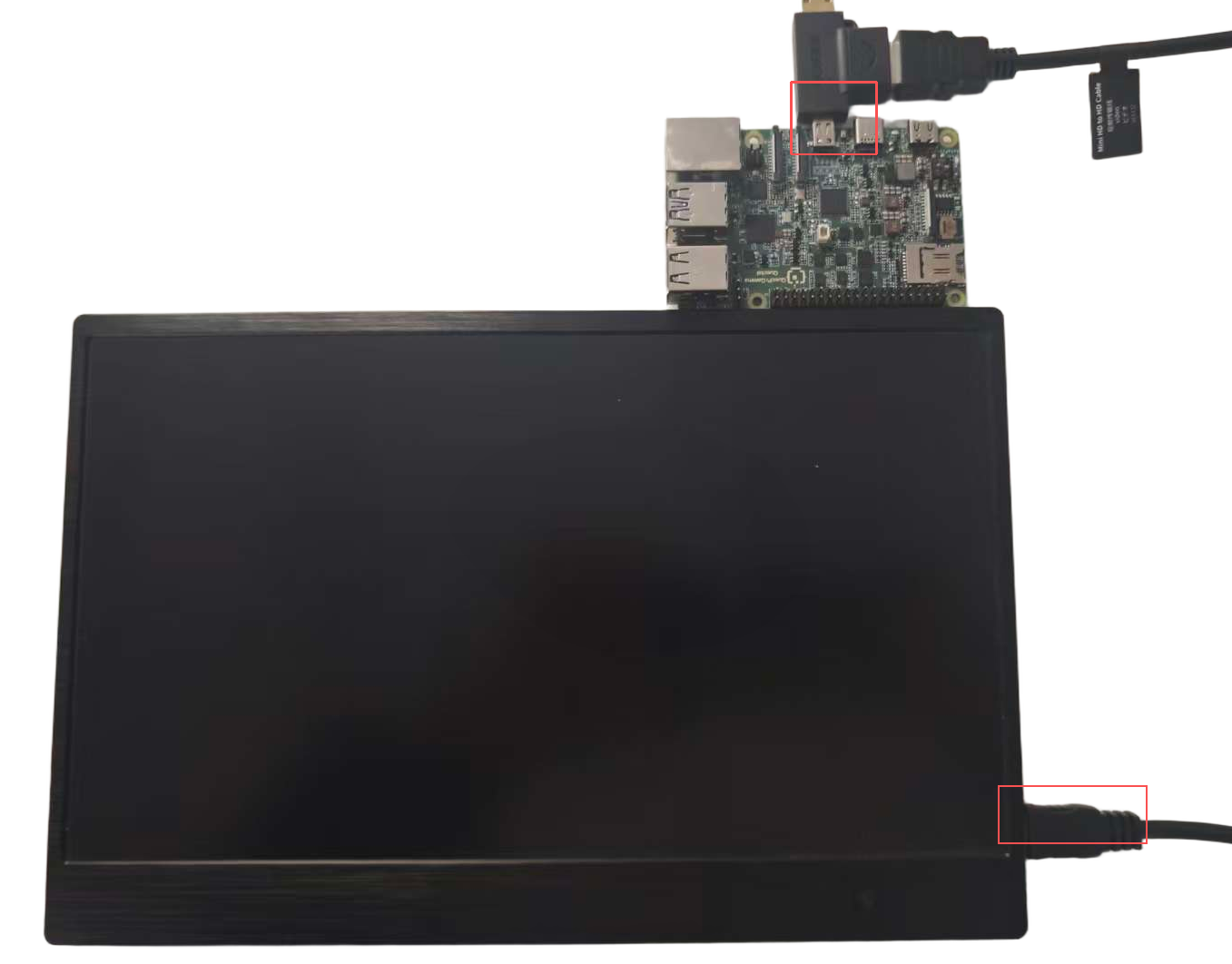
Boot startup
After powering on and booting up, enter the system desktop.
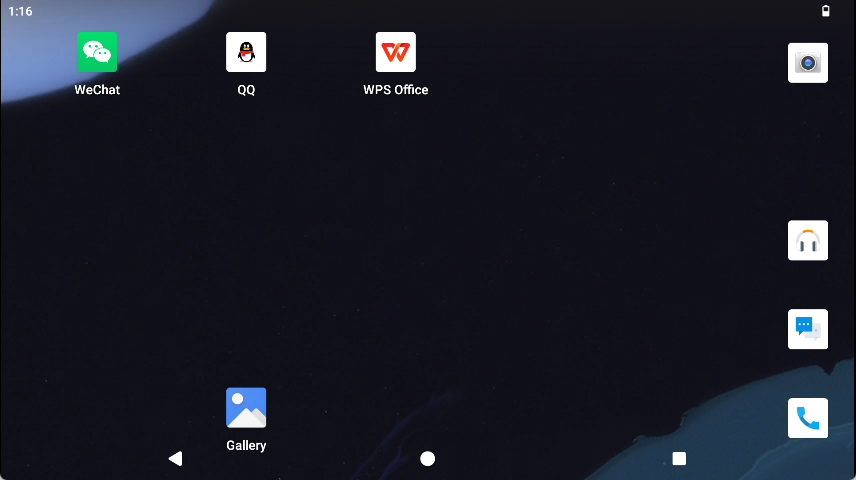
Function usage
Touch function usage
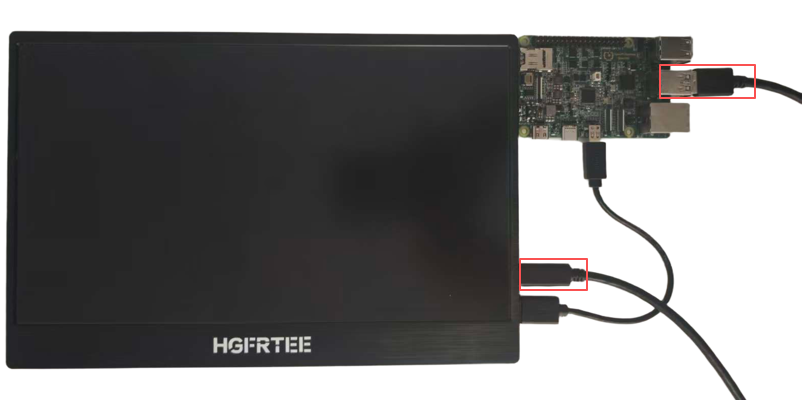
After powering on the HDMI display, you need to connect the USB port to the HDMI display.
Note: This function requires an HDMI display with touch function.
Connect according to the figure below:
Adjust audio and display
Note: After connecting the HDMI display, the resolution is adaptive and cannot be changed. Currently supported HDMI resolutions are 3840 × 2160, 1920 × 1080, 1280 × 720, 720 × 480
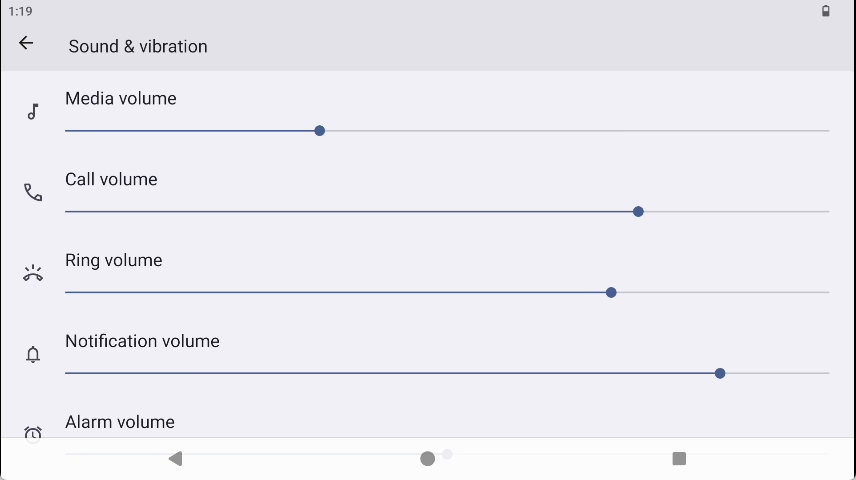
For specific audio configuration, please navigate sequentially to: Android Desktop → Menu → Settings → Sounds & Vibration to configure audio settings.
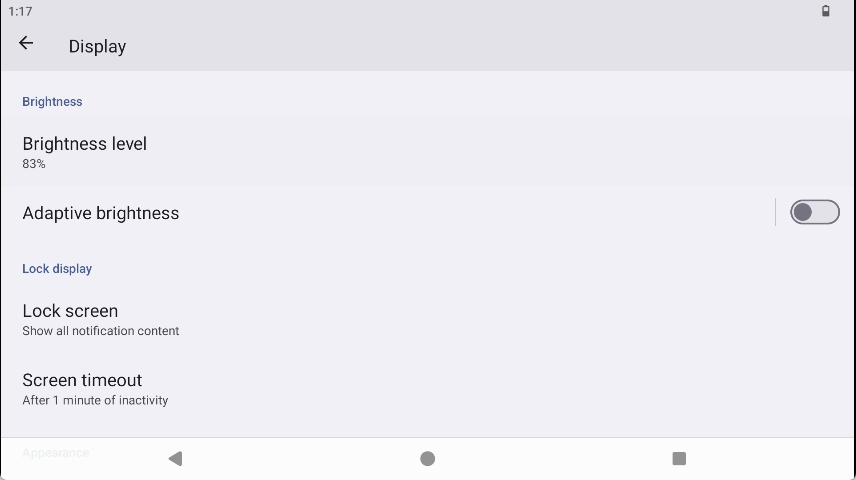
For specific display configuration, please navigate sequentially to: Android Desktop → Menu → Settings → Display to configure display settings.
Video playback function
Video playback function on Android desktop
Use the adb tool to push video files to the smart single-board computer. For adb usage, please refer to the adb usage introduction in the Getting Started section.
adb push "E:\FeiShu\Animal World.mp4" /sdcard/DCIM     #Push relevant videos to the DCIM directory of the smart single-board computer's SD card

#Enter the smart single-board computer
su    #Switch to root user
am broadcast -a android.intent.action.MEDIA_SCANNER_SCAN_FILE -d file:///sdcard/DCIM/Animal World.mp4    #Rescan this file in the media library
For specific configuration, please navigate sequentially to:
Android Desktop -> File Manager -> Video Files -> Play Video.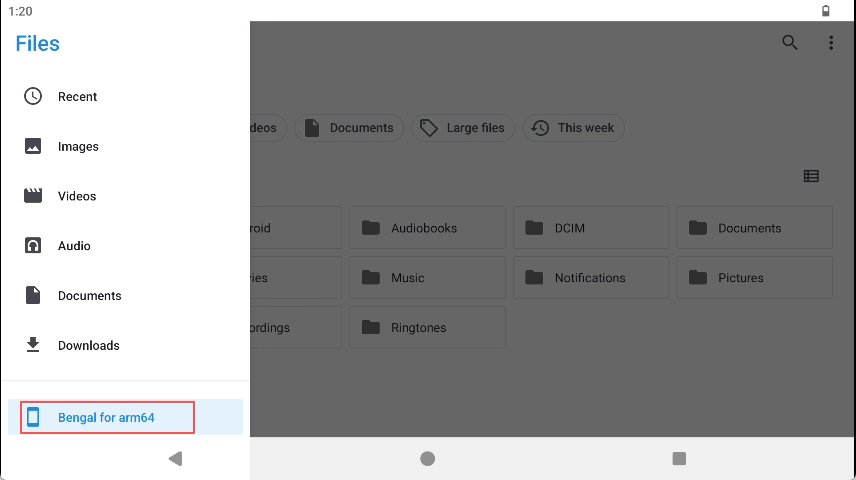
Audio playback function
Audio playback function on Android desktop:
Note: To play audio, you need to connect speakers to the Quectel Pi M1 smart single-board computer.
Use the adb tool to push audio files to the smart single-board computer. For adb usage, please refer to the adb usage introduction in the Getting Started section.
adb push E:\eage\test.mp3 /sdcard/Music #Push audio to the Music directory of the smart single-board computer's SD card

#Enter the smart single-board computer
su    #Switch to root user
am broadcast -a android.intent.action.MEDIA_SCANNER_SCAN_FILE -d file:///sdcard/Music/test.mp3     #Rescan this file in the media library
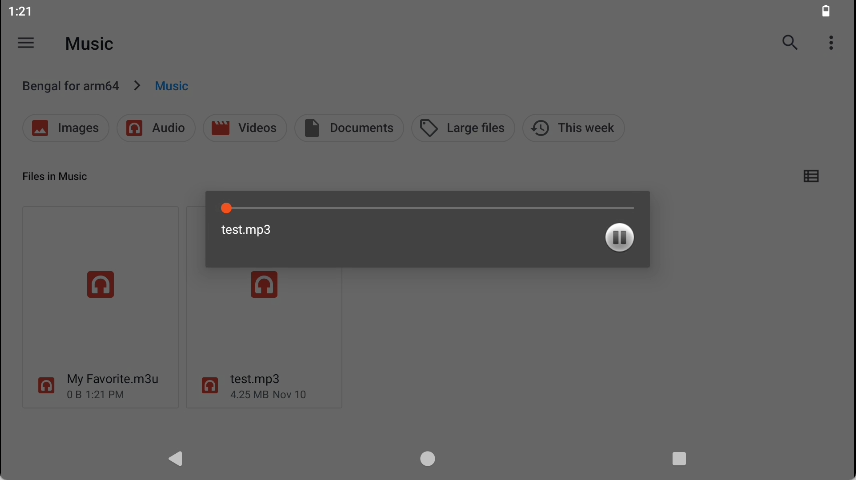
For specific configuration, please navigate sequentially to:
Android Desktop -> File Manager -> Play Audio.
Advanced features
Hot plugging of HDMI displays
HDMI displays support hot plugging function, allowing you to plug and unplug HDMI displays while the system is running, and the system will automatically recognize and display the image.
Hot plugging usage
- While the system is running, directly insert the HDMI display into the HDMI interface of the smart single-board computer.
- The system will automatically detect the HDMI device and start display output.
- To disconnect the HDMI display, you can directly unplug the Micro HDMI cable, and the system will automatically switch display output.
Hot plugging precautions
- Hot plugging function only supports displays connected through the Micro HDMI interface.
- Displays connected using DP to Micro HDMI adapters may not properly support hot plugging.
- Avoid frequent operations during plugging and unplugging, it is recommended to have an interval of no less than 5 seconds between each plug/unplug operation.
Application scenarios
- Media Entertainment Terminal: Using the Quectel Pi M1 smart single-board computer as a media entertainment terminal, it can play video and audio content, view pictures, etc.
- Industrial Data Visualization Platform: Using the Quectel Pi M1 smart single-board computer as an industrial data visualization platform, it can display industrial data, monitor equipment operation status, and perform data processing.
- Smart Interactive Terminal: Using the Quectel Pi M1 smart single-board computer as a smart interactive terminal, it can be used for various human-machine interaction applications.
Troubleshooting
How to view system logs
To view system logs, connect the serial cable to the computer and use a serial tool to view the logs.
Black screen issue
After properly connecting the device and powering it on, if the display shows a black screen, it could be due to the following situations:
- Power connection issue:
Check if the display's power supply interface is properly connected, and confirm that the power adapter is correctly connected and powered.
- Connection line issue:
Check if the Micro HDMI cable is properly connected and firmly inserted, confirm that the Micro HDMI cable direction is correct to avoid reverse insertion, and check if the connector has physical damage.
- System boot issue:
Confirm that the system has booted normally and loaded the display service, check system logs to confirm whether the display driver is loaded properly.
- Resolution compatibility issue:
Check if the resolution supported by the display matches the system output resolution, and manually adjust the resolution settings if necessary.
Screen artifact issue
After properly connecting the device and powering it on, if the display shows a screen artifact, it could be due to the following situations:
- Signal interference:
Check if the Micro HDMI cable is too long or of poor quality, confirm there are no strong electromagnetic interference sources around the cable, and try replacing with a high-quality Micro HDMI cable.
- Hardware compatibility issue:
Confirm that the display model used is fully compatible with the Quectel Pi M1, and check if the display firmware version is the latest version.
- Poor interface contact:
Check if there is looseness or oxidation in the Micro HDMI interface, re-plug the Micro HDMI cable to ensure a firm connection.