System installation
Before flashing the image of Quectel Pi M1 smart single-board computer, please ensure that the Qualcomm_USB_Driver_v1.0.10065.1 driver is installed. If it is not installed, you can click here to download and install.
QDL flashing image
Disable ModemManager tool
- Prerequisite: If you are using a Linux distribution with systemd, and some Linux distributions include the ModemManager tool that allows for configuring mobile broadband. When a device is connected in USB mode, it will be recognized as a Qualcomm modem and ModemManager will attempt to configure the device. This will interfere with the QDL flashing process. Therefore, ModemManager must be disabled before connecting the device. Please use the following command to stop the ModemManager tool:
sudo systemctl stop ModemManager
Download QDL tool
For Linux x64, click the link to download: https://developer.quectel.com/wp-content/uploads/2025/05/QDL_Linux_x64.zip
For Windows x64, click the link to download: https://developer.quectel.com/wp-content/uploads/2025/06/QDL_Win_x64.zip
Enter EDL mode
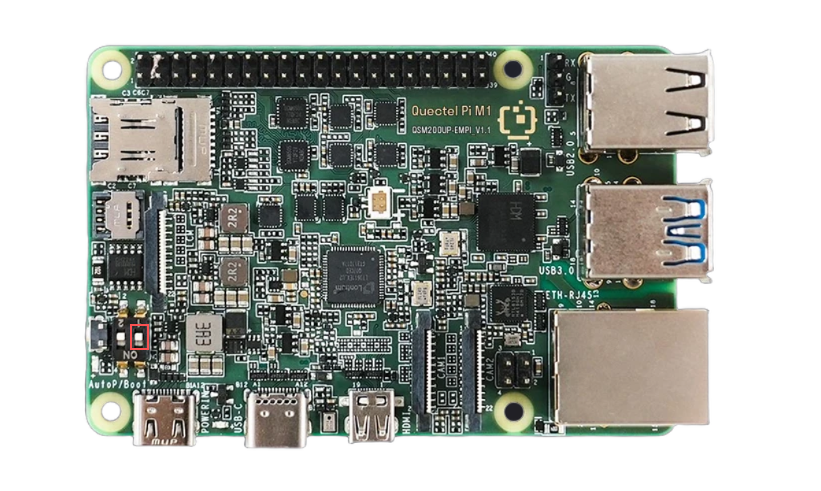
Switch Quectel Pi M1 to download mode. Press and hold the EMG_DOWNLOAD button on the side of Quectel Pi M1, and power on the module. The module will enter EDL emergency download mode.
Linux x64
Extract the QDL_Linux_x64 compressed file and open a terminal window in the directory containing the firmware program, rawprogram_unsparse0.xml, patch0.xml, and QDL binary files.
Use the following command to run the QDL executable file in the QDL_Linux_x64 directory to perform software refresh.
./qdl --storage emmc prog_firehose_ddr.elf rawprogram_unsparse0.xml patch0.xml
Note: If there are entries with erase tags in the rawprogram_unsparse0.xml file, they must be deleted. These tags ensure partition areas are erased for subsequent writing, but the QDL tool does not support them. Retaining the tag will cause errors.
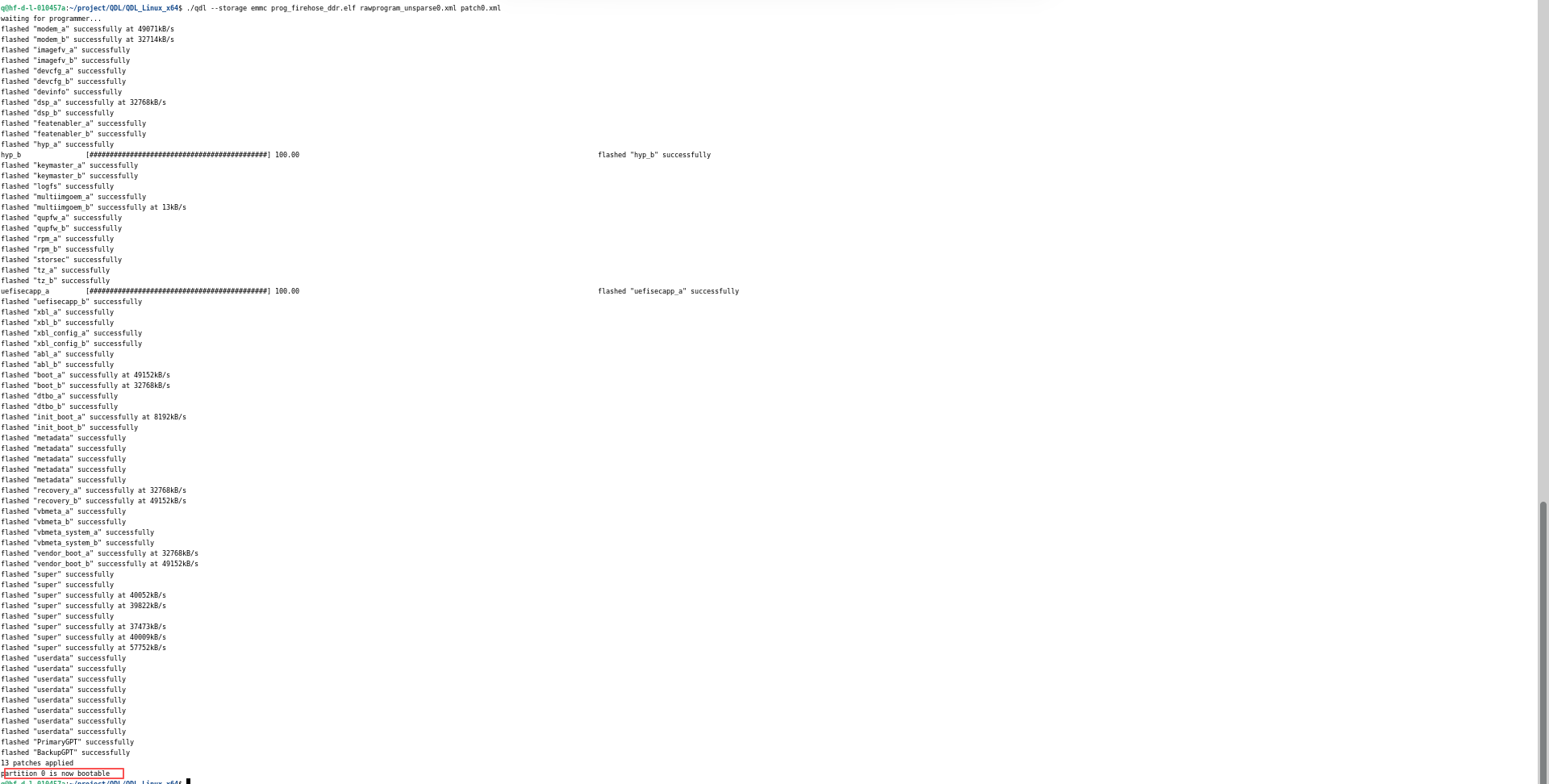
- If you see "partition 0 is now bootable" in the terminal window, it indicates the refresh is successful, as shown in the following figure:
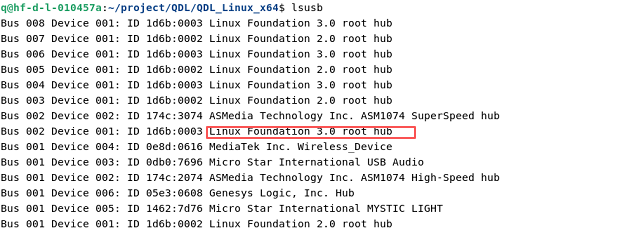
- After successful flashing, run the lsusb command to see device information in the terminal window, as shown in the following figure:
Windows x64
Convert to WinUSB driver.
Based on the installed Qualcomm_USB_Driver_v1.0.10065.1 driver, the device driver needs to be converted to WinUSB.
- Please click the link Zadig to download the WinUSB driver conversion tool. After downloading, open it as an administrator. Then power on the board to enter emergency download mode. In Zadig, click "Options" → "List All Devices", find "QUS_BULK_CID:041C_SN:3D2E305E" in the dropdown menu, select "WinUSB" on the right, and click "Replace Driver" to complete the conversion. The specific operation steps are shown in the following figures.
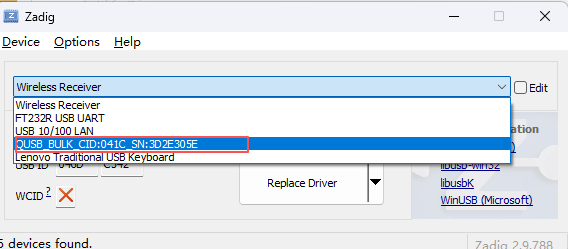
Conversion Step 1
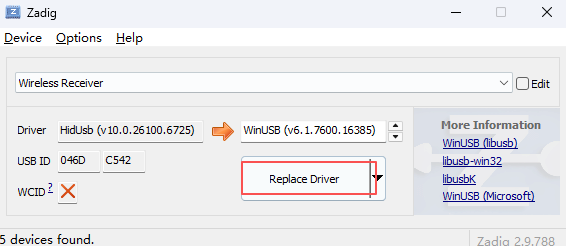
Conversion Step 2
Extract the QDL_Win_x64 compressed file and put the firmware program, rawprogram_unsparse0.xml, patch0.xml, and other files, as well as the QDL executable file into a folder.
Open the CMD window and use the following command to run the QDL executable file in the QDL_Win_x64 directory.
QDL_Win_x64>QDL.exe prog_firehose_ddr.elf rawprogram_unsparse0.xml patch0.xml
Note: If there are entries with erase tags in the rawprogram_unsparse0.xml file, they must be deleted. These tags ensure partition areas are erased for subsequent writing, but the QDL tool does not support them. Retaining the tag will cause errors.
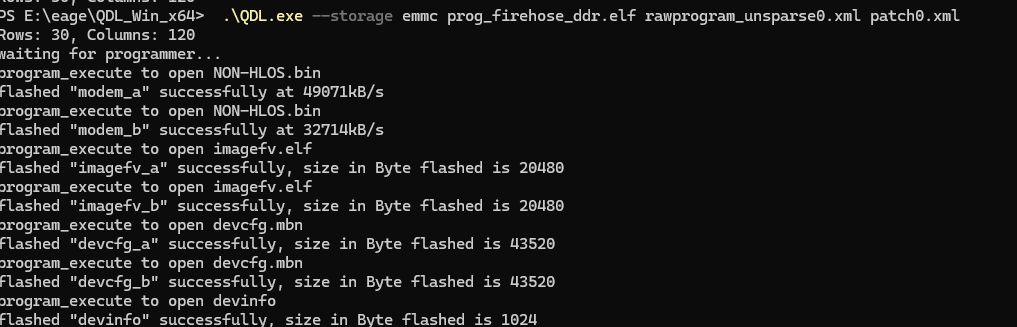
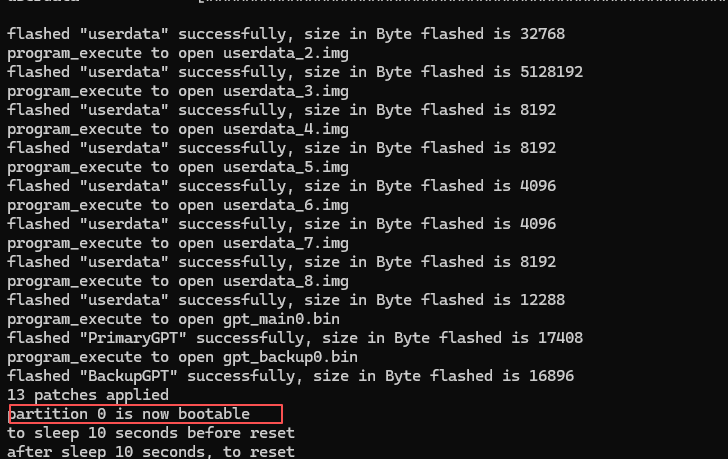
The successful flashing is shown in the following figure:
Note
If the refresh fails, please perform the following steps and retry the refresh process:
- Turn off the device power.
- Disconnect from Quectel Pi M1.
- Restart Quectel Pi M1.
QFIL flashing image
QFIL (Qualcomm Flash Image Loader) is an official firmware flashing tool developed by Qualcomm, mainly used for embedded devices such as smartphones and tablets equipped with Qualcomm chips. Its core function is to flash or write firmware files (such as Bootloader, Recovery, kernel, etc.) into the device through USB connection.
- Please note that the "Erase All Before Download" option in the configuration cannot be ticked.
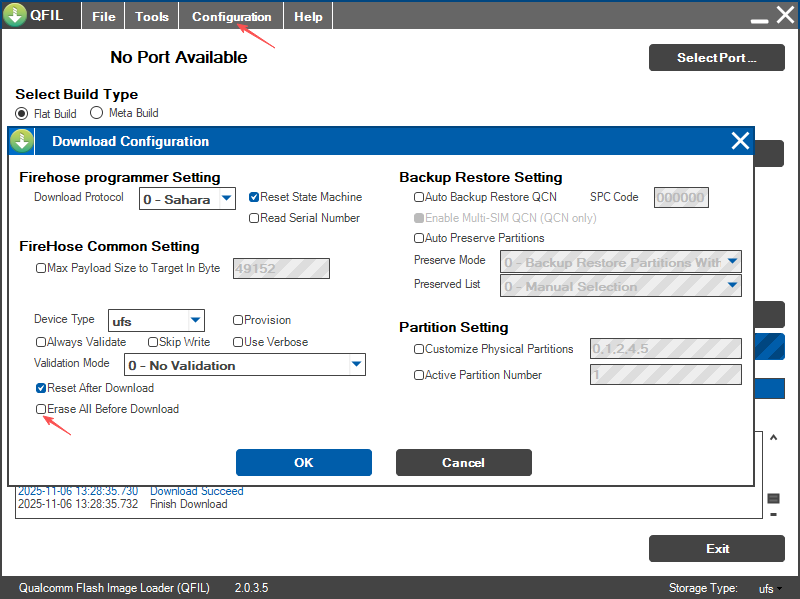
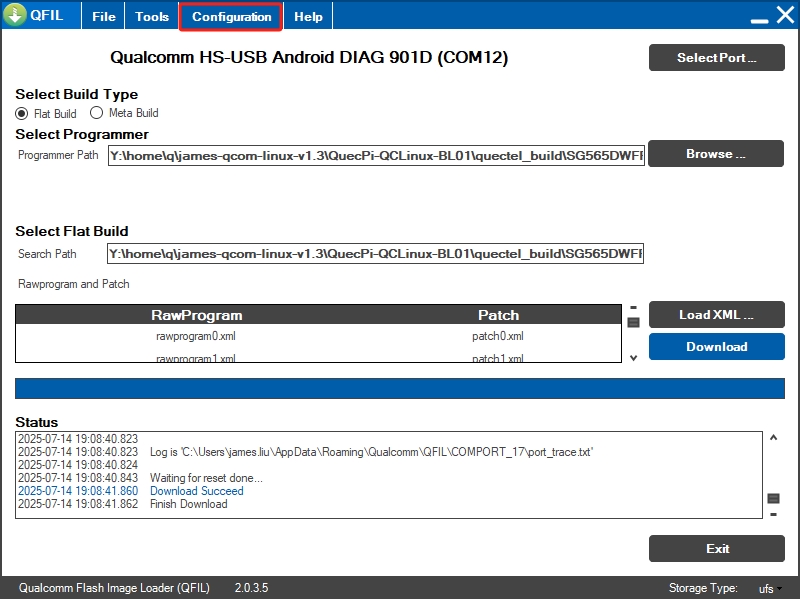
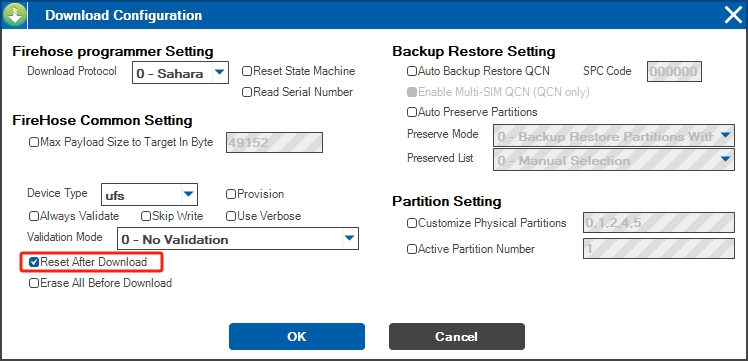
- Click on the "Configuration" button, click on "FireHose Configuration" button that pops up, select the "Reset After Download" option box, and click the "OK" button.
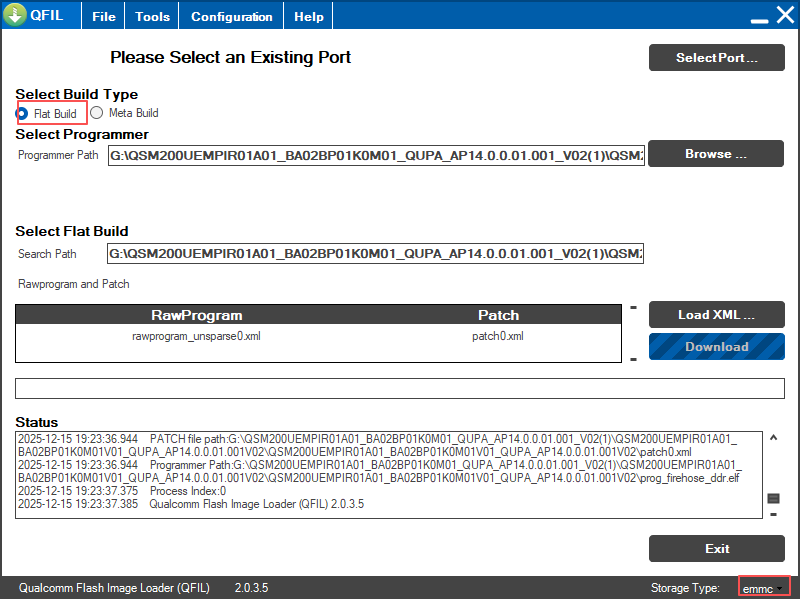
- Select "Flat Build" as the build type and "emmc" as the storage type in the bottom right corner.
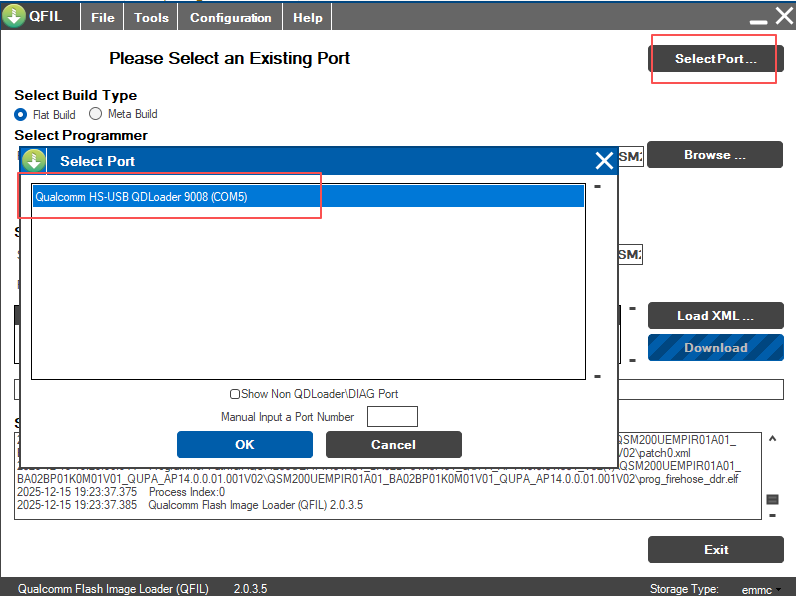
- Press and hold the power button of Quectel Pi M1, power on the device, click the "Select Port" button, select port "9008", and click the "OK" button.
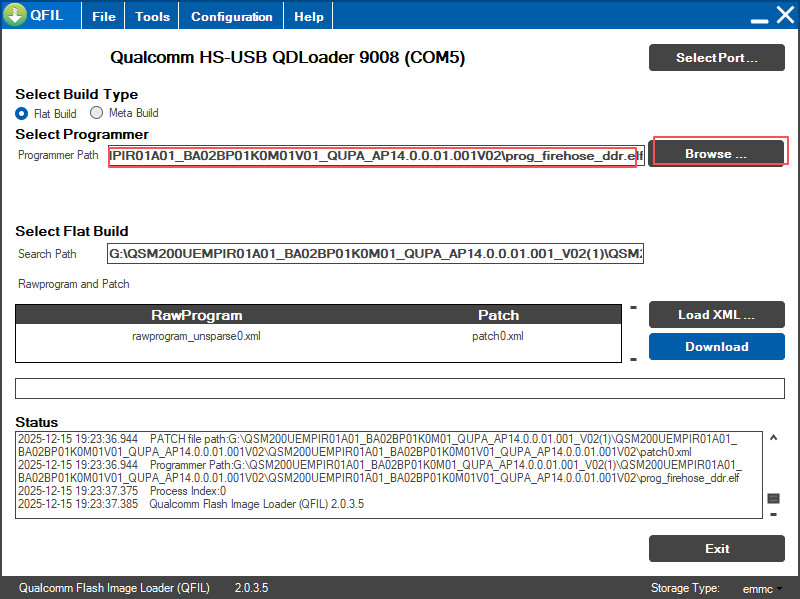
- Click the "Browse" button and select the "prog_firehose_ddr.elf" file.
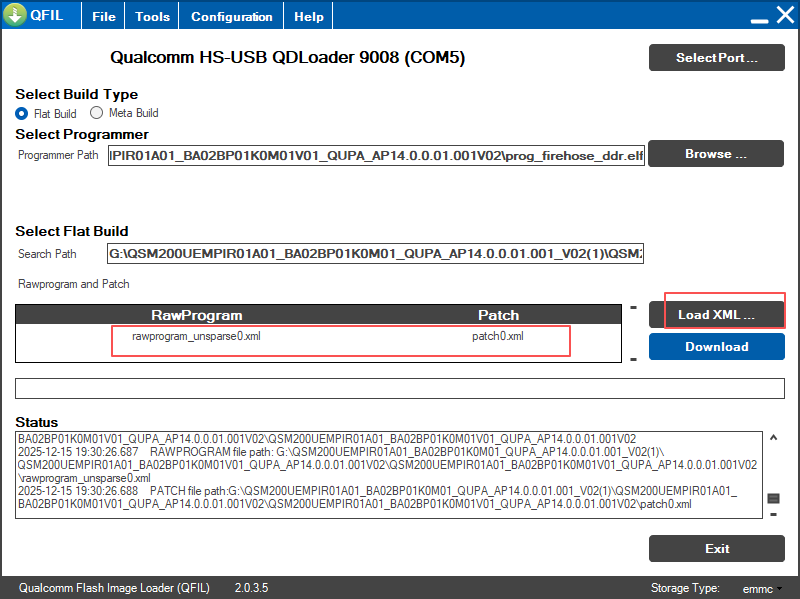
- Click the "LoadXML" button and select all "rawprogram0.xml" and "patch0.xml" files.
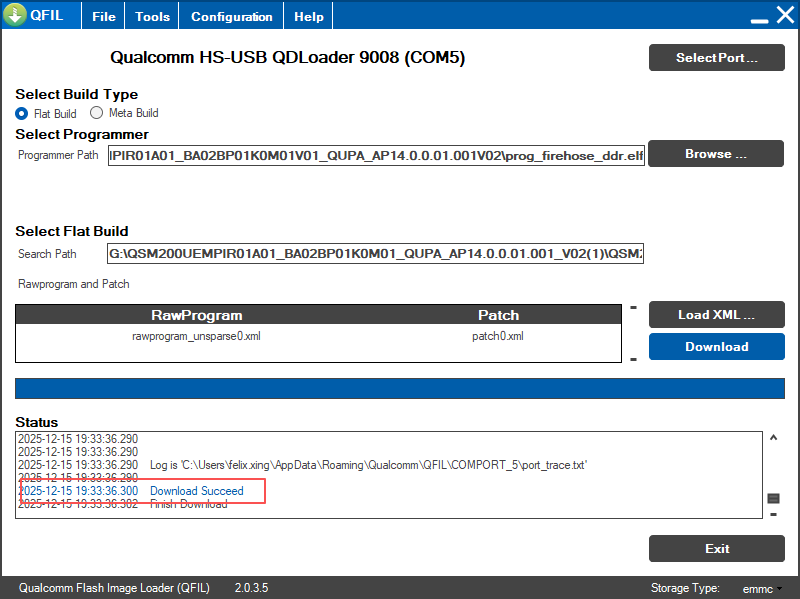
- Click the "Download" button. When the words Download Succeed appear in Status information box, it means that flashing is successful. Then power off, restore Boot1 to its original state, and power on again to start the system.