
Termux application
This guide systematically elaborates on how to configure and utilize the Termux advanced terminal emulation environment on Android mobile devices to implement localized development, testing, and automation tasks. It aims to provide technical practitioners and learners with an efficient practical path, helping them quickly build a fully functional Linux command-line workflow and development environment in mobile scenarios without Root permissions.
Introduction
Termux is an open-source terminal emulator and Linux environment application for the Android platform. It can run a complete Linux command-line environment on Android devices without root permissions, supporting the installation of hundreds of open-source packages (such as compilers, programming languages, toolchains, network tools, etc.). It is often dubbed a "Linux workstation on Android". It combines the portability of Android with the powerful command-line tools of Linux, making it a commonly used tool for developers, geeks, and penetration testers.
Preparation
Before starting to use Termux, please ensure the following conditions are met:
1. Device requirements
- Android 7.0 or higher
- At least 500 MB available storage space (more is recommended)
- Stable network connection (for installing packages)
2. Download application
- Download Termux from Google Play Store or Termux official source
- Avoid downloading from third-party sources to prevent security risks
3. Basic knowledge
- Understanding of basic Linux Shell command operations
Installation steps
Install Termux main application
Download and install application from official channels
Google Play Store: Search for "Termux"
Official website download: Termux
termux-app_v0.119.0-beta.3+apt-android-7-github-debug_arm64-v8a.apk
Initialize environment (first time use)
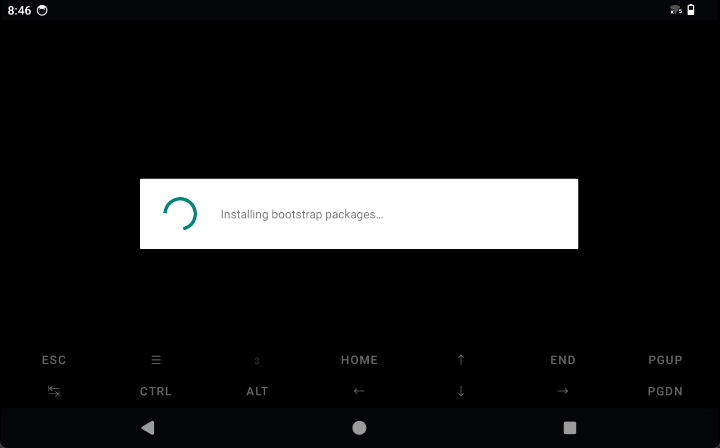
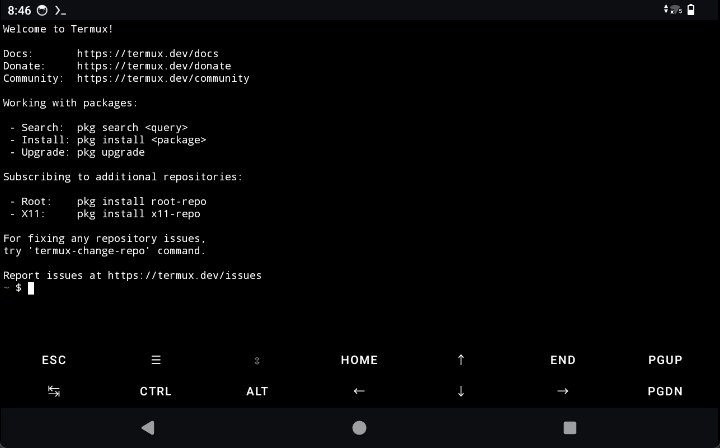
- Open the Termux application
- Wait for automatic initialization to complete
- Basic file system interfaces will be automatically created
Update package list
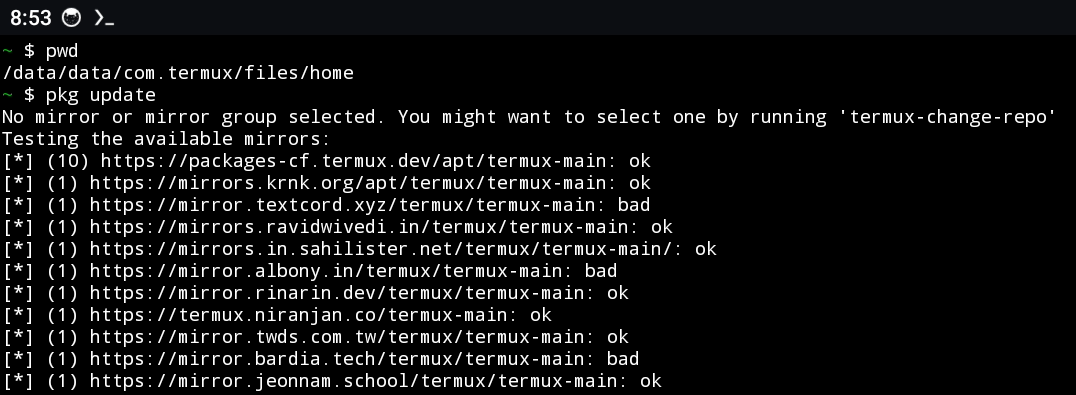
pkg update
Upgrade existing packages
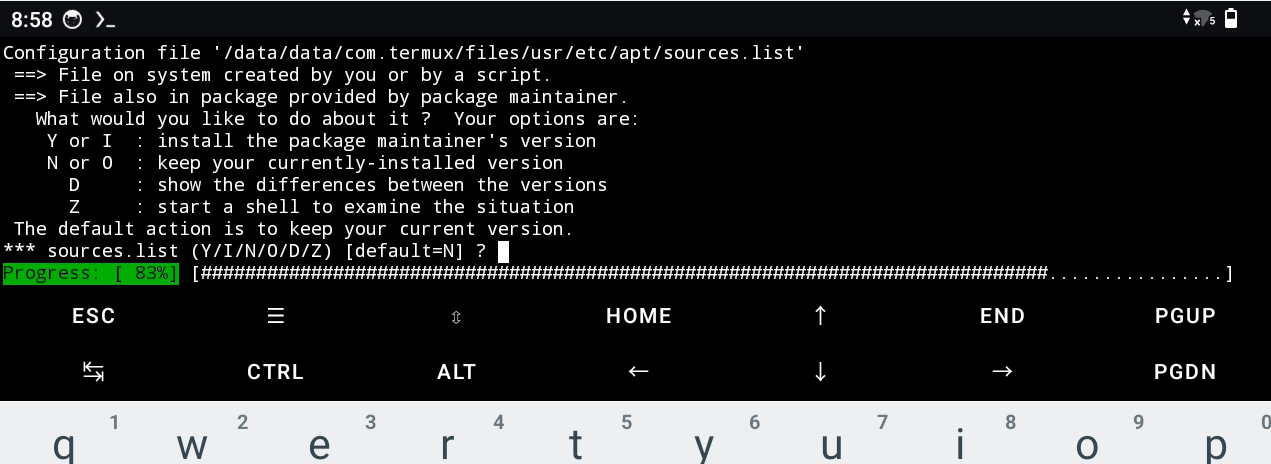
pkg upgrade
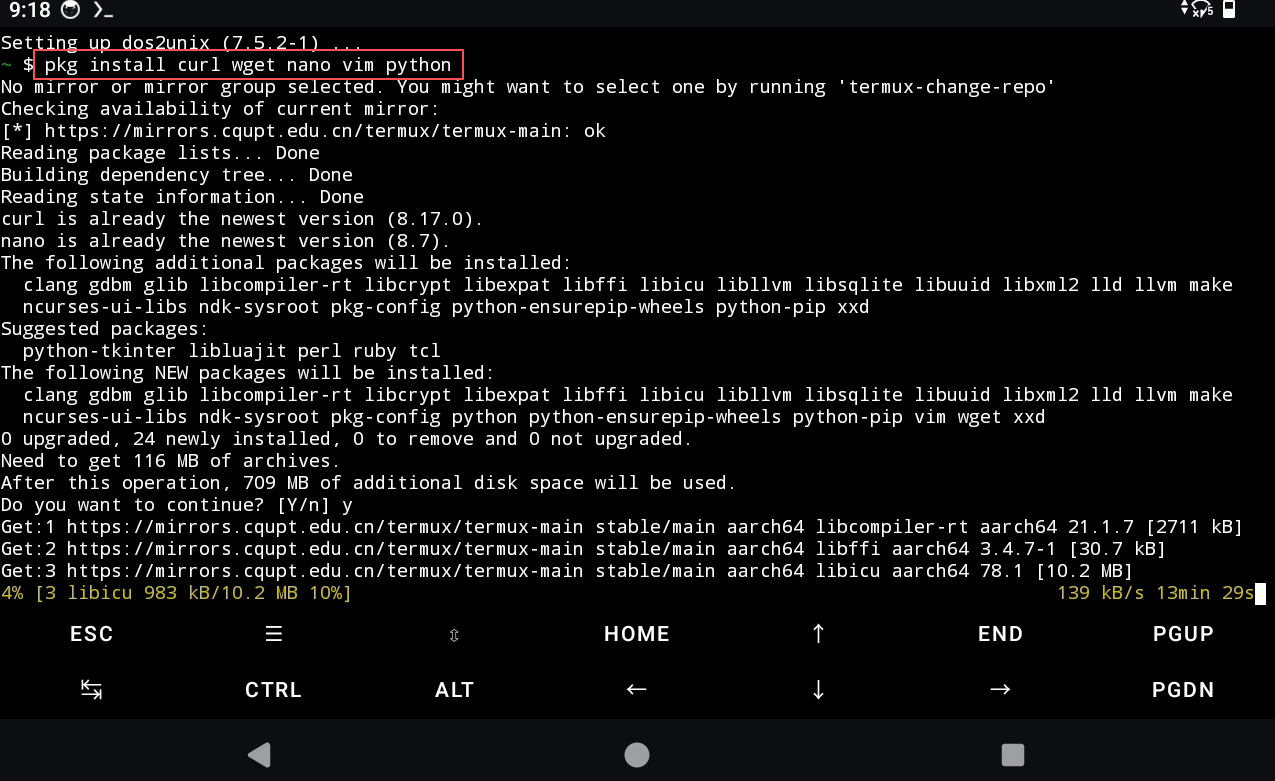
Install common tools
# Install common packages
pkg install curl wget nano vim python
Function usage
Basic operations
# View current directory
pwd

# List files
ls
ls -al

# Create directory
mkdir ./dir1

# Create multi-level directories
mkdir -p ./dir2/dir3


# Change directory
cd ./dir1
cd ~  # Return to home directory

# Create file
cd ./dir1
touch test.txt


# Delete files/directories
rm test.txt
cd ~
rm -r ./dir1
Package management
Replace package_name with the name of the package you want to search for.
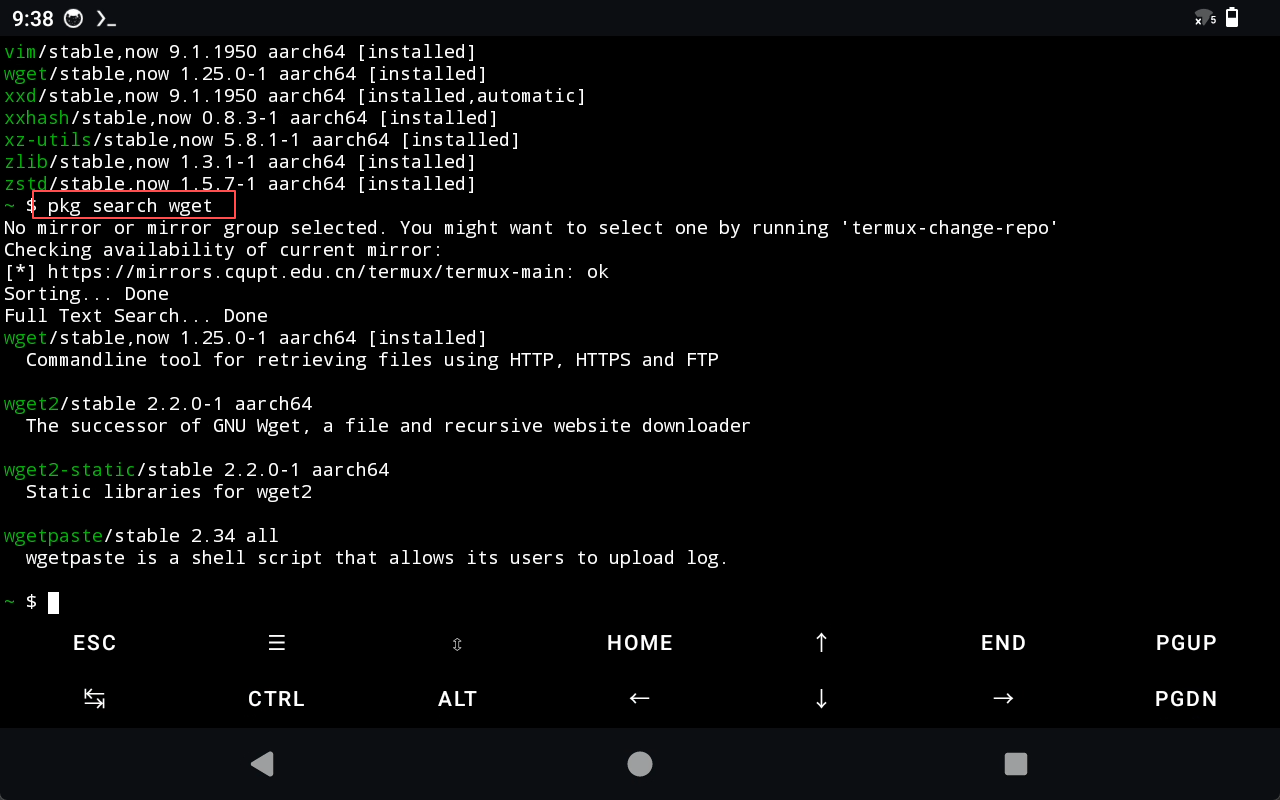
# Search for packages
pkg search package_name

# Install packages
pkg install package_name

# Uninstall packages
pkg uninstall package_name

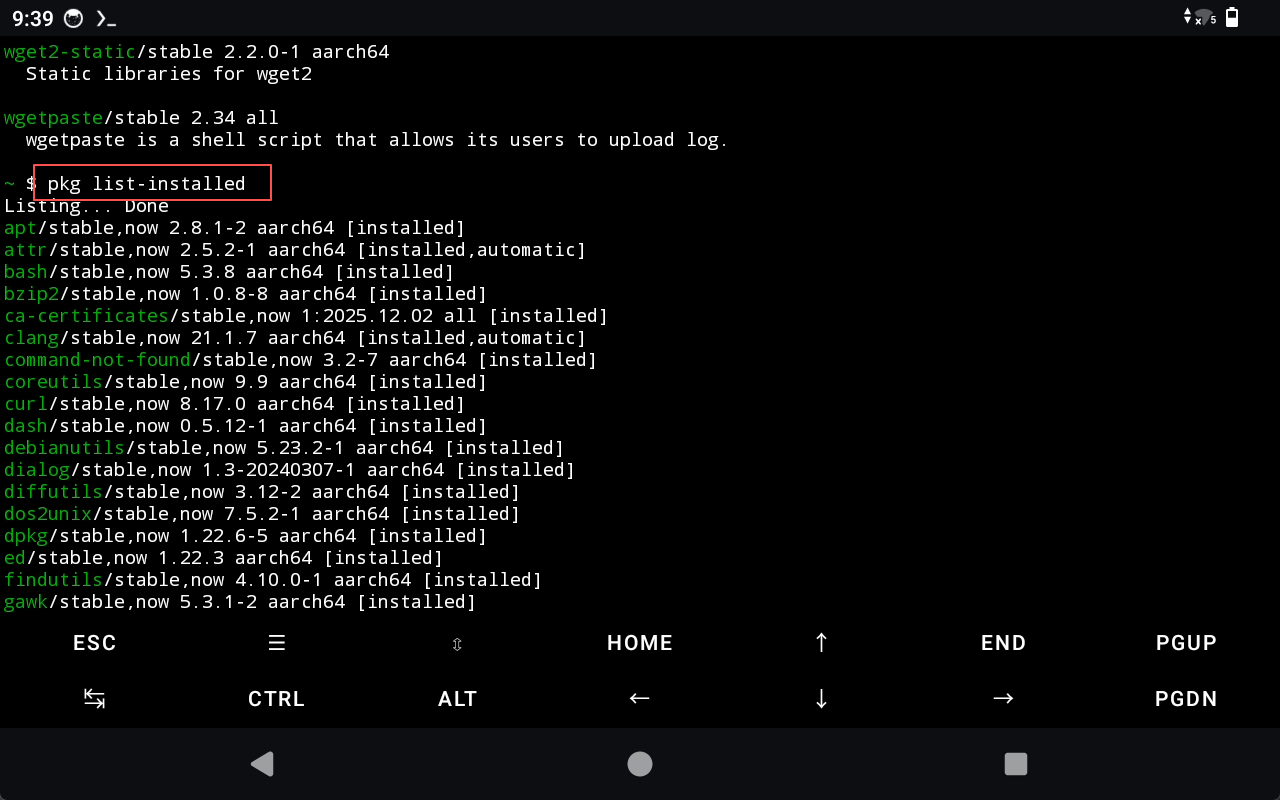
# View installed packages
pkg list-installed
File editing
# Using nano editor
nano filename.txt

# Using vim editor
vim filename.txt
Network tools
# Test network connectivity
ping google.com

# Download files
wget https://example.com/file.zip
curl -O https://example.com/file.zip

# SSH connection
ssh user@hostname
Python programming
# Run Python script
python script.py

# Install Python package
pip install package_name

# Create virtual environment
python -m venv myenv
source myenv/bin/activate
Background execution
# Run commands in background
command &

# Use tmux to manage sessions
pkg install tmux
tmux new -s session_name
Storage access
# Request storage permissions
termux-setup-storage

# Access shared storage
cd ~/storage/shared
Customized configuration
# Edit .bashrc configuration file
nano ~/.bashrc

# Add aliases
alias ll='ls -la'
alias update='pkg update && pkg upgrade'