Basic development
Introduction
Development environment
Development tool preparation
Android Studio download and installation
- Official download address:
Android Studio Official Website
- Installation process
- Download the corresponding installation package according to the operating system (Windows/macOS/Linux):
- Windows system: Double-click the
.exeinstallation package to launch the wizard. - macOS system: Mount the
.dmgimage, drag Android Studio to the Applications folder. - Linux System: Extract the
.tar.gzpackage to the/optdirectory, execute/opt/android-studio/bin/studio.shto start installation.
- Tick the "Android Studio" and "Android SDK" core components, select a non-system drive (it is recommended to reserve ≥20 GB space) as the installation path, and complete the basic installation.
- On first startup, select "Standard" configuration and wait for the SDK and toolchain to download automatically.
Embedded hardware driver configuration
For Quectel Pi series hardware, additional driver configuration is required:
- Windows system
Please download the Quectel official hardware driver package, double-click the installer, and follow the wizard to complete the configuration.
- Linux or macOS system
The system typically has built-in generic USB drivers; the hardware can be automatically recognized upon connection, and generally no manual installation of additional drivers is needed.
- Verify driver: Connect the hardware to the computer. In Windows Device Manager or Linux terminal, execute the
lsusbcommand. If the corresponding device is recognized, this indicates successful driver configuration.
NDK configuration (for low-level hardware API calls)
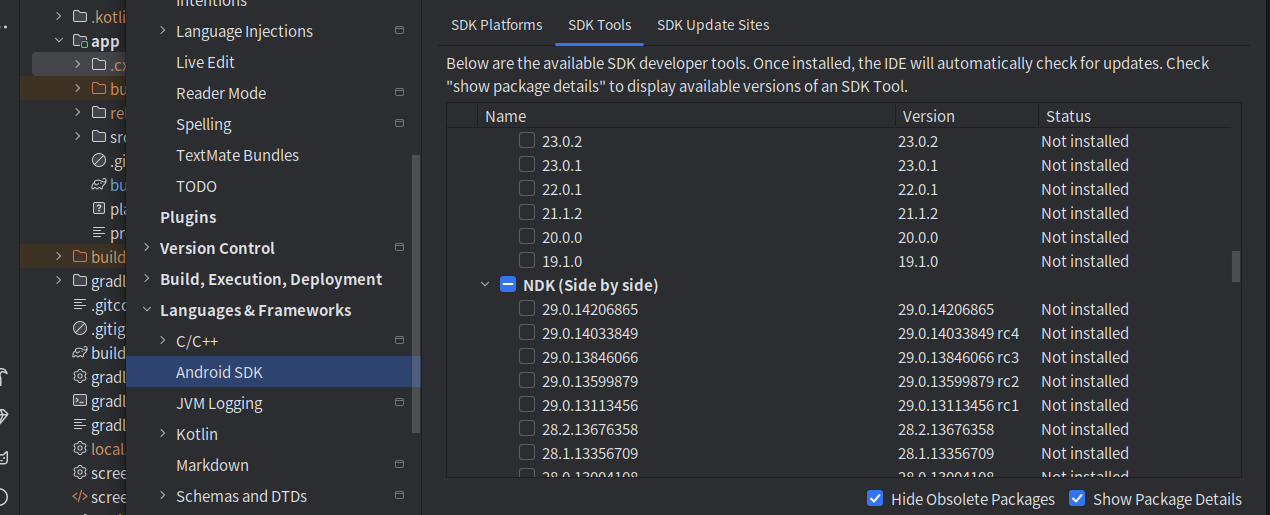
- Open Android Studio, go to
File > Settings > Appearance & Behavior > System Settings > Android SDK, and switch to theSDK Toolstab. - Tick
Show Package Details,NDK (Side by side)andCMake, select the corresponding version and click "Apply" to complete the download and installation.
- Configure the NDK path in the project's
local.propertiesfile:ndk.dir=SDK installation path/ndk/corresponding version number
Project environment initialization
- Create a new Android project, select the "Empty Activity" template, configure the project name and package name. It is recommended that the minimum compatible Android version is ≥ Android 10 (to adapt to embedded hardware).
- Import Quectel hardware SDK and other related dependency packages in the
build.gradle(Module level) file (optional).
ADB debugging
Tool configuration
- The ADB tool is integrated in the
platform-toolsdirectory of the Android SDK, and this directory needs to be configured in the system environment variables:
- Windows: Add
SDK path\platform-toolsto the systemPathvariable; - Linux/macOS: Execute
echo 'export PATH=$PATH:SDK path/platform-tools' >> ~/.bashrc, and restart the terminal for the changes to take effect.
- Verify configuration: Execute
adb versionin the terminal. If the version information is displayed normally, this indicates the configuration is successful.
ADB connection for embedded devices
- Hardware device side: Enter system settings, click "Build number" 7 times continuously to enable developer options, and after entering developer options, enable "USB debugging" and "USB installation" permissions.
- Computer side: Connect the device and computer with a USB cable, execute
adb devicesin the terminal. If the device serial number is displayed in the list, this indicates the connection is successful; if the device serial number is not recognized, executeadb kill-server && adb start-serverto restart the ADB service.
Common ADB debugging commands
| Function scenario | Command example | Description | |
|---|---|---|---|
| View device logs | adb logcat |
Output device running logs in real-time, and keywords can be filtered via grep (e.g., `adb logcat |
grep keyword`). |
| Install application | adb install local APK path |
Install locally compiled APK to device, add -r parameter to overwrite an old version. |
|
| Enter device Shell | adb shell |
Enter device command line, execute low-level hardware query commands (e.g., cat /sys/class/gpio/export). |
|
| Transfer files | adb push local_path device_path |
Push files to device, uses adb pull device_path local_path for reverse transfer. |
|
| Reboot device | adb reboot |
Reboot embedded device when debugging encounters abnormalities. |
Basic API examples
GPIO control API (core function of embedded hardware)
GPIO introduction
GPIO (General-Purpose Input/Output) is a fundamental and crucial concept in embedded systems and hardware development. On Android devices, it serves as a "bridge" for interaction between the system and the external physical world. GPIO control in embedded Android requires combination with hardware drivers. The following is a basic example based on system file operations (taking GPIO 12 as an example).
Permission configuration
Add hardware access permissions in AndroidManifest.xml:
<uses-permission android:name="android.permission.WRITE\_EXTERNAL\_STORAGE"/>
<uses-permission android:name="android.permission.READ\_EXTERNAL\_STORAGE"/>
Java code implementation
Reading and writing files under /sys/class/gpio via Java code usually requires root permissions. This means performing these operations on conventional Android phones is very difficult. This method is usually applicable to devices with root permissions or development boards specifically designed for developers.
import java.io.BufferedWriter;
import java.io.File;
import java.io.FileWriter;
import java.io.IOException;
public class GpioManager {
   //GPIO operation base path
    private static final String GPIO\_BASE\_PATH = "/sys/class/gpio/";
    private final int gpioNum;
    public GpioManager(int gpioNum) {
        this.gpioNum = gpioNum;
        exportGpio();

    }
    private void exportGpio() {
        try {
            File exportFile = new File(GPIO\_BASE\_PATH + "export");
            BufferedWriter writer = new BufferedWriter(new FileWriter(exportFile));
            writer.write(String.valueOf(gpioNum));
            writer.close();
            //Set to output mode by default
            setGpioDirection("out");
        } catch (IOException e) {
            e.printStackTrace();
        }
    }
    /\*\*
     \* Set GPIO direction (in/out)
     \* @param direction Direction parameter
     \*/
    public void setGpioDirection(String direction) {
        try {
            File dirFile = new File(GPIO\_BASE\_PATH + "gpio" + gpioNum + "/direction");
            BufferedWriter writer = new BufferedWriter(new FileWriter(dirFile));
            writer.write(direction);
            writer.close();
        } catch (IOException e) {
            e.printStackTrace();
        }
    }
    /\*\*
     \* Control GPIO level (high level 1/low level 0)
     \* @param value Level value
     \*/
    public void setGpioValue(int value) {
        try {
            File valueFile = new File(GPIO\_BASE\_PATH + "gpio" + gpioNum + "/value");
            BufferedWriter writer = new BufferedWriter(new FileWriter(valueFile));
            writer.write(String.valueOf(value));
            writer.close();
        } catch (IOException e) {
            e.printStackTrace();
        }
    }
    /\*\*
     \* Release GPIO pin
     \*/
    public void unexportGpio() {
        try {
            File unexportFile = new File(GPIO\_BASE\_PATH + "unexport");
            BufferedWriter writer = new BufferedWriter(new FileWriter(unexportFile));
            writer.write(String.valueOf(gpioNum));
            writer.close();
        } catch (IOException e) {
            e.printStackTrace();
        }
    }
}
Calling example
//Initialize GPIO 12 pin
GpioManager gpioManager = new GpioManager(12);
//Set GPIO to high level
gpioManager.setGpioValue(1);
//Release GPIO after business logic execution is complete
gpioManager.unexportGpio();
NDK code implementation
Since Java/Kotlin code of ordinary applications runs in the Android application layer and cannot directly operate hardware, it needs to be bridged through JNI (Java Native Interface). Call native layer code written in C/C++ to implement GPIO control (reading/writing /sys/class/gpio files or directly operating /dev/mem registers), and compile the C/C++ code into a .so dynamic link library through NDK for Java layer to call.
JNI layer code example
#include <jni.h>
#include <stdio.h>
#include <fcntl.h>
#include <unistd.h>
#include <string.h>
#define GPIO_BASE_PATH "/sys/class/gpio/"
//Export GPIO pin
static int gpio_export(int pin) {
    char buffer[64];
    int fd = open(GPIO_BASE_PATH "export", O_WRONLY);
    if (fd < 0) {
        perror("Failed to open export file");
        return -1;
    }
    snprintf(buffer, sizeof(buffer), "%d", pin);
    write(fd, buffer, strlen(buffer));
    close(fd);
    return 0;
}

//Release GPIO pin
static int gpio_unexport(int pin) {
    char buffer[64];
    int fd = open(GPIO_BASE_PATH "unexport", O_WRONLY);
    if (fd < 0) {
        perror("Failed to open unexport file");
        return -1;
    }
    snprintf(buffer, sizeof(buffer), "%d", pin);
    write(fd, buffer, strlen(buffer));
    close(fd);
    return 0;
}

//Set GPIO direction (in/out)
static int gpio_set_direction(int pin, const char *dir) {
    char buffer[64];
    snprintf(buffer, sizeof(buffer), GPIO_BASE_PATH "gpio%d/direction", pin);
    int fd = open(buffer, O_WRONLY);
    if (fd < 0) {
        perror("Failed to open direction file");
        return -1;
    }
    write(fd, dir, strlen(dir));
    close(fd);
    return 0;
}

//Set GPIO level (1/0)
static int gpio_set_value(int pin, int value) {
    char buffer[64];
    snprintf(buffer, sizeof(buffer), GPIO_BASE_PATH "gpio%d/value", pin);
    int fd = open(buffer, O_WRONLY);
    if (fd < 0) {
        perror("Failed to open value file");
        return -1;
    }
    char val_str[2] = {value + '0', '\0'};
    write(fd, val_str, strlen(val_str));
    close(fd);
    return 0;
}

//JNI method: Initialize GPIO
JNIEXPORT jint JNICALL
Java_com_example_gpiocontrol_MainActivity_gpioInit(JNIEnv *env, jobject thiz, jint pin) {
    if (gpio_export(pin) < 0) return -1;
    if (gpio_set_direction(pin, "out") < 0) return -1;
    return 0;
}

//JNI method: Set GPIO level
JNIEXPORT jint JNICALL
Java_com_example_gpiocontrol_MainActivity_gpioSetValue(JNIEnv *env, jobject thiz, jint pin, jint value) {
    return gpio_set_value(pin, value);
}

//JNI method: Release GPIO
JNIEXPORT jint JNICALL
Java_com_example_gpiocontrol_MainActivity_gpioRelease(JNIEnv *env, jobject thiz, jint pin) {
    return gpio_unexport(pin);
}
CMakeLists configuration
cmake_minimum_required(VERSION 3.22.1)
project("gpiocontrol")
# Add shared library
add_library(
        gpiocontrol
        SHARED
        gpio_control.c)
# Link system library
target_link_libraries(
        gpiocontrol
        log)
Java layer code call
package com.example.gpiocontrol;
import androidx.appcompat.app.AppCompatActivity;
import android.os.Bundle;
import android.view.View;
import android.widget.Button;
public class MainActivity extends AppCompatActivity {
    //Load Native library
    static {
        System.loadLibrary("gpiocontrol");
    }
    //Declare native methods
    private native int gpioInit(int pin);
    private native int gpioSetValue(int pin, int value);
    private native int gpioRelease(int pin);
    private static final int GPIO_PIN = 12; //Controlled GPIO pin
    @Override
    protected void onCreate(Bundle savedInstanceState) {
        super.onCreate(savedInstanceState);
        setContentView(R.layout.activity_main);
        //Initialize GPIO
        gpioInit(GPIO_PIN);
        //High level button
        Button btnHigh = findViewById(R.id.btn_high);
        btnHigh.setOnClickListener(v -> gpioSetValue(GPIO_PIN, 1));
        //Low level button
        Button btnLow = findViewById(R.id.btn_low);
        btnLow.setOnClickListener(v -> gpioSetValue(GPIO_PIN, 0));
    }
    @Override
    protected void onDestroy() {
        super.onDestroy();
        //Release GPIO
        gpioRelease(GPIO_PIN);
    }
}
Android App directly calling Shell (Runtime.exec)
Execute Shell commands through Runtime.getRuntime().exec() in Java/Kotlin code, read and write GPIO control files in the /sys/class/gpio directory with su permissions to implement level control. This method requires the development board to have Root permissions.
Core code example
//Initialize GPIO (export pin + set output direction)
        try {
            execShellCommand("su -c echo " + GPIO_PIN + " > /sys/class/gpio/export");
            execShellCommand("su -c echo out > /sys/class/gpio/gpio" + GPIO_PIN + "/direction");
        } catch (IOException e) {
            e.printStackTrace();
        }
        //High level button
        Button btnHigh = findViewById(R.id.btn_high);
        btnHigh.setOnClickListener(v -> {
            try {
                execShellCommand("su -c echo 1 > /sys/class/gpio/gpio" + GPIO_PIN + "/value");
            } catch (IOException e) {
                e.printStackTrace();
            }
        });
        //Low level button
        Button btnLow = findViewById(R.id.btn_low);
        btnLow.setOnClickListener(v -> {
            try {
                execShellCommand("su -c echo 0 > /sys/class/gpio/gpio" + GPIO_PIN + "/value");
            } catch (IOException e) {
                e.printStackTrace();
            }
        });
    /**
     * Execute Shell command
     */
    private void execShellCommand(String command) throws IOException {
        Runtime.getRuntime().exec(command);
    }
Vendor-provided dedicated APIs or Jar packages
Most vendors provide standardized Java APIs (Jar packages / SDKs) encapsulated based on underlying drivers. Developers can obtain the corresponding SDK from the vendor, integrate it into the Android application, and directly call the encapsulated APIs to control GPIO without needing to focus on the specific implementation of low-level hardware operations.
Camera API (based on native Camera2 API)
The following is an implementation example based on Android's native Camera2 API, suitable for single-camera scenarios on embedded devices, supporting preview and photo capture functions:
Dependency configuration
Camera2 is a native Android API and does not require importing third-party dependencies. It is only necessary to confirm in build.gradle (Module level) that the minimum compatible version is not lower than Android 5.0 (API 21):
Permission and layout configuration
- Permission declaration (AndroidManifest.xml):
<uses-permission android:name="android.permission.CAMERA"/>
<uses-permission android:name="android.permission.WRITE\_EXTERNAL\_STORAGE"/>
<uses-permission android:name="android.permission.READ\_EXTERNAL\_STORAGE"/>
<!-- Camera hardware features -->
<uses-feature android:name="android.hardware.camera.any" android:required="true"/>
<uses-feature android:name="android.hardware.camera.autofocus" android:required="false"/>
- Layout file (activity_camera2.xml):
UseTextureViewas the preview carrier, adapting to embedded device screen sizes:
<?xml version="1.0" encoding="utf-8"?>
<androidx.constraintlayout.widget.ConstraintLayout
    xmlns:android="http://schemas.android.com/apk/res/android"
    xmlns:app="http://schemas.android.com/apk/res-auto"
    android:layout_width="match_parent"
    android:layout_height="match_parent">
    <!-- Camera preview view -->
    <TextureView
        android:id="@+id/textureView"
        android:layout_width="match_parent"
        android:layout_height="match_parent"
        app:layout_constraintBottom_toBottomOf="parent"
        app:layout_constraintEnd_toEndOf="parent"
        app:layout_constraintStart_toStartOf="parent"
        app:layout_constraintTop_toTopOf="parent" />
    <!-- Photo capture button -->
    <Button
        android:id="@+id/takePhotoBtn"
        android:layout_width="80dp"
        android:layout_height="80dp"
        android:layout_marginBottom="30dp"
        android:text="Take photo"
        app:layout_constraintBottom_toBottomOf="parent"
        app:layout_constraintEnd_toEndOf="parent"
        app:layout_constraintStart_toStartOf="parent" />
</androidx.constraintlayout.widget.ConstraintLayout>
Code implementation
public class Camera2Activity extends AppCompatActivity {
    //Screen rotation angle mapping
    private static final SparseIntArray ORIENTATIONS = new SparseIntArray();
    static {
        ORIENTATIONS.append(Surface.ROTATION_0, 90);
        ORIENTATIONS.append(Surface.ROTATION_90, 0);
        ORIENTATIONS.append(Surface.ROTATION_180, 270);
        ORIENTATIONS.append(Surface.ROTATION_270, 180);
    }
    //Core components
    private TextureView textureView;
    private Button takePhotoBtn;
    private CameraManager cameraManager;
    private CameraDevice cameraDevice;
    private CameraCaptureSession cameraCaptureSession;
    private CaptureRequest.Builder previewRequestBuilder;
    private Size previewSize;
    private ImageReader imageReader;
    private Handler backgroundHandler;
    private HandlerThread backgroundThread;
    //Camera ID (default rear)
    private String cameraId;
    //Photo save path
    private static final String PHOTO_SAVE_PATH = "/sdcard/DCIM/Camera2/";
    @Override
    protected void onCreate(Bundle savedInstanceState) {
        super.onCreate(savedInstanceState);
        setContentView(R.layout.activity_camera2);
        initView();
        initBackgroundThread();
        initCameraManager();
        createPhotoDir();
        //Listen to TextureView state
        textureView.setSurfaceTextureListener(new TextureView.SurfaceTextureListener() {
            @Override
            public void onSurfaceTextureAvailable(SurfaceTexture surface, int width, int height) {
                if (checkPermissions()) {
                    openCamera(width, height);
                } else {
                    ActivityCompat.requestPermissions(Camera2Activity.this,
                            new String[]{Manifest.permission.CAMERA, Manifest.permission.WRITE_EXTERNAL_STORAGE}, 1001);
                }
            }
            @Override
            public void onSurfaceTextureSizeChanged(SurfaceTexture surface, int width, int height) {
                configureTransform(width, height);
            }
            @Override
            public boolean onSurfaceTextureDestroyed(SurfaceTexture surface) {
                return false;
            }
            @Override
            public void onSurfaceTextureUpdated(SurfaceTexture surface) {}
        });
        //Photo button click event
        takePhotoBtn.setOnClickListener(v -> takePhoto());
    }
    /**
     * Initialize view controls
     */
    private void initView() {
        textureView = findViewById(R.id.textureView);
        takePhotoBtn = findViewById(R.id.takePhotoBtn);
    }
    /**
     * Initialize background thread (for handling camera asynchronous operations)
     */
    private void initBackgroundThread() {
        backgroundThread = new HandlerThread("Camera2BackgroundThread");
        backgroundThread.start();
        backgroundHandler = new Handler(backgroundThread.getLooper());
    }
    /**
     * Initialize camera manager
     */
    private void initCameraManager() {
        cameraManager = (CameraManager) getSystemService(Context.CAMERA_SERVICE);
        try {
            //Get rear camera ID
            for (String id : cameraManager.getCameraIdList()) {
                CameraCharacteristics characteristics = cameraManager.getCameraCharacteristics(id);
                Integer facing = characteristics.get(CameraCharacteristics.LENS_FACING);
                if (facing != null && facing == CameraCharacteristics.LENS_FACING_BACK) {
                    cameraId = id;
                    //Get preview size
                    StreamConfigurationMap map = characteristics.get(CameraCharacteristics.SCALER_STREAM_CONFIGURATION_MAP);
                    if (map != null) {
                        previewSize = map.getOutputSizes(SurfaceTexture.class)[0];
                        //Initialize ImageReader for photo capture (JPEG format, maximum cache 1 photo)
                        imageReader = ImageReader.newInstance(previewSize.getWidth(), previewSize.getHeight(),
                                ImageFormat.JPEG, 1);
                        imageReader.setOnImageAvailableListener(reader -> {
                            //Process captured photo
                            Image image = reader.acquireNextImage();
                            savePhoto(image);
                            image.close();
                        }, backgroundHandler);
                    }
                    break;
                }
            }
        } catch (CameraAccessException e) {
            e.printStackTrace();
            Toast.makeText(this, "Camera initialization failed", Toast.LENGTH_SHORT).show();
        }
    }
    /**
     * Create photo save directory
     */
    private void createPhotoDir() {
        File dir = new File(PHOTO_SAVE_PATH);
        if (!dir.exists()) {
            boolean isCreated = dir.mkdirs();
            if (!isCreated) {
                Toast.makeText(this, "Failed to create photo directory", Toast.LENGTH_SHORT).show();
            }
        }
    }
    /**
     * Check permissions (camera + storage)
     */
    private boolean checkPermissions() {
        return ActivityCompat.checkSelfPermission(this, Manifest.permission.CAMERA) == PackageManager.PERMISSION_GRANTED
                && ActivityCompat.checkSelfPermission(this, Manifest.permission.WRITE_EXTERNAL_STORAGE) == PackageManager.PERMISSION_GRANTED;
    }
    /**
     * Open camera
     */
    private void openCamera(int width, int height) {
        try {
            //Permission secondary verification
            if (ActivityCompat.checkSelfPermission(this, Manifest.permission.CAMERA) != PackageManager.PERMISSION_GRANTED) {
                return;
            }
            //Open camera (asynchronous callback)
            cameraManager.openCamera(cameraId, new CameraDevice.StateCallback() {
                @Override
                public void onOpened(@NonNull CameraDevice camera) {
                    cameraDevice = camera;
                    //Camera opened successfully, create preview session
                    createCameraPreviewSession();
                }
                @Override
                public void onDisconnected(@NonNull CameraDevice camera) {
                    camera.close();
                    cameraDevice = null;
                }
                @Override
                public void onError(@NonNull CameraDevice camera, int error) {
                    camera.close();
                    cameraDevice = null;
                    Toast.makeText(Camera2Activity.this, "Failed to open camera: " + error, Toast.LENGTH_SHORT).show();
                }
            }, backgroundHandler);
        } catch (CameraAccessException e) {
            e.printStackTrace();
        }
    }
    /**
     * Create camera preview session
     */
    private void createCameraPreviewSession() {
        try {
            SurfaceTexture texture = textureView.getSurfaceTexture();
            //Set preview buffer size
            texture.setDefaultBufferSize(previewSize.getWidth(), previewSize.getHeight());
            //Create preview Surface
            Surface previewSurface = new Surface(texture);
            //Build preview request
            previewRequestBuilder = cameraDevice.createCaptureRequest(CameraDevice.TEMPLATE_PREVIEW);
            previewRequestBuilder.addTarget(previewSurface);
            //Create photo session (including preview and ImageReader's Surface)
            List<Surface> surfaces = new ArrayList<>();
            surfaces.add(previewSurface);
            surfaces.add(imageReader.getSurface());
            cameraDevice.createCaptureSession(surfaces, new CameraCaptureSession.StateCallback() {
                @Override
                public void onConfigured(@NonNull CameraCaptureSession session) {
                    if (cameraDevice == null) {
                        return;
                    }
                    cameraCaptureSession = session;
                    try {
                        //Set auto focus
                        previewRequestBuilder.set(CaptureRequest.CONTROL_AF_MODE,
                                CaptureRequest.CONTROL_AF_MODE_CONTINUOUS_PICTURE);
                        //Start preview (continuous request)
                        cameraCaptureSession.setRepeatingRequest(previewRequestBuilder.build(),
                                new CameraCaptureSession.CaptureCallback() {
                                    @Override
                                    public void onCaptureCompleted(@NonNull CameraCaptureSession session,
                                                                   @NonNull CaptureRequest request,
                                                                   @NonNull TotalCaptureResult result) {
                                        super.onCaptureCompleted(session, request, result);
                                    }
                                }, backgroundHandler);
                    } catch (CameraAccessException e) {
                        e.printStackTrace();
                    }
                }
                @Override
                public void onConfigureFailed(@NonNull CameraCaptureSession session) {
                    Toast.makeText(Camera2Activity.this, "Failed to configure preview session", Toast.LENGTH_SHORT).show();
                }
            }, backgroundHandler);
        } catch (CameraAccessException e) {
            e.printStackTrace();
        }
    }
    /**
     * Adjust rotation and ratio of preview screen (adapt to different screen orientations)
     */
    private void configureTransform(int viewWidth, int viewHeight) {
        if (previewSize == null || textureView == null) {
            return;
        }
        int rotation = getWindowManager().getDefaultDisplay().getRotation();
        Matrix matrix = new Matrix();
        RectF viewRect = new RectF(0, 0, viewWidth, viewHeight);
        RectF bufferRect = new RectF(0, 0, previewSize.getHeight(), previewSize.getWidth());
        float centerX = viewRect.centerX();
        float centerY = viewRect.centerY();
        if (Surface.ROTATION_90 == rotation || Surface.ROTATION_270 == rotation) {
            bufferRect.offset(centerX - bufferRect.centerX(), centerY - bufferRect.centerY());
            matrix.setRectToRect(viewRect, bufferRect, Matrix.ScaleToFit.FILL);
            float scale = Math.max(
                    (float) viewHeight / previewSize.getHeight(),
                    (float) viewWidth / previewSize.getWidth());
            matrix.postScale(scale, scale, centerX, centerY);
            matrix.postRotate(90 * (rotation - 2), centerX, centerY);
        } else if (Surface.ROTATION_180 == rotation) {
            matrix.postRotate(180, centerX, centerY);
        }
        textureView.setTransform(matrix);
    }
    /**
     * Execute photo capture logic
     */
    private void takePhoto() {
        if (cameraDevice == null || cameraCaptureSession == null) {
            Toast.makeText(this, "Camera not ready", Toast.LENGTH_SHORT).show();
            return;
        }
        try {
            //Build photo capture request
            CaptureRequest.Builder captureBuilder = cameraDevice.createCaptureRequest(CameraDevice.TEMPLATE_STILL_CAPTURE);
            captureBuilder.addTarget(imageReader.getSurface());
            //Set photo parameters (auto focus, auto exposure)
            captureBuilder.set(CaptureRequest.CONTROL_AF_MODE, CaptureRequest.CONTROL_AF_MODE_CONTINUOUS_PICTURE);
            captureBuilder.set(CaptureRequest.CONTROL_AE_MODE, CaptureRequest.CONTROL_AE_MODE_ON_AUTO_FLASH);
            //Adjust photo rotation angle
            int rotation = getWindowManager().getDefaultDisplay().getRotation();
            captureBuilder.set(CaptureRequest.JPEG_ORIENTATION, ORIENTATIONS.get(rotation));
            //Stop preview, execute photo capture
            cameraCaptureSession.stopRepeating();
            cameraCaptureSession.capture(captureBuilder.build(), new CameraCaptureSession.CaptureCallback() {
                @Override
                public void onCaptureCompleted(@NonNull CameraCaptureSession session,
                                               @NonNull CaptureRequest request,
                                               @NonNull TotalCaptureResult result) {
                    super.onCaptureCompleted(session, request, result);
                    //Restore preview after photo capture is complete
                    try {
                        session.setRepeatingRequest(previewRequestBuilder.build(), null, backgroundHandler);
                        Toast.makeText(Camera2Activity.this, "Photo captured successfully", Toast.LENGTH_SHORT).show();
                    } catch (CameraAccessException e) {
                        e.printStackTrace();
                    }
                }
            }, backgroundHandler);
        } catch (CameraAccessException e) {
            e.printStackTrace();
            Toast.makeText(this, "Failed to capture photo", Toast.LENGTH_SHORT).show();
        }
    }
    /**
     * Save photo to local storage
     */
    private void savePhoto(Image image) {
        ByteBuffer buffer = image.getPlanes()[0].getBuffer();
        byte[] bytes = new byte[buffer.remaining()];
        buffer.get(bytes);
        //Generate unique filename (timestamp)
        String fileName = System.currentTimeMillis() + ".jpg";
        File photoFile = new File(PHOTO_SAVE_PATH + fileName);
        try (FileOutputStream fos = new FileOutputStream(photoFile)) {
            fos.write(bytes);
            runOnUiThread(() -> Toast.makeText(this, "Photo saved: " + photoFile.getPath(), Toast.LENGTH_SHORT).show());
        } catch (IOException e) {
            e.printStackTrace();
            runOnUiThread(() -> Toast.makeText(this, "Failed to save photo", Toast.LENGTH_SHORT).show());
        }
    }
    /**
     * Permission request callback
     */
    @Override
    public void onRequestPermissionsResult(int requestCode, @NonNull String[] permissions, @NonNull int[] grantResults) {
        super.onRequestPermissionsResult(requestCode, permissions, grantResults);
        if (requestCode == 1001) {
            if (grantResults.length > 0 && grantResults[0] == PackageManager.PERMISSION_GRANTED
                    && grantResults[1] == PackageManager.PERMISSION_GRANTED) {
                //Permission request successful, open camera
                if (textureView.isAvailable()) {
                    openCamera(textureView.getWidth(), textureView.getHeight());
                }
            } else {
                Toast.makeText(this, "Camera and storage permissions are required to use", Toast.LENGTH_SHORT).show();
                finish();
            }
        }
    }
    /**
     * Release resources
     */
    private void closeCamera() {
        if (cameraCaptureSession != null) {
            cameraCaptureSession.close();
            cameraCaptureSession = null;
        }
        if (cameraDevice != null) {
            cameraDevice.close();
            cameraDevice = null;
        }
        if (imageReader != null) {
            imageReader.close();
            imageReader = null;
        }
    }
    /**
     * Stop background thread
     */
    private void stopBackgroundThread() {
        if (backgroundThread != null) {
            backgroundThread.quitSafely();
            try {
                backgroundThread.join();
                backgroundThread = null;
                backgroundHandler = null;
            } catch (InterruptedException e) {
                e.printStackTrace();
            }
        }
    }
    @Override
    protected void onDestroy() {
        super.onDestroy();
        closeCamera();
        stopBackgroundThread();
    }
}
Application deployment and startup
Application deployment
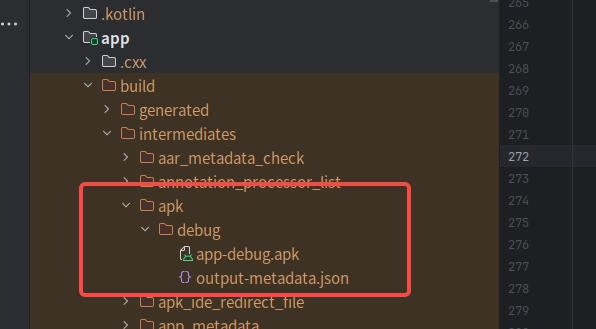
- Click the green run button in the Android Studio toolbar, and the IDE will automatically execute predefined build scripts to help us complete the compilation, packaging, and installation of the debug version of the APK. The premise is a simulator or real device must be currently connected; otherwise, a "No devices available" prompt will appear. The generated APK file is located at
project file path/app/build/intermediates/apk/debug/app-debug.apk.
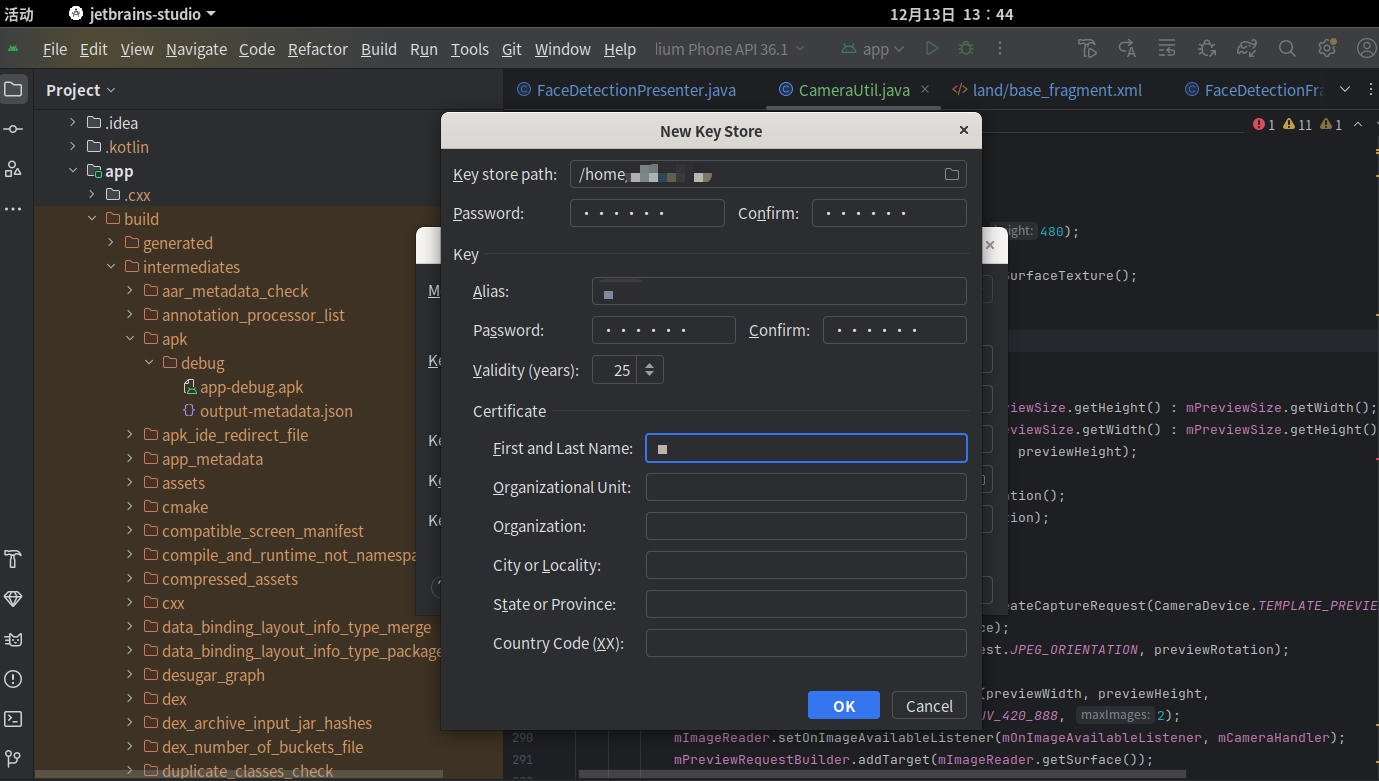
- If no emulator is connected and you want to manually generate a debug version or a signed release version APK, you can select "Android App Bundle" or "APK" in the top toolbar of Android Studio under Build - Generate Signed App Bundle or Apk path. After clicking "Next", you will be prompted to select a signature file. You can choose an existing .jks or .keystore file or create a new signature file. When creating a new one, name the signature file (default suffix is .jks) and select the storage path.
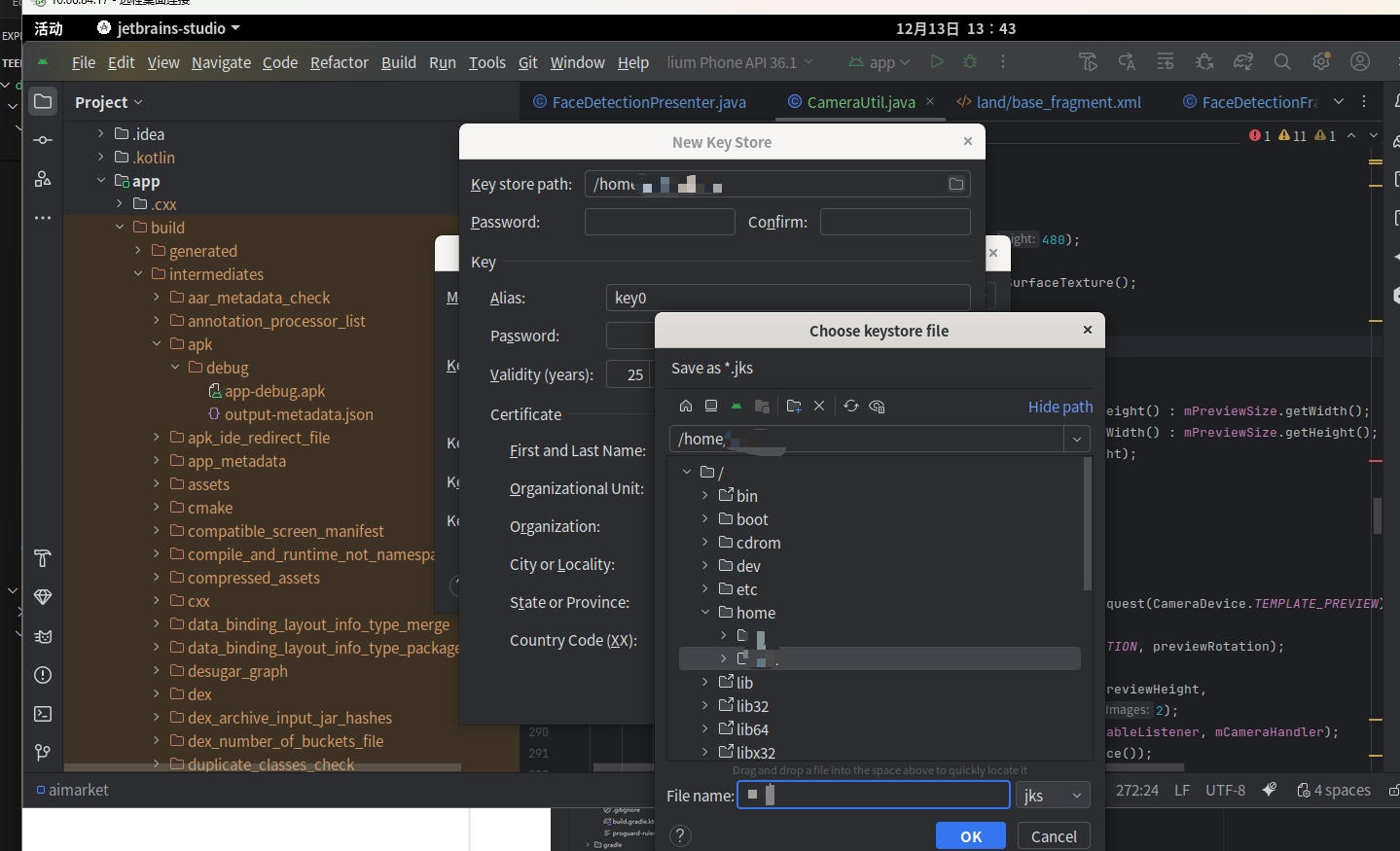
Then set your signature password and key alias("Alias", the custom identifier for the key, which can be named by yourself). Click "OK" and the system will automatically create the signature file.
- After completing the signature configuration, select the release or debug package. The system will use the currently configured signature file for packaging. The generated signed APK file is located in the
project file path/app/releasedirectory by default.
Application startup
Emulator startup
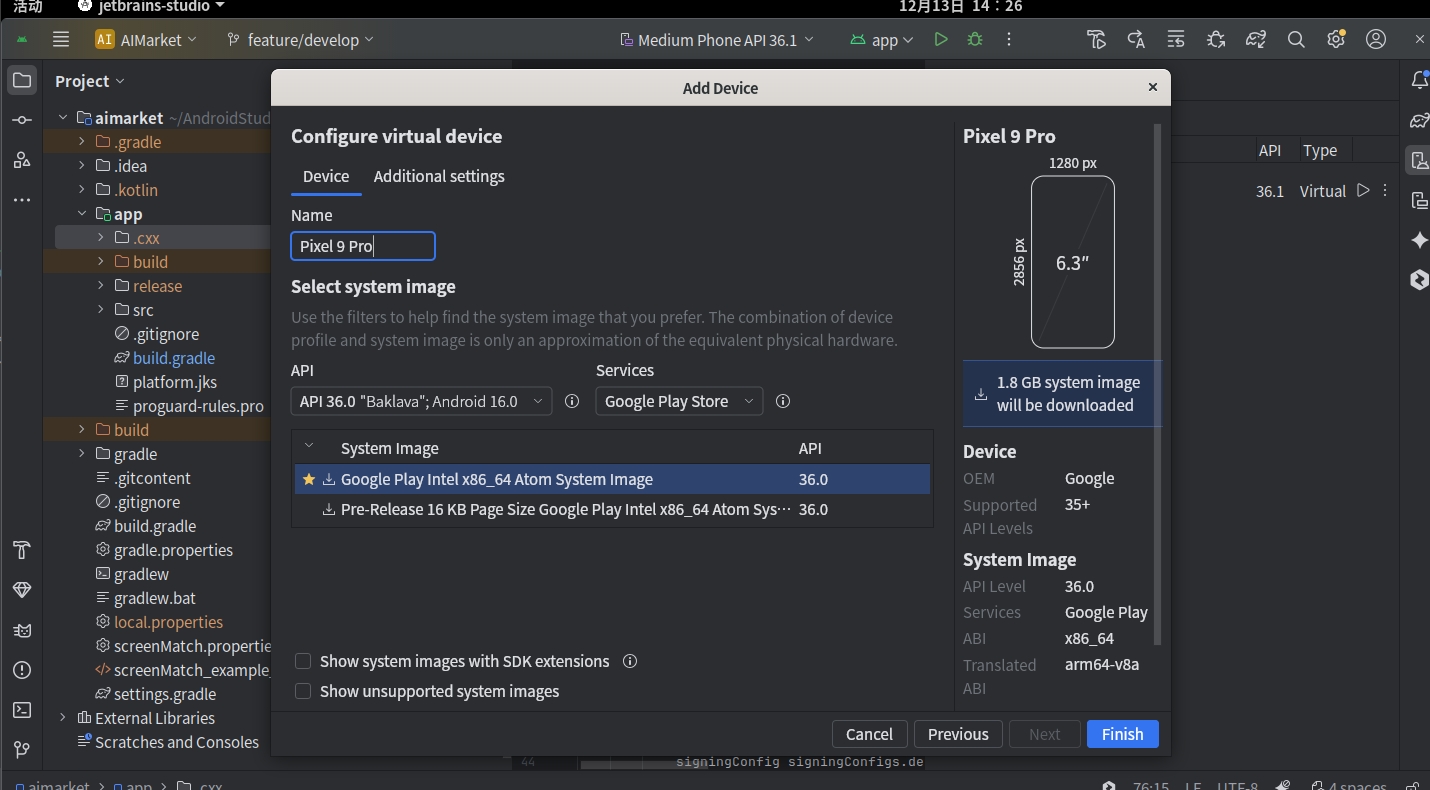
Generally, when starting a project for the first time, Android Studio will create an emulator by default, so you can directly click the run button to start the project. If you need to use a simulator with a specified version or resolution, you need to create one manually.
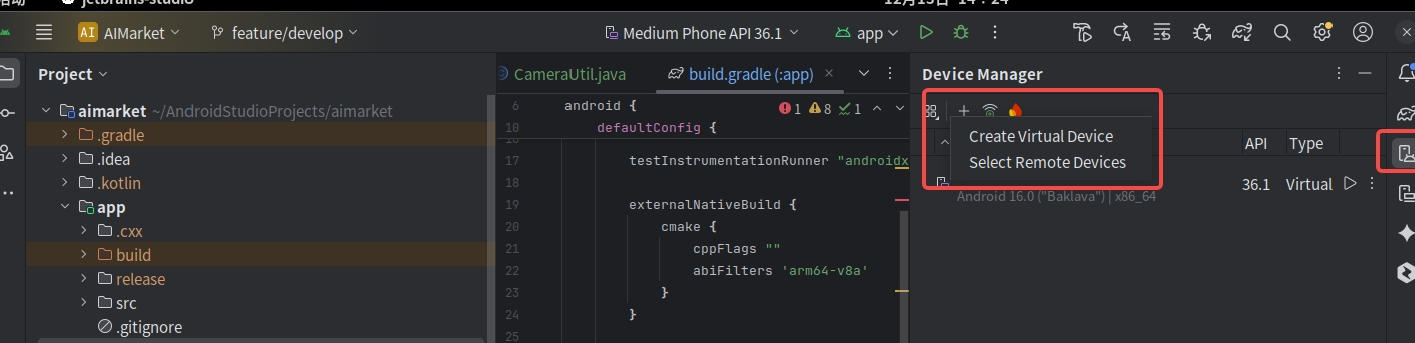
- Find "Device Manager" in the Android Studio toolbar, click "Create Virtual Device", select the emulator configuration you need, and click "Next".
Real device startup
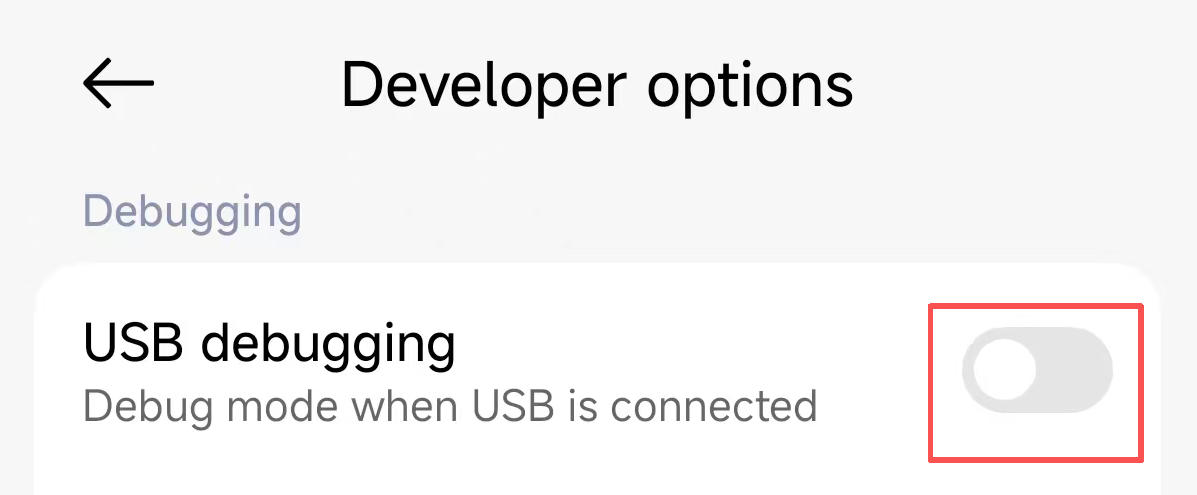
- First, connect the computer and phone through a USB cable. Enter "Settings"-"About Phone", and click "Build number" 7 times continuously until the prompt "You are now in developer mode" appears. Return to the settings menu, find the newly appeared "Developer options", enter and enable "USB debugging" (the location may vary for different phone models, but the general operation is the same). At this time, an authorization dialog may pop up, click "Allow" to proceed.
- At this time, enter the command "adb devices" in the terminal. If the information of the currently connected device appears, it means the connection is successful.
Wireless connection allows you to get rid of the constraints of cables, but usually requires USB to complete the initial setup first. Specific operations vary depending on the Android version of the phone.
- Please ensure that the phone and computer are on the same local network, and that the phone has developer mode, USB debugging, and wireless debugging enabled.
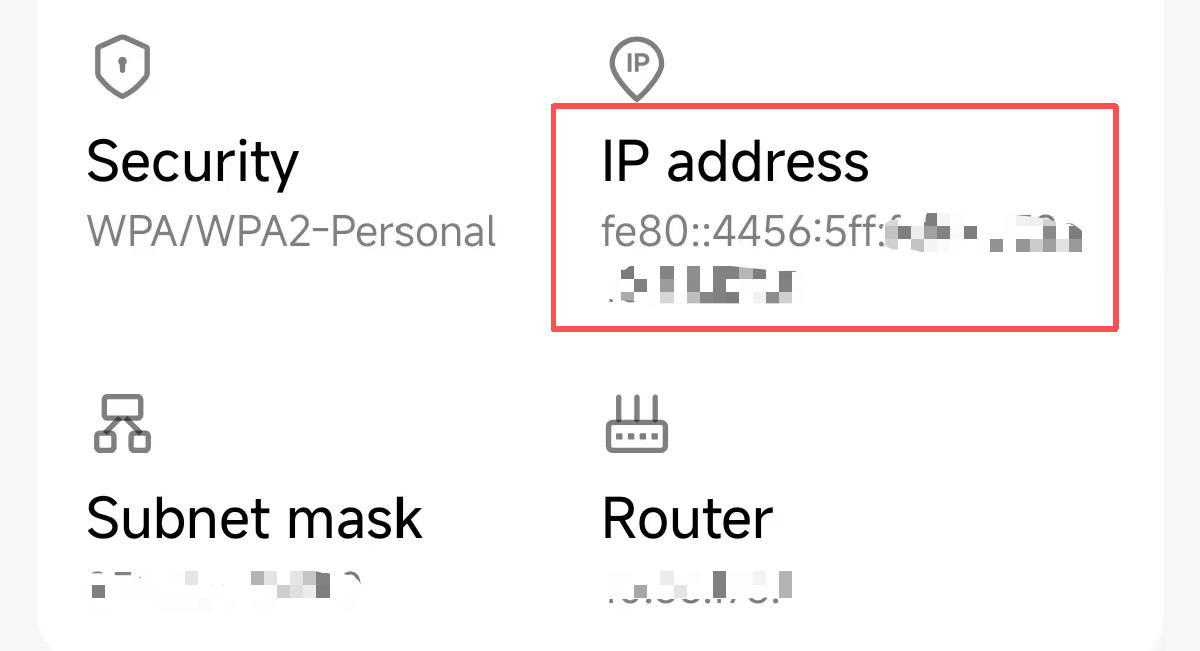
- Check the current IP address of the phone, enter the command "adb connect
" in the terminal, if the information of the currently connected device appears, it means the connection is successful.