Multimedia application
This chapter introduces the audio and video playback methods of the Quectel Pi M1 smart single-board computer.
Preparation
Please refer to MIPI chapter to complete the display configuration.
Please refer to Audio configuration chapter to connect headphones.
Audio playback
Before playing audio, the corresponding audio files need to be pushed to the development board.
Open the ADB tool, connect to the development board, and open the ADB terminal. Use the adb push command to push the audio files to the development board.
adb push E:\eage\test.mp3 /sdcard/Music #Push audio to the DCIM directory of the development board's SD card

#Enter the development board
su    #Switch to root user
am broadcast -a android.intent.action.MEDIA_SCANNER_SCAN_FILE -d file:///sdcard/Music/test.mp3     #Rescan this file in the media library
Android system comes pre-installed with a music player, and audio files can be played by following the steps below:
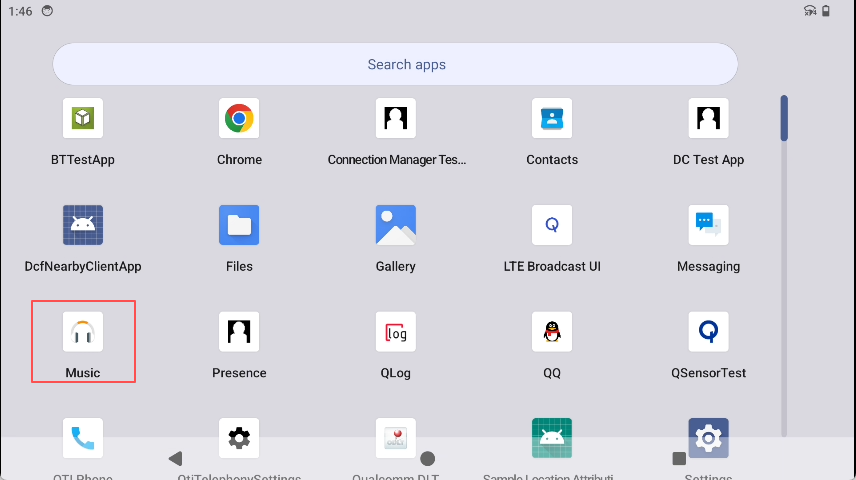
- Open the music player.
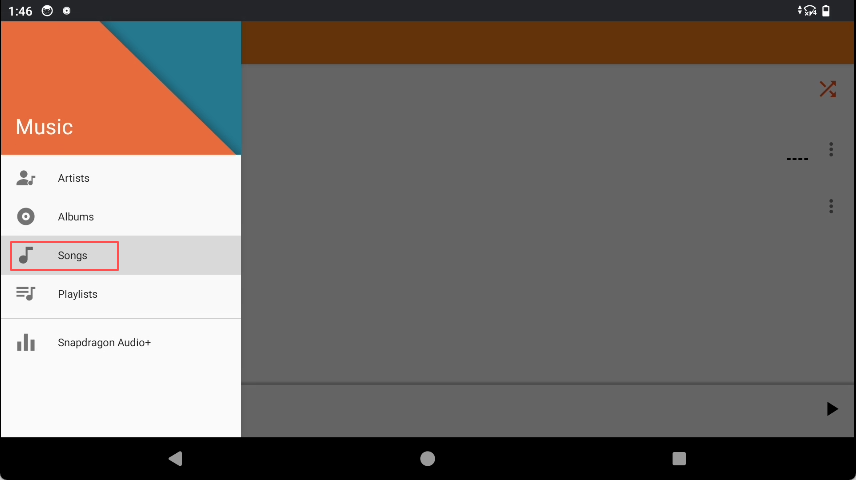
- Click the left option bar to find songs.
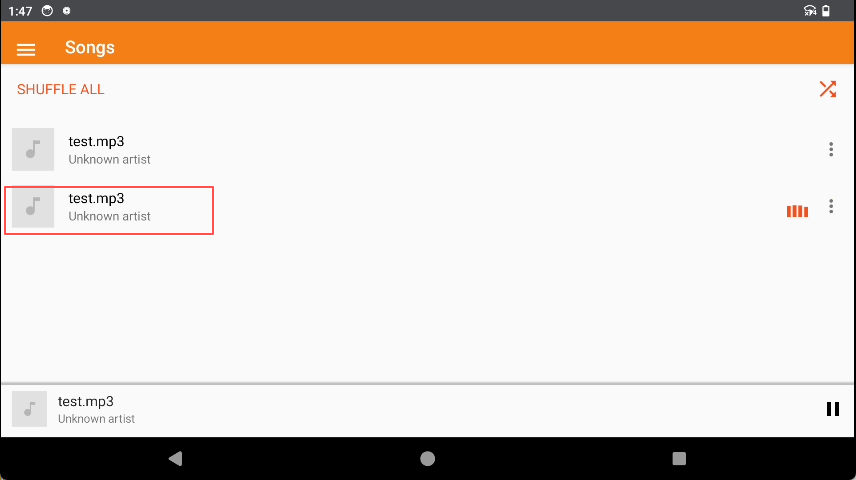
- Find the audio file and click it to play.
Video playback
Before playing videos, the corresponding video files need to be pushed to the development board.
Open the ADB tool, connect to the development board, and open the ADB terminal. Use the adb push command to push the video files to the development board.
adb push "E:\FeiShu\Animal World.mp4" /sdcard/DCIM     #Push relevant videos to the DCIM directory of the development board's SD card

#Enter the development board
su    #Switch to root user
am broadcast -a android.intent.action.MEDIA_SCANNER_SCAN_FILE -d file:///sdcard/DCIM/Animal World.mp4    #Rescan this file in the media library
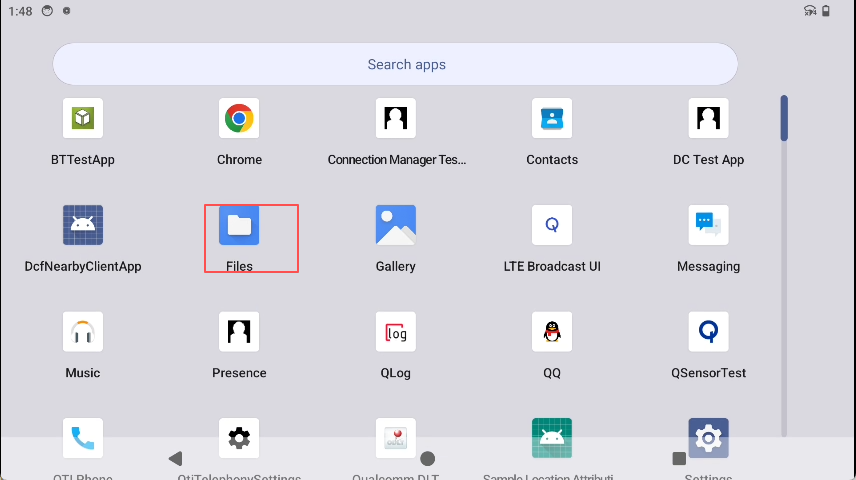
Android system comes pre-installed with Gallery, and video files can be played by following the steps below:
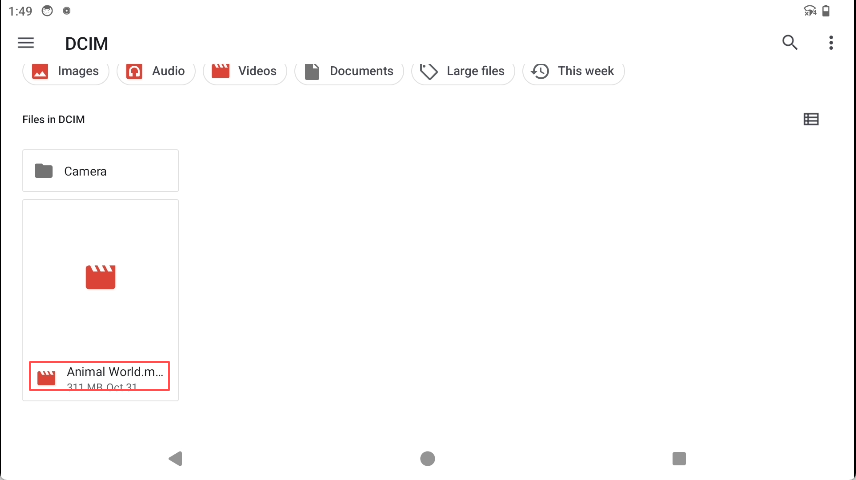
- Click the corresponding icons in sequence to enter the file manager.
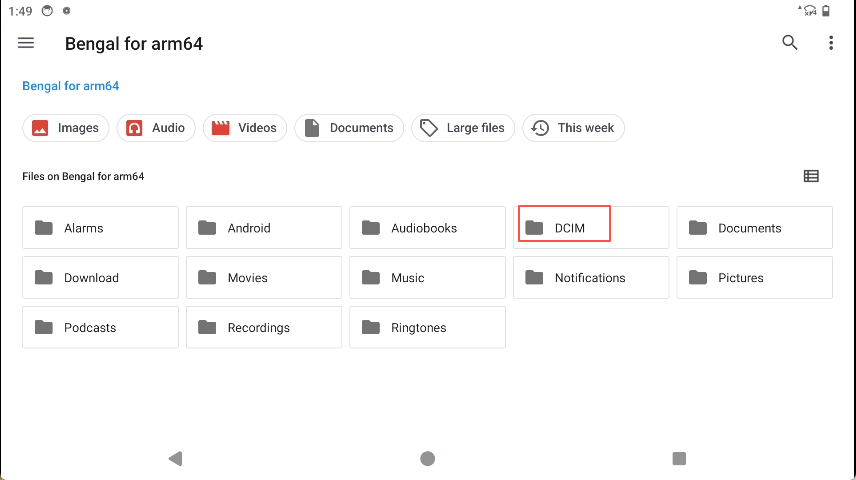
- Find the video file and double-click to play it.