


 English
QuecOpen® Quick Start Guide For FC41D and FCM100D and FCM740D and FLMx40D Series Modules
Introduction
Quectel FC41D, FCMxx0D and FLMx40D modules support QuecOpen® solution. QuecOpen® is an embedded development platform based on RTOS system. It is intended to simplify the design and development of IoT applications.
This document is applicable to QuecOpen® solution based on SDK build environment. It is a quick start guide for FC41D, FCMxx0D and FLMx40D modules. It outlines the SDK directory structure, compilation environment setup, application development, compilation process, firmware download, and common compilation errors on Linux.
Applicable Modules
| Module Family | Module |
|---|---|
| - | FC41D |
| FCMxx0D | FCM100D |
| FCM740D | |
| FLMx40D | FLM040D |
| FLM140D | |
| FLM240D | |
| FLM340D |
SDK Directory Structure
In the QuecOpen SDK released by Quectel, the SDK directories of different versions may be slightly different, but there is no difference in functions. An example of the QuecOpen SDK directory on Windows and Linux operating systems is shown in the following table.
| Directory Name | Description |
|---|---|
ql_application |
Stores sample files and the user's application project code. |
ql_build |
Stores compilation-related script files. |
ql_components |
Stores components, including third-party components and Quectel API components. |
ql_kernel |
Stores chip-related code and code libraries, including support for RTOS (currently only FreeRTOS is supported). |
ql_out |
Files output after project compilation, used for downloading, including files such as .bin, map files, and compilation logs. |
ql_tools |
Toolchain used during compilation. |
Project Compilation Environment Setup
The project compilation toolchain of the module is gcc-arm-none-eabi, which is the GCC toolchain of the ARM bare-metal system. Linux and Windows operating systems are supported for the compilation. The gcc-arm-none-eabi toolchain, CMake and MinGW (MinGW is only needed for Windows operating system) are integrated in the SDK in the ql_tools directory, and they can be decompressed automatically for usage. The recommended Linux distribution is Ubuntu 16.04 or above version, Windows 10 or above version. Additionally, you need to install Python 3.8 or above version and add it to the system environment variables.
When compiling the project in Linux operating system, only the gcc-arm-none-eabi toolchain integrated in the SDK is supported, and the gcc-arm-none-eabi toolchain installed on the Linux operating system is not supported.
If the automatic decompression and installation of the gcc-arm-none-eabi toolchain in the SDK fails, you can manually decompress and install it referring to the following steps.
Step 1: Open the Linux command terminal, execute tar -vxf gcc-arm-none-eabi-5_4-2016q3.tar.bz2
in ql_tools directory to decompress the toolchain (If the toolchain has already been decompressed, please skip this step).

Step 2: Execute sudo vim ~/.bashrc to open the environment variable configuration file.

Step 3: Add the environment variable to the last line of the environment variable configuration file (add the actual file path on your system for the configuration file. The path in the figure below is for reference only: export PATH=\$PATH:/home/xxx/F01DR01A01_C_SDKV01/ql_tools/gcc-arm-none-eabi-5_4-2016q3/bin).
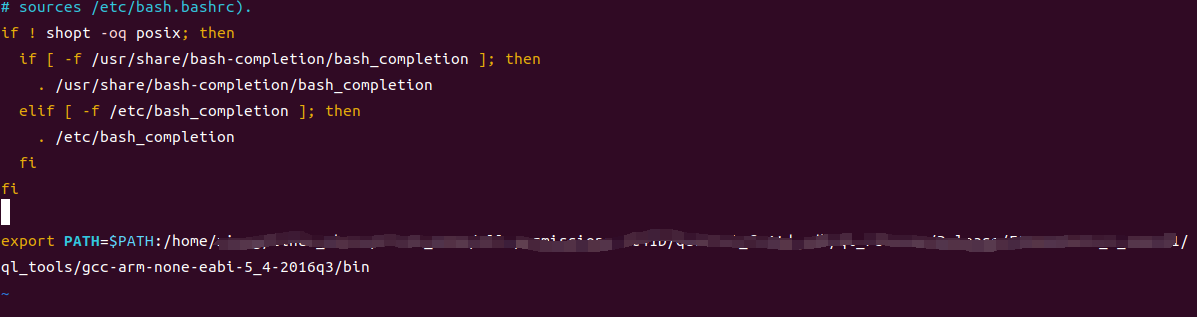
Step 4: Save and close the configuration file. The environment variable ha been added, that is, the project compilation environment has been set up.
Application Development
Create Application Directory
Create the required user folders (for storing source and header files) in the
ql_applicationdirectory of QuecOpen SDK. For example, createuser_codefolder.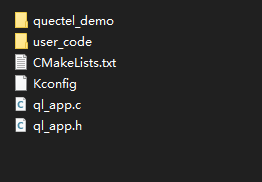
Create
user_code.canduser_code.hin theuser_codefolder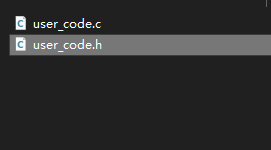
Application Demo Description
QuecOpen SDK provides reference application demos for application development in the ql_application/quectel_demo directory in the SDK.
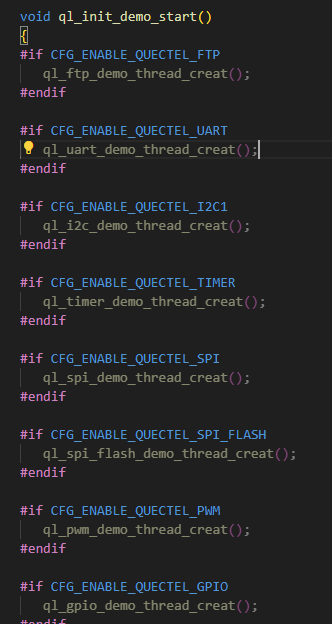
The application entry point, ql_demo_main(), is in the ql_app.c file in the ql_application directory of the QuecOpen SDK. Start an initialization thread in this function, and then call the initialization interface of each feature component in this initialization thread. Different folders correspond to different feature components, and you can refer to the following program logic to write codes.
Add User Application
Create Application Thread
Create and write files
user_code.canduser_code.h, and store them in theuser_codedirectory. An example of writing theuser_code.cfile is as follows: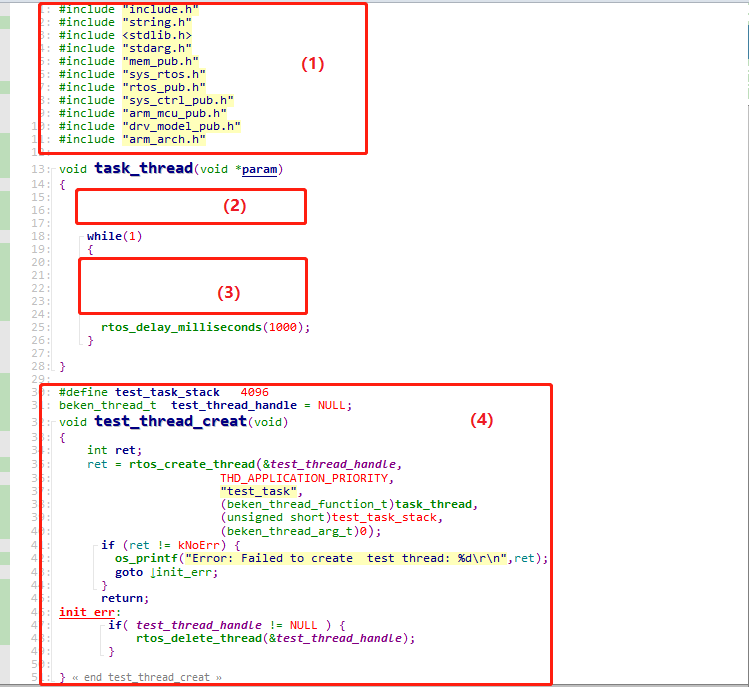
The following definitions apply to the serial numbers in the figure above:
(1): Add the user-defined header files
(2): Initialization configuration
(3): Task processing code
(4): Task creation function
Add
test_thread_creat()to theql_demo_main()function to create a task_thread task in the program.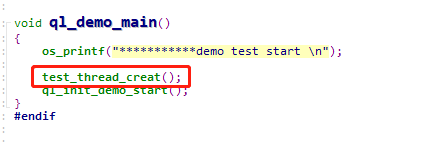
Add Compilation File
For successful compilation, the source files and header files must be added to the compilation script, otherwise these files will not be found during compilation. Follow these steps:
Step 1: Enter the ql_application/quectel_demo folder, and open the CMakeLists.txt file in it.
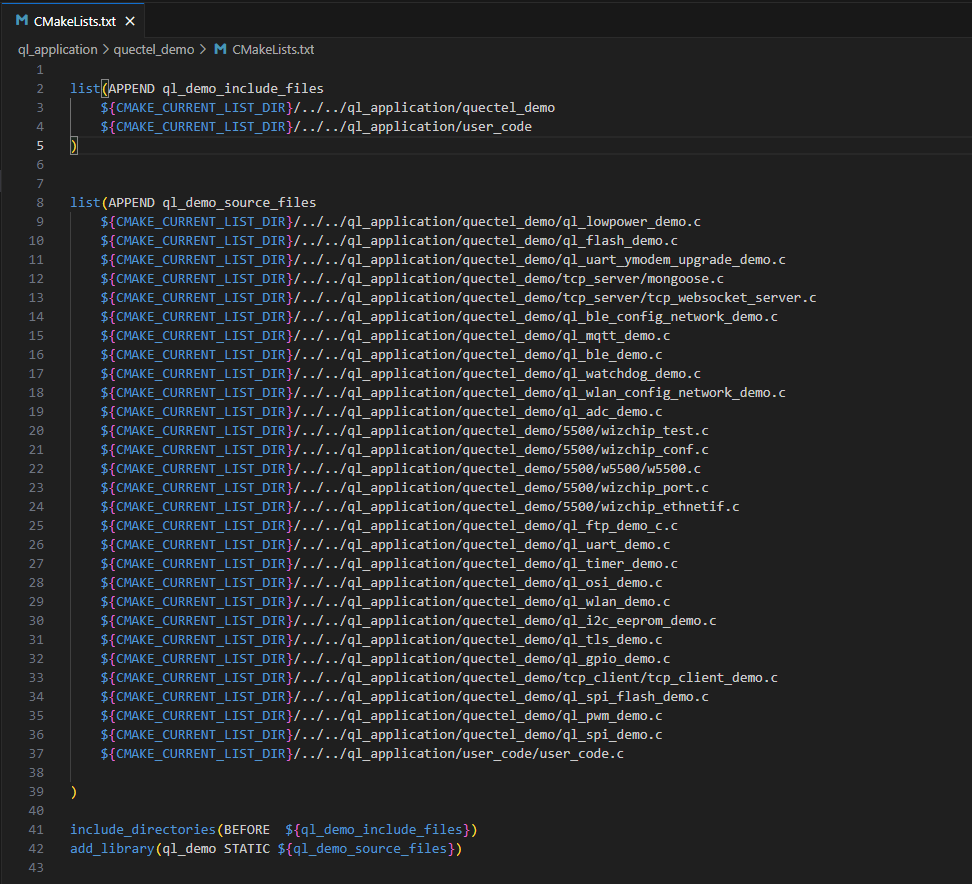
Step 2: Add the path of the user's header file to "list (APPEND ql_demo_include_files", as shown in the red box in the following figure:
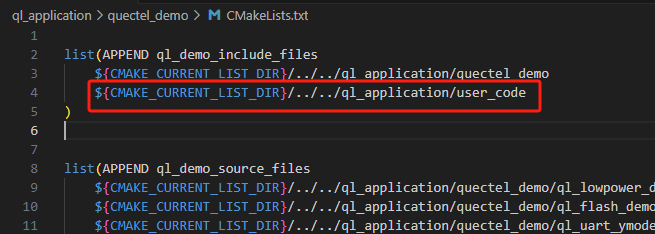
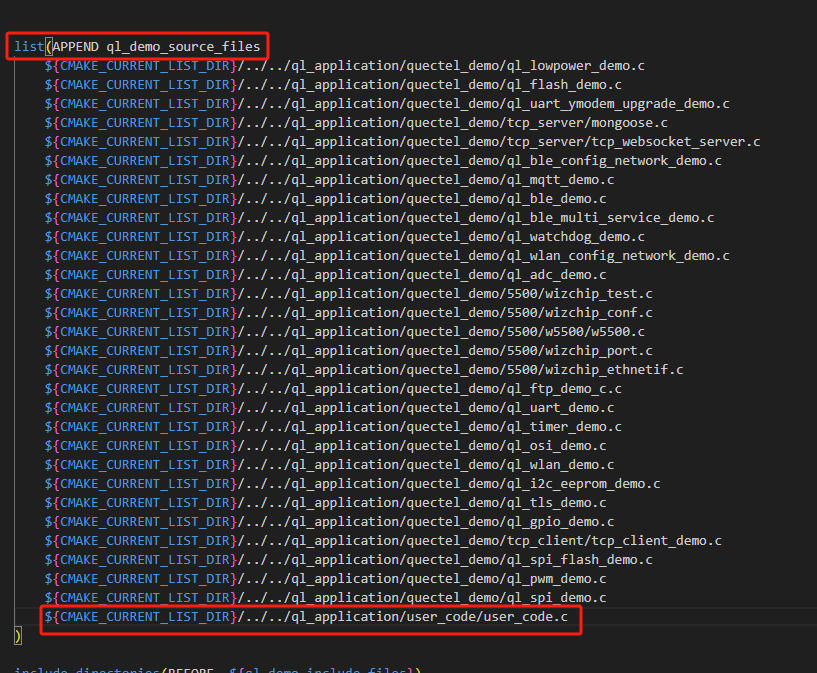
Step 3: Find the line that says "list (APPEND ql_demo_source_files" and add the user's source file at this point. Refer to the red box in the image below for guidance:
Application Compilation
Compilation Instructions
Windows or Linux operating systems are supported for module application compilation.
Linux Operating System
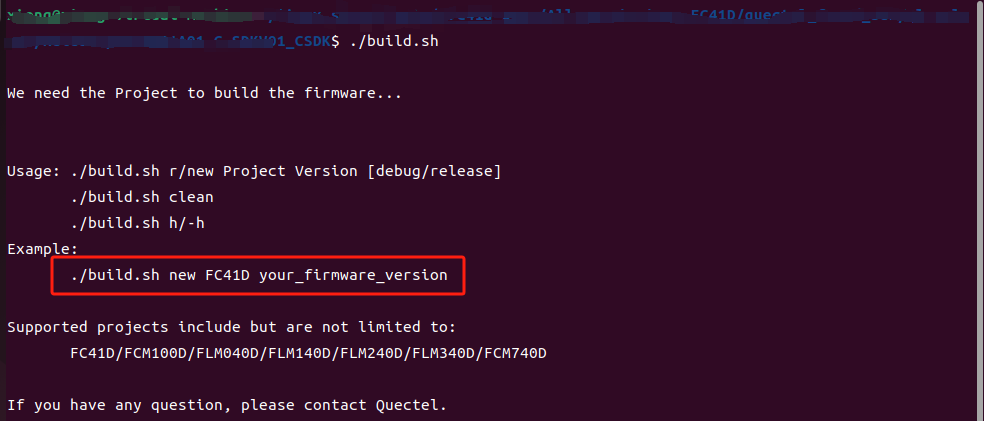
Open the Linux command terminal, enter SDK root directory and execute ./build.sh to view compilation options. After that, execute the corresponding compilation option to compile the application. For example, ./build.sh new FC41D your_firmware_version (your_firmware_version represents the current firmware version of the module) indicates to compile the current firmware version of FC41D. See the figure below.
Windows Operating System
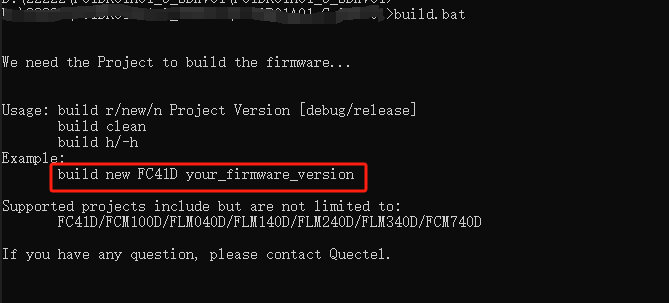
Open the Windows command terminal, enter SDK root directory and execute build.bat to view compilation options. After that, execute the corresponding compilation option to compile the application. For example, build new FC41D your_firmware_version (your_firmware_version represents the current firmware version of the module) indicates to compile the current firmware version of FC41D. See the figure below.
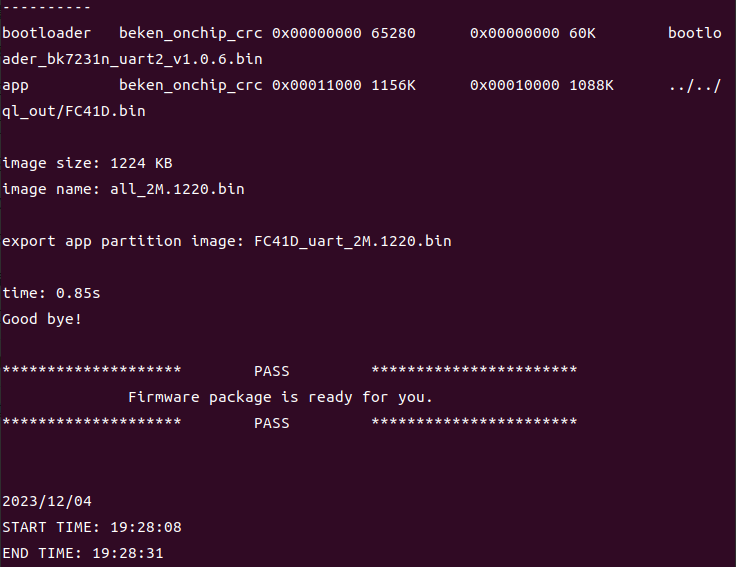
The successful compilation interface is shown in the following figure.
Compilation Result
The files generated after compilation are stored in the ql_out directory. The contents of the ql_out folder are as follows:
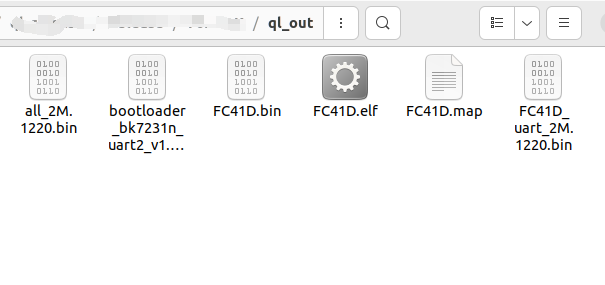
In the ql_out folder the following files serve specific purposes:
all_2M.1220.bin: Complete generated program firmware, which is downloaded through the serial port.bootloader_bk7231n_uart2_v1.0.6.bin: Bootloader file.FC41D.bin: Packaged firmware for OTA upgrade.FC41D.elf: Executable object file generated in Linux.FC41D.map: Program map file.FC41D_uart_2M.1220.bin: Actual generated firmware (complete firmware except boot).
Clear Files Generated after Compilation
The files generated in previous compilations are automatically cleared when a new compilation is performed.
Firmware Download
Step 1: Contact Quectel Technical Support to obtain BKFIL tool and related usage information.
Step 2: Open BKFIL tool, then click "Select Port" on the main interface and choose the main port to flash the firmware.
Step 3: Click the  icon after "Bin Path" and choose the file
 ql_out/all_2M.1220.bin.
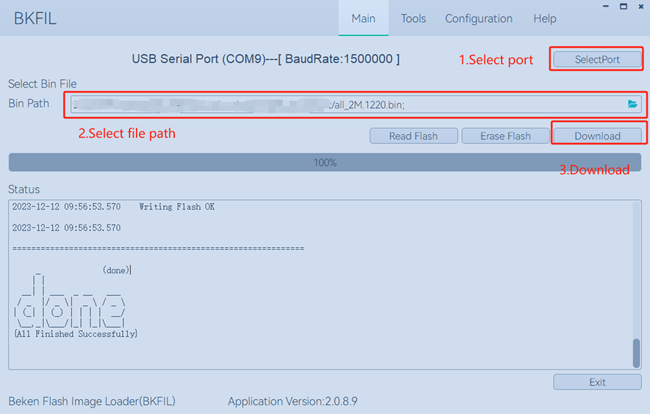
Step 4: Click "Download" in the figure above, then press reset button on the module to flash the firmware.
Step 5: After flashing, if "done" is displayed in "Status" box, flashing is successful. Then reboot the module, select the module COM port to connect the module via serial port tool.
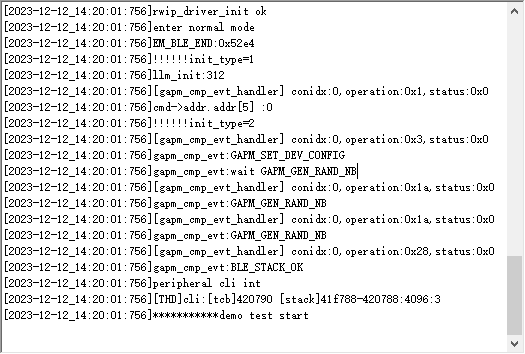
The boot log of the module is shown below:
Common Compilation Errors on Linux
Error message: "arm-none-eabi-gcc: Command not found"
This error message indicates that the gcc-arm-none-eabi toolchain is either not added to the environment variable or the dependent components are missing.
To resolve this issue:
Initially, ensure that you install the gcc-arm-none-eabi toolchain to the environment variable, see Project Compilation Environment Setup for detailed steps.
If the error message persists even after the toolchain is installed, it indicates that the required dependent components are missing. In this case, you can execute the following commands to install the missing required dependent components:
apt install libc6-i386 lsb-core
apt-get install lib32z1
apt-get install lib32stdc++6
apt-get install libstdc++6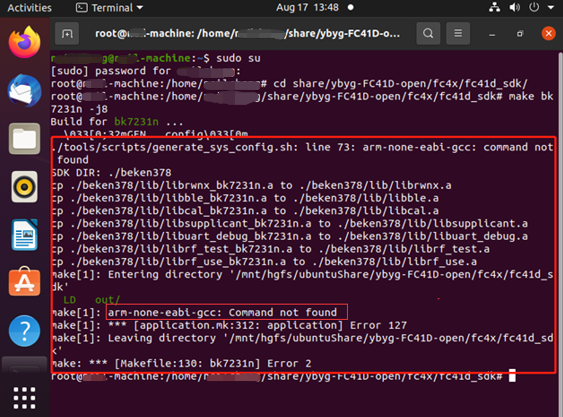
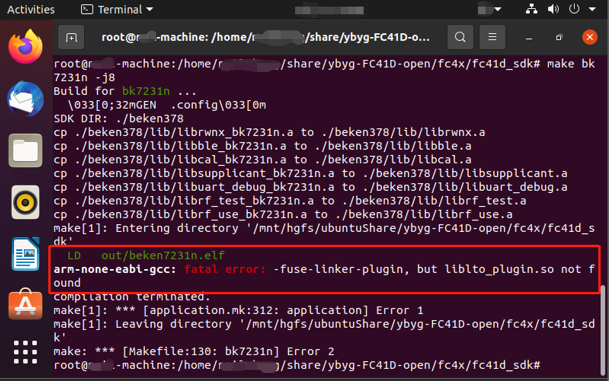
Error message "arm-none-eabi-gcc: fatal error: -fuse-linker-plugin, but liblto_plugin.so not found"
This error message indicates that the
liblto_plugin.sofile is not found.To resolve this issue:
- Rename the file
liblto_plugin.so.0.0.0toliblto_plugin.soin thetoolchain/gcc-arm-none-eabi-5_4-2016q3/lib/gcc/arm-none-eabi/5.4.1/directory.
- Rename the file
Appendix References
| Abbreviation | Description |
|---|---|
| API | Application Programming Interface |
| APP | Application |
| ARM | Advanced RISC Machine |
| GCC | GNU Compiler Collection |
| IoT | Internet of Things |
| OTA | Over-the-air programming |
| PC | Personal Computer |
| RTOS | Real-Time Operating System |
| SDK | Software Development Kit |