


 English
QuecPlatform Usage Guide
Introduction
QuecOpen Solution for Quectel Shortrange Module. This document mainly introduces how to use the QuecPlatform plugin in Visual Studio Code to download the SDK of the Shortrange module, create a project, go through the compilation process, and perform firmware flashing.
Visual Studio Code Download and Installation
Visual Studio Code Download
Visual Studio Code official website: https://code.visualstudio.com/download
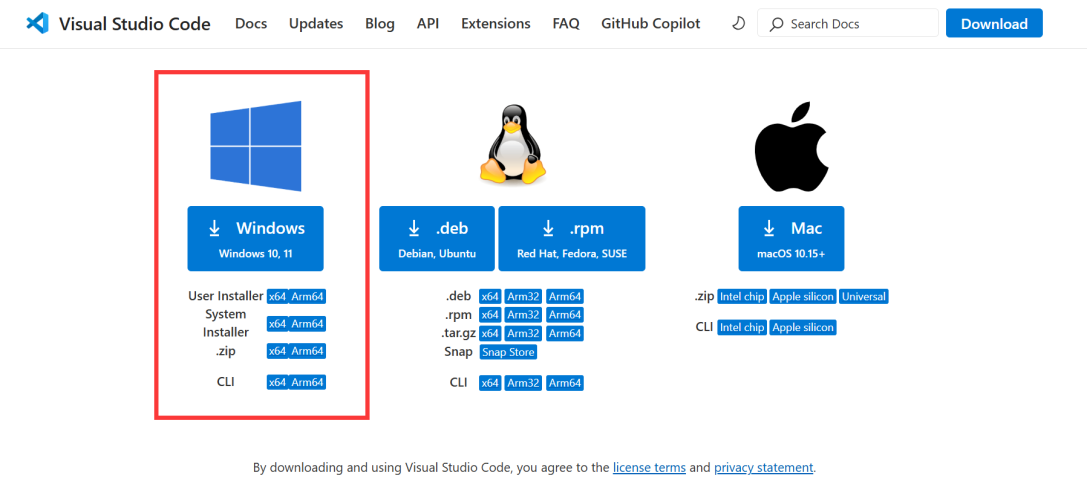
Visual Studio Code Installation
Save the downloaded Visual Studio Code installer to your local path and double-click to install it.
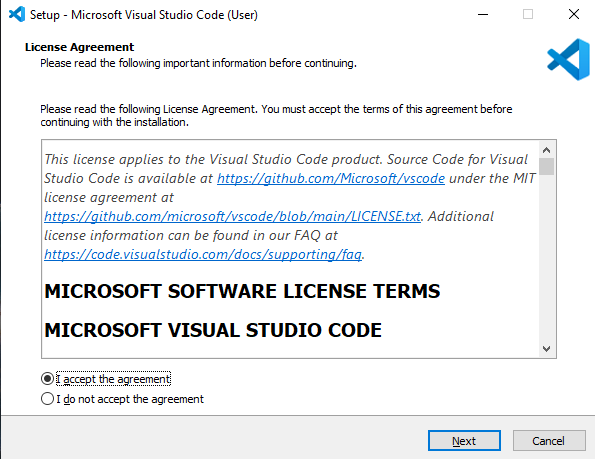
Select "I accept the agreement" and click Next.
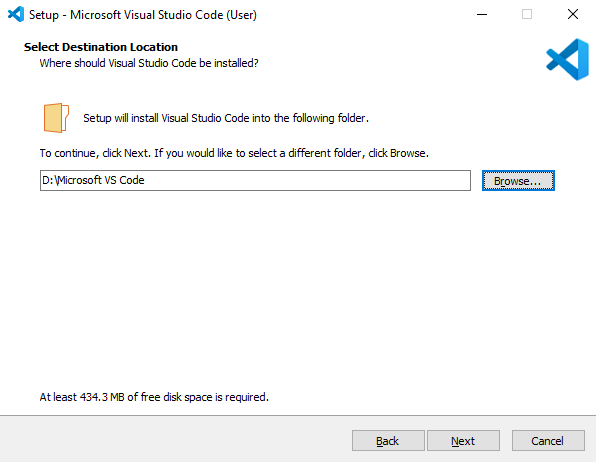
Select the installation path and click Next.
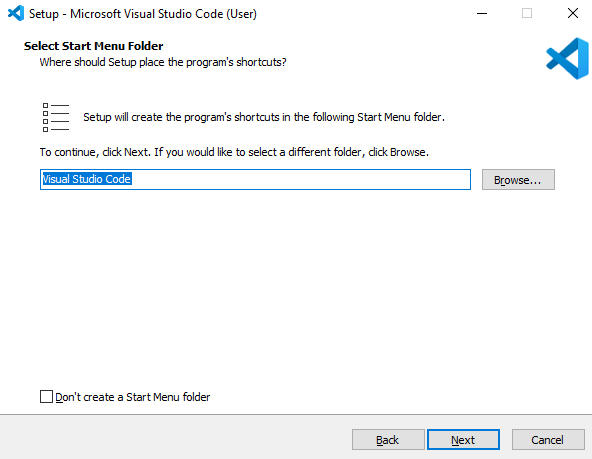
Select the Start Menu folder, and click Next by default.
Select Other Tasks, choose additional options as needed, and click Next when the settings are complete.
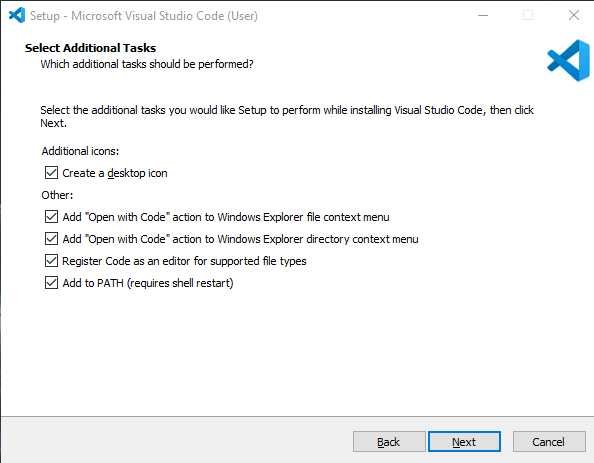
After completing the above steps, click Install.
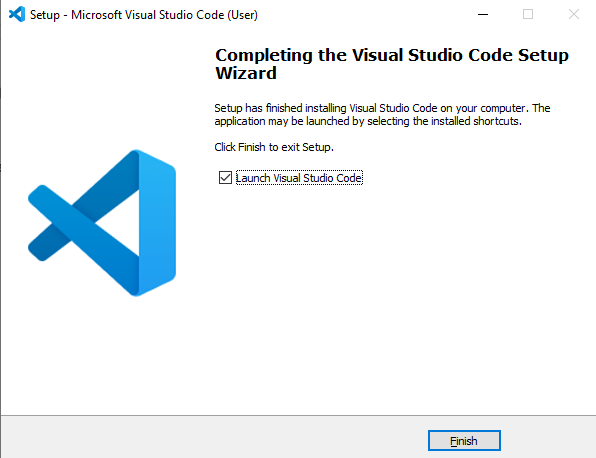
When the installation is complete, click Finish.
Installation and Use of QuecPlatform
QuecPlatform Plugin Installation
Plugin Installation
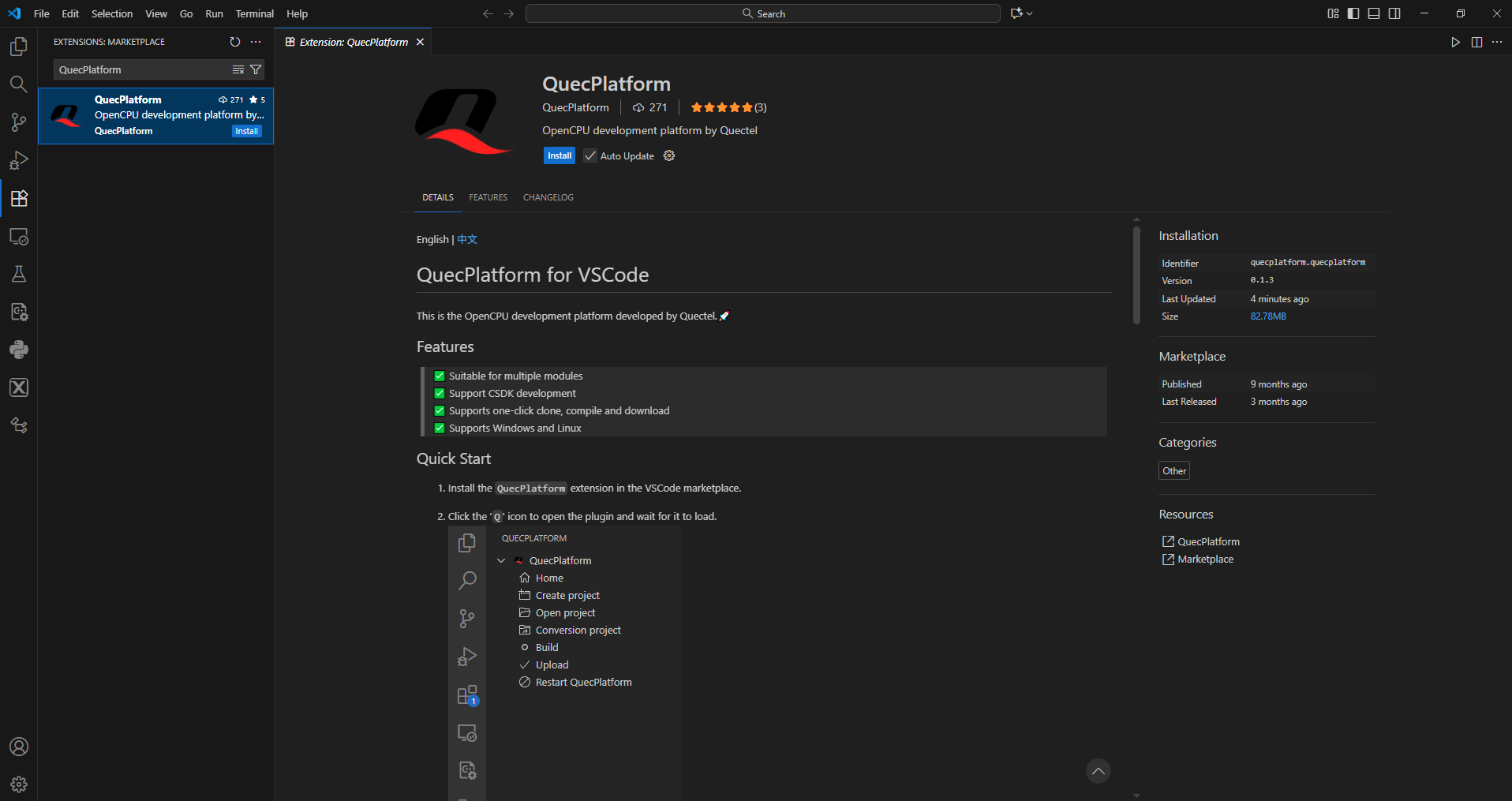
Download the QuecPlatform plugin from the Visual Studio Code Store.
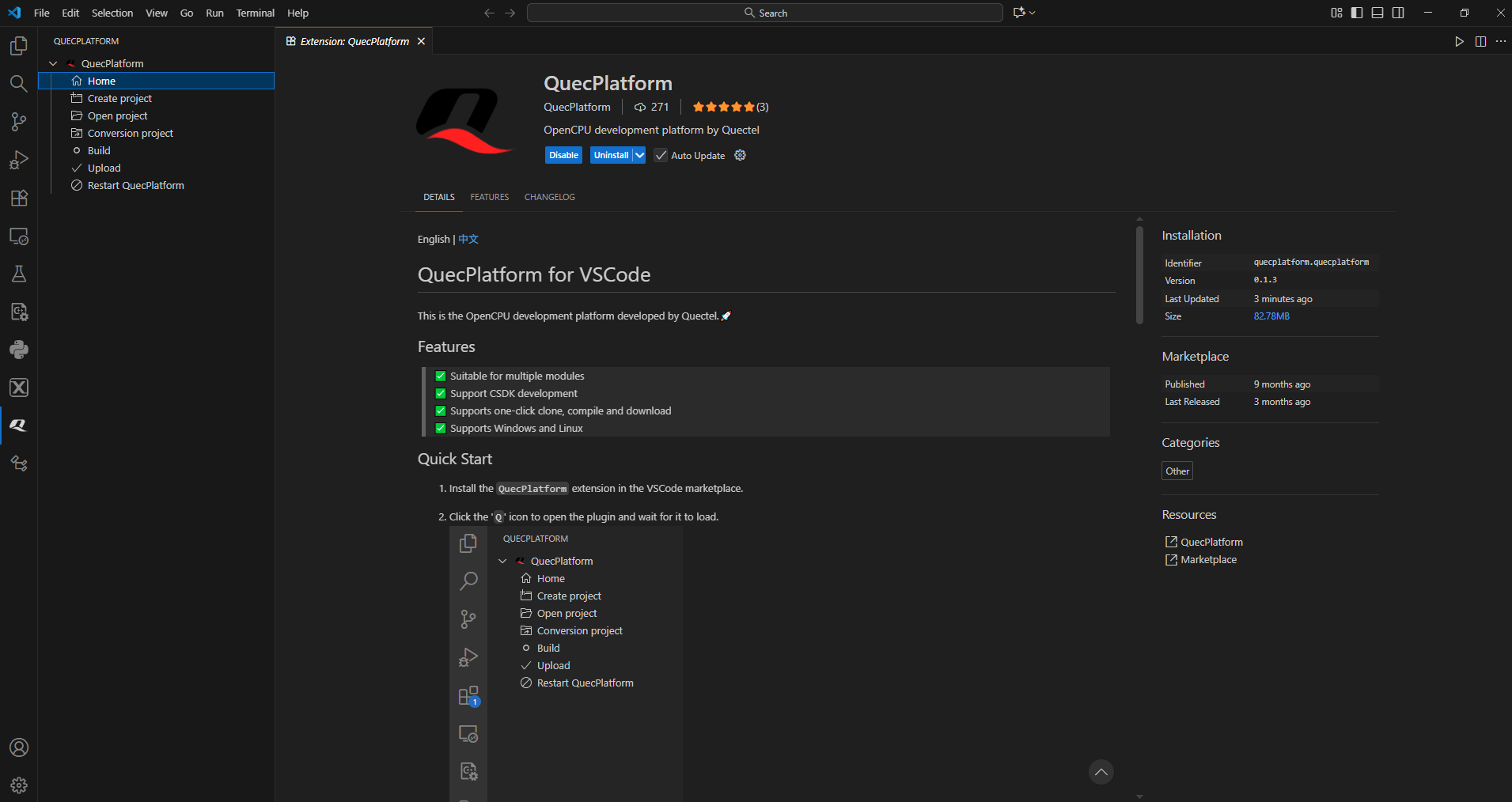
If the "Q" icon appears on the left side, it means the download was successful.
Introduction to the QuecPlatform Menu Bar
QuecPlatform Menu Bar:
| Menu Bar | Description |
|---|---|
| Home | Platform homepage |
| Create project | Create a new project |
| Conversion project | Convert an unsupported project to a tool-supported project |
| Build | Compile |
| Upload | Burn firmware |
| Restart QuecPlatform | Restart the plugin |
| Account | Email and access tokens |
| Platforms | Platform |
| Boards | Software Development Kits |
QuecPlatform Plugin Usage
Platform Package Download
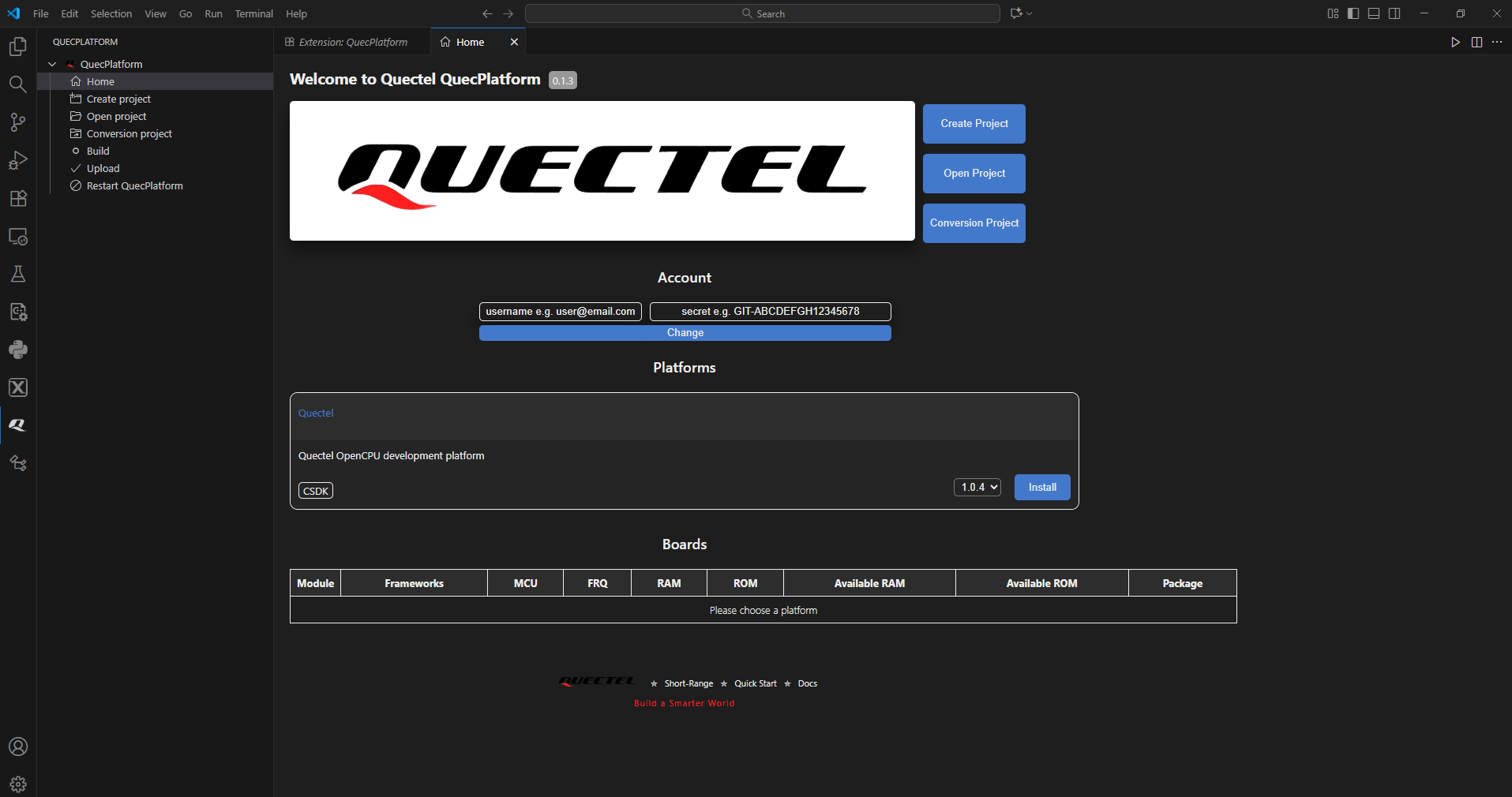
Click the "Q" icon on the left, select Home in the QuecPlatform interface, then select version 1.0.4 in Platform, and finally click Install to download the platform package.
SDK Installation
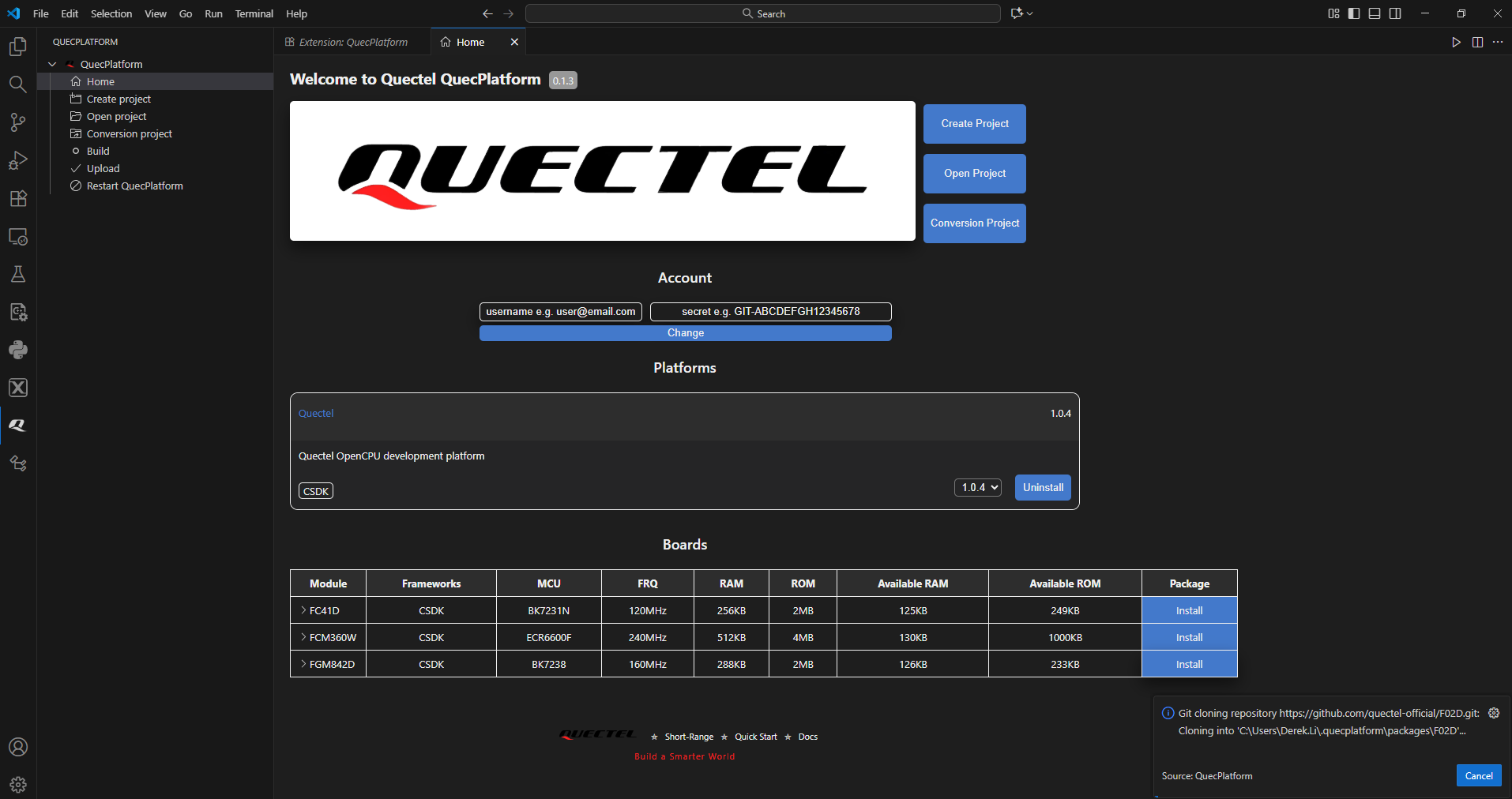
After clicking the Platforms interface box, the package information of each platform will be displayed under the Boards. Click SDK in the Module list to display the relevant information of the platform, and click Install in the Package list to download.
Create a Project
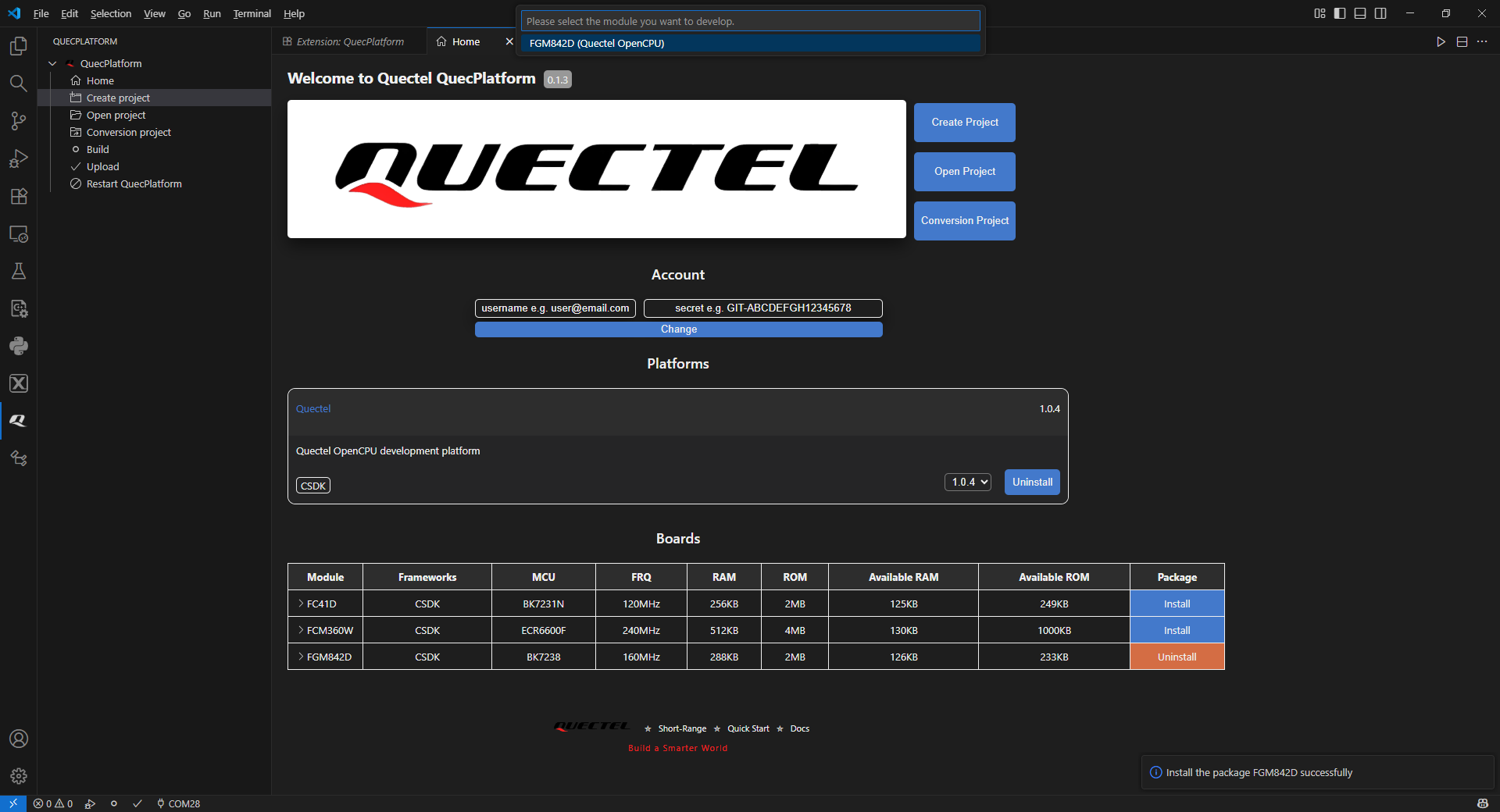
When the download success screen box pops up in the lower right corner, click Create project and select SDK that pops up at the top to create the project.
Compile
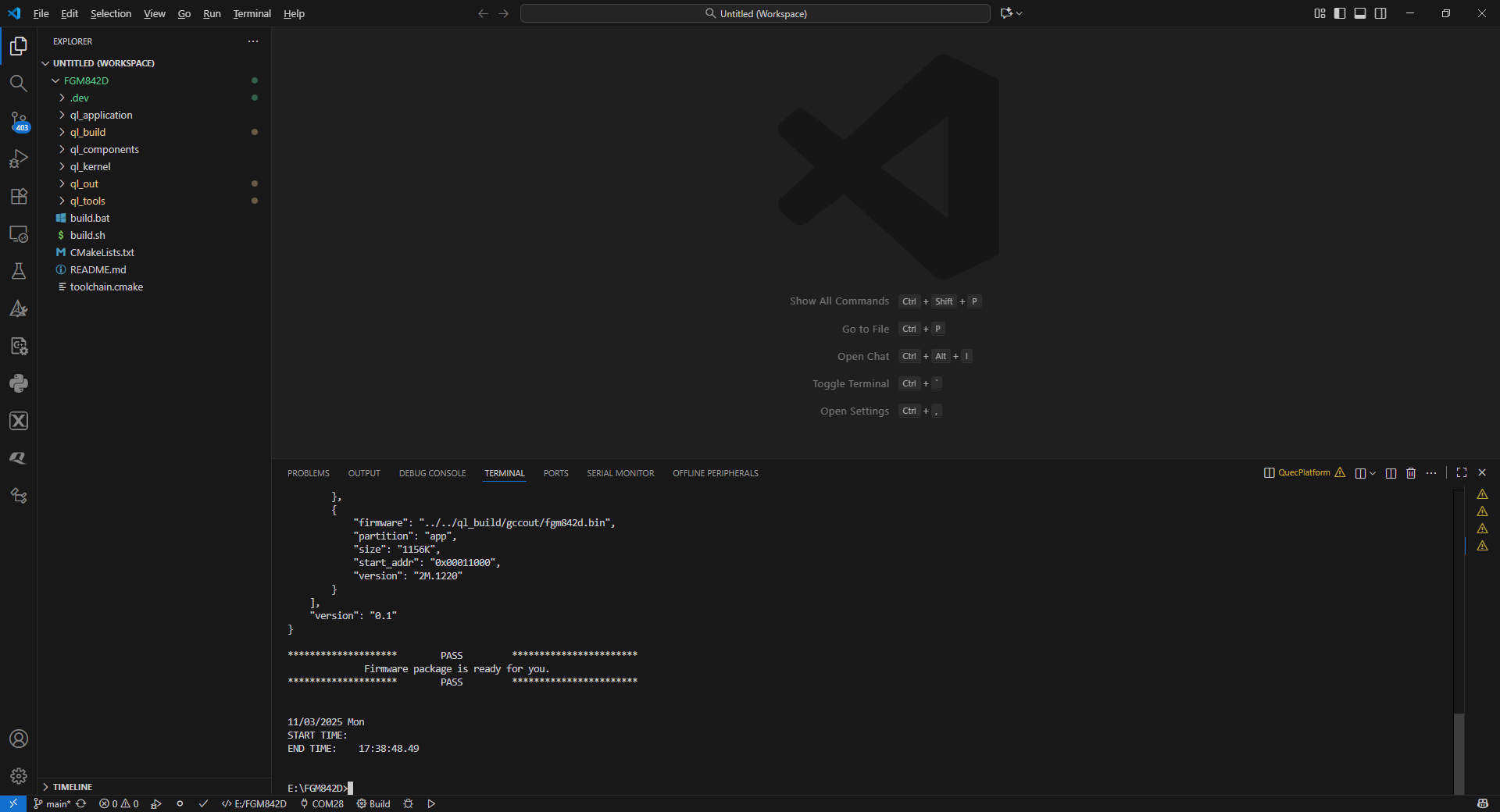
After creating the project, click the desired project that pops up at the top. Then, compile SDK by clicking the "O" icon in the lower left corner.
Firmware Flashing
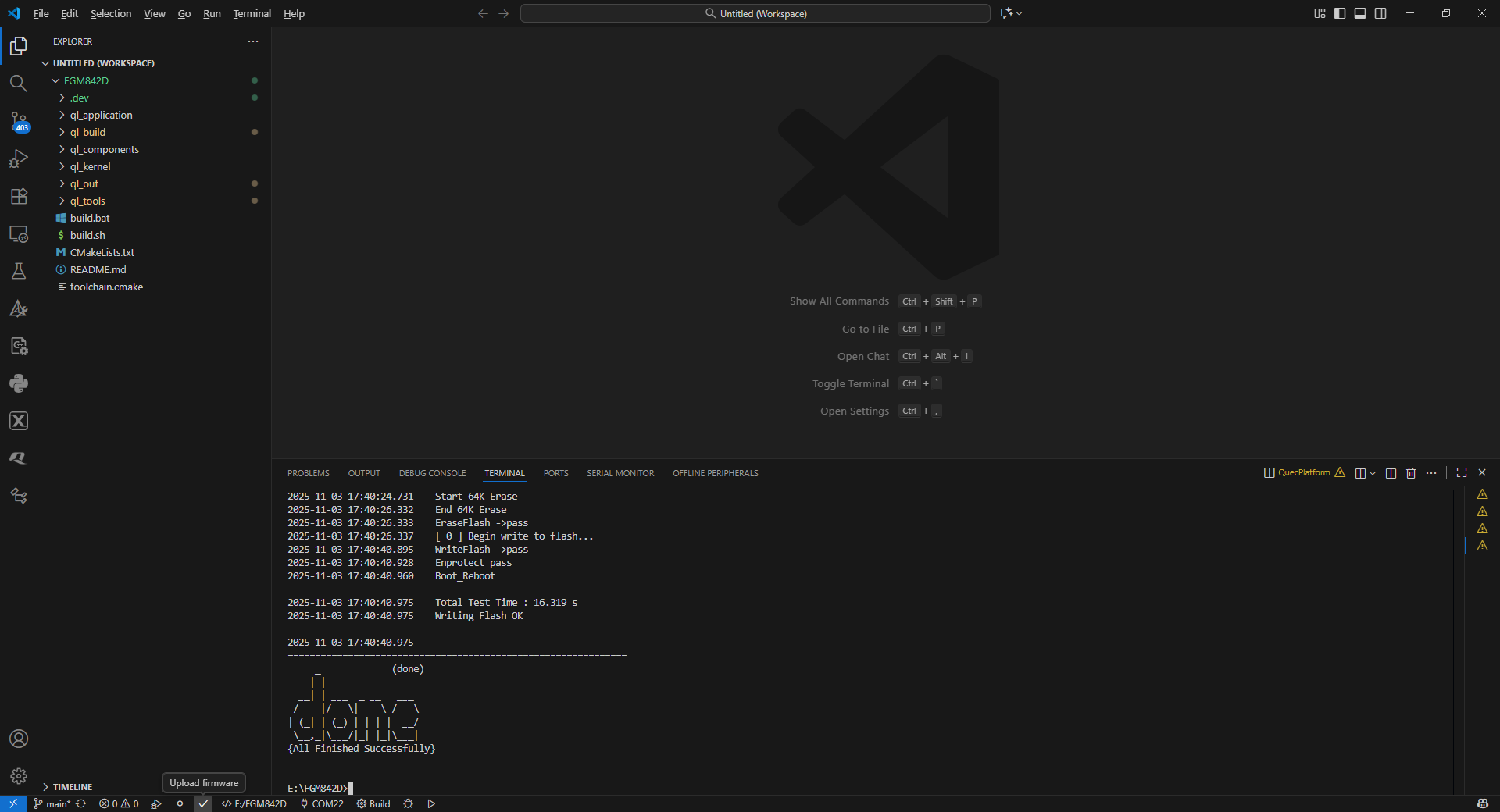
Select the serial port number corresponding to the firmware to be burned. Click the “√” at the lower left corner, then press the RST reset button to start the burning process. If the information in the red box in the figure appears, it indicates that the burning is successful.
Appendix: Term Abbreviation
| Abbreviation | Full Name in English |
|---|---|
| GCC | GNU Compiler Collection |
| IoT | Internet of Things |
| RTOS | Real-Time Operating System |
| SDK | Software Development Kit |