


 中文 简体
中文 简体QuecPlatform 使用指南
简介
QuecOpen Solution 为移远通信短距离模块提供的开发解决方案。本文档主要介绍如何在 Visual Studio Code 中使用 QuecPlatform 插件下载短距离模块的 SDK、创建项目、完成编译流程以及执行固件烧录。
Visual Studio Code 下载与安装
Visual Studio Code 下载
Visual Studio Code 官方网站:https://code.visualstudio.com/download
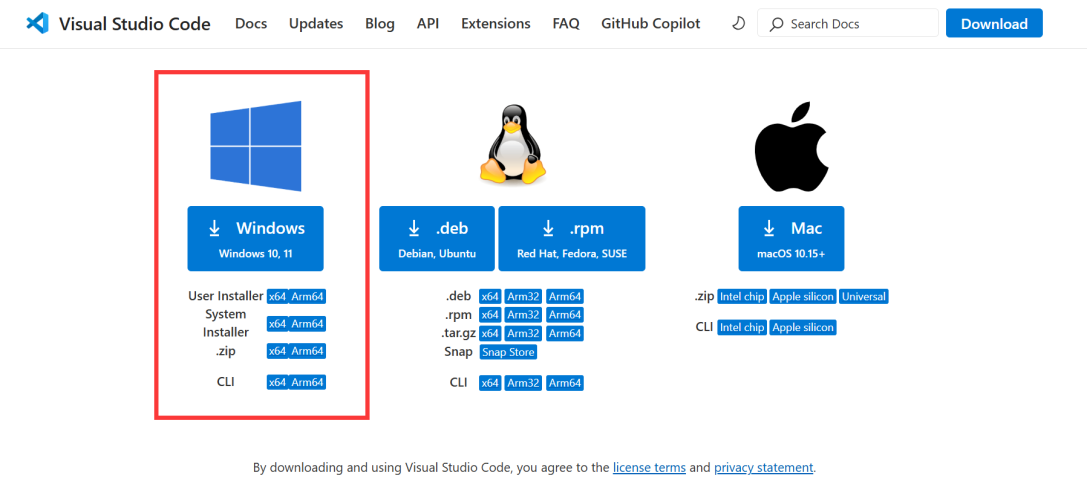
Visual Studio Code 安装
将下载的 Visual Studio Code 安装程序保存到本地路径,双击运行开始安装。
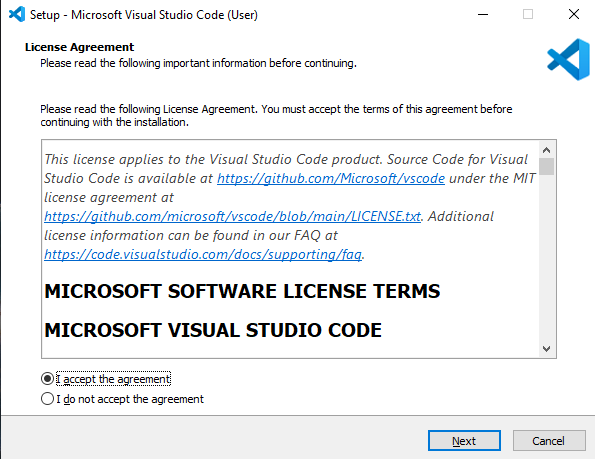
选择 "我接受许可协议中的条款" 并点击 下一步。
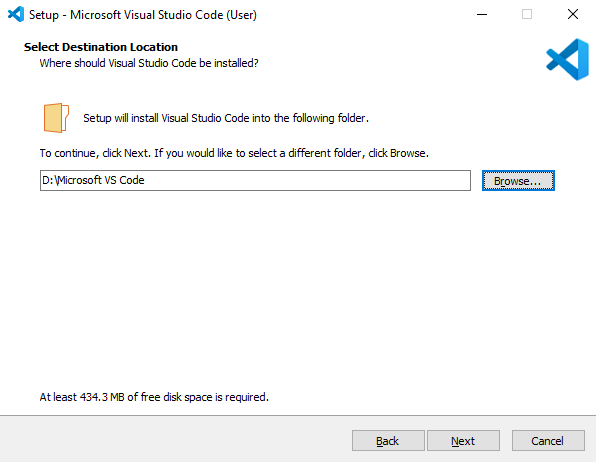
选择安装路径并点击 下一步。
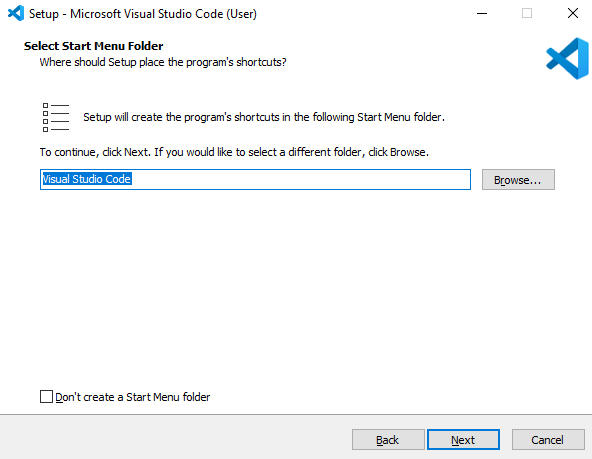
选择开始菜单文件夹,默认设置后点击 下一步。
选择其他任务,根据需要选择附加选项,设置完成后点击 下一步。
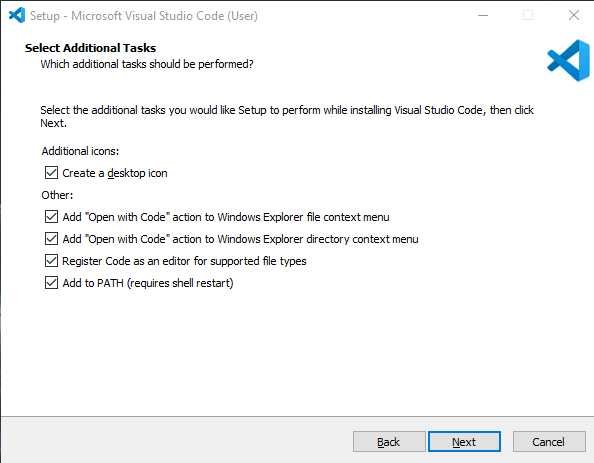
完成上述步骤后,点击 安装。
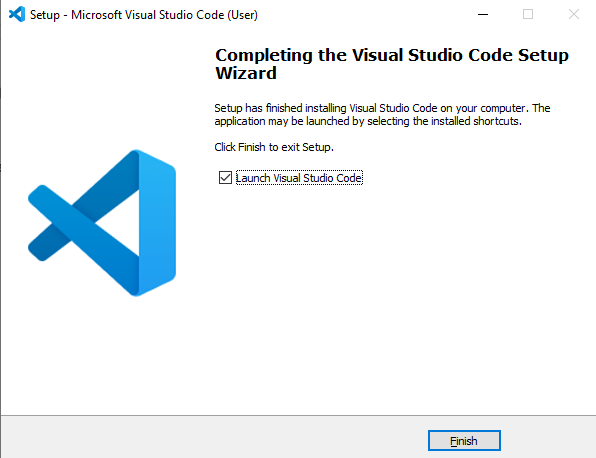
安装完成后,点击 完成。
QuecPlatform 安装与使用
QuecPlatform 插件安装
插件安装
从 Visual Studio Code 扩展商店下载 QuecPlatform 插件。
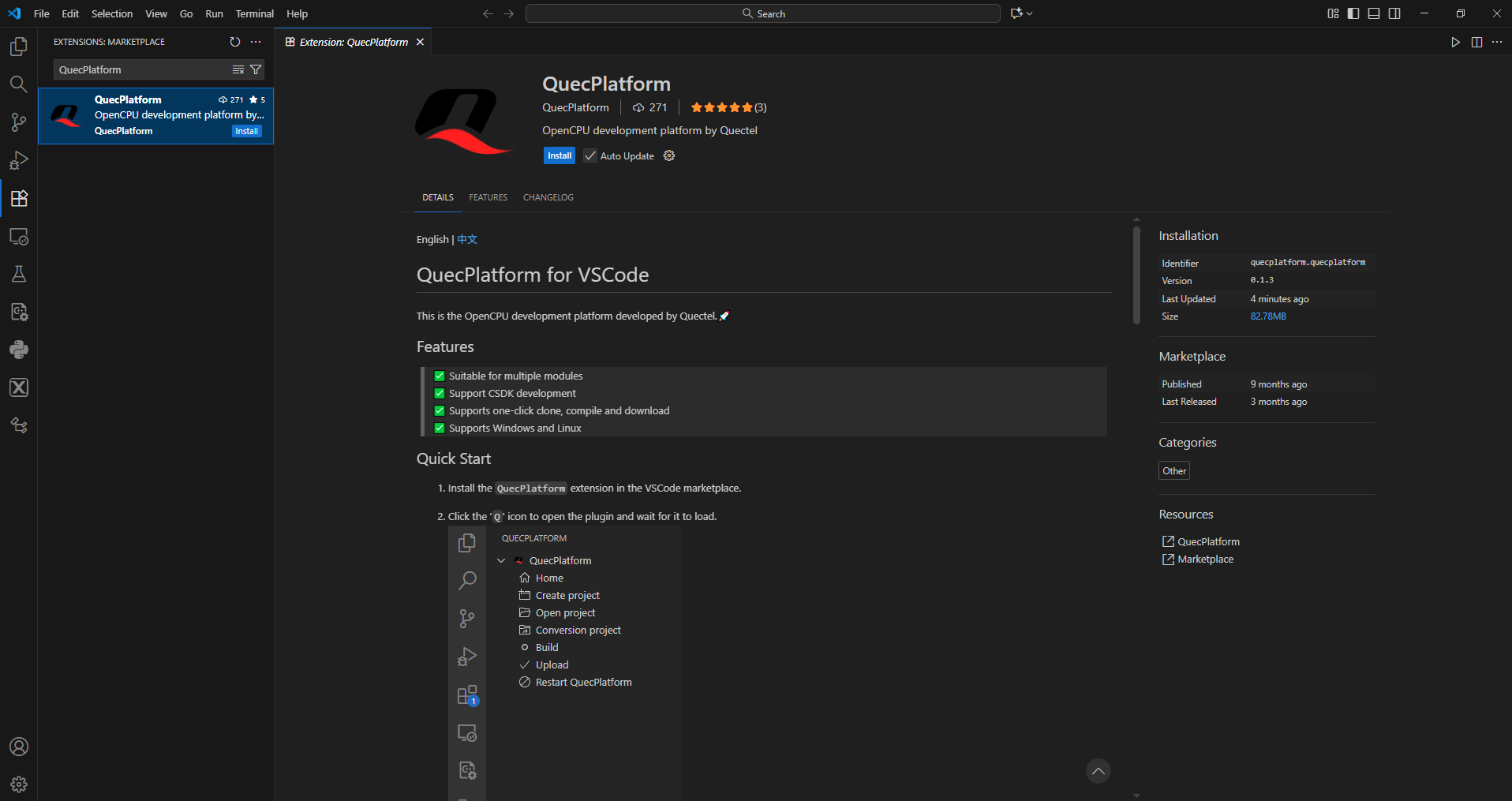
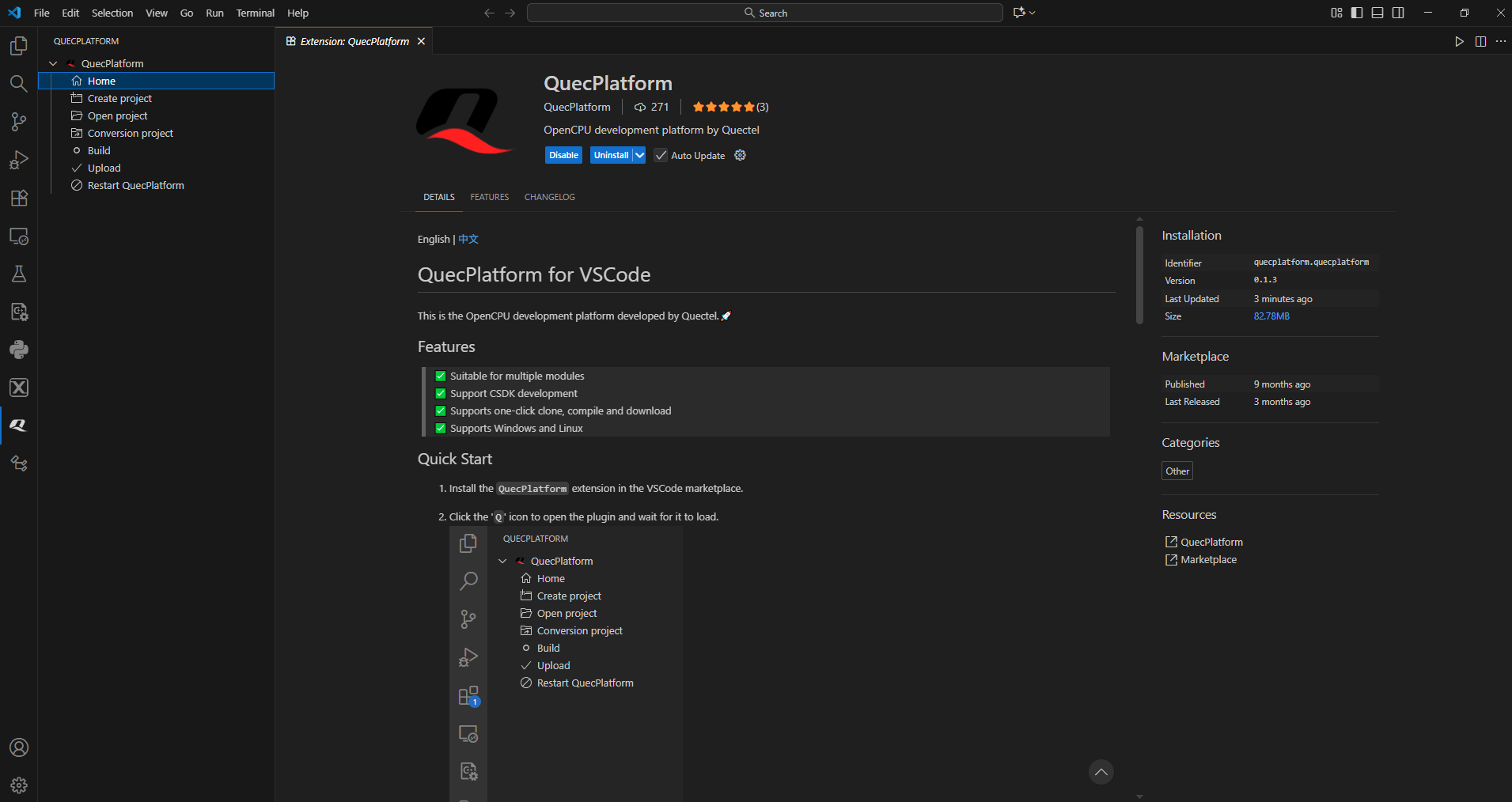
如果左侧出现 "Q" 图标,表示下载成功。
QuecPlatform 菜单栏介绍
QuecPlatform 菜单栏:
| 菜单栏 | 说明 |
|---|---|
| Home | 平台主页 |
| Create project | 创建新项目 |
| Conversion project | 将不支持的项目转换为工具支持的项目 |
| Build | 编译 |
| Upload | 烧录固件 |
| Restart QuecPlatform | 重启插件 |
| Account | 电子邮件和访问令牌 |
| Platforms | 平台 |
| Boards | 软件开发工具包 |
QuecPlatform 插件使用
平台包下载
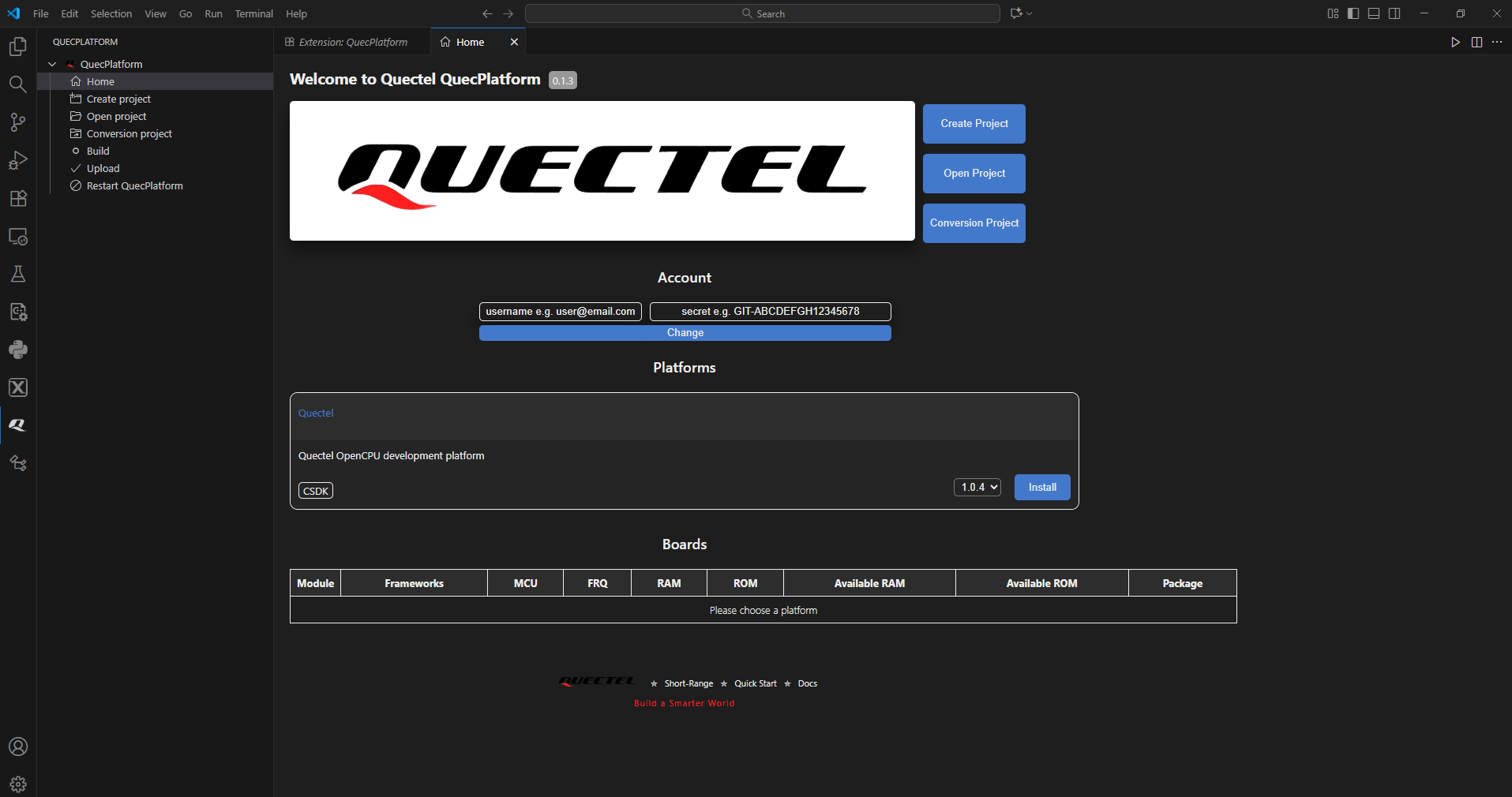
点击左侧的 "Q" 图标,在 QuecPlatform 界面中选择 Home,然后在 Platform 中选择版本 1.0.4,最后点击 Install 下载平台包。
SDK 安装
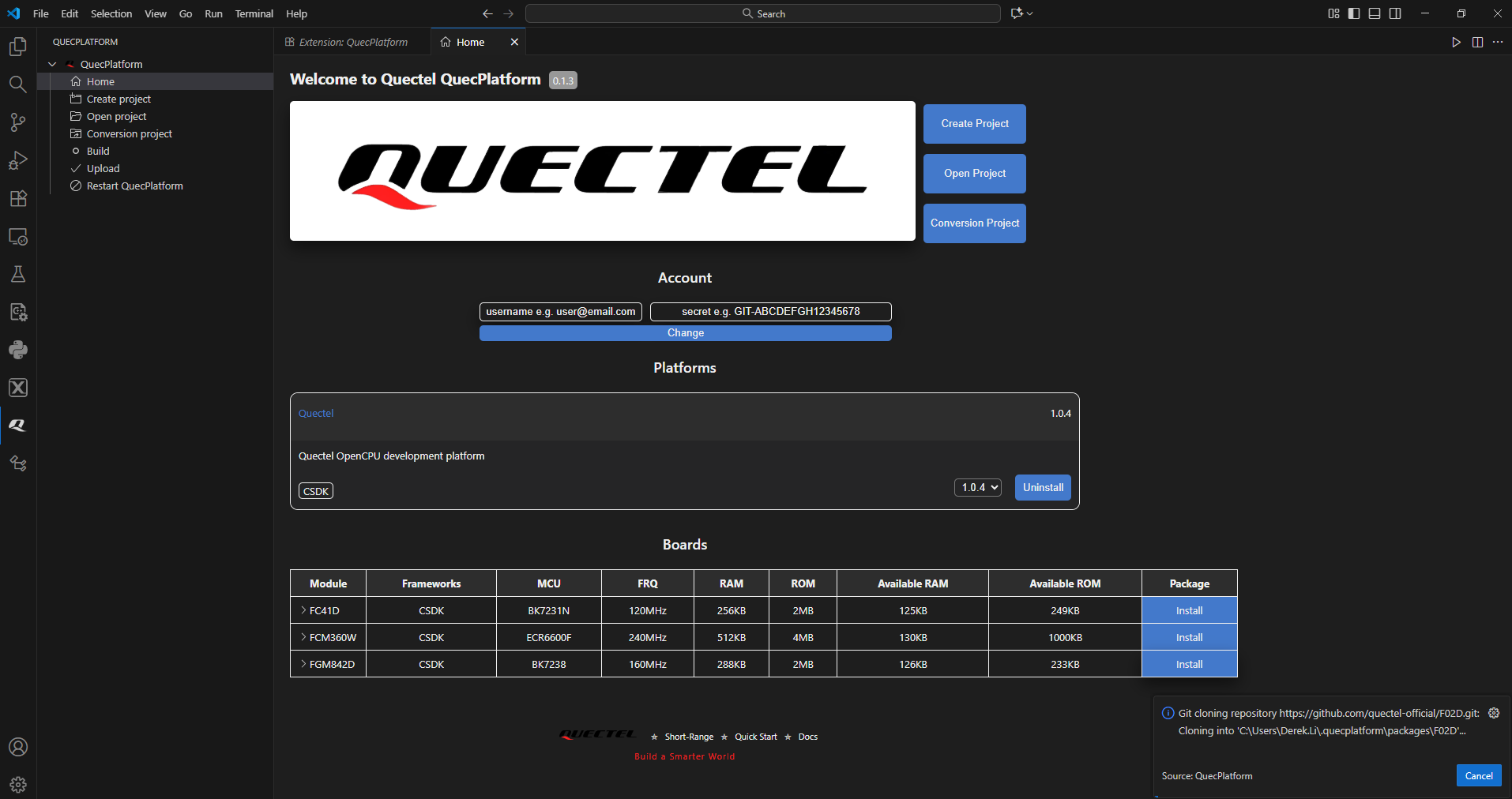
点击 Platforms 界面框后,各平台的包信息将显示在 Boards 下。在模块列表中点击 SDK 将显示平台的相关信息,在包列表中点击 Install 进行下载。
创建项目
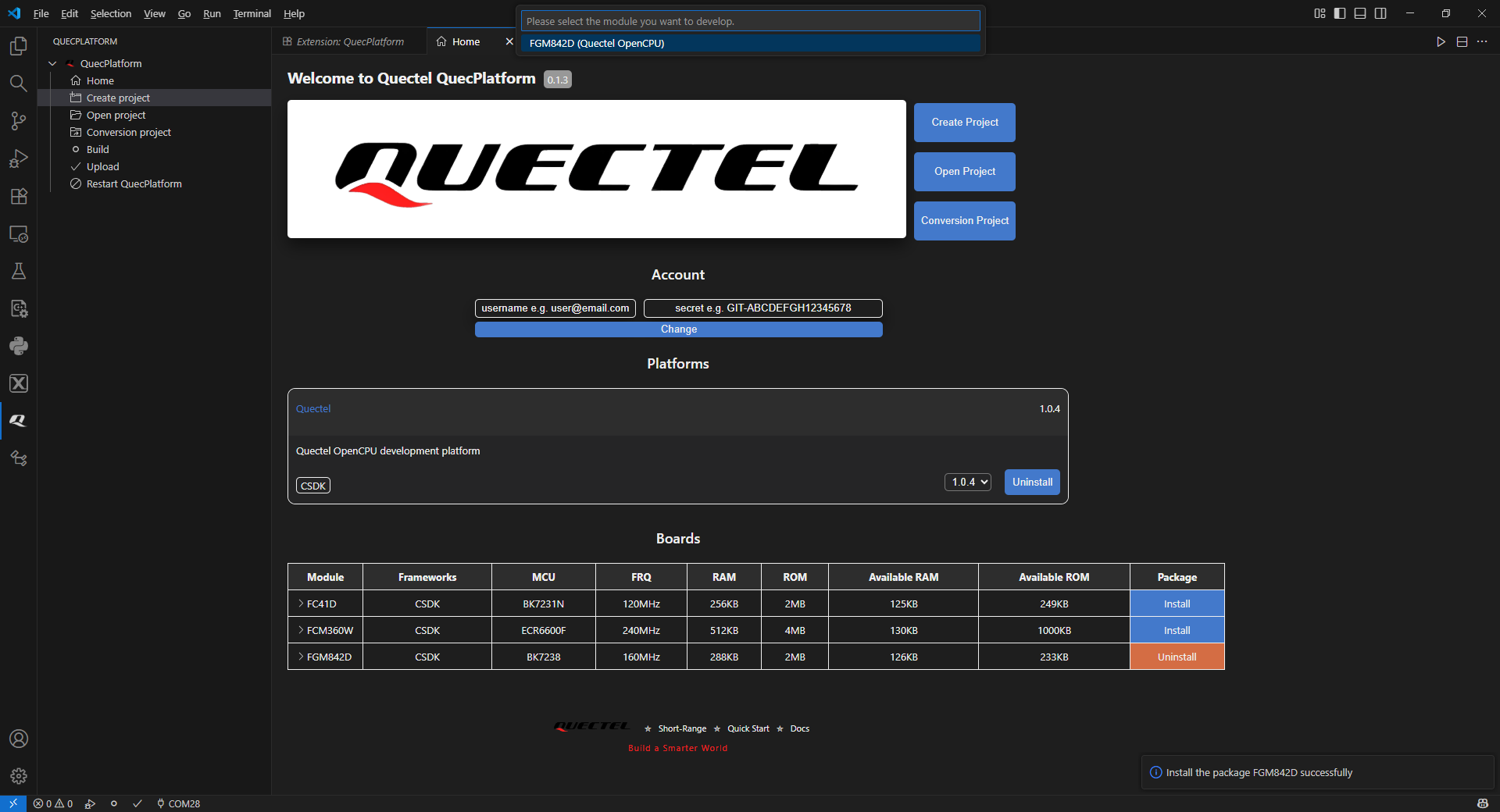
当右下角弹出下载成功提示框时,点击 Create project,选择顶部弹出的 SDK 来创建项目。
编译
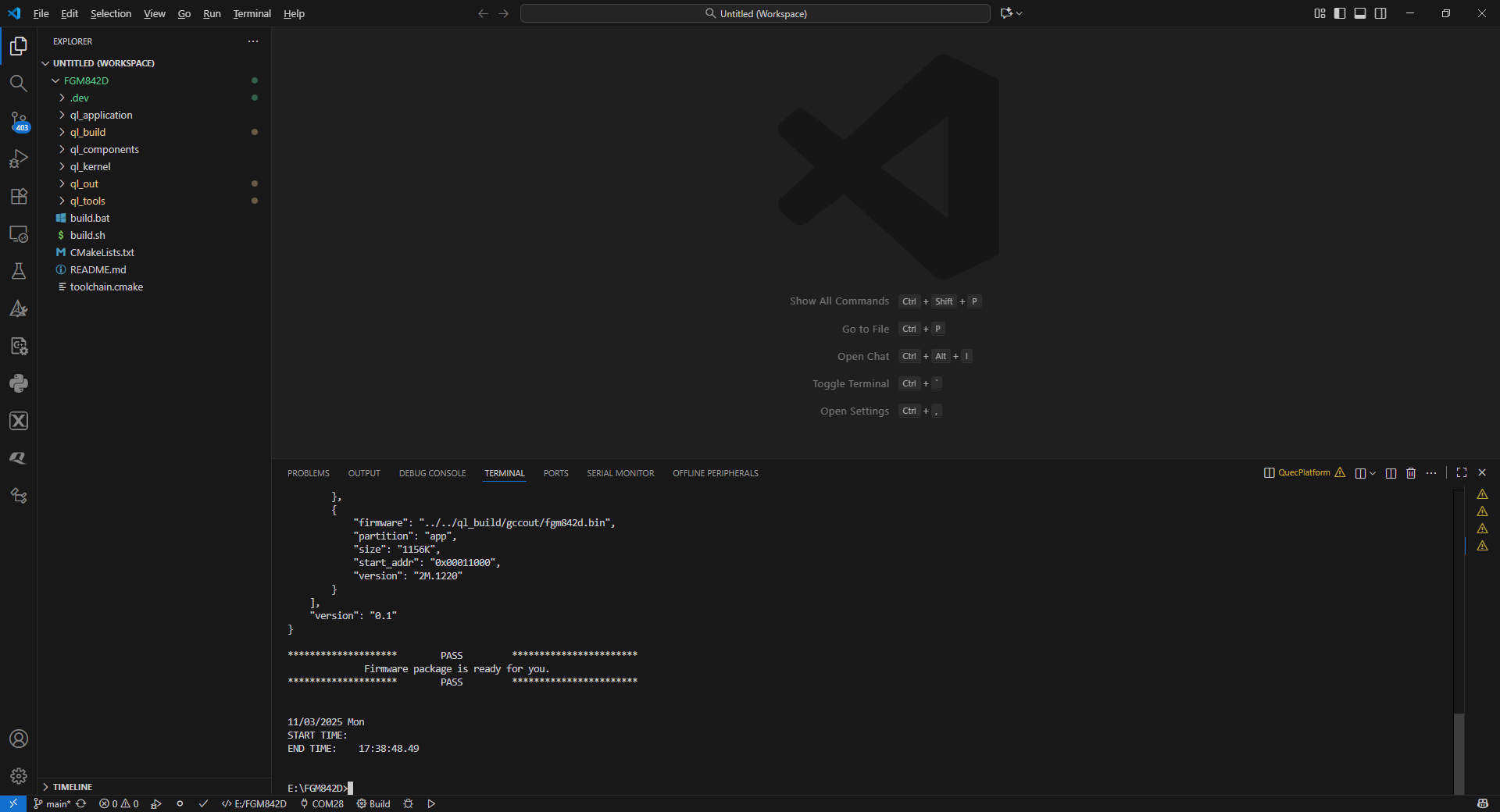
创建项目后,点击顶部弹出的所需项目。然后,点击左下角的 "O" 图标编译 SDK。
固件烧录
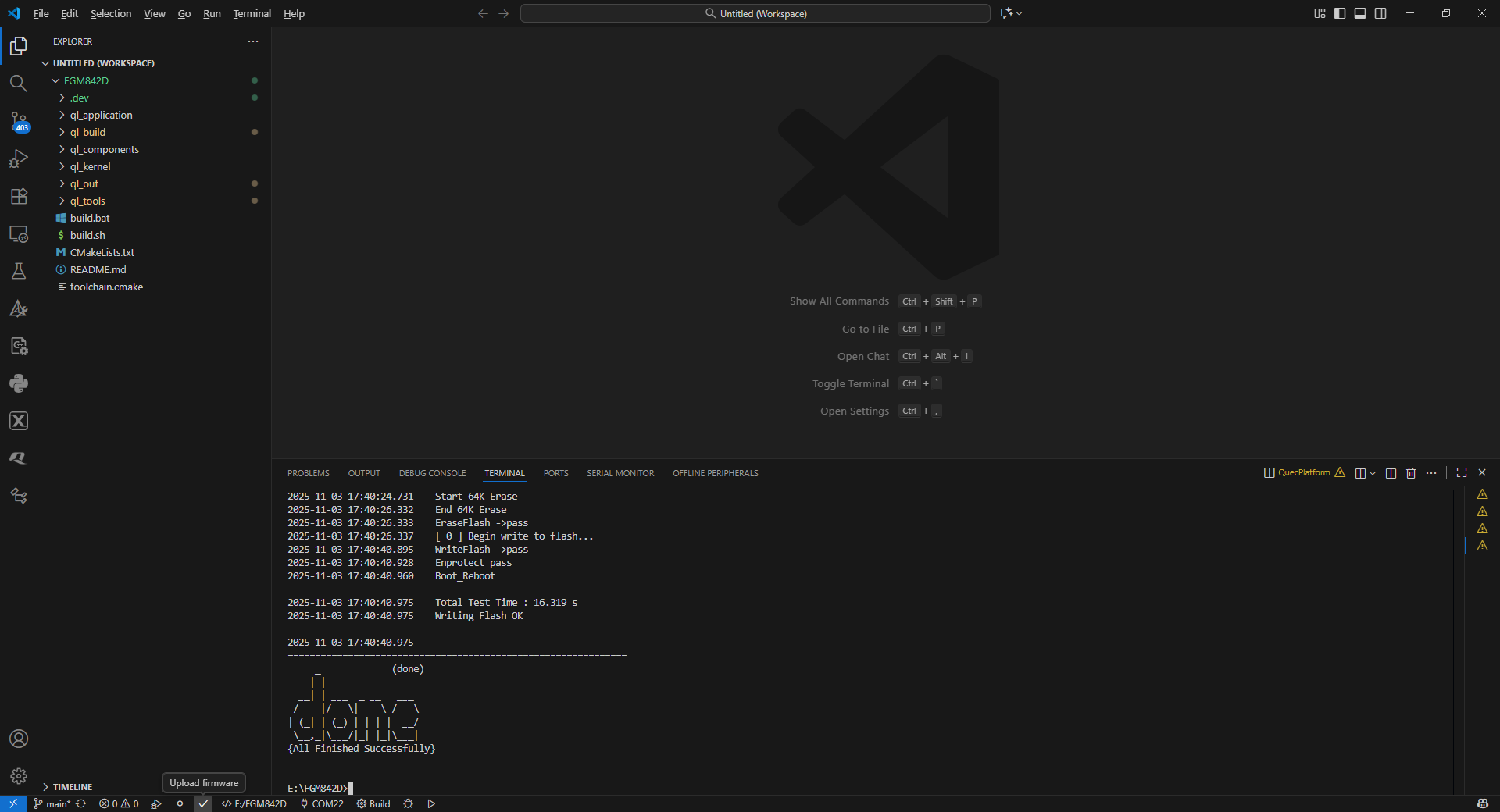
选择要烧录固件对应的串口号。点击左下角的 "√",然后按下 RST 复位按钮开始烧录过程。如果出现图中红框内的信息,表示烧录成功。
附录:术语缩写
| 缩写 | 英文全称 | 中文释义 |
|---|---|---|
| GCC | GNU Compiler Collection | GNU 编译器套件 |
| IoT | Internet of Things | 物联网 |
| RTOS | Real-Time Operating System | 实时操作系统 |
| SDK | Software Development Kit | 软件开发工具包 |
QuecPlatform Plugin Usage
Platform Package Download
Click the "Q" icon on the left, select Home in the QuecPlatform interface, then select version 1.0.4 in Platform, and finally click Install to download the platform package.
SDK Installation
After clicking the Platforms interface box, the package information of each platform will be displayed under the Boards. Click SDK in the Module list to display the relevant information of the platform, and click Install in the Package list to download.
Create a Project
When the download success screen box pops up in the lower right corner, click Create project and select SDK that pops up at the top to create the project.
Compile
After creating the project, click the desired project that pops up at the top. Then, compile SDK by clicking the "O" icon in the lower left corner.
Firmware Flashing
Select the serial port number corresponding to the firmware to be burned. Click the “√” at the lower left corner, then press the RST reset button to start the burning process. If the information in the red box in the figure appears, it indicates that the burning is successful.
Appendix: Term Abbreviation
| Abbreviation | Full Name in English |
|---|---|
| GCC | GNU Compiler Collection |
| IoT | Internet of Things |
| RTOS | Real-Time Operating System |
| SDK | Software Development Kit |